X NET NETHAWK-N2 NETHAWK User Manual User guide GARU7000

X-NET Oy NETHAWK User guide GARU7000

User guide GARU7000

NetHawk Analyser 1Ver 5.0 GARU7000NETHAWK ANALYSER USER´S GUIDENETHAWK ANALYSERUSER'S GUIDEVersion: 5.0Revision Date: 30.09.99
2NetHawk AnalyserVer 5.0 GARU7000Precautions NETHAWK ANALYSERNETHAWK ANALYSERUSER'S GUIDEApril, 01Document number GARU7000IBM is a trademark of International Business Machines Corporation.Windows 95, Windows 98 and Windows NT are trademarks of Microsoft Corporation.Notice:•All rights reserved. Reproduction of any part of this user's guide in any form whatsoever withoutwritten permission from X-Net is forbidden.•The contents of this user's guide are subject to change without notice.•X-Net accepts no responsibility for any errors in this user's guide. Copyright 1998, 1999 X-Net Oy
NetHawk Analyser 3Ver 5.0 GARU7000NETHAWK ANALYSER PrecautionsTABLE OF CONTENTS1. Precautions............................................................................................................................................ 42. Installation ............................................................................................................................................ 52.1 What do I need to install the NetHawk Analyser ............................................................... 52.2 Installing the N2 card.......................................................................................................... 62.3 Connecting to G.703 interface with N2.............................................................................. 62.4 Connecting to G.703 interface with NPC........................................................................... 73. Specifications and performance............................................................................................................ 83.1 N2 specifications ................................................................................................................ 8
4NetHawk AnalyserVer 5.0 GARU7000Precautions NETHAWK ANALYSER1. PrecautionsFollow the instructions in this manual. They are meant to ensure your ownsafety and to prevent any damage to the NetHawk adapter and to your PC.Keep the NetHawk adapter at room temperature for 12 hours beforeinstallation. This ensures that any moisture is dried from the adapter surface.•Electrical current from PC power and communications cables ishazardous. For the safety of yourself and others you should alwaysconnect the PC and other equipment to properly grounded mainsoutlet.•Always handle the NetHawk adapter carefully to avoid accidentallydamaging it.•The NetHawk adapter is meant to be used in normal roomtemperatures. The allowed operational temperature is +10 - +40 °C(+50 - +100 °F) and relative humidity 20 - 85 %.•Note that the PC equipment and NetHawk adapter may be damaged ifyou power them up below +10 °C.•Remember to take proper anti static precautions in order to avoiddamage to the equipment due to static discharge.•X-Net Oy accepts no responsibility for any damage done to theanalysed device when connecting cables, nor is it responsible fordamage made to the NetHawk adapter or to the analysed device whenusing self made cables.In case of Ethernet adapters delivered with NetHawk analysers, follow theinstructions provided by the manufacturer of the adapter.
NetHawk Analyser 5Ver 5.0 GARU7000NETHAWK ANALYSER Installation2. InstallationThis chapter explains the installation of the NetHawk adapters and theNetHawk Analyser software. There are five different NetHawk adapters:- NetHawk Advanced PCM Card (NAP),- NetHawk CardBus PCM Card (N2),- NetHawk PCM Card  for E1 interface (NPC E1),- NetHawk PCM Card  for T1 interface (NPC T1) and- NetHawk ISDN Card (NIC).The analyser software may be:- NetHawk GSM,- NetHawk V5,- NetHawk SS7,- NetHawk ISDN or- NetHawk ISDN BRIPerformance of the NetHawk Analyser depends on the performance of yourPC. The README.TXT file states the requirements for the latest analyserversion.2.1 What do I need to install the NetHawk AnalyserBefore you start installing the analyser check you have all the necessarycomponents available. When installing the one card version of the NetHawkAnalyser you should have:-a PC,- software license agreement and 31/2'' diskette(s) containing theNetHawk Analyser software,- one NetHawk adapter,- optionally, an Ethernet adapter delivered with the NetHawk Analyser- User's Guide (this document) and- one set of cables.When installing the two card version there are additional parts:- second NetHawk adapter and- another set of cables.
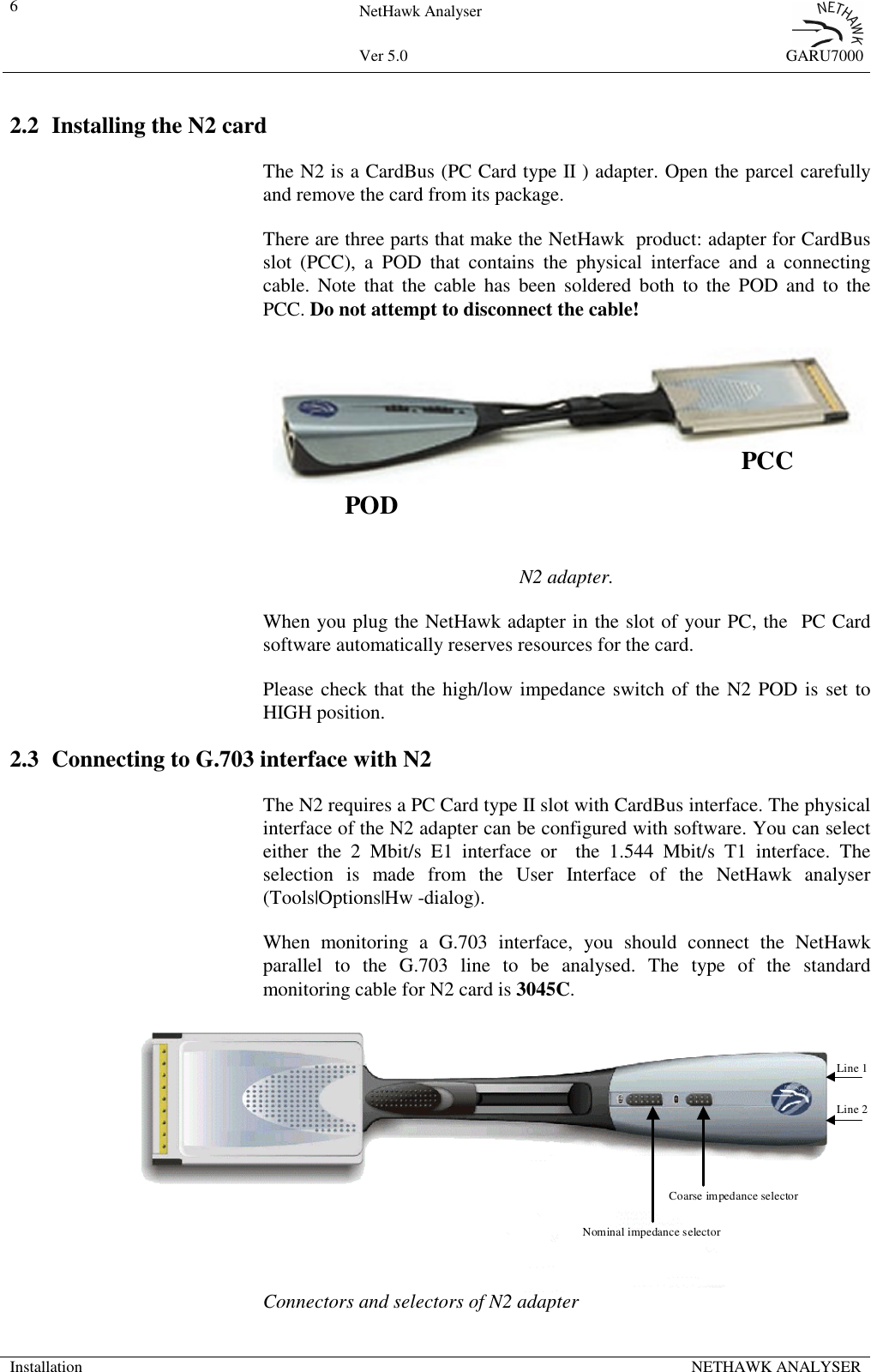
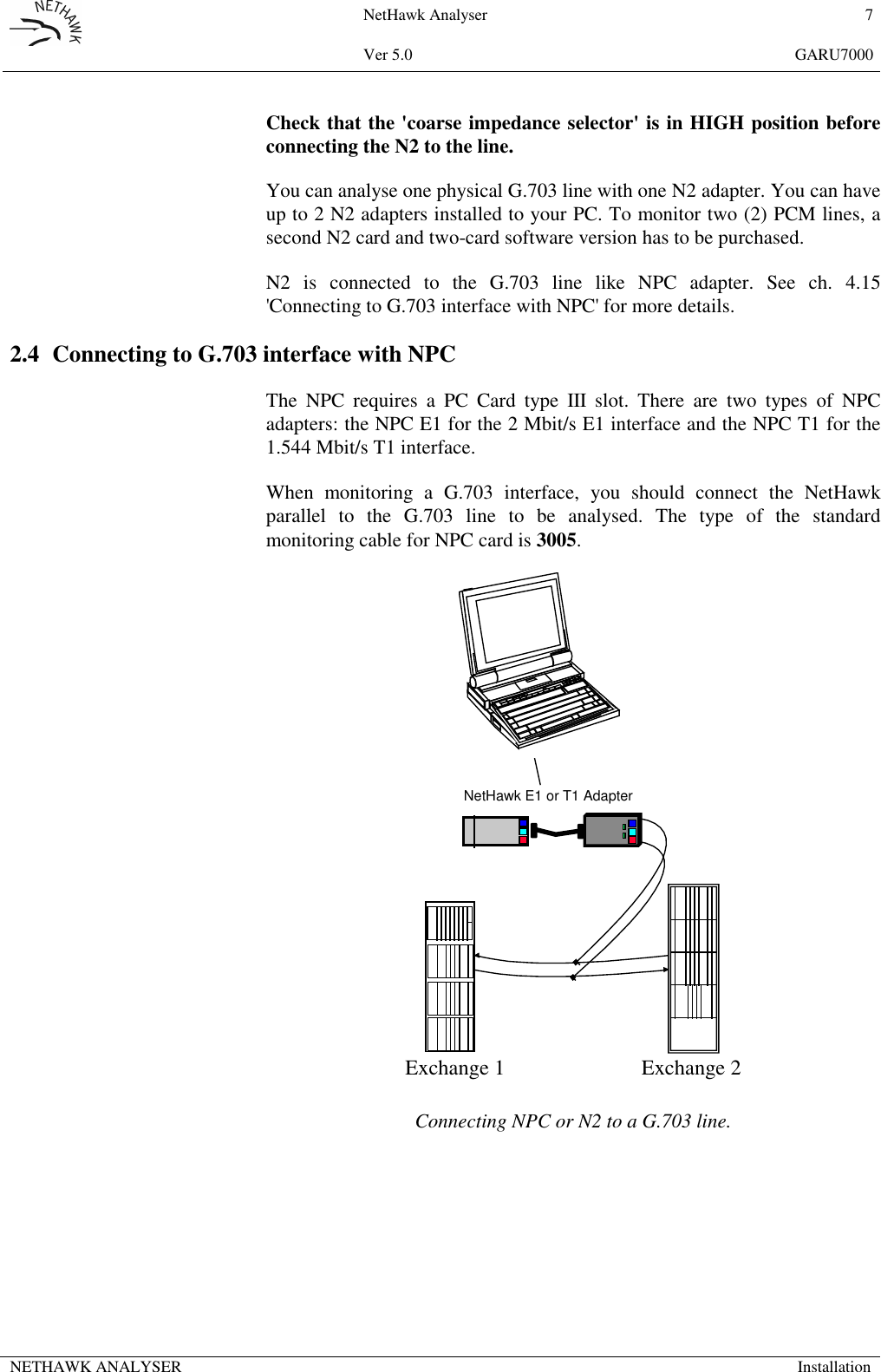
6NetHawk AnalyserVer 5.0 GARU7000Installation NETHAWK ANALYSER2.2 Installing the N2 cardThe N2 is a CardBus (PC Card type II ) adapter. Open the parcel carefullyand remove the card from its package.There are three parts that make the NetHawk  product: adapter for CardBusslot (PCC), a POD that contains the physical interface and a connectingcable. Note that the cable has been soldered both to the POD and to thePCC. Do not attempt to disconnect the cable!N2 adapter.When you plug the NetHawk adapter in the slot of your PC, the  PC Cardsoftware automatically reserves resources for the card.Please check that the high/low impedance switch of the N2 POD is set toHIGH position.2.3 Connecting to G.703 interface with N2The N2 requires a PC Card type II slot with CardBus interface. The physicalinterface of the N2 adapter can be configured with software. You can selecteither the 2 Mbit/s E1 interface or  the 1.544 Mbit/s T1 interface. Theselection is made from the User Interface of the NetHawk analyser(Tools|Options|Hw -dialog).When monitoring a G.703 interface, you should connect the NetHawkparallel to the G.703 line to be analysed. The type of the standardmonitoring cable for N2 card is 3045C.Connectors and selectors of N2 adapterNominal impedance selectorCoarse impedance selectorLine 1Line 2PODPCC
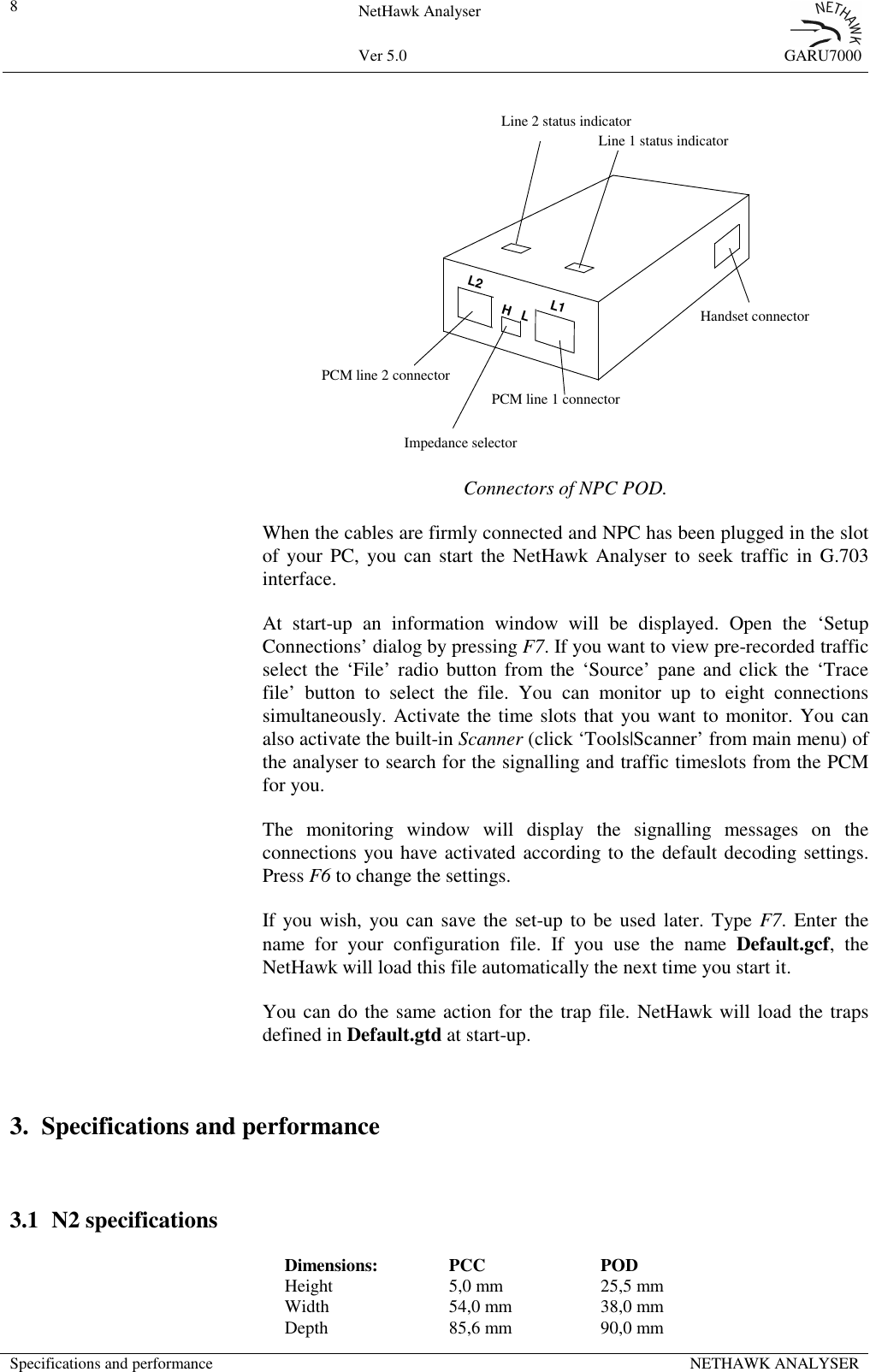
NetHawk Analyser 7Ver 5.0 GARU7000NETHAWK ANALYSER InstallationCheck that the 'coarse impedance selector' is in HIGH position beforeconnecting the N2 to the line.You can analyse one physical G.703 line with one N2 adapter. You can haveup to 2 N2 adapters installed to your PC. To monitor two (2) PCM lines, asecond N2 card and two-card software version has to be purchased.N2 is connected to the G.703 line like NPC adapter. See ch. 4.15'Connecting to G.703 interface with NPC' for more details.2.4 Connecting to G.703 interface with NPCThe NPC requires a PC Card type III slot. There are two types of NPCadapters: the NPC E1 for the 2 Mbit/s E1 interface and the NPC T1 for the1.544 Mbit/s T1 interface.When monitoring a G.703 interface, you should connect the NetHawkparallel to the G.703 line to be analysed. The type of the standardmonitoring cable for NPC card is 3005.Exchange 1 Exchange 2NetHawk E1 or T1 AdapterConnecting NPC or N2 to a G.703 line.
8NetHawk AnalyserVer 5.0 GARU7000Specifications and performance NETHAWK ANALYSERL2L1H   LPCM line 2 connectorPCM line 1 connectorImpedance selectorHandset connectorLine 2 status indicatorLine 1 status indicatorConnectors of NPC POD.When the cables are firmly connected and NPC has been plugged in the slotof your PC, you can start the NetHawk Analyser to seek traffic in G.703interface.At start-up an information window will be displayed. Open the ‘SetupConnections’ dialog by pressing F7. If you want to view pre-recorded trafficselect the ‘File’ radio button from the ‘Source’ pane and click the ‘Tracefile’ button to select the file. You can monitor up to eight connectionssimultaneously. Activate the time slots that you want to monitor. You canalso activate the built-in Scanner (click ‘Tools|Scanner’ from main menu) ofthe analyser to search for the signalling and traffic timeslots from the PCMfor you.The monitoring window will display the signalling messages on theconnections you have activated according to the default decoding settings.Press F6 to change the settings.If you wish, you can save the set-up to be used later. Type F7. Enter thename for your configuration file. If you use the name Default.gcf, theNetHawk will load this file automatically the next time you start it.You can do the same action for the trap file. NetHawk will load the trapsdefined in Default.gtd at start-up.3. Specifications and performance3.1 N2 specificationsDimensions: PCC PODHeight 5,0 mm 25,5 mmWidth 54,0 mm 38,0 mmDepth 85,6 mm 90,0 mm
NetHawk Analyser 9Ver 5.0 GARU7000NETHAWK ANALYSER Specifications and performanceWeight 100 gElectrical valuesPower supply 3,3 VCurrent consumption  650 mACardBusThe ‘PC Card Standard 1995 release’ compatible CardBus host interface.68 pin connector.PCM interfaceAccording to G.703 specificationInput impedance >> 120 ΩReceiver performanceThe signal levels 36dB below the level specified in G.703 can be detected.

Navigation menu