XIAMEN SCALETECH SDCP2PRN Stamps.com Model P2 Printer User Manual

XIAMEN SCALETECH Co., LTD Stamps.com Model P2 Printer Users Manual

Users Manual

Stamps.comP2PrinterInstallationGuide
InstallingtheprinterdriverviaUSB1. Unzipthefile“InstallP2v4.zip”toatemporaryfolder(forexamplec:\InstallP2v4\drivers)2. Attachthepowercabletothepoweradapter3. PlugthepoweradapterintotheDCpowerconnectoronthebackoftheprinter.Plugtheotherendofthepowercableintoapoweroutlet4. Connectthescaletothecomputerbyattachingthe“A”endoftheUSBcabletoyourcomputerandthe“B”endoftheUSBcabletotheprinter.5. TurntheprinteronusingtheOn/Offbuttononthefrontoftheprinter.Youwillseeaseriesofmessagesonyourcomputerscreenthatindicatetheprinterhasbeendetectedbyyourcomputer.The“FoundNewHardware”wizardwilllaunchautomaticallytoinstalltheprinterdriver6. Pointthewizardtothetemporaryfolderwherethefileswereextracted(c:\InstallP2v4\drivers).Click7. Click“ContinueAnyway”.Thedriverfileswillbecopiedautomatically.LoadingPaper1. SwitchPrinterOFF2. Opentheprinterlid3. Putpaperinspoolmakingsurethepaperholeisontheleftside4. Putspoolbackintotheprinter.Pullthepaperandmakeitpassunderpaperguides.
5. Closethelid6. SwitchthePrinterON7. PresstheAdvancebuttontopositionthepaperPrintingviaUSB1. OpentheMSWordfileP2Test.doc2. FromMSWord,clickFilePrint.Select“Stamps.comP2Printer”3. ClickOK
ConfiguringLANTheprinterdoesnotsupportautomaticIPaddressingorDHCP,itmustbeconfiguredwithastaticIPaddress.The2FCCsamplesareshippedwiththefollowingconfigurationIP address:   192.168.0.130 TCP port:   1024 Netmask:   255.255.255.0 Gateway:   192.168.0.1TochangetheLANsettings,installtheLANSettingConfigurationWindowssoftwareUnzipthefile“lansettings.zip”toafolderand“Run”the“setup.exe”andclick“Next”whenprompted.Theprintermustbeputinto“ISPMode”(In‐SystemProgramming)inordertochangetheLANsettings.Followtheinstructionbelowtodoso.1. Unplugtheprinteradaptorfromthemains.2. ConnecttheprintertothecomputerusingaUSBcable.3. Plugtheadaptorbackintothemains.DonotpresstheON/OFFbutton.4. Puttheprinterinto“ISPMode”byholdingtheAdvancebuttondown(donotreleaseyet)andthenpressON/OFFbutton.ReleasetheAdvancebutton.TheBlueLEDontheAdvancebuttonwillblinktodenotethattheprinterisin“ISPMode”.Clickonthe“PrinterLanSet”linktoopenthesoftwareandchangetheLANsettings. NOTE:PleasedonotchangetheTCPPortdefaultvalue=1024
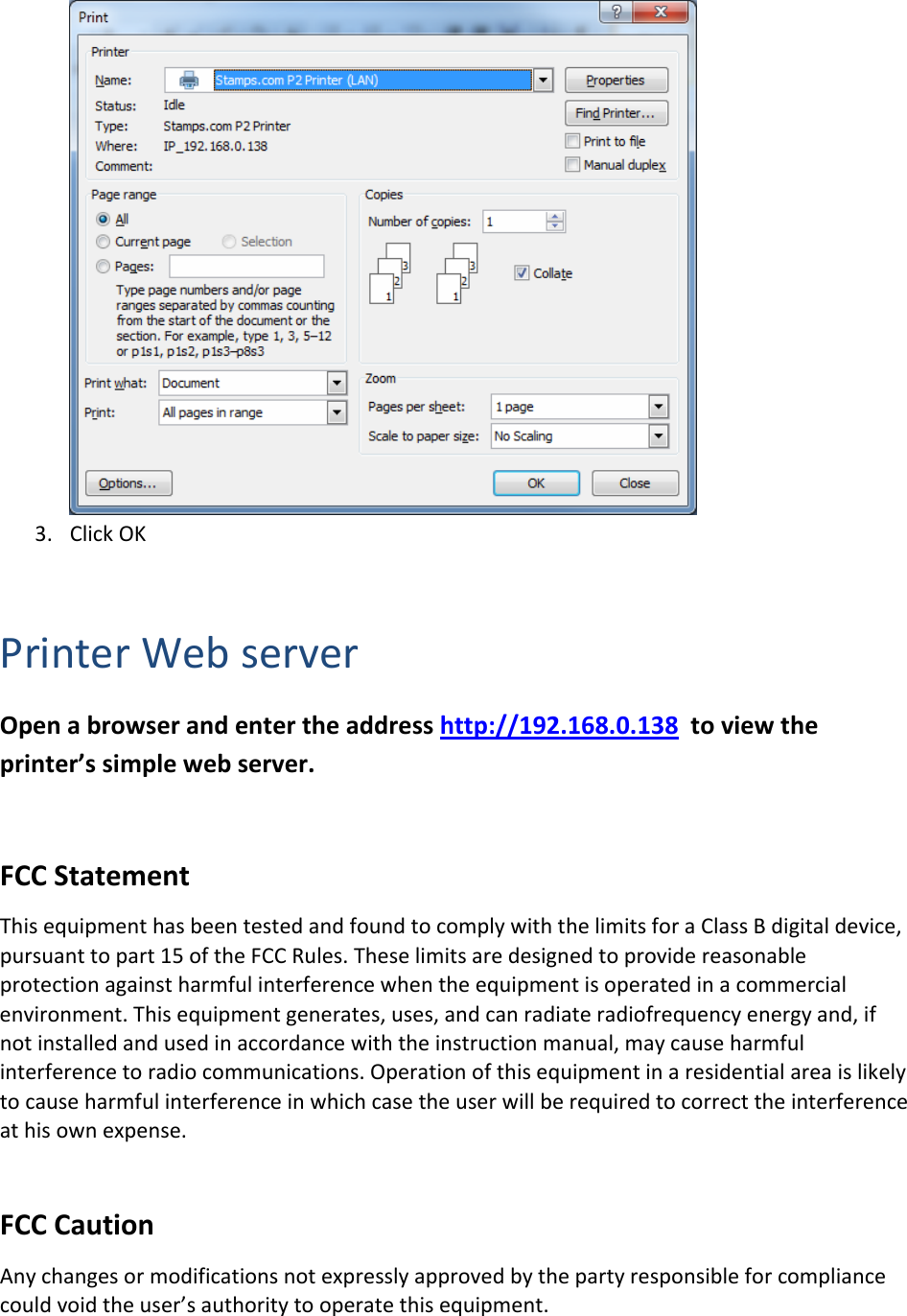
Click“Save”buttontoconfirmchange.InstallingtheLANPrinterInstallingtheLANprinterinWindowsXP:1. OpenaDOSpromptandgotothedriversdirectory2. Type“installp2v4 ipaddress”whereipaddressistheIPaddressthatyouhaveused(forexampleinstallp2v4 192.168.0.138)3. PressEnterkey4. TheprinterwillbeinstalledasStamps.comP2Printer(LAN)PrintingviaLAN1. OpentheMSWordfileP2Test.doc2. FromMSWord,clickFilePrint.Select“Stamps.comP2Printer(LAN)”
3. ClickOKPrinterWebserverOpenabrowserandentertheaddresshttp://192.168.0.138toviewtheprinter’ssimplewebserver.FCCStatementThisequipmenthasbeentestedandfoundtocomplywiththelimitsforaClassBdigitaldevice,pursuanttopart15oftheFCCRules.Theselimitsaredesignedtoprovidereasonableprotectionagainstharmfulinterferencewhentheequipmentisoperatedinacommercialenvironment.Thisequipmentgenerates,uses,andcanradiateradiofrequencyenergyand,ifnotinstalledandusedinaccordancewiththeinstructionmanual,maycauseharmfulinterferencetoradiocommunications.Operationofthisequipmentinaresidentialareaislikelytocauseharmfulinterferenceinwhichcasetheuserwillberequiredtocorrecttheinterferenceathisownexpense.FCCCautionAnychangesormodificationsnotexpresslyapprovedbythepartyresponsibleforcompliancecouldvoidtheuser’sauthoritytooperatethisequipment.
FCCWarningThisequipmenthasbeentestedandfoundtocomplywiththeregulationsforaClassBdigitaldevice,pursuanttoPart15oftheFCCRules.Operationissubjecttothefollowingtwoconditions:(1)Thisdevicemaynotcauseharmfulinterference.(2)Thisdevicemustacceptanyinterferencereceivedincludinginterferencethatmaycauseundesiredoperation.

Navigation menu