Xeline LTd SU-200B PLC (PowerLine Communication) Modem User Manual

Xeline Co., LTd. PLC (PowerLine Communication) Modem

User Manual

 SU-200B  Installation Manual (For Technicians Only)        PLC Slave Unit    Plug into the future Powerline Communication by Xeline     Xeline Co., Ltd.
                                 SU-200B Installation Manual     This document is subject to change without prior notice. 2ATTENTION This equipment has been tested and found to comply with the limits for a Class B digital device, pursuant to part 15 of the FCC Rules. These limits are designed to provide reasonable protection against harmful interference in a residential installation. This equipment generates, uses and can radiate radio frequency energy and, if not installed and used in accordance with the instructions, may cause harmful interference to radio communications. However, there is no guarantee that interference will not occur in a particular installation. If this equipment does cause harmful interference to radio or television reception, which can be determined by turning the equipment off and on, the user is encouraged to try to correct the interference by one or more of the following measures:  Reorient or relocate the receiving antenna.   Increase the separation between the equipment and receiver.   Connect the equipment into an outlet on a circuit different from that to which the receiver is connected.   Consult the dealer or an experienced radio/TV technician for help.  Change or modification not expressly approved by the party responsible for Compliance could void the user’s authority to operate the equipment.   This equipment conforms with the following standard(s): EN60950
                                 SU-200B Installation Manual     This document is subject to change without prior notice. 3Table of Contents 1. Introduction······························································································· 5 2. Before Installing the SU-200B ·········································································· 6 2.1 Package Contents ························································································································ 6 2.2 Prerequisites································································································································· 6 2.3 Safety Precautions······················································································································· 7 3. Getting to Know the SU-200B··········································································· 8 3.1 Front View ···································································································································· 8 3.2 Rear View······································································································································ 8 3.3 Product Specifications················································································································· 9 3.4 Minimal Requirements for the Subscriber’s PC········································································ 9 4. Installing the SU-200B ··················································································10 4.1 Connecting the SU-200B to the Subscriber’s PC ···································································· 10 4.2 Configuring the Subscriber’s PC······························································································· 12 4.3 Final Check (Ping Test)·············································································································· 15 4.4 Resetting to Factory Default Mode·························································································· 17 5. Trouble Shooting·························································································18 6. Appendix··································································································19
                                 SU-200B Installation Manual     This document is subject to change without prior notice. 4Figure Index  Figure 1 XPAS-200B PLC Internet Access System Configuration...................................5 Figure 2 SU-200B Package Contents ..........................................................................6 Figure 3 SU-200B Front View..................................................................................... 8 Figure 4 SU-200B Rear View...................................................................................... 8 Figure 5 Connecting the RJ-45 cable and SU-200B................................................... 10 Figure 6 Connecting the Power Cable......................................................................10 Figure 7 Connecting the SU-200B to the Subscriber’s PC..........................................11 Figure 8 Network and Dial-up Connections..............................................................12 Figure 9 Local Area Connection Properties ..............................................................12 Figure 10 Internet Protocol (TCP/IP).......................................................................13 Figure 11 Fixed IP Address Setting...........................................................................13 Figure 12 Show Icon in TaskBar ............................................................................... 14 Figure 13 Network Configuration Complete............................................................. 14 Figure 14 Command Prompt Window.......................................................................15 Figure 15 Checking the Configured IP Address .........................................................15 Figure 16 Pinging the Default Gateway IP................................................................ 16 Figure 17 Checking the Ping Results ........................................................................ 17
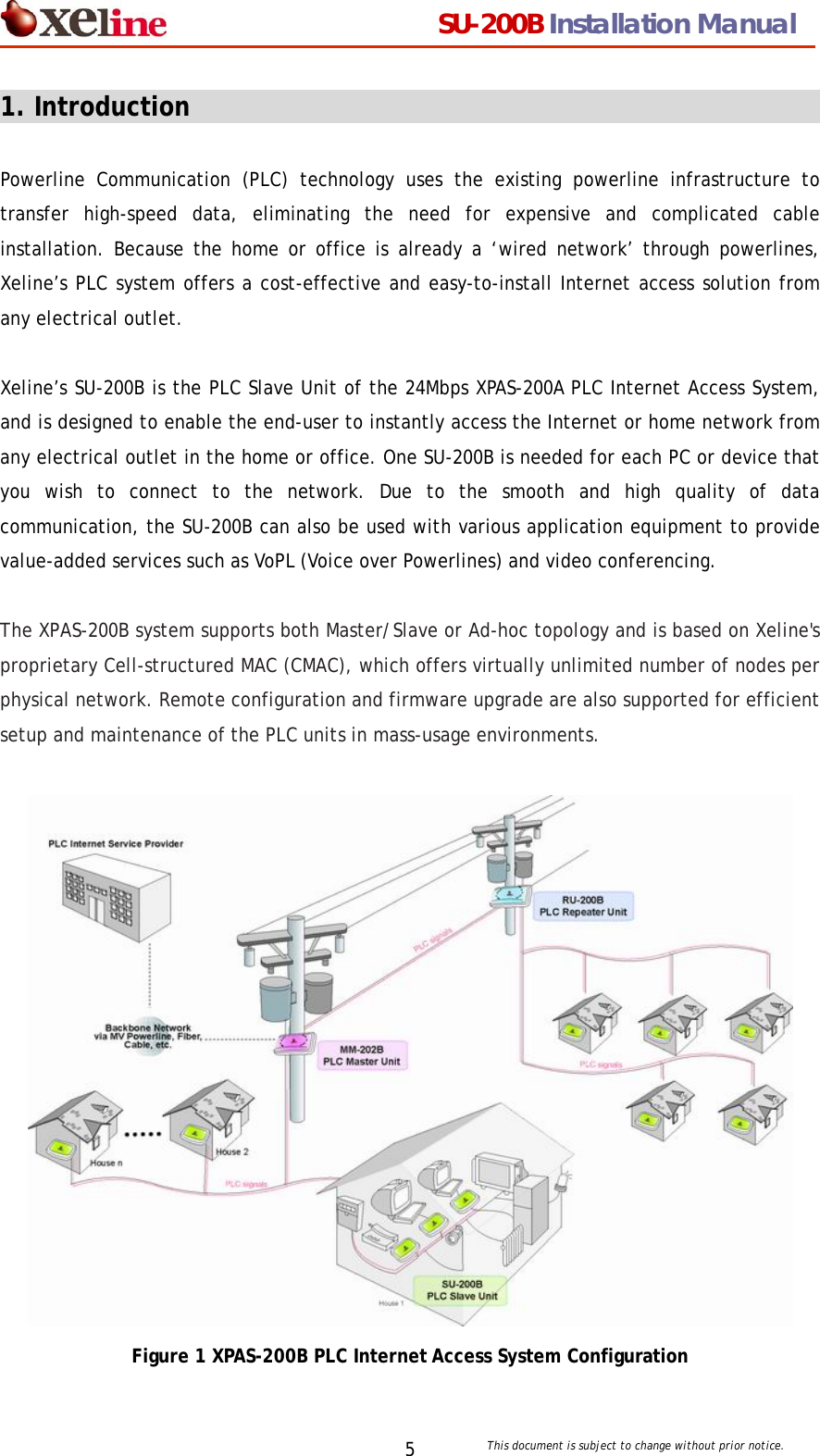
                                 SU-200B Installation Manual     This document is subject to change without prior notice. 51. Introduction                                                   Powerline Communication (PLC) technology uses the existing powerline infrastructure to transfer high-speed data, eliminating the need for expensive and complicated cable installation. Because the home or office is already a ‘wired network’ through powerlines, Xeline’s PLC system offers a cost-effective and easy-to-install Internet access solution from any electrical outlet.    Xeline’s SU-200B is the PLC Slave Unit of the 24Mbps XPAS-200A PLC Internet Access System, and is designed to enable the end-user to instantly access the Internet or home network from any electrical outlet in the home or office. One SU-200B is needed for each PC or device that you wish to connect to the network. Due to the smooth and high quality of data communication, the SU-200B can also be used with various application equipment to provide value-added services such as VoPL (Voice over Powerlines) and video conferencing.  The XPAS-200B system supports both Master/Slave or Ad-hoc topology and is based on Xeline's proprietary Cell-structured MAC (CMAC), which offers virtually unlimited number of nodes per physical network. Remote configuration and firmware upgrade are also supported for efficient setup and maintenance of the PLC units in mass-usage environments.     Figure 1 XPAS-200B PLC Internet Access System Configuration
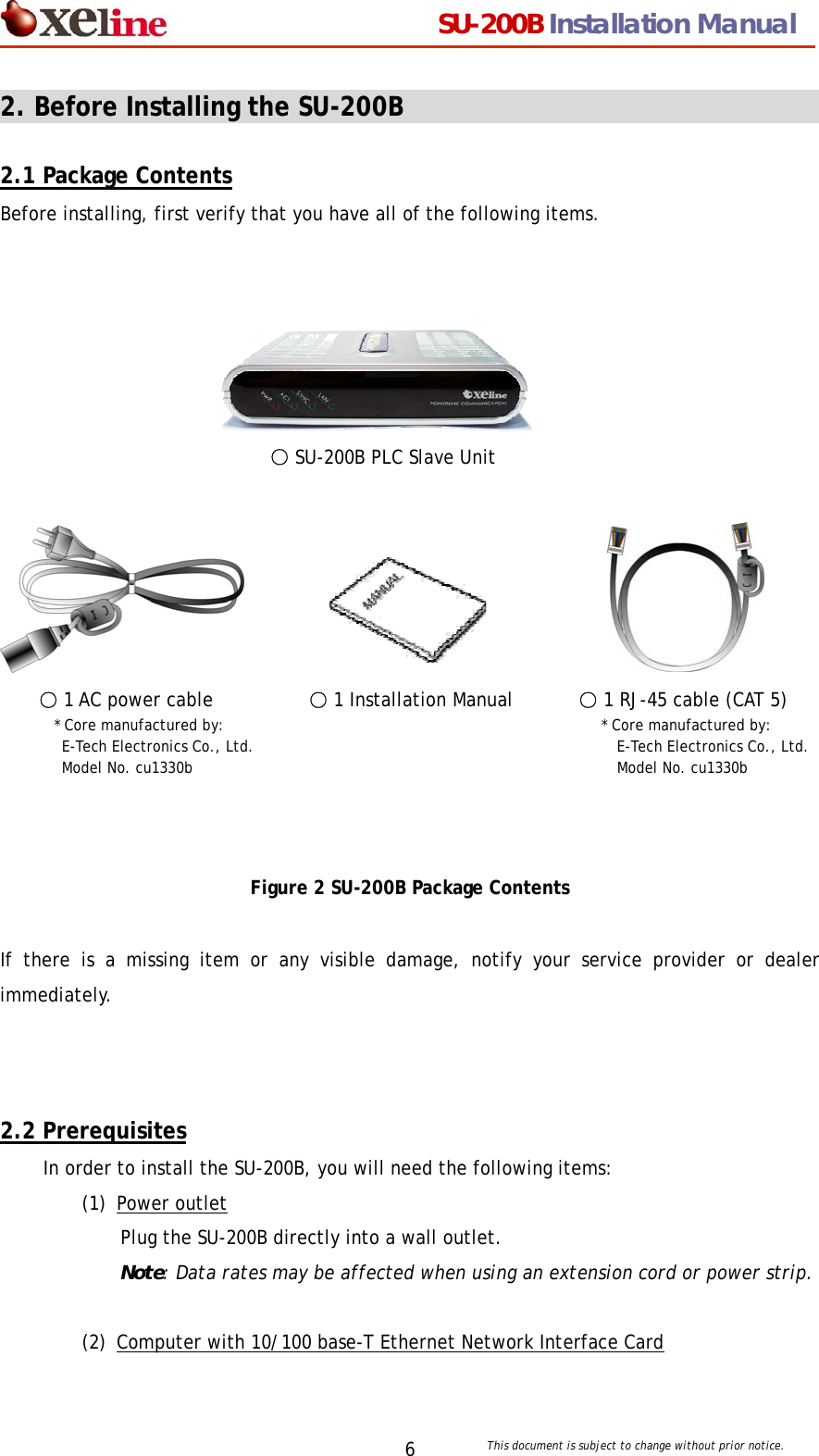
                                 SU-200B Installation Manual     This document is subject to change without prior notice. 62. Before Installing the SU-200B                                          2.1 Package Contents Before installing, first verify that you have all of the following items.       ○ SU-200B PLC Slave Unit                     ○ 1 AC power cable   ○ 1 Installation Manual       ○ 1 RJ-45 cable (CAT 5)     * Core manufactured by:                          * Core manufactured by:   E-Tech Electronics Co., Ltd.                      E-Tech Electronics Co., Ltd.  Model No. cu1330b                Model No. cu1330b     Figure 2 SU-200B Package Contents  If there is a missing item or any visible damage, notify your service provider or dealer immediately.    2.2 Prerequisites In order to install the SU-200B, you will need the following items: (1) Power outlet Plug the SU-200B directly into a wall outlet.   Note: Data rates may be affected when using an extension cord or power strip.  (2) Computer with 10/100 base-T Ethernet Network Interface Card
                                 SU-200B Installation Manual     This document is subject to change without prior notice. 72.3 Safety Precautions Please make sure to read the following instructions before handling the equipment.  (1) Read all instructions before installing or operating the equipment. Be sure to keep this manual for further reference. (2) Please follow all the safety precautions and other installation procedures. (3) Do not use this product in the following environments: - Extremely high or low temperatures - High humidity areas or near water such as sinks or bathtubs - Areas where sudden changes in temperature occur - Under direct sunlight (4) Do not use this equipment near heaters or other devices that emit high heat. (5) Do not place heavy objects on top of the SU-200B. (6) Turn off the SU-200B and unplug the cord before cleaning. Do not use liquid or aerosol cleaners.   (7) If water or any other liquid is spilled on the device, turn off the power and unplug the cord. Contact Xeline’s Technical Support Center. Continuing to use the device may cause fire or an electric shock. (8) Do not open, disassemble, or attempt to repair the device. If service or repair is required, contact Xeline’s Technical Support Center. Incorrect reassembly can cause electric shock when the equipment is subsequently used.
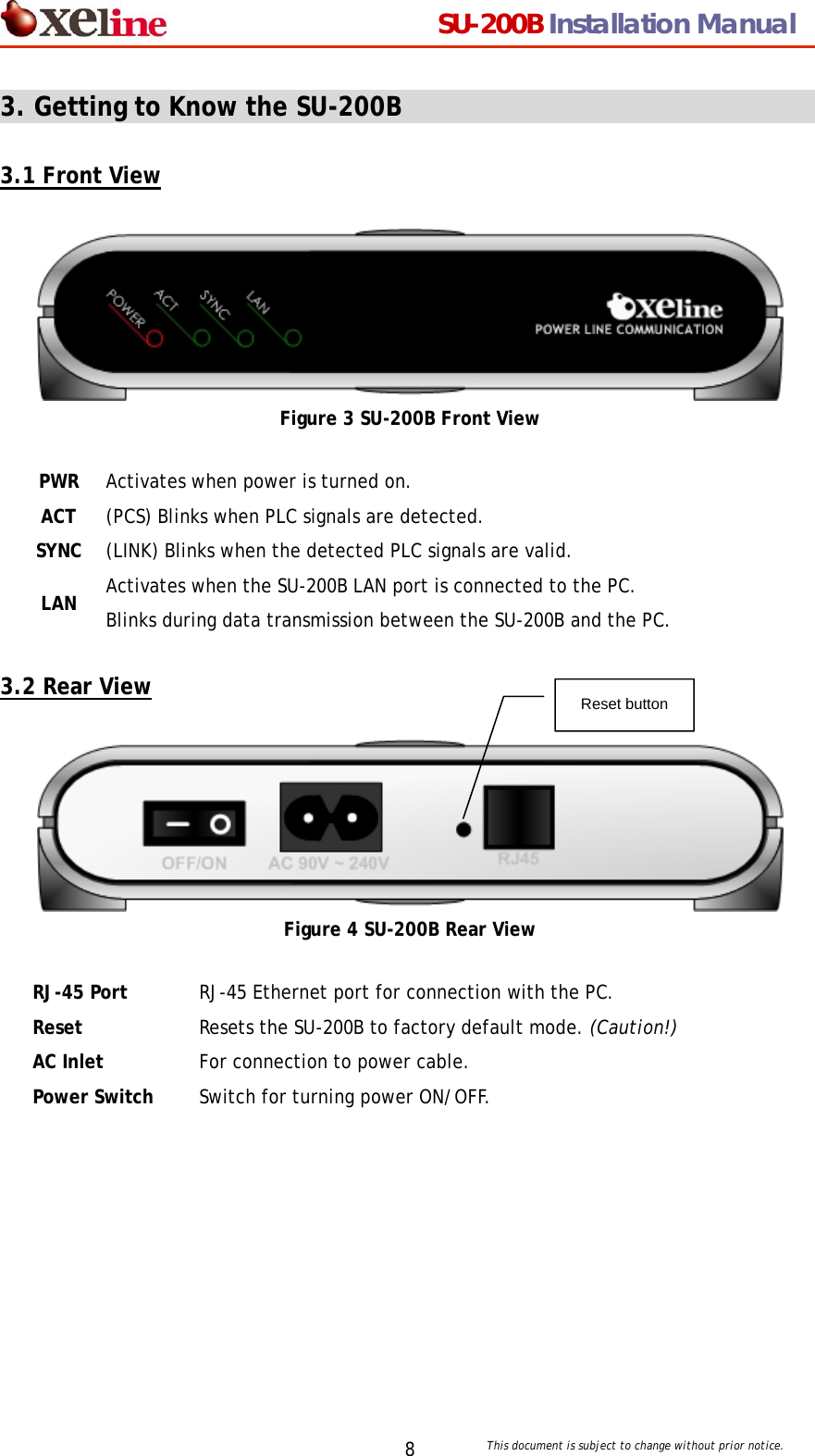
                                 SU-200B Installation Manual     This document is subject to change without prior notice. 83. Getting to Know the SU-200B                                     3.1 Front View   Figure 3 SU-200B Front View PWR Activates when power is turned on. ACT (PCS) Blinks when PLC signals are detected. SYNC (LINK) Blinks when the detected PLC signals are valid. LAN Activates when the SU-200B LAN port is connected to the PC. Blinks during data transmission between the SU-200B and the PC.  3.2 Rear View   Reset button   Figure 4 SU-200B Rear View RJ-45 Port  RJ-45 Ethernet port for connection with the PC. Reset  Resets the SU-200B to factory default mode. (Caution!) AC Inlet  For connection to power cable. Power Switch  Switch for turning power ON/OFF.
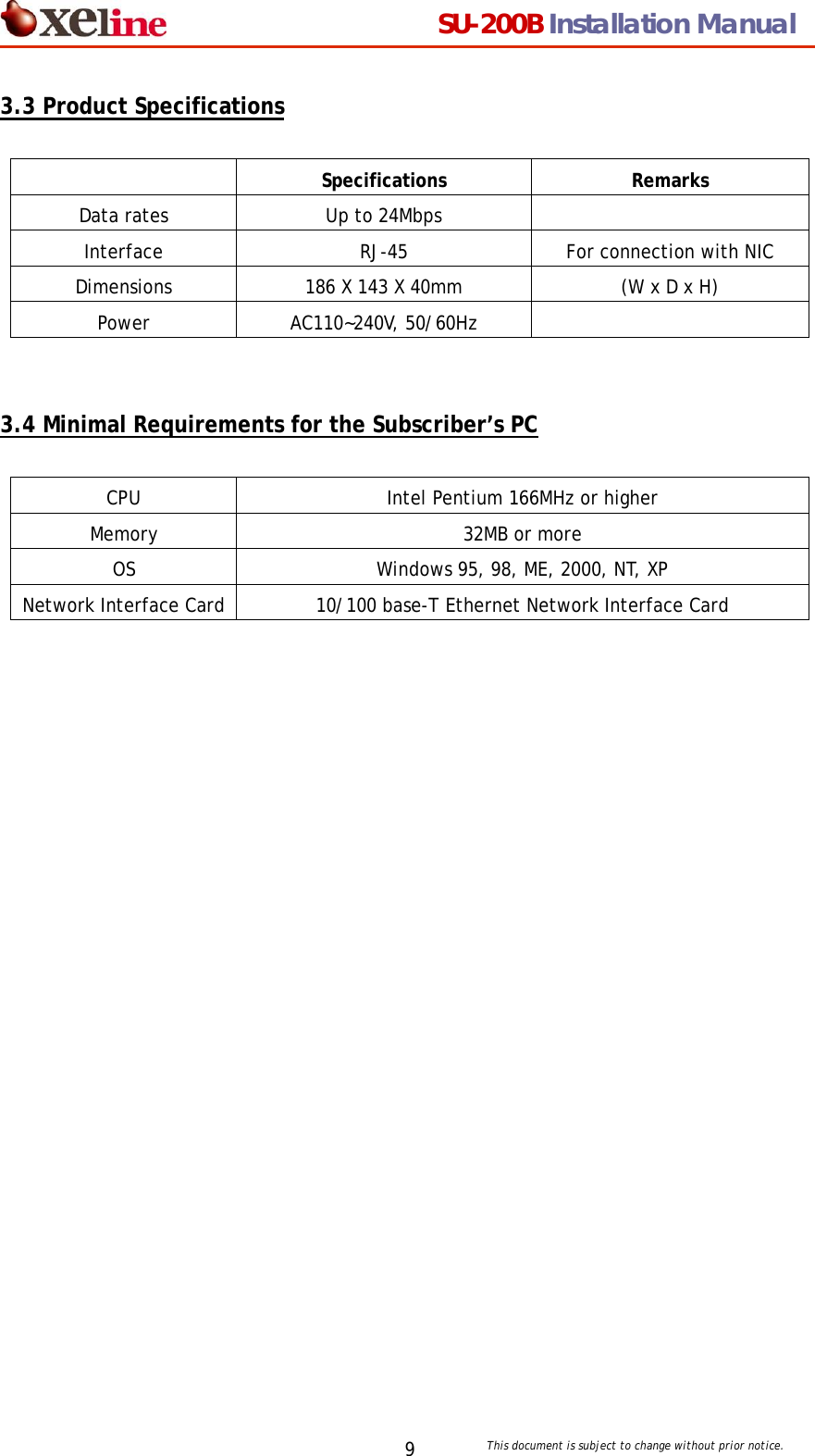
                                 SU-200B Installation Manual     This document is subject to change without prior notice. 93.3 Product Specifications   Specifications Remarks Data rates  Up to 24Mbps   Interface  RJ-45  For connection with NIC Dimensions  186 X 143 X 40mm  (W x D x H) Power AC110~240V, 50/60Hz     3.4 Minimal Requirements for the Subscriber’s PC  CPU  Intel Pentium 166MHz or higher Memory 32MB or more OS  Windows 95, 98, ME, 2000, NT, XP Network Interface Card  10/100 base-T Ethernet Network Interface Card
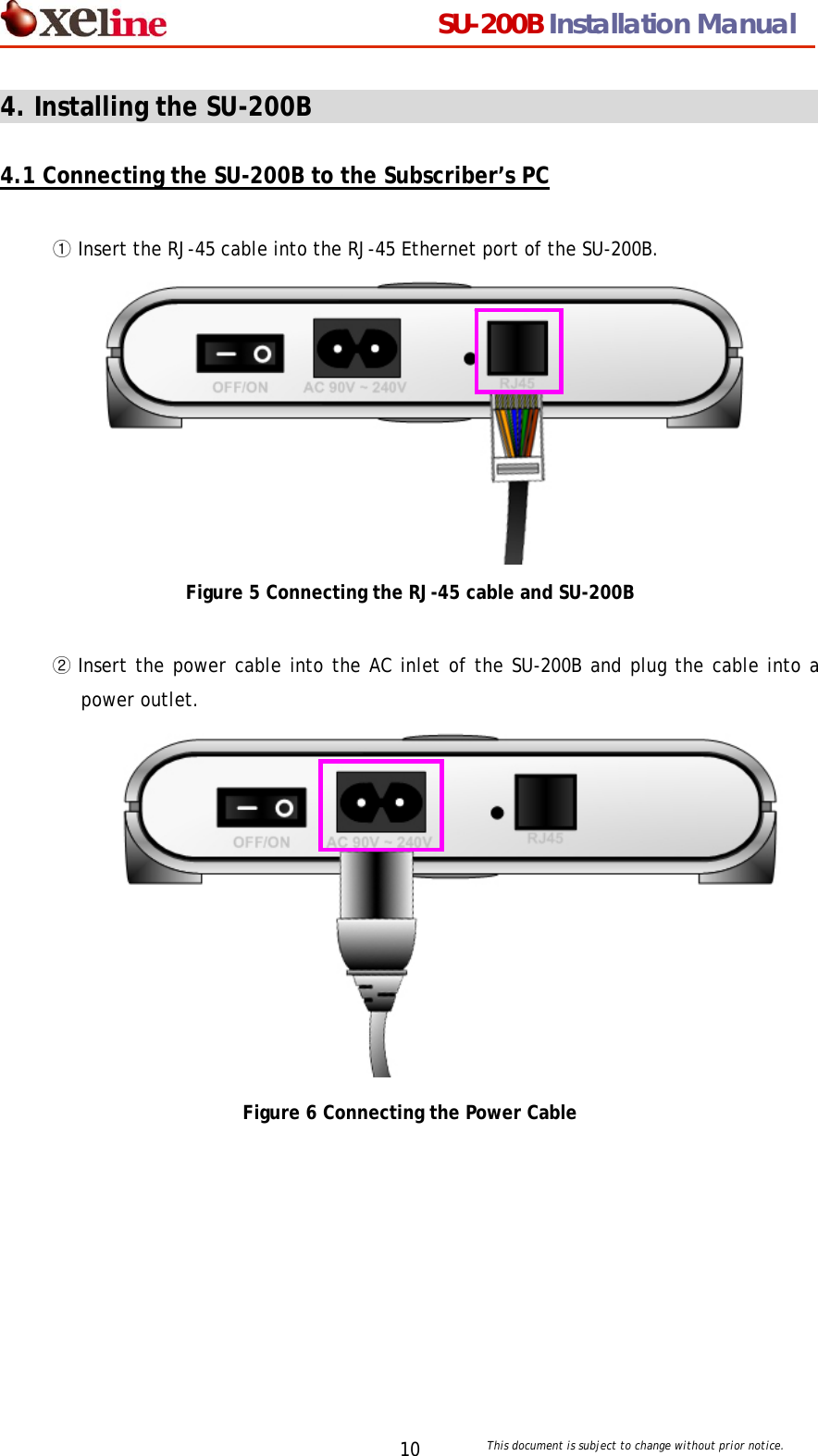
                                 SU-200B Installation Manual     This document is subject to change without prior notice. 104. Installing the SU-200B                                        4.1 Connecting the SU-200B to the Subscriber’s PC  ① Insert the RJ-45 cable into the RJ-45 Ethernet port of the SU-200B.            Figure 5 Connecting the RJ-45 cable and SU-200B  ② Insert the power cable into the AC inlet of the SU-200B and plug the cable into a power outlet.            Figure 6 Connecting the Power Cable
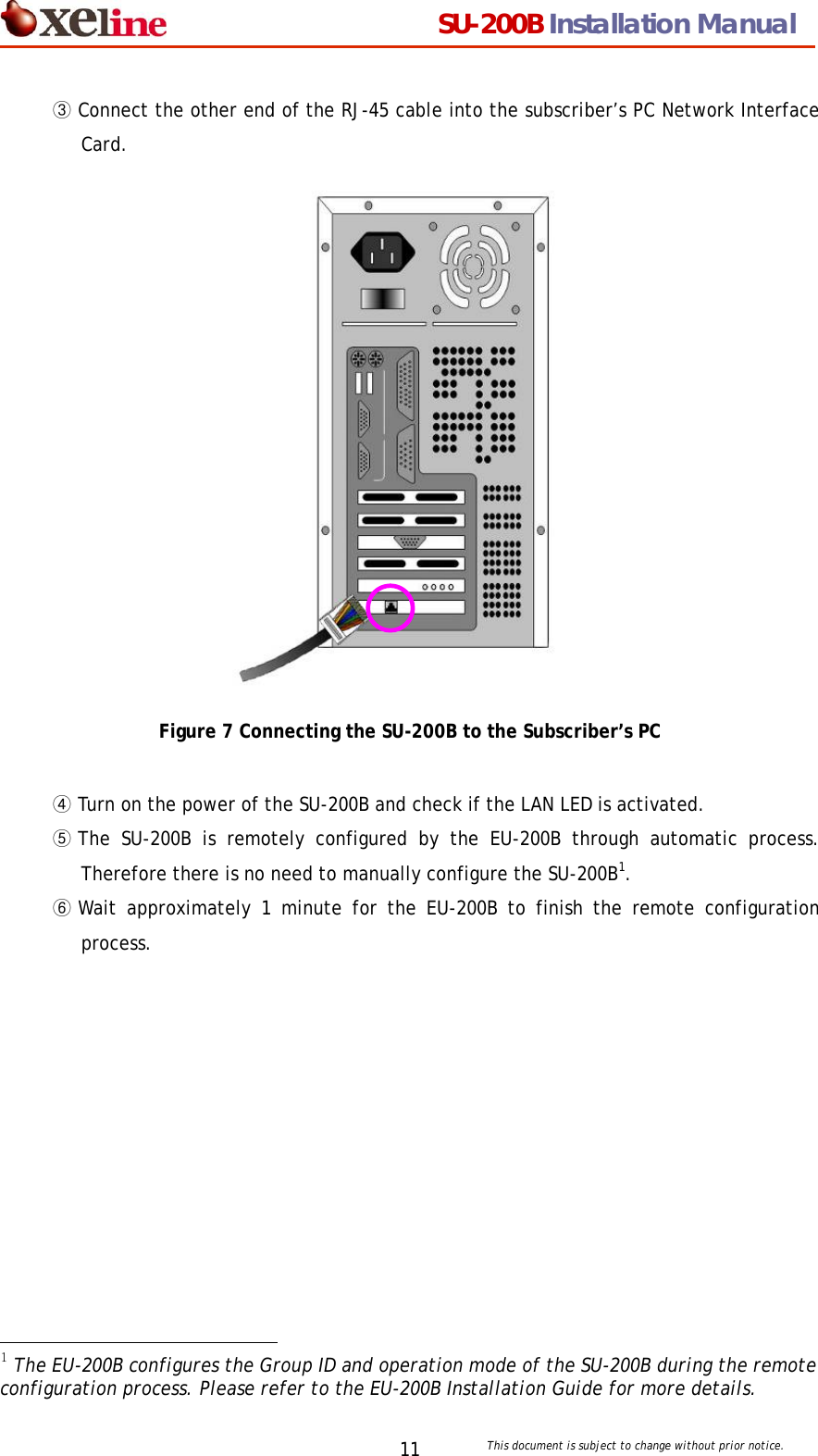
                                 SU-200B Installation Manual     This document is subject to change without prior notice. 11③ Connect the other end of the RJ-45 cable into the subscriber’s PC Network Interface Card.                  Figure 7 Connecting the SU-200B to the Subscriber’s PC  ④ Turn on the power of the SU-200B and check if the LAN LED is activated. ⑤ The SU-200B is remotely configured by the EU-200B through automatic process.  Therefore there is no need to manually configure the SU-200B1.  ⑥ Wait approximately 1 minute for the EU-200B to finish the remote configuration process.                                               1 The EU-200B configures the Group ID and operation mode of the SU-200B during the remote configuration process. Please refer to the EU-200B Installation Guide for more details.
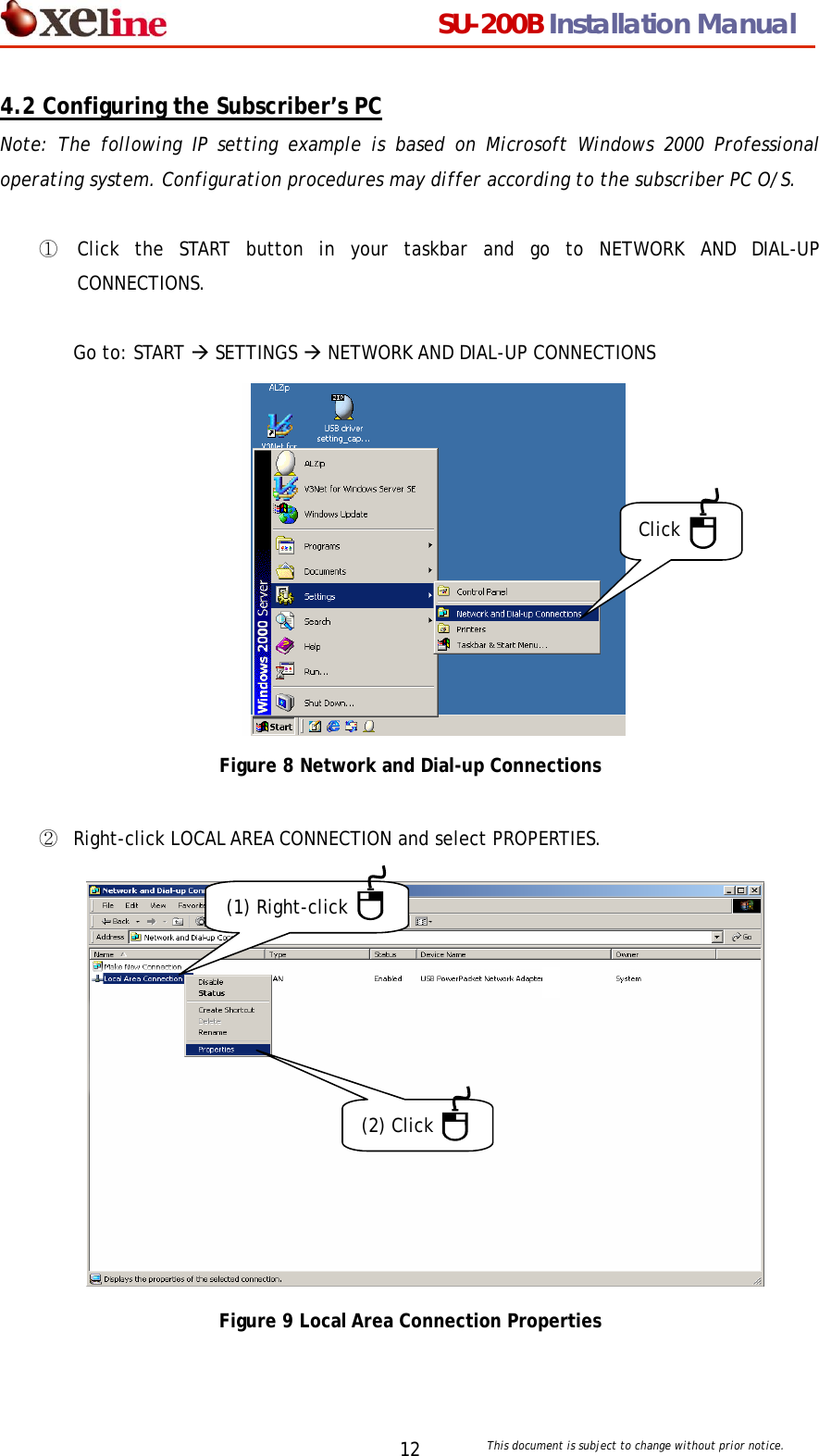
                                 SU-200B Installation Manual     This document is subject to change without prior notice. 124.2 Configuring the Subscriber’s PC Note: The following IP setting example is based on Microsoft Windows 2000 Professional operating system. Configuration procedures may differ according to the subscriber PC O/S.    ①  Click the START button in your taskbar and go to NETWORK AND DIAL-UP CONNECTIONS.   Go to: START Æ SETTINGS Æ NETWORK AND DIAL-UP CONNECTIONS            Click Figure 8 Network and Dial-up Connections  ②  Right-click LOCAL AREA CONNECTION and select PROPERTIES.              (1) Right-click (2) Click    Figure 9 Local Area Connection Properties
                                 SU-200B Installation Manual     This document is subject to change without prior notice. 13③  Select INTERNET PROTOCOL (TCP/IP) and click [Properties].                 Click Figure 10 Internet Protocol (TCP/IP)  ④  Enter the IP address and DNS server address provided by the Internet Service Provider (ISP).  i. For DHCP IP Addresses: Select OBTAIN AN IP ADDRESS AUTOMATICALLY. Then select the OBTAIN THE FOLLOWING DNS SERVER ADDRESS option. Click [OK] to continue. ii. For Fixed IP Addresses: Enter the addresses as shown in the example below. Click   [OK].              Click 147  46  80  2 147  46  80  1 211 168  11  129 255 255    255 128 211 168  11  249 Example DNS address Example IP address Figure 11 Fixed IP Address Setting
                                 SU-200B Installation Manual     This document is subject to change without prior notice. 14⑤  Select the SHOW ICON IN TASKBAR WHEN CONNECTED option and click [OK].                 Click Figure 12 Show Icon in TaskBar  ⑥  Configuring your computer for Internet connection is now complete. You can check your connection status by clicking the network icon in the taskbar as shown below.                Figure 13 Network Configuration Complete
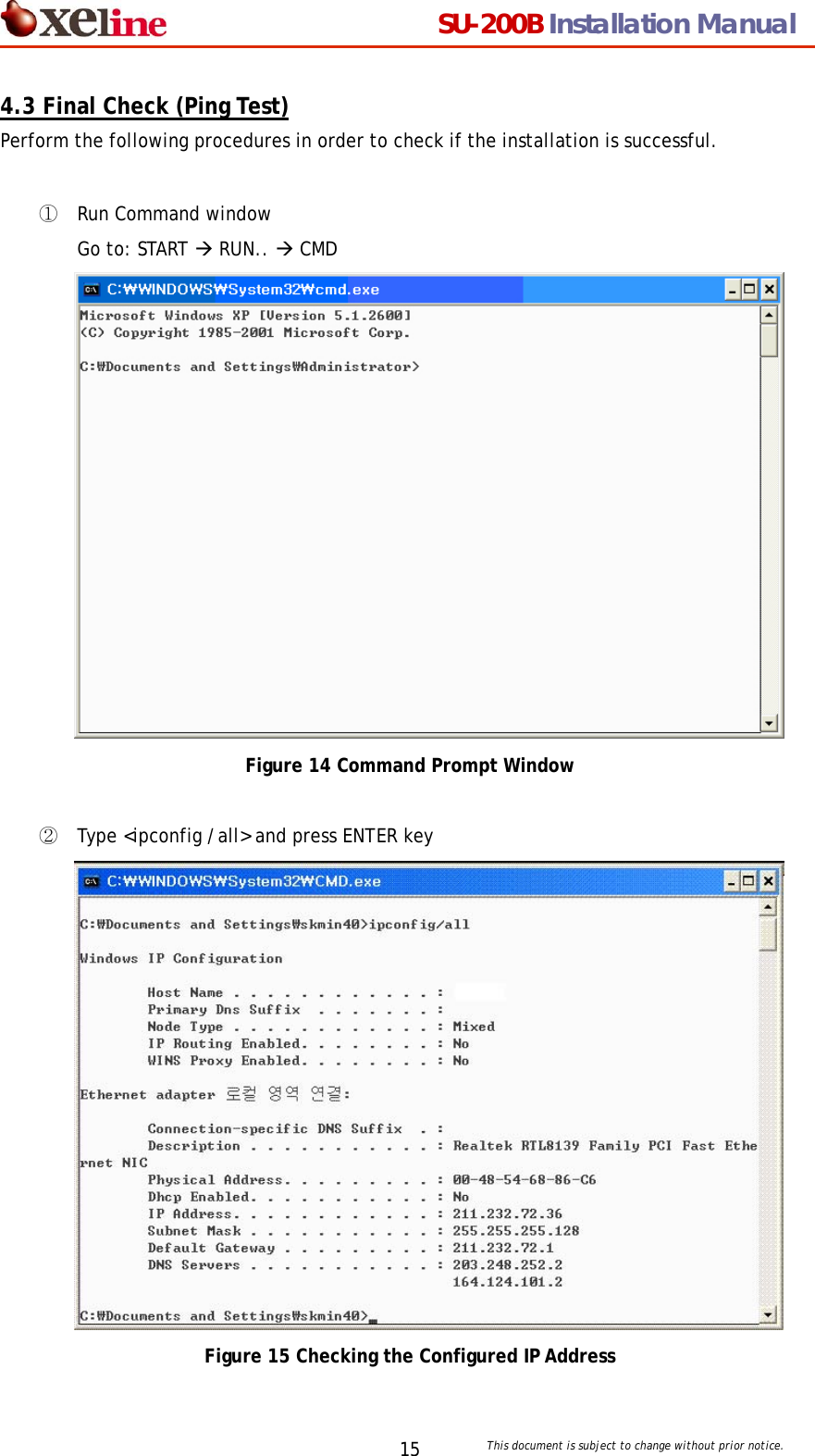
                                 SU-200B Installation Manual     This document is subject to change without prior notice. 154.3 Final Check (Ping Test) Perform the following procedures in order to check if the installation is successful.    ① Run Command window Go to: START Æ RUN.. Æ CMD  Figure 14 Command Prompt Window  ② Type <ipconfig /all> and press ENTER key  Figure 15 Checking the Configured IP Address
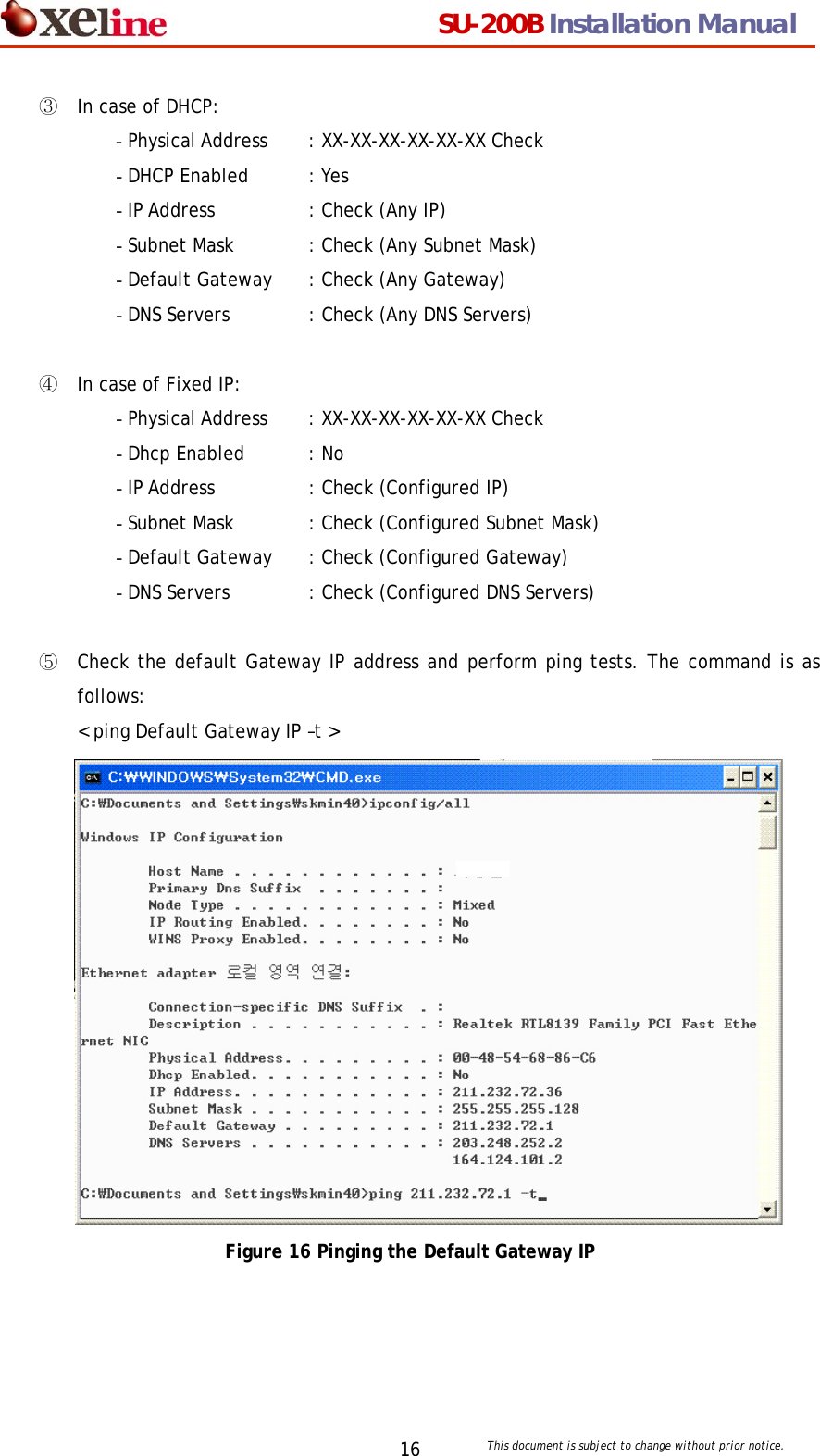
                                 SU-200B Installation Manual     This document is subject to change without prior notice. 16③ In case of DHCP: - Physical Address    : XX-XX-XX-XX-XX-XX Check - DHCP Enabled   : Yes - IP Address    : Check (Any IP) - Subnet Mask  : Check (Any Subnet Mask) - Default Gateway  : Check (Any Gateway) - DNS Servers   : Check (Any DNS Servers)  ④ In case of Fixed IP: - Physical Address    : XX-XX-XX-XX-XX-XX Check - Dhcp Enabled    : No - IP Address    : Check (Configured IP) - Subnet Mask  : Check (Configured Subnet Mask) - Default Gateway  : Check (Configured Gateway) - DNS Servers   : Check (Configured DNS Servers)  ⑤ Check the default Gateway IP address and perform ping tests. The command is as follows: < ping Default Gateway IP –t >  Figure 16 Pinging the Default Gateway IP
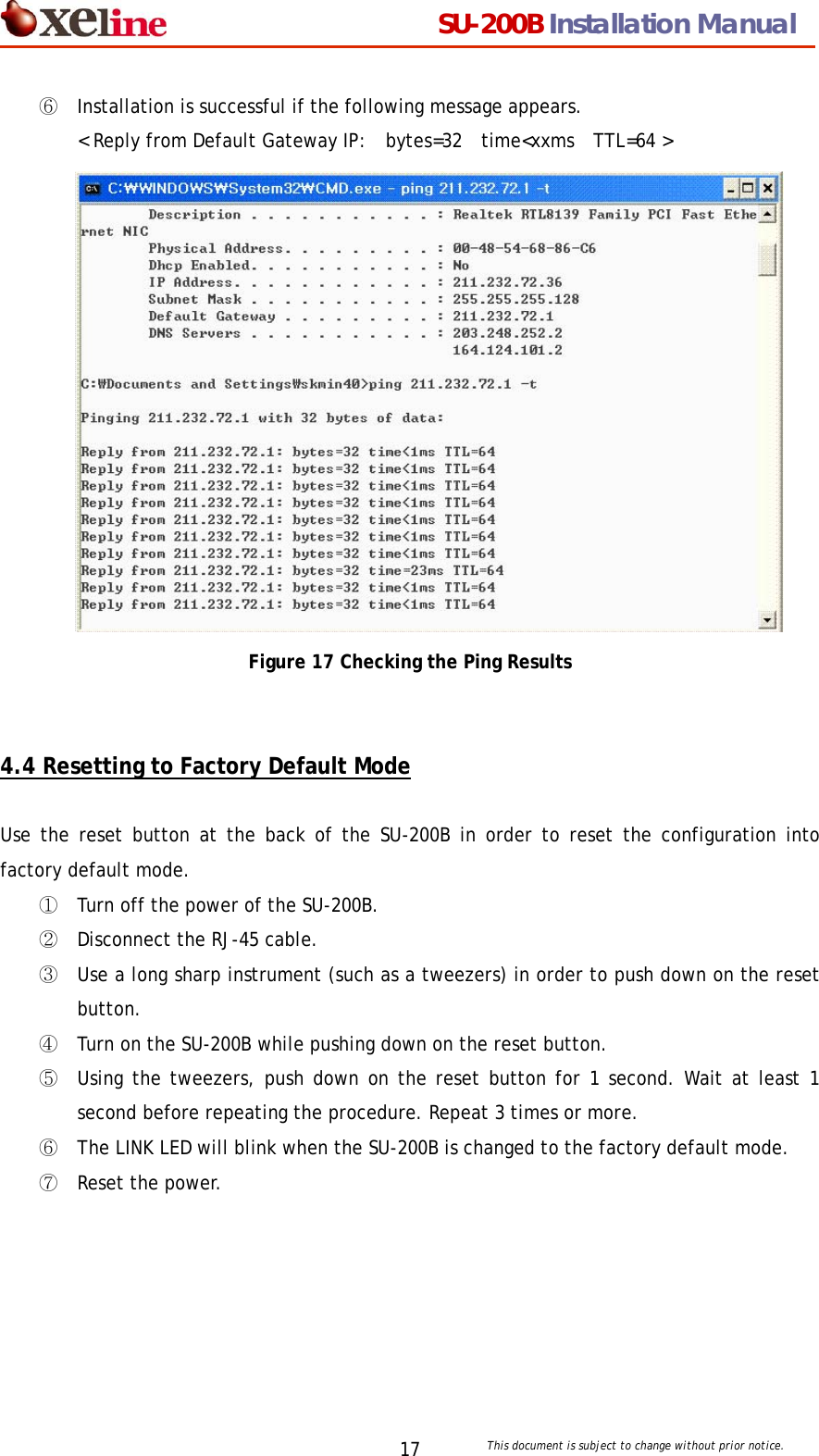
                                 SU-200B Installation Manual     This document is subject to change without prior notice. 17⑥ Installation is successful if the following message appears.   < Reply from Default Gateway IP:  bytes=32  time<xxms  TTL=64 >  Figure 17 Checking the Ping Results   4.4 Resetting to Factory Default Mode  Use the reset button at the back of the SU-200B in order to reset the configuration into factory default mode.   ① Turn off the power of the SU-200B. ② Disconnect the RJ-45 cable. ③ Use a long sharp instrument (such as a tweezers) in order to push down on the reset button. ④ Turn on the SU-200B while pushing down on the reset button. ⑤ Using the tweezers, push down on the reset button for 1 second. Wait at least 1 second before repeating the procedure. Repeat 3 times or more. ⑥ The LINK LED will blink when the SU-200B is changed to the factory default mode. ⑦ Reset the power.
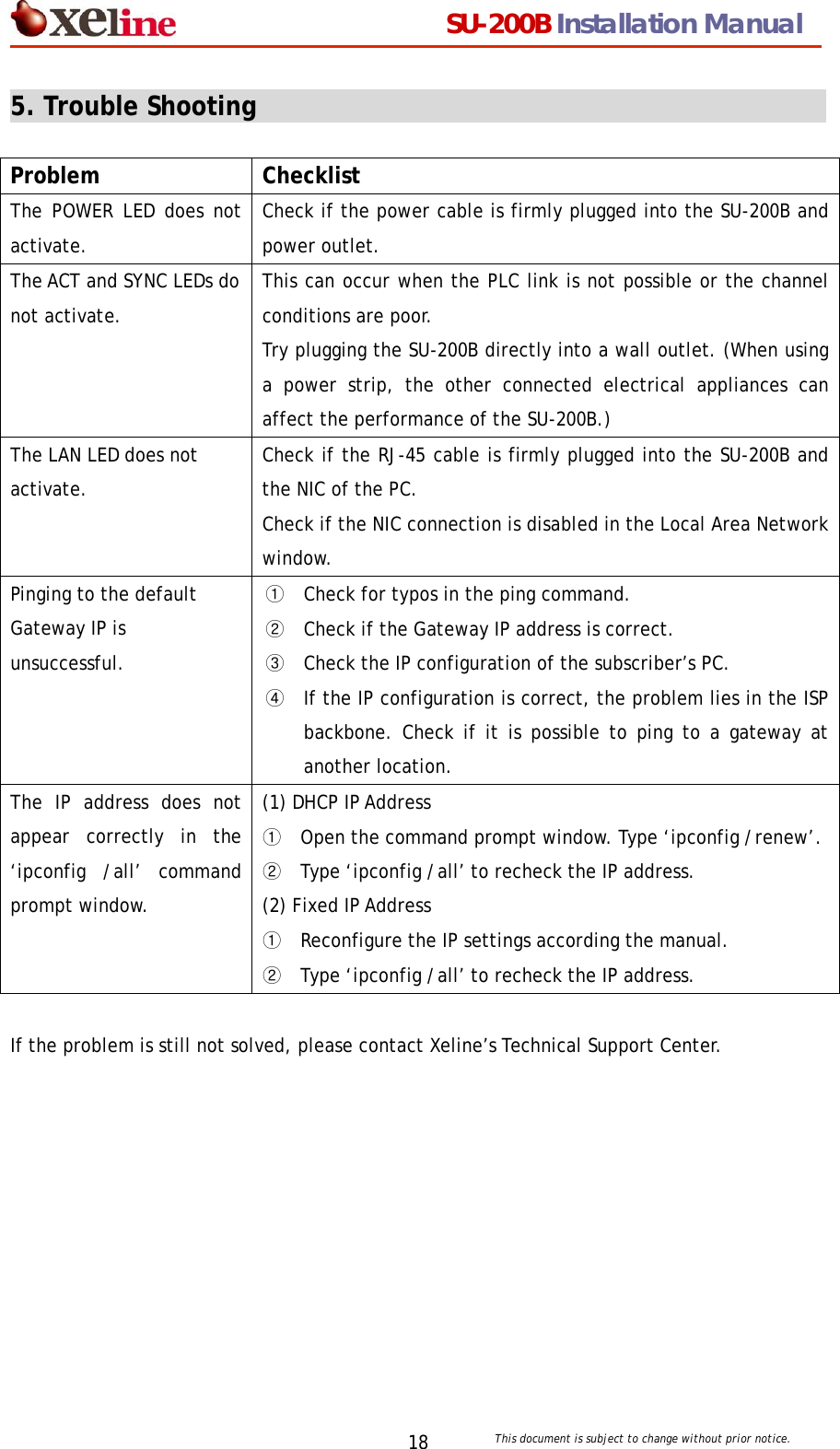
                                 SU-200B Installation Manual     This document is subject to change without prior notice. 185. Trouble Shooting                                                        Problem Checklist The POWER LED does not activate. Check if the power cable is firmly plugged into the SU-200B and power outlet.   The ACT and SYNC LEDs do not activate. This can occur when the PLC link is not possible or the channel conditions are poor.   Try plugging the SU-200B directly into a wall outlet. (When using a power strip, the other connected electrical appliances can affect the performance of the SU-200B.) The LAN LED does not activate. Check if the RJ-45 cable is firmly plugged into the SU-200B and the NIC of the PC. Check if the NIC connection is disabled in the Local Area Network window.   Pinging to the default Gateway IP is unsuccessful. ① Check for typos in the ping command. ② Check if the Gateway IP address is correct. ③ Check the IP configuration of the subscriber’s PC. ④ If the IP configuration is correct, the problem lies in the ISP backbone. Check if it is possible to ping to a gateway at another location. The IP address does not appear correctly in the ‘ipconfig /all’ command prompt window.   (1) DHCP IP Address ① Open the command prompt window. Type ‘ipconfig /renew’.② Type ‘ipconfig /all’ to recheck the IP address. (2) Fixed IP Address ① Reconfigure the IP settings according the manual. ② Type ‘ipconfig /all’ to recheck the IP address.  If the problem is still not solved, please contact Xeline’s Technical Support Center.
                                 SU-200B Installation Manual     This document is subject to change without prior notice. 196. Appendix                                                      z Copyright 2005 Xeline Co., Ltd. All rights reserved. All Xeline brand product names are trademarks of Xeline Co., Ltd.   Other product and company names mentioned herein are the trademarks of their respective owners.  z Information in this document is subject to change without notice. No part of this document may be reproduced or transmitted in any form or by any means, electronical or mechanical, for any purpose, without the express written permission of Xeline Co., Ltd.  z Xeline Technical Support Center Address: 7F. Chungjin Bldg. 475-22, Bangbae 2 dong, Seocho-gu,   Seoul 137-819, Republic of Korea Telephone: +82 2 598 0980 Facsimile: +82 2 598 0975 E-mail: tech_support@xeline.com   Website: http://www.xeline.com

Navigation menu