Yoko Technology RYKIP2280 Wireless Consumer IP P/T Camera User Manual MU IP2280 eng 20080716

Yoko Technology Corp Wireless Consumer IP P/T Camera MU IP2280 eng 20080716

User manual

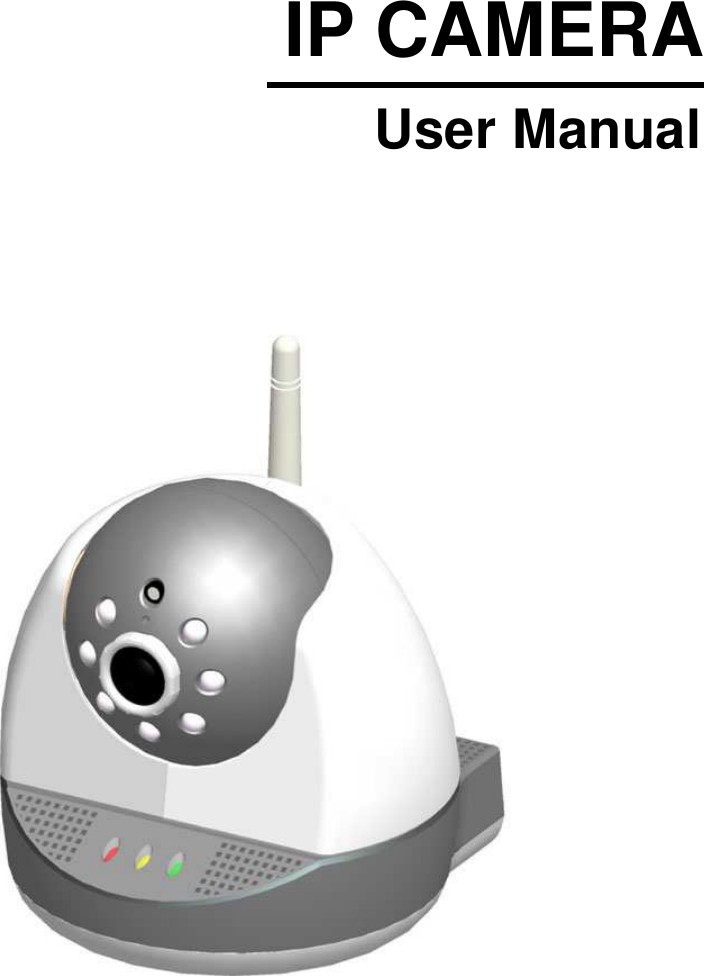
IP CAMERA                User Manual
CAUTIONRISK OF ELECTRIC SHOCK. DO NOT OPEN!               CAUTION : TO REDUCE THE RISK OF ELECTRICAL SHOCK, DO NOT OPEN COVERS (OR BACK). NO USER SERVICEABLE PARTS INSIDE. REFER SERVICING TO QUALIFIED SERVICE PERSONNEL.               WARNING:  This  symbol  is  intended  to  alert  the  user  to  the  presence  of un-insulated “dangerous voltage”.   CAUTION: This symbol is intended to alert the user to presence of important operating and maintenance (Servicing) instructions in the literature accompanying the appliance.    Disposal of Old Electrical & Electronic Equipment (Applicable in the European Union and other European countries with separate collection systems). This symbol on the product or on its packaging indicates that this product shall not be treated  as  household  waste.  Instead  it  shall  be  handed  over  to  the  applicable collection point for the recycling of electrical and electronic equipment. By ensuring this  product  is  disposed  of  correctly,  you  will  help  prevent  potential  negative consequences  for  the  environment  and  human  health,  which  could  otherwise  be caused by inappropriate waste handling of this product. The recycling of materials will help to conserve natural resources. For more detailed information about recycling of this product, please contact your local city office, your household waste disposal service or the shop where you purchased the product. The power cord is the main power connection. Therefore, constantly plug  and unplug of the power cord  might result in malfunction of the product.  Do not install the product in an environment where the humidity is high. Unless the product is waterproof or weatherproof, otherwise it can cause the image quality to be poor.    Do not drop the product or subject them to physical shocks. Except for vandal-proof or shockproof product, otherwise it will result malfunctions to occur.    Never keep the product to direct strong light. It can damage the product.  Do not spill liquid of any kind on the product. If it gets wet, wipe it dry immediately. Alcohol or beverage can contain minerals that corrode the electronic components.  Do not expose to extreme temperatures. Use the product at temperatures within 5℃ ~ 45℃. It is advised to read the Safety Precaution Guide through carefully before operating the product, prevent any possible danger.
This  device  complies  with  Part  15  of  the  FCC  Rules.  Operation  is  subject  to  the following two conditions: (1) this device may not cause harmful interference, and (2) this  device  must  accept  any  interference  received,  including  interference  that  may cause undesired operation.  The  changes  or  modifications  not  expressly  approved  by  the  party  responsible  for compliance could void the user’s authority to operate the equipment.  To comply with the FCC RF exposure compliance requirements, this device and its antenna must not be co-located or operating to conjunction with any other antenna or transmitter.  This  equipment  should  be  installed  and  operated  with  minimum  distance  20cm between the radiator & your body.  This  equipment  has  been  tested  and  found  to  comply  with  the  limits  for  a  Class  B Digital Device,  pursuant  to  part  15  of  the  FCC  Rules. These  limits are designed  to provide reasonable protection against harmful interference in a residential installation. This equipment generates, uses and can radiate radio frequency energy and,  if not installed and used in accordance with the instruction, may cause harmful interference to radio communication. However, there is no grantee that interference will not occur in a particular installation. If this equipment dose cause harmful interference to radio or television reception, which can be determined by turning the equipment off and on , the  user  is  encouraged  to  try  to  correct  the  interference  by  one  or  more  of  the following measures:  --Reorient or relocate the receiving antenna. --Increase the separation between the equipment and receiver. --Connect  the  equipment  into  an  outlet  on  a  circuit  different  from  that  to  which  the receiver is connected. --Consult the dealer or an experienced radio/TV technician for help.
CONTENTS  1. INTRODUCTION......................................................................................... 1 1.1 Product Introduction.............................................................................. 1 1.2 Application ............................................................................................ 1 2. FEATURES ................................................................................................. 2 3. PACKING LIST............................................................................................ 3 4. INSTALLATION ........................................................................................... 4 4.1 Software Installation ............................................................................. 4 4.2 System Configuration ........................................................................... 7 4.3 Suggested Computer Equipment.......................................................... 7 5. Location and Control......................................................................................... 8 5.1 Front Panel........................................................................................... 8 5.2 Rear Panel............................................................................................ 9 6. IP CAMERA SETUP.................................................................................. 10 6.1 Connect to IP Camera ........................................................................ 10 6.2 On the LAN using Discoverer ............................................................. 11 6.3 IE Connection ..................................................................................... 13 6.4 Install ActiveX ..................................................................................... 13 7. FUNCTION SETUP................................................................................... 18 7.1 Home Page......................................................................................... 18 7.2 Date/ Time Settings ............................................................................ 20 7.2 Date/ Time Settings ............................................................................ 21 7.3 Name Settings .................................................................................... 22 7.4 IP Settings .......................................................................................... 23 7.5 Wireless Network Settings.................................................................. 24 7.6 Video Settings..................................................................................... 26 7.7 Motion Detection Windows ................................................................. 29 7.8 Alarm Settings .................................................................................... 30 7.9 IR LED Control.................................................................................... 32 7.10 SD Card File Management ............................................................... 33 7.11 SMTP Settings.................................................................................. 35 7.12 FTP Settings..................................................................................... 36 7.13 Account Settings............................................................................... 37 7.14 PT Control......................................................................................... 38 7.15 System Settings................................................................................ 40 7.16 Restore Factory Default.................................................................... 41 7.15 Reboot.............................................................................................. 41 7.18 Firmware Update .............................................................................. 42 9. 3G MOBILE PHONE MONITORING......................................................... 44 10. SPECIFICATION ..................................................................................... 46 11. APPENDIX............................................................................................... 48  The author assumes no responsibility for any errors or omissions that may appear in this document nor does the author make a commitment to update the information herein.VER.: 1.0, CD
  1 1. INTRODUCTION 1.1 Product Introduction The  Day & Night (optional)  IP  Camera  is a high performance camera, with simple connection- no PC required. It can be viewed and controlled from the PC site using the IE browser or apply the free bundled 16-CH viewing software, to  enable  real-time  remote  site  control  and  supports  3GPP  for  mobile surveillance. Efficient real-time observation, recording and image capture can occur simultaneously.  The  camera  uses  Mpeg-4  and  Mjpeg  compression  technology  to  provide quality image, stable and smooth Mpeg-4 streams. Requires less hard drive space, saves motions on the SD card or by e-mail notification to enable the most  up-to-date  information.  Flexible  online  connection  methods:  LAN, PPPOE, and DDNS. 1.2 Application The product is for indoor use only.  Security:   ATM (auto teller machine), bank, gas station, shop, and parking lot.    Factory/ Office: Factory, warehouse, remote technology support, and conference room.  Home: Indoor, Elevator, doorway, community safety, and hotel.  Hospital/ Kindergarten: Hospital and isolated ward, home for the aged, kindergarten, and baby nourishing center.
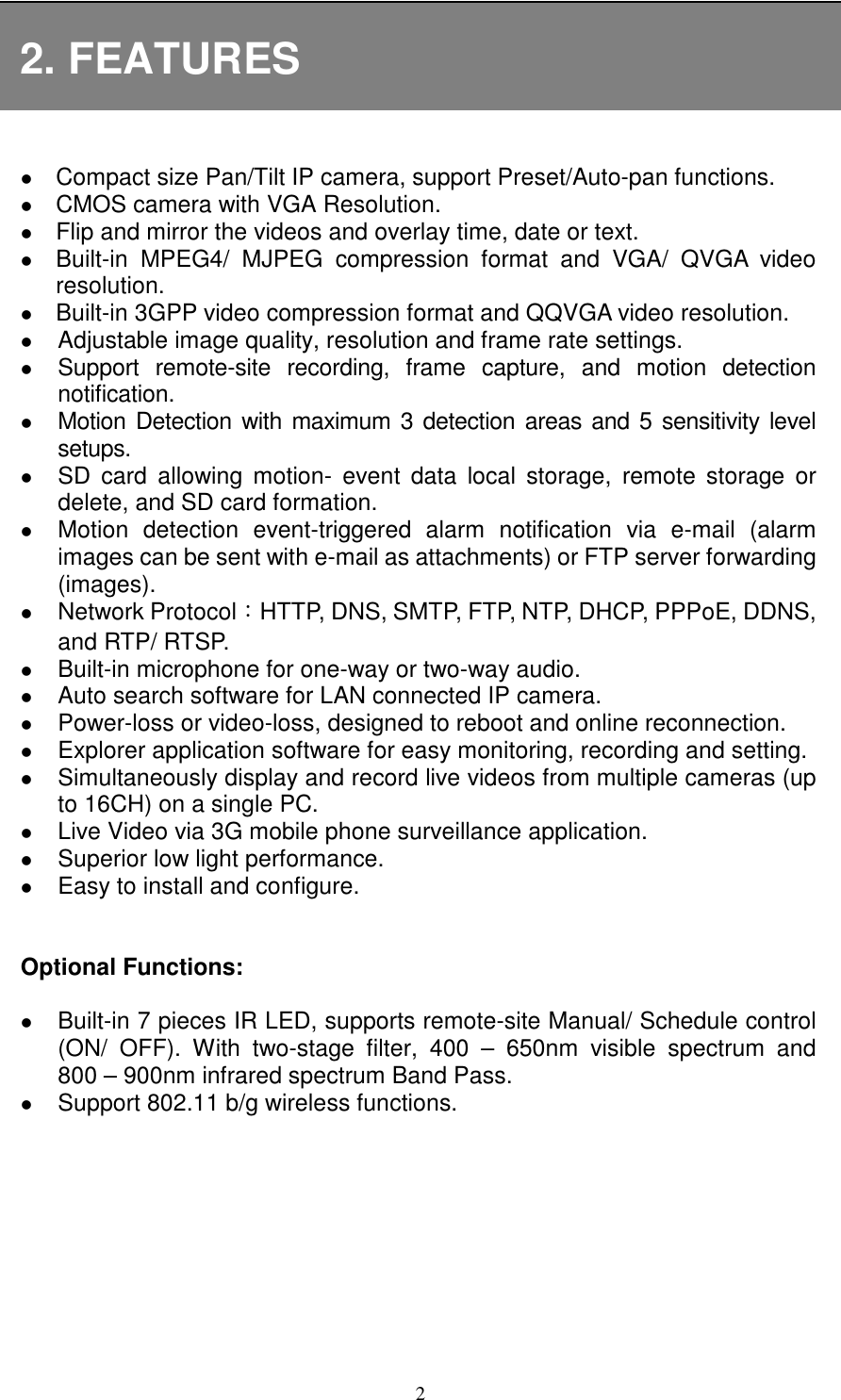
  2 2. FEATURES   Compact size Pan/Tilt IP camera, support Preset/Auto-pan functions.  CMOS camera with VGA Resolution.  Flip and mirror the videos and overlay time, date or text.  Built-in  MPEG4/  MJPEG  compression  format  and  VGA/  QVGA  video resolution.  Built-in 3GPP video compression format and QQVGA video resolution.  Adjustable image quality, resolution and frame rate settings.  Support  remote-site  recording,  frame  capture,  and  motion  detection notification.    Motion  Detection with maximum 3 detection  areas and 5 sensitivity level setups.  SD  card  allowing  motion-  event  data  local  storage,  remote  storage  or delete, and SD card formation.  Motion  detection  event-triggered  alarm  notification  via  e-mail  (alarm images can be sent with e-mail as attachments) or FTP server forwarding (images).    Network Protocol:HTTP, DNS, SMTP, FTP, NTP, DHCP, PPPoE, DDNS, and RTP/ RTSP.  Built-in microphone for one-way or two-way audio.  Auto search software for LAN connected IP camera.    Power-loss or video-loss, designed to reboot and online reconnection.    Explorer application software for easy monitoring, recording and setting.  Simultaneously display and record live videos from multiple cameras (up to 16CH) on a single PC.    Live Video via 3G mobile phone surveillance application.  Superior low light performance.  Easy to install and configure.   Optional Functions:   Built-in 7 pieces IR LED, supports remote-site Manual/ Schedule control (ON/  OFF).  With  two-stage  filter,  400  –  650nm  visible  spectrum  and 800 – 900nm infrared spectrum Band Pass.  Support 802.11 b/g wireless functions.
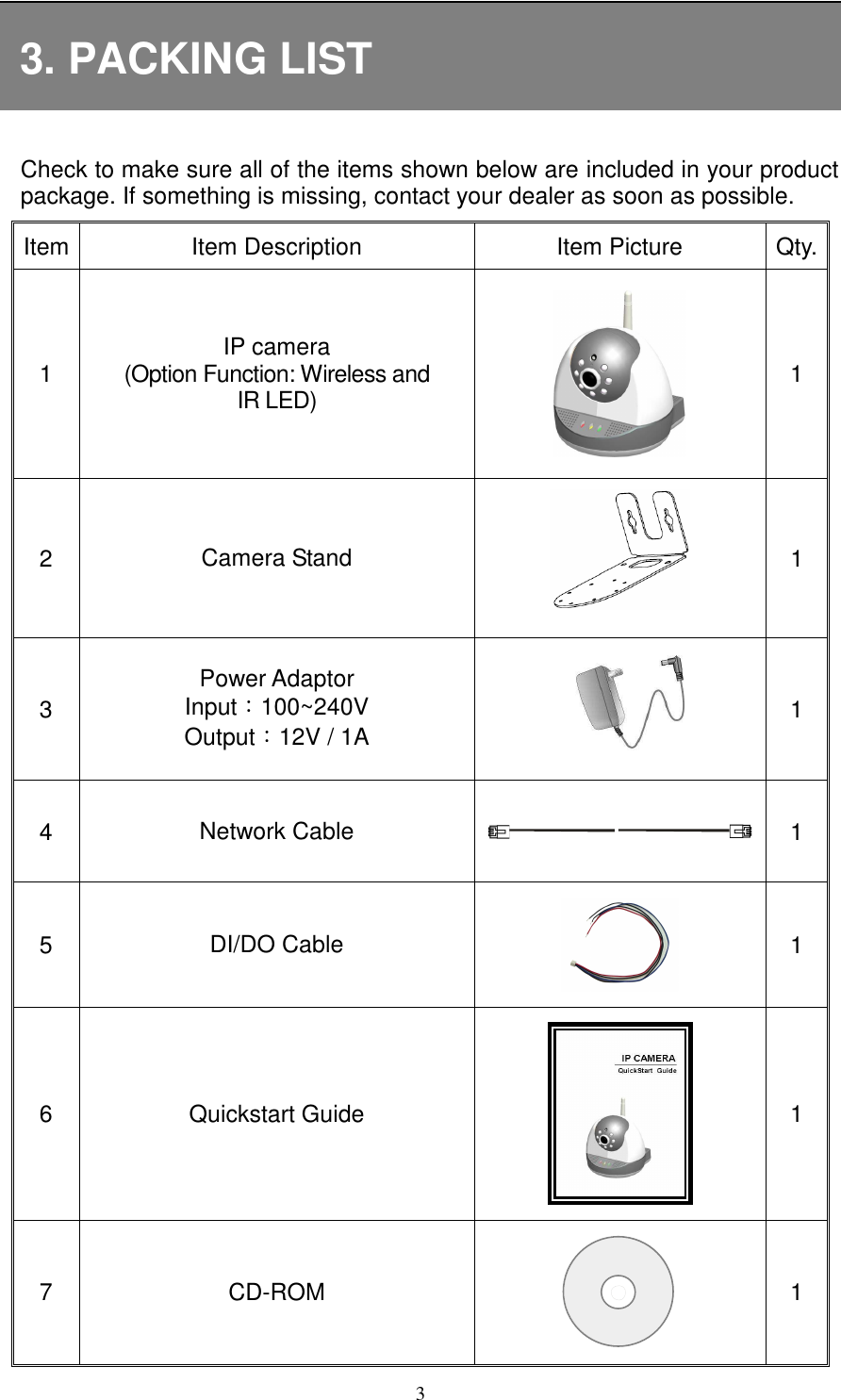
  3 3. PACKING LIST  Check to make sure all of the items shown below are included in your product package. If something is missing, contact your dealer as soon as possible. Item Item Description  Item Picture  Qty. 1  IP camera (Option Function: Wireless and   IR LED)  1 2  Camera Stand  1 3 Power Adaptor Input:100~240V Output:12V / 1A   1 4  Network Cable  1 5  DI/DO Cable  1 6  Quickstart Guide  1 7  CD-ROM  1
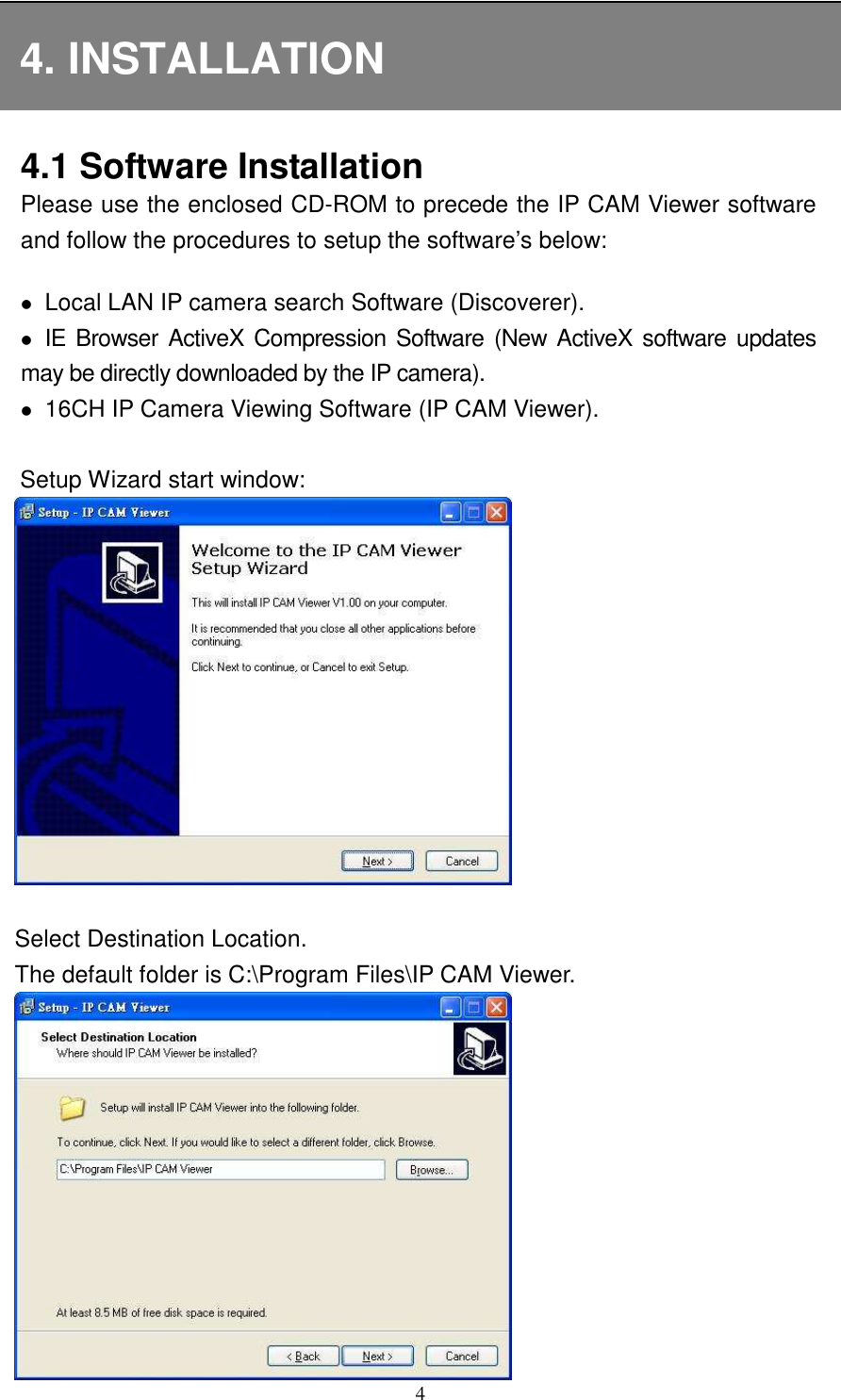
  4 4. INSTALLATION 4.1 Software Installation Please use the enclosed CD-ROM to precede the IP CAM Viewer software and follow the procedures to setup the software’s below:     Local LAN IP camera search Software (Discoverer).  IE Browser  ActiveX  Compression  Software (New  ActiveX software updates     may be directly downloaded by the IP camera).  16CH IP Camera Viewing Software (IP CAM Viewer).                        Setup Wizard start window:       Select Destination Location.     The default folder is C:\Program Files\IP CAM Viewer.
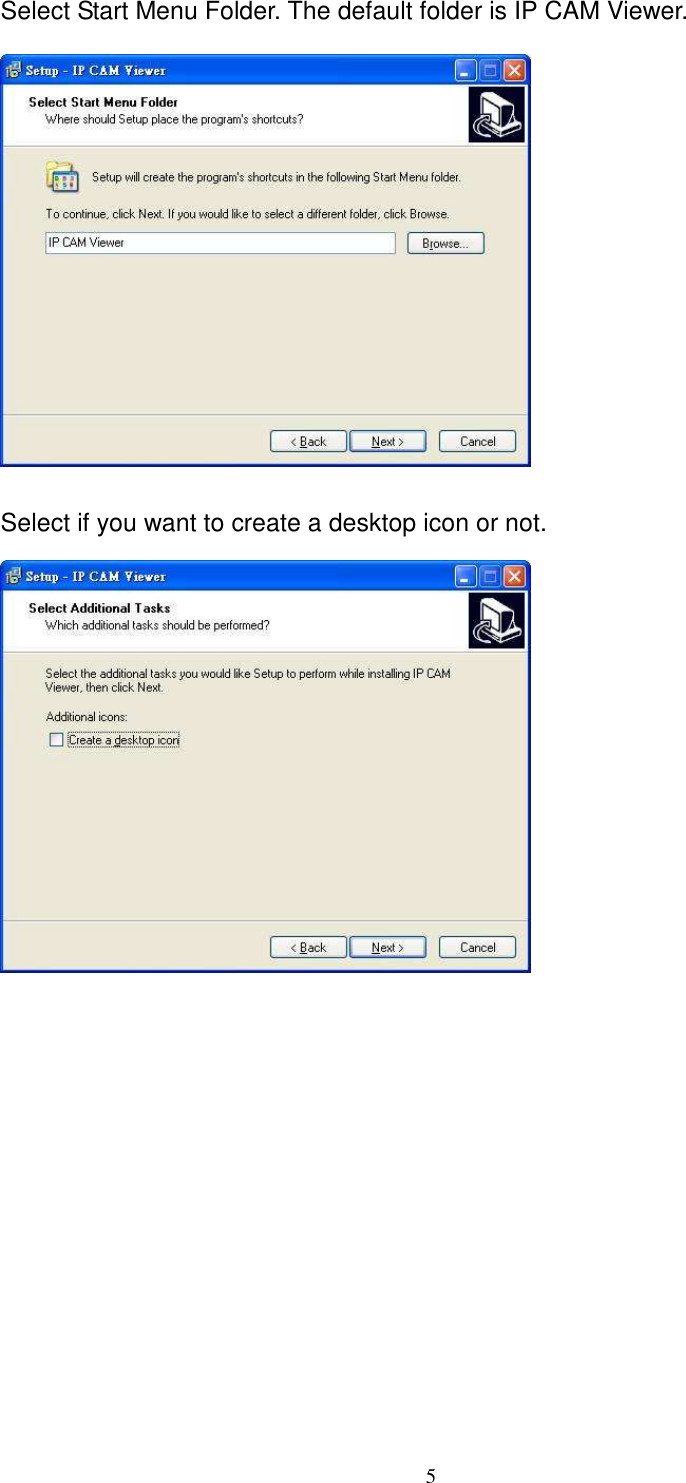
  5   Select Start Menu Folder. The default folder is IP CAM Viewer.        Select if you want to create a desktop icon or not.
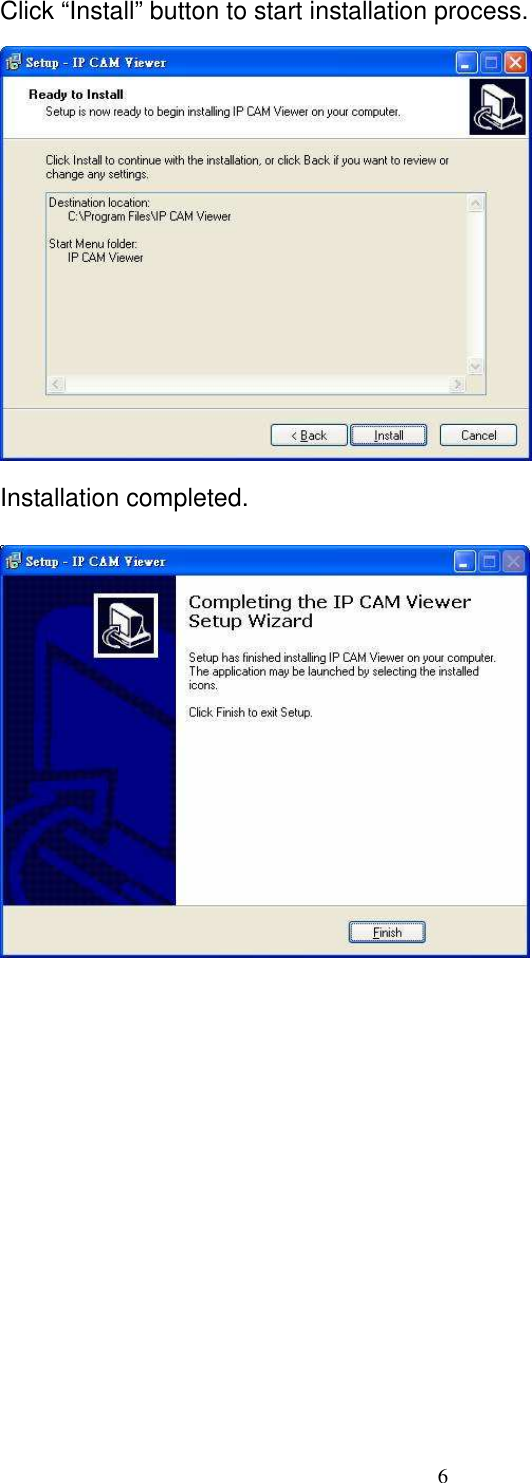
  6 Click “Install” button to start installation process.  Installation completed.
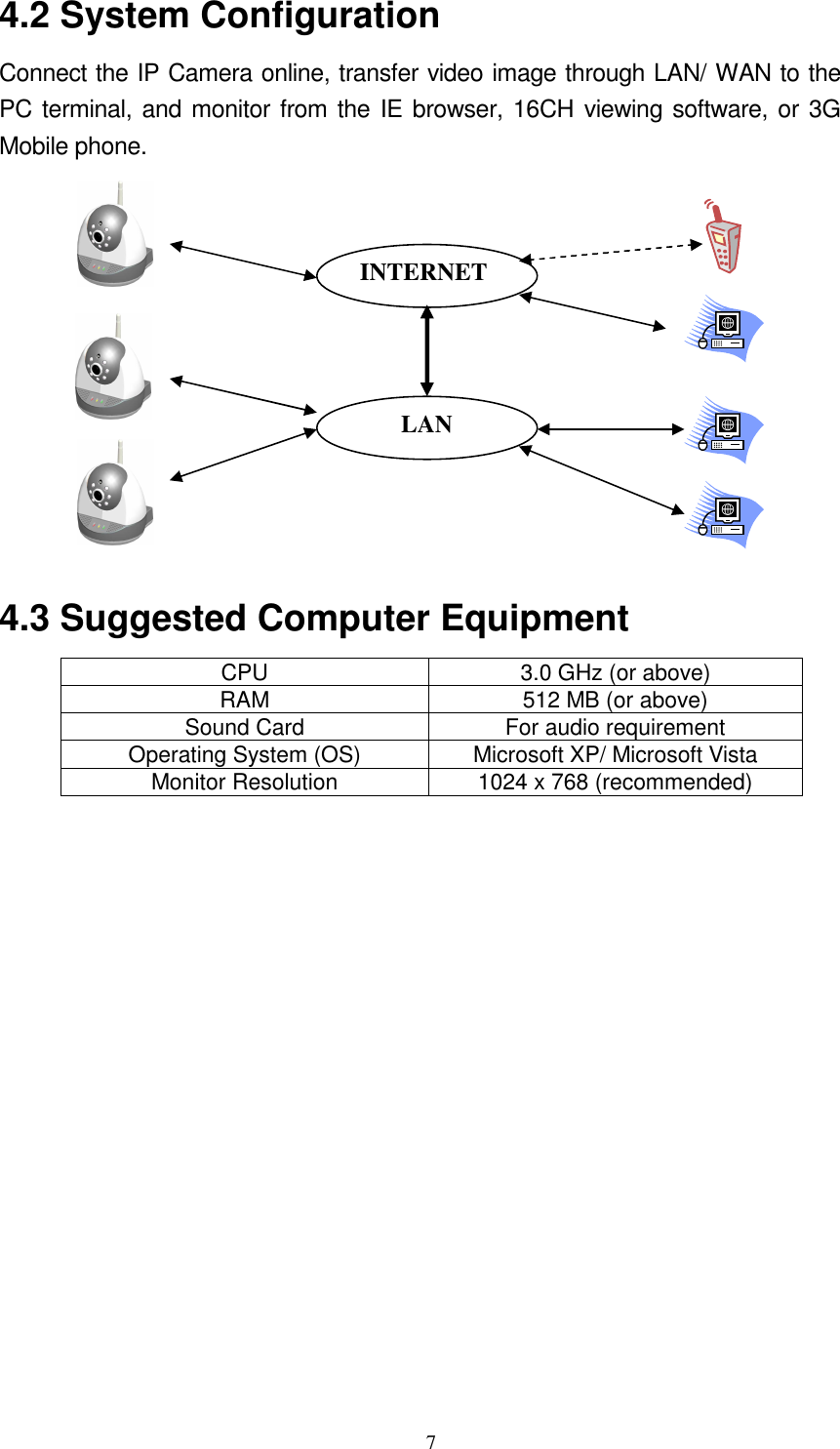
  7 4.2 System Configuration   Connect the IP Camera online, transfer video image through LAN/ WAN to the PC terminal, and monitor from the IE browser, 16CH viewing software, or 3G Mobile phone.            4.3 Suggested Computer Equipment CPU  3.0 GHz (or above) RAM  512 MB (or above) Sound Card  For audio requirement Operating System (OS)  Microsoft XP/ Microsoft Vista Monitor Resolution  1024 x 768 (recommended)   LAN INTERNET
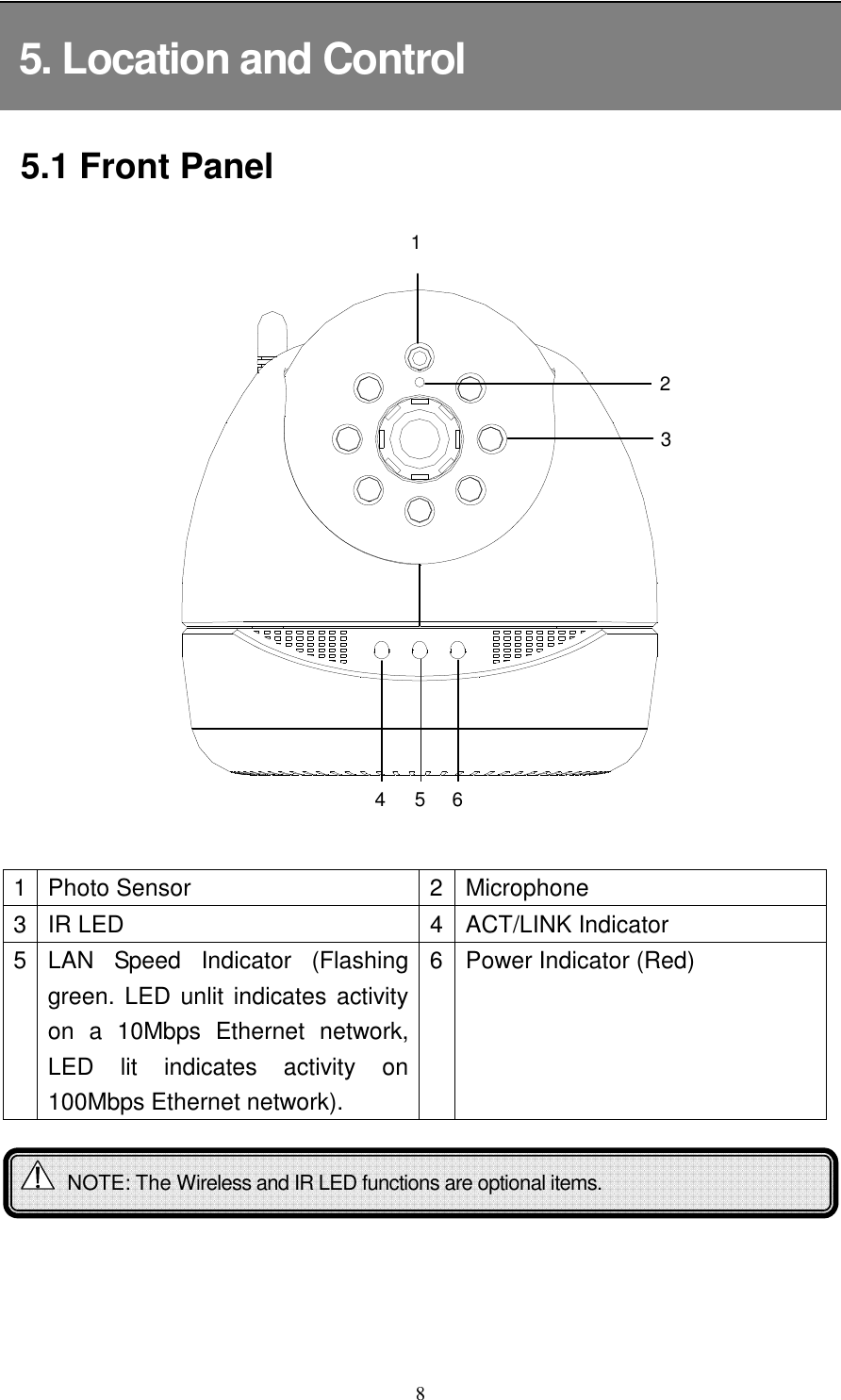
  8 5. Location and Control 5.1 Front Panel           1 Photo Sensor 2 Microphone 3 IR LED    4 ACT/LINK Indicator   5 LAN  Speed  Indicator  (Flashing green. LED unlit indicates activity on  a  10Mbps  Ethernet  network, LED  lit  indicates  activity  on 100Mbps Ethernet network). 6 Power Indicator (Red)         NOTE: The Wireless and IR LED functions are optional items.  1 2 5 6 3 4
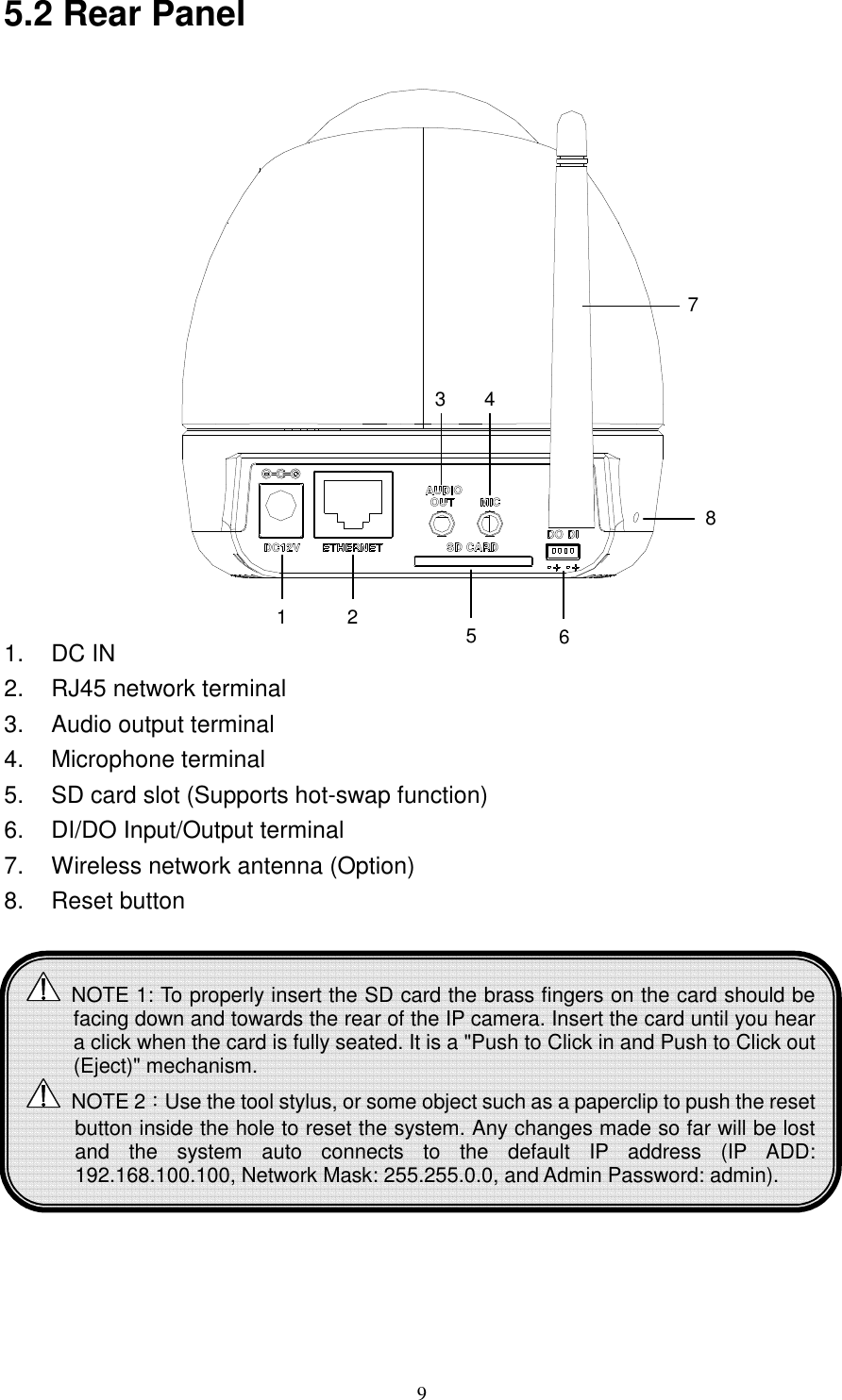
  9 5.2 Rear Panel      1.  DC IN 2.  RJ45 network terminal 3.  Audio output terminal 4.  Microphone terminal 5.  SD card slot (Supports hot-swap function) 6.  DI/DO Input/Output terminal 7.  Wireless network antenna (Option) 8.  Reset button     1 2 5 6 3 4 7 8  NOTE 1: To properly insert the SD card the brass fingers on the card should be facing down and towards the rear of the IP camera. Insert the card until you hear a click when the card is fully seated. It is a "Push to Click in and Push to Click out (Eject)" mechanism.   NOTE 2:Use the tool stylus, or some object such as a paperclip to push the reset button inside the hole to reset the system. Any changes made so far will be lost and  the  system  auto  connects  to  the  default  IP  address  (IP  ADD: 192.168.100.100, Network Mask: 255.255.0.0, and Admin Password: admin).
  106. IP CAMERA SETUP   Before using the IP Camera, you need to first change the default IP Address and setup the environment for future application. If you do not know the IP address of the IP Camera; first connect the PC to the IP Camera and search for it using the Discover software, change the IP address and finish the setup.        6.1 Connect to IP Camera   Three Methods for Connecting IP Camera: 1. Get a Dynamic IP from DHCP Server   Please refer to 6.2 On the LAN using Discoverer.  2. Static IP Connection Please refer to 6.2 On the LAN using Discoverer.  3. PPPoE Connection Please refer to 7.4 IP Settings (Setup IP via PPPoE).    NOTE : Before using PPPoE and DDNS connection method, one must first use the Discoverer software to setup an IP Address.
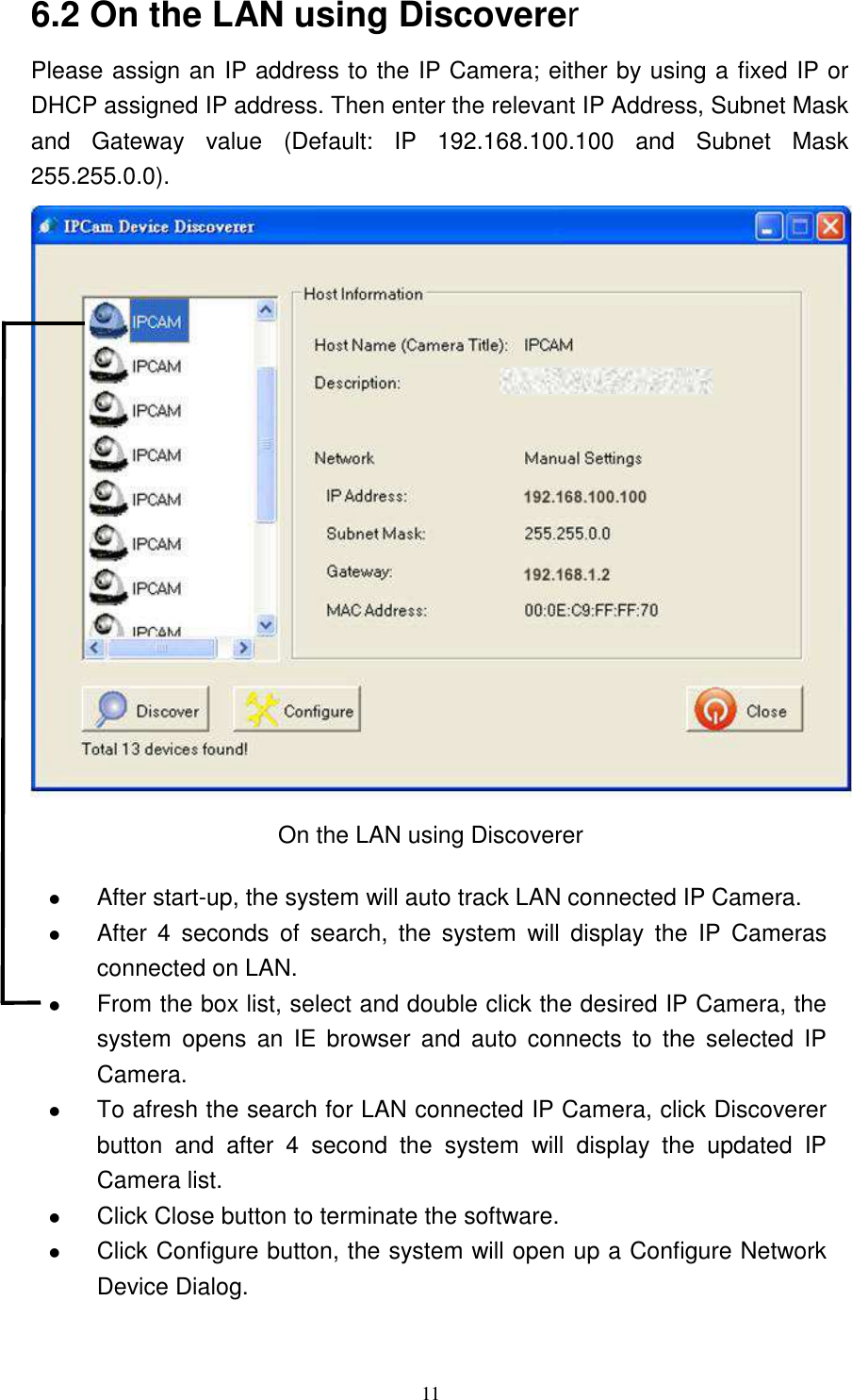
  11 6.2 On the LAN using Discoverer Please assign an IP address to the IP Camera; either by using a fixed IP or DHCP assigned IP address. Then enter the relevant IP Address, Subnet Mask and  Gateway  value  (Default:  IP  192.168.100.100  and  Subnet  Mask 255.255.0.0).                    On the LAN using Discoverer   After start-up, the system will auto track LAN connected IP Camera.    After  4  seconds  of  search,  the  system  will  display  the  IP  Cameras connected on LAN.  From the box list, select and double click the desired IP Camera, the system  opens  an  IE  browser  and  auto  connects  to  the  selected  IP Camera.    To afresh the search for LAN connected IP Camera, click Discoverer button  and  after  4  second  the  system  will  display  the  updated  IP Camera list.    Click Close button to terminate the software.    Click Configure button, the system will open up a Configure Network Device Dialog.
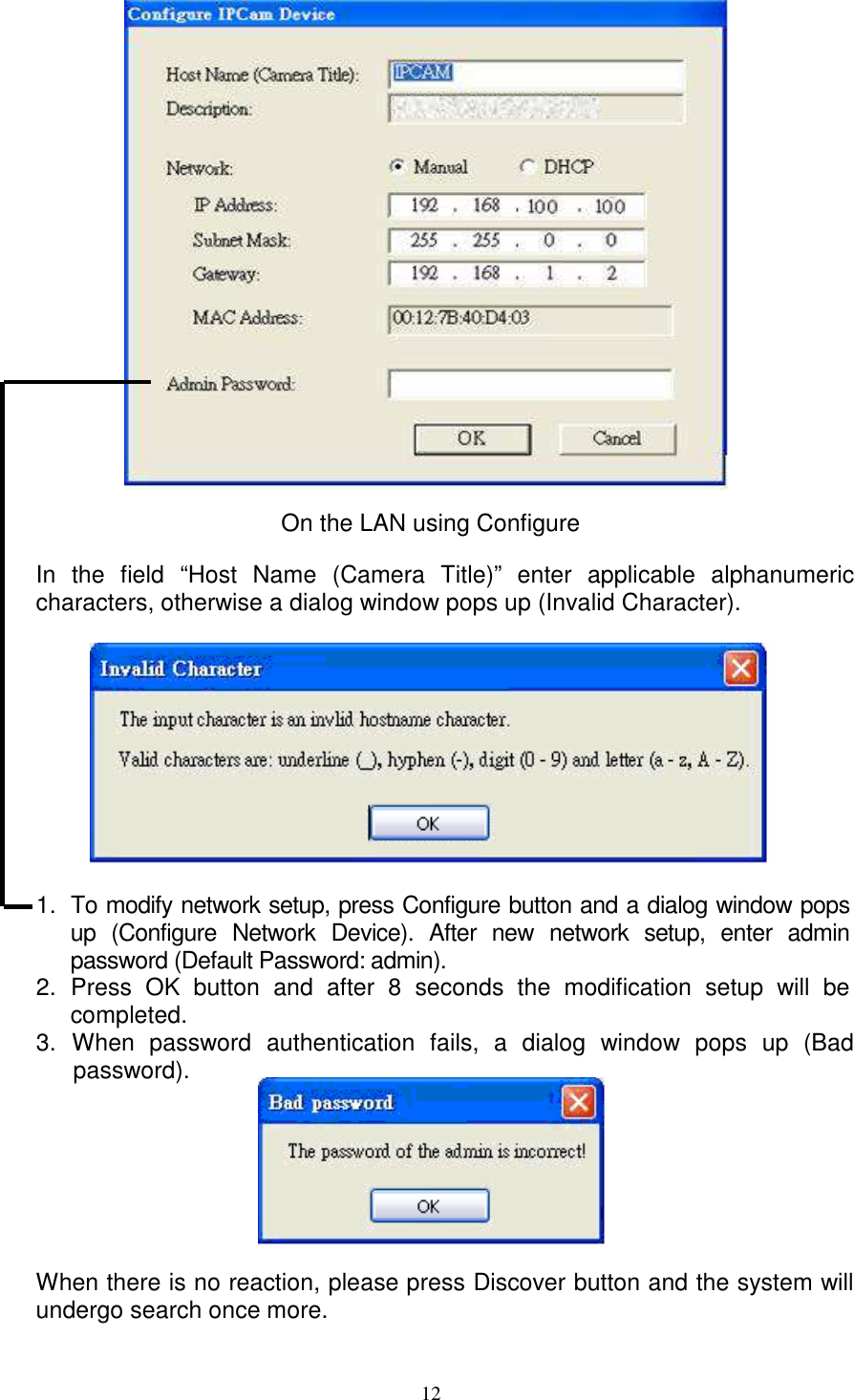
  12               On the LAN using Configure  In  the  field  “Host  Name  (Camera  Title)”  enter  applicable  alphanumeric characters, otherwise a dialog window pops up (Invalid Character).    1.  To modify network setup, press Configure button and a dialog window pops up  (Configure  Network  Device).  After  new  network  setup,  enter  admin password (Default Password: admin).   2.  Press  OK  button  and  after  8  seconds  the  modification  setup  will  be completed.   3.  When  password  authentication  fails,  a  dialog  window  pops  up  (Bad password).        When there is no reaction, please press Discover button and the system will undergo search once more.
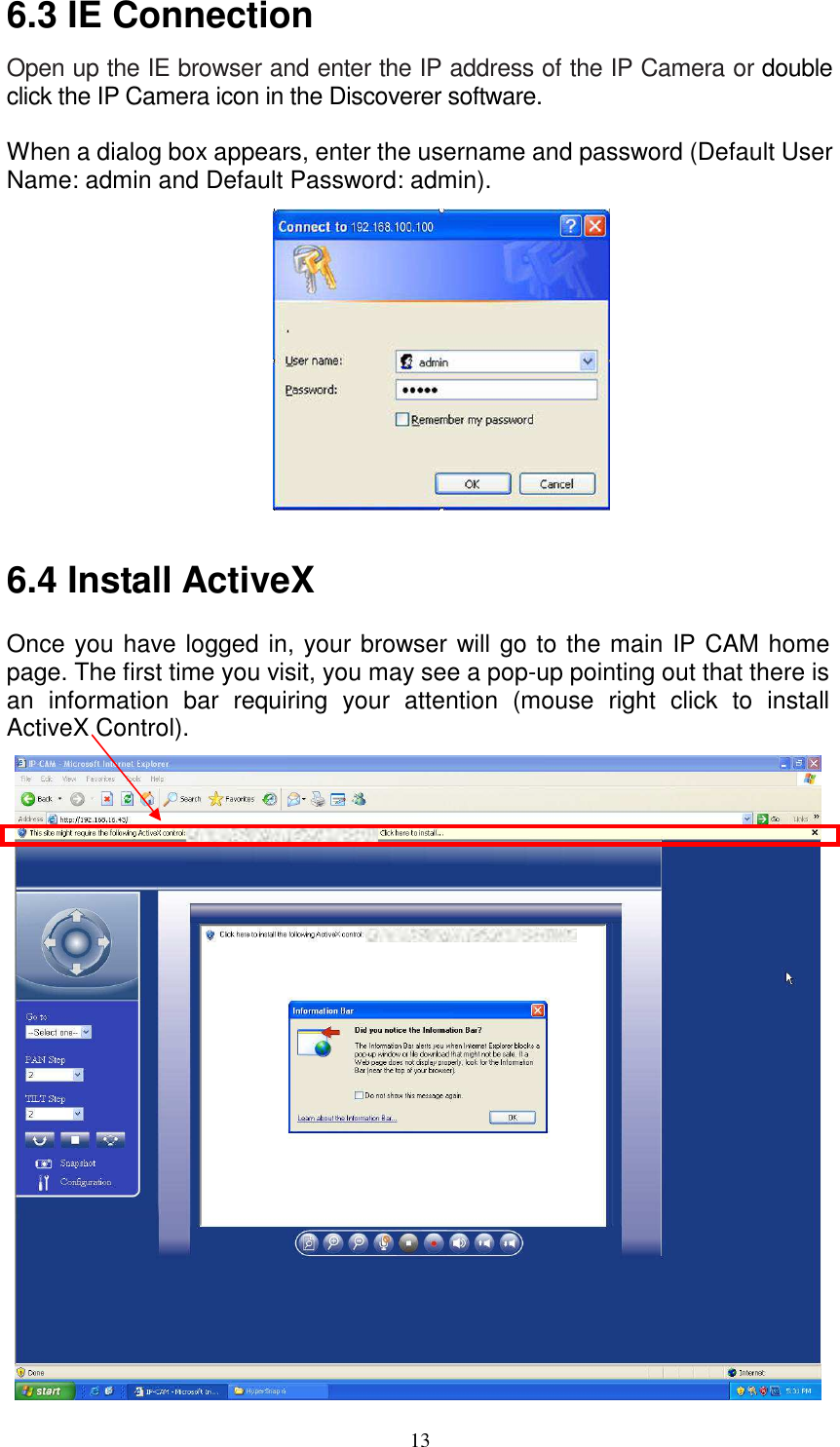
  136.3 IE Connection Open up the IE browser and enter the IP address of the IP Camera or double click the IP Camera icon in the Discoverer software.  When a dialog box appears, enter the username and password (Default User Name: admin and Default Password: admin).             6.4 Install ActiveX   Once you have logged in, your browser will go to the main IP CAM home page. The first time you visit, you may see a pop-up pointing out that there is an  information  bar  requiring  your  attention  (mouse  right  click  to  install ActiveX Control).
  14Then a window will appear asking you to confirm whether or not you want to install the ActiveX control.  Select “Install” and the installation will take care of itself.  If  you  are unable to  install  ActiveX Control, please  try  again  following  the procedures below:            1.  On the IE browser Menu item bar, select [Tools]  [Internet Options] item.        Tools  Internet Options  2.  Select [Security]  [Internet] and then click [Custom Level].              Security Internet Options Custom Level
  153.  After  clicking  on  [Custom  Level  …]  button,  a  security  settings  window appears. Please follow the steps below to change items to “Enable” or “Prompt”.     Download unsigned ActiveX controls: [Prompt]  Download signed ActiveX controls: [Prompt]  Automatic prompting for ActiveX controls: [Enable]  Initialize and script ActiveX controls not marked as safe: [Enable]  Run ActiveX control and plug-ins: [Prompt]  Script ActiveX controls marked safe for scripting: [Enable]                   Activate ActiveX Control  4.  Select [Security]  [Trusted sites] and then click [Custom Level].
  165.  After  clicking  on [Customer Level…]  button,  a  security  settings  window appears. Please follow the  steps below to change items  to “Enable” or “Prompt”.     Download unsigned ActiveX controls: [Prompt]  Initialize and script ActiveX controls not marked as safe: [Prompt]                      Download ActiveX Control
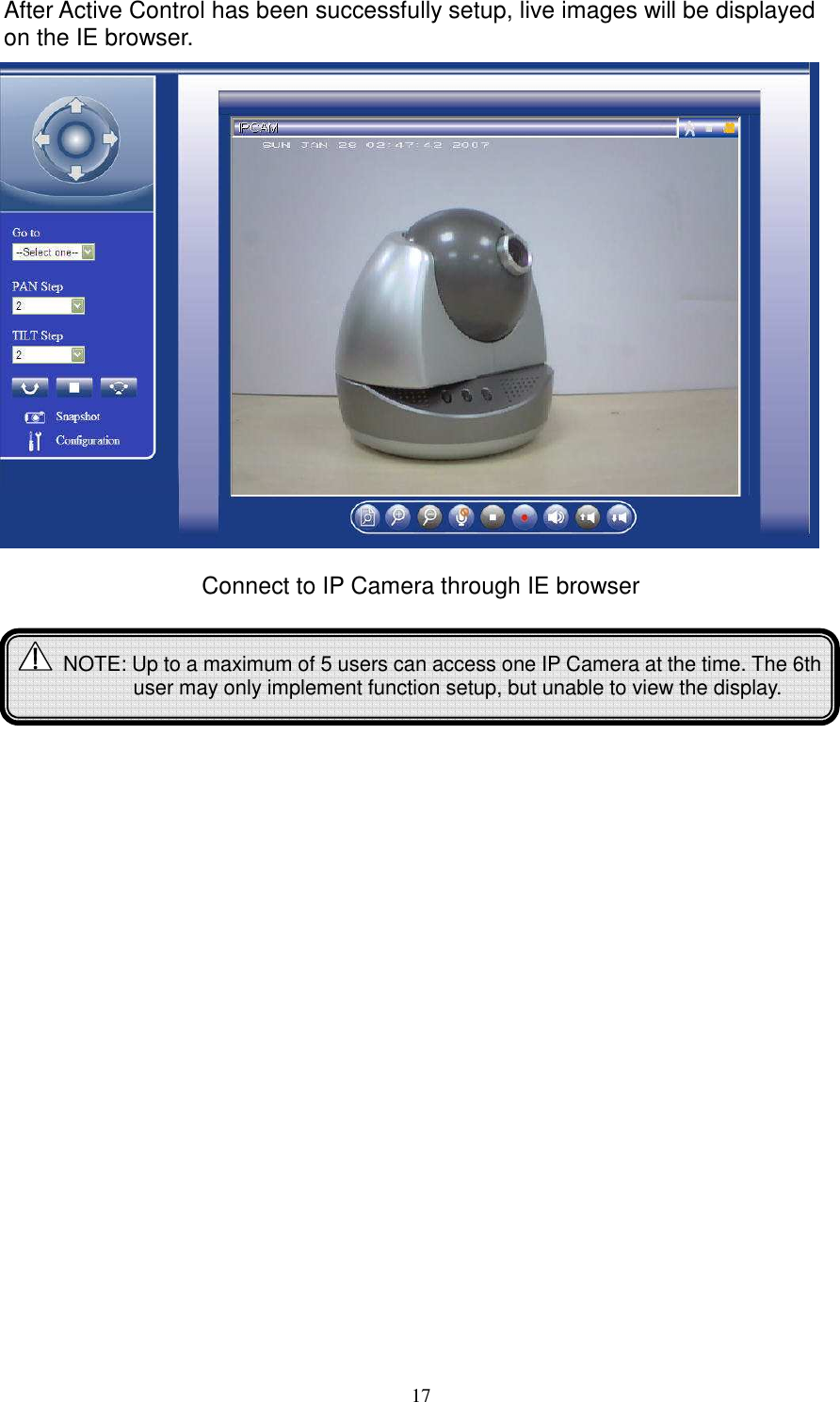
  17After Active Control has been successfully setup, live images will be displayed on the IE browser.                  Connect to IP Camera through IE browser              NOTE: Up to a maximum of 5 users can access one IP Camera at the time. The 6th user may only implement function setup, but unable to view the display.
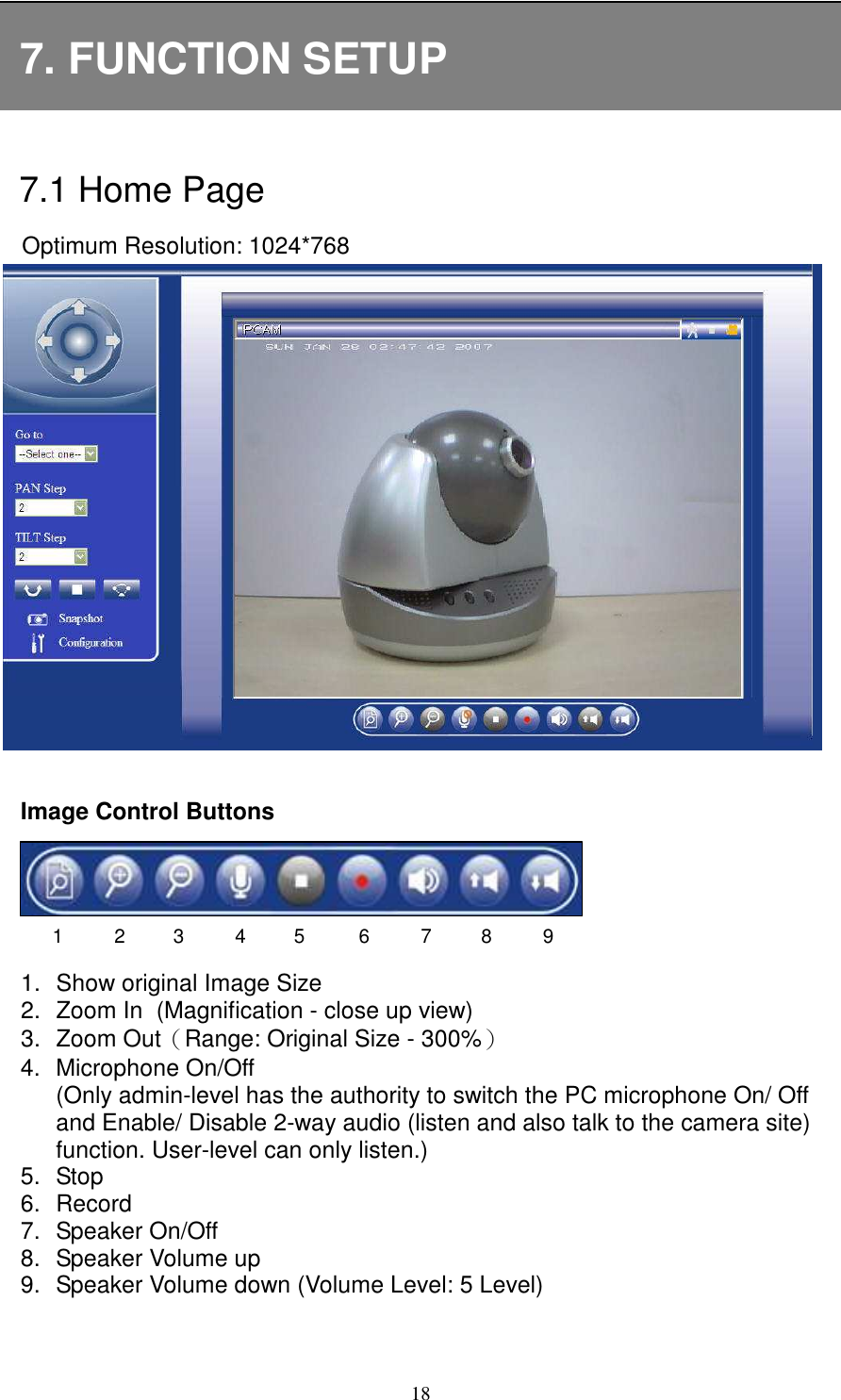
  187. FUNCTION SETUP  7.1 Home Page Optimum Resolution: 1024*768                Image Control Buttons     1.  Show original Image Size   2.  Zoom In   (Magnification - close up view) 3.  Zoom Out(Range: Original Size - 300%) 4.  Microphone On/Off (Only admin-level has the authority to switch the PC microphone On/ Off and Enable/ Disable 2-way audio (listen and also talk to the camera site) function. User-level can only listen.) 5.  Stop   6.  Record 7.  Speaker On/Off   8.  Speaker Volume up 9.  Speaker Volume down (Volume Level: 5 Level)    1 2 3 4 5 6 7 8 9
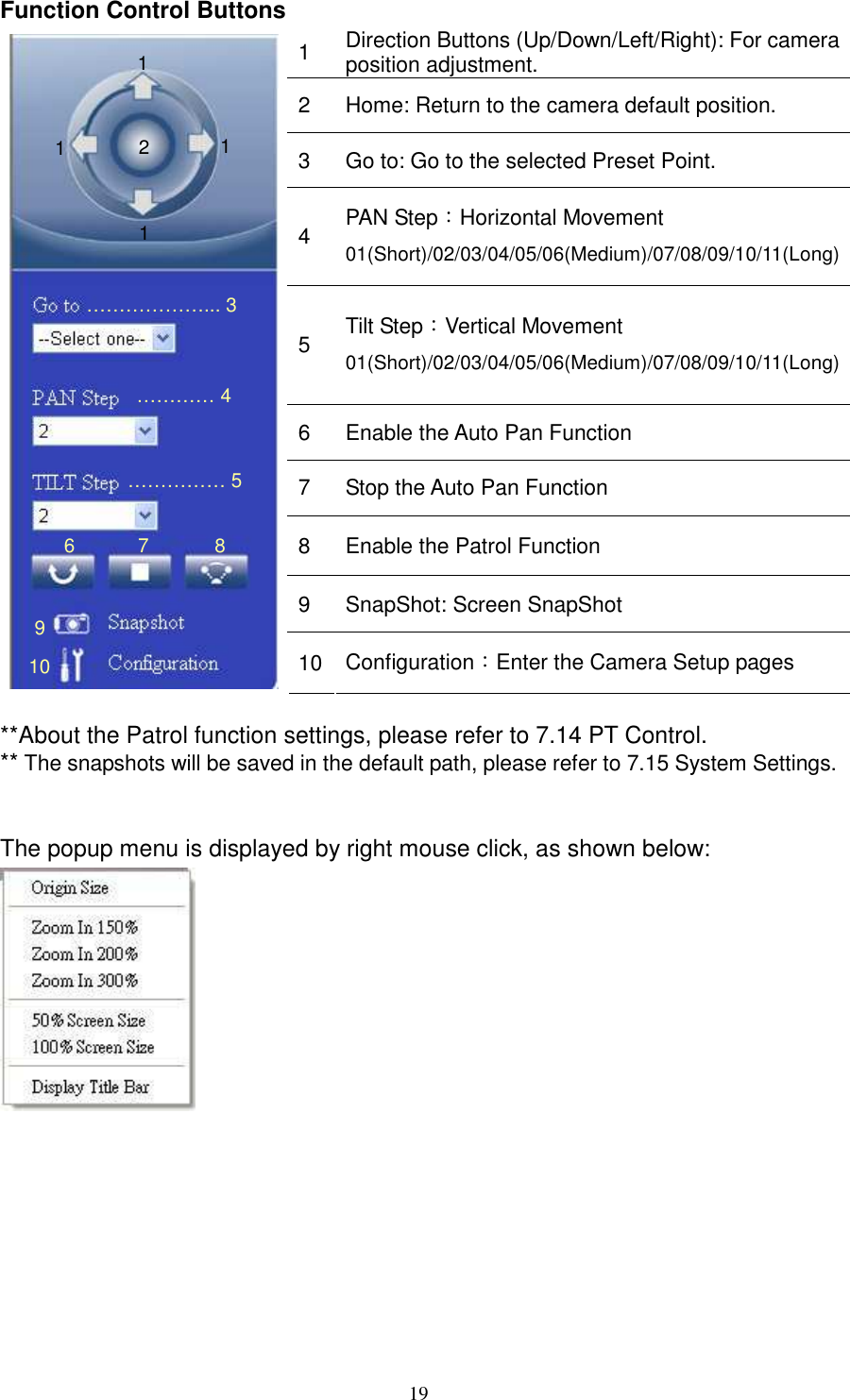
  19Function Control Buttons 1  Direction Buttons (Up/Down/Left/Right): For camera position adjustment. 2  Home: Return to the camera default position. 3  Go to: Go to the selected Preset Point. 4  PAN Step:Horizontal Movement 01(Short)/02/03/04/05/06(Medium)/07/08/09/10/11(Long) 5  Tilt Step:Vertical Movement 01(Short)/02/03/04/05/06(Medium)/07/08/09/10/11(Long) 6  Enable the Auto Pan Function 7  Stop the Auto Pan Function 8  Enable the Patrol Function 9  SnapShot: Screen SnapShot  10 Configuration:Enter the Camera Setup pages  **About the Patrol function settings, please refer to 7.14 PT Control. ** The snapshots will be saved in the default path, please refer to 7.15 System Settings.   The popup menu is displayed by right mouse click, as shown below:   ………………... 3 1 2 1 1 1 ………… 4 6 7 8 …………… 5 9 10
  20Click the last item “Display Title Bar”. The title bar will be displayed across the top of the screen display, as shown below:               Motion Detection Inactivated  Motion Detection Activated   Stop Recording Recording   Camera Unconnected Camera Connected   Camera Name IP Address Image Resolution Frames per Second Bite Rate Display Percentage  Note: Click [Setup] during recording or exiting LIVE page, a message pops up “The recording  is  still  working.  If  you  want  to  stop,  please  press  “OK” button,  or  you  can  press  “cancel”  button  to  keep  recording”.  This means  you  may  click  [OK]  to  stop  current  recording  or  click  [Cancel]  to remain on the current page and continue recording.   NOTE:  Due to the layout of the “Display Title Bar” display, Live image display looks as if it is pushed downward and partly cut off.
  217.2 Date/ Time Settings   1  Time Zone:Select the local time zone. 2  Setup Date / Time via Network Time Protocol (NTP):Synchronize date/ time with the time server.  NTP Server:Enter the IP address or domain name of the time-server. 3  Manual Setup Date / Time:  Date:Select Date.  Time:Select Time. 4  Get Current Date/ Time from the PC:Synchronize date/ time through user PC.  Click to synchronize date/ time with the PC.  Click [Apply] button to complete the setup.
  227.3 Name Settings   1.  Host Name:Enter IP CAM host name. Tip :Applicable  alphanumeric  characters :Underline  (_),  hyphen  (-), numbers (0 - 9) and alphabet (a - z, A - Z). 2.  Domain Name:Enter domain name (optional field, administrator login only)。 3.  Primary  DNS:Enter  IP  address  for  DNS1  (required  field,  for  example 168.95.1.1). 4.  Secondary  DNS:Enter  IP  address  for  DNS2(optional  field,  used  as reserved DNS name). 5.  Enable Dynamic DNS:Select to enable DDNS, but first register an account with the dynamic DNS service (optional field, relevant only to IP CAM using dynamic IP address).  DDNS Provider:Select websites that provides Dynamic DNS services that lets you gain access  to monitor your IP CAM on a  local network when  the  internet  address  of  that  network  is  constantly  changing. Suggested Dynamic DNS service provider: dhs, dyndns, dyns, easydns, gnudip, justlinux, ods, pgpow, and tzo (please refer to 11 APPENDIX for detailed information).    Account / E-Mail:Enter Account or E-mail field for logging in the DDNS server or notify the user of the new IP address.    Password / Key:Enter the password or key to get the DDNS service.  DDNS Host Name:The field is  created automatically when  the  Host Name and the Domain Name that is registered in the DDNS serer has been entered.  Click [Apply] button to complete the setup.
  237.4 IP Settings               1  IP Settings: (1)  Setup  Dynamic  IP  (DHCP):Assign  an  IP  address  via  DHCP  server. Enable DHCP to allow centralized assignation of IP addresses. (2) Setup Static IP:Setup fixed IP address manually.  IP Address:Enter fixed IP address.  Subnet Mask:Enter subnet mask.  Gateway:Enter network gateway.         (3) Setup IP via PPPOE:  User Name:Enter  user  account(provided by  the  Internet Service Provider).  Password :Enter  password (provided  by  the  Internet  Service Provider).         (4) Wireless Interface IP Settings:    Take  wireless  interface  as  backup  device :Wireless  network connection method is applied when cable network connection failure occurs.  Disable wireless interface:Wireless network connection method will not be applied when cable network connection failure occurs.  Click [Apply] button to complete the setup.
  247.5 Wireless Network Settings   1  Communication Mode:Setup communication mode (Infrastructure or Ad-Hoc, normally apply Infrastructure).   2  Wireless Network Name (SSID):Setup wireless network name. 3  Wi-Fi Channel number:Setup channel (Auto, 1~11) 4  Wireless Mode:Select wireless mode (11B/11G mixed mode, 11G only, or 11B only. 5  Wireless Encryption:Select wireless encryption mode (Disable/ WEP). (1) Disabled (Open system):Disable wireless encryption mode. (2) WEP (Shared Key):Select shared key.     WEP Mode:Select 64-bit or 128-bit, normally apply 64-bit.  Default Key ID:Select shared key (1~ 4).  Key Entry Method:Select enter method [ASCII (5 characters) or Hex (10 digits)],            normally apply ASCII.  Key 1~4:Setup maximum of 4 shared keys.
  25(3) WPA-PSK     WPA Encryption:Select TKIP or AES.  Pre-shared  Key  Type:Select  shared  key  type  [Passphrase  (8-63 characters) or Hex (64 digits)].  Pre-shared Key:Enter password.  Click [Apply] button to complete the setup.                Note:  When  “Setup  Dynamic  IP  (DHCP)”  is  set  under  IP  Settings  page  and “Ad-Hoc” is set under Wireless Communication Mode, a message pops-up “When DHCP mode is enabled, Communication Mode can’t be set as “Ad-Hoc””.
  267.6 Video Settings                1  Video Property Settings:Setup video property.  Brightness, Contrast, Saturation, Hue adjustment (Setup Range: 0 - 255)  Flip:Flip image (up/ down, Setup Range: 0 - 255).  Mirror:Mirror image (left/ right, Setup Range: 0 - 255).  OSD Timer:Display OSD timer (Setup Range: 0 - 255).  Flip:Flips an image upside.  Mirror:Reverses image left and right.  OSD Timer:Reveal time on OSD display.  Out/In Door:Select outdoor when camera is installed outdoor to avoid overexposure. And use indoor camera if it is installed indoor, please setup using fluorescent lights 60/ 50 Hz (Default: 60 Hz).              NOTE:To store applied setup within your IP Cam, please make sure to click [Apply] button.
  27        2  Video Stream Mpeg4 (Mpeg4 stream settings) (1) Streaming Property Setting:  Frame Rate:Select fps [5, 10, 15, 20, 25FPS].  Resolution:Select resolution [QVGA (320 x 240) or VGA (640 x 480)].       (2) Streaming Bit Rate Control:Select streaming bit rate.    Constant Bit Rate:Depends on Bit Rate [16K bps~3M bps].  Constant Quality:Depend on quality [OK, Medium, Standard, Good, or Great].         3  Video Stream MJpeg (MJpeg stream settings) (1) Streaming Property Setting:  Frame Rate:Select fps [5, 10, 15, 20 or 25].  Resolution:Select resolution [QVGA (320 x 240) or VGA (640 x 480)].        (2) Streaming Bit Rate Control:Select streaming bit rate.    Constant Bit Rate:Bit Rate value is fixed, 16K bps - 3M bps  Constant Quality:Depend on quality [OK, Medium, Standard, Good, or Great].   Please refer to “7.15 System Settings” before 3GPP setup.   NOTE:Two  types  of  video  stream:  MPEG-4  and  MJPEG  (total  of  30  FPS). MPEG-4  (default)  provides  25FPS,  while  MJPEG  provides  only  5FPS. User can adjust the frame rate size according to preference.    NOTE:Due  to  5FPS is auto provided ones  3GPP  function has been activated. Therefore, the video frame rate for MPEG-4 video stream is decreased to 25FPS.
  28               4  Video Stream 3GPP   (1) Streaming Property Setting:  Frame Rate:Select 5fps.  Resolution:Select resolution [QQVGA (160x120)].  (2) Streaming Bit Rate Control:Select streaming bit rate.    Constant Bit Rate:Bit Rate value is fixed, 16K bps – 64K bps  Constant Quality:Depend on quality [OK, Medium, Standard, Good, or Great].    Click [Apply] button to complete the setup.  A connection with low bandwidth, the system automatically reduces the Frame Rate  and  Bit  Rate.  When  no  users  are  connected,  the  system  automatically restores the Frame Rate and Bit Rate to user setting.    NOTE:Use professional software(ex: VLC)to directly receive Mjpeg data stream and to record more vivid videos. Enter rtsp://IP add/jpegmp2 to receive Mjpeg video stream   rtsp://IP add/3gv2 to receive 3GPP video stream
  297.7 Motion Detection Windows   Motion Detection Window Settings:Use the mouse to click, hold and drag the window frame, remember to click [Apply] in order to validate the change. 1  Motion  Detection  Window  Settings :Setup  motion  detection  area parameters.  Window 1, 2, 3:[Enable/ Disable] motion detection setup for window 1-3.   Sensitivity 1, 2, 3:[Very High, High, Normal, Low, or Very Low] sensitivity rate setup for window 1-3.  Click [Apply] button to complete the setup.
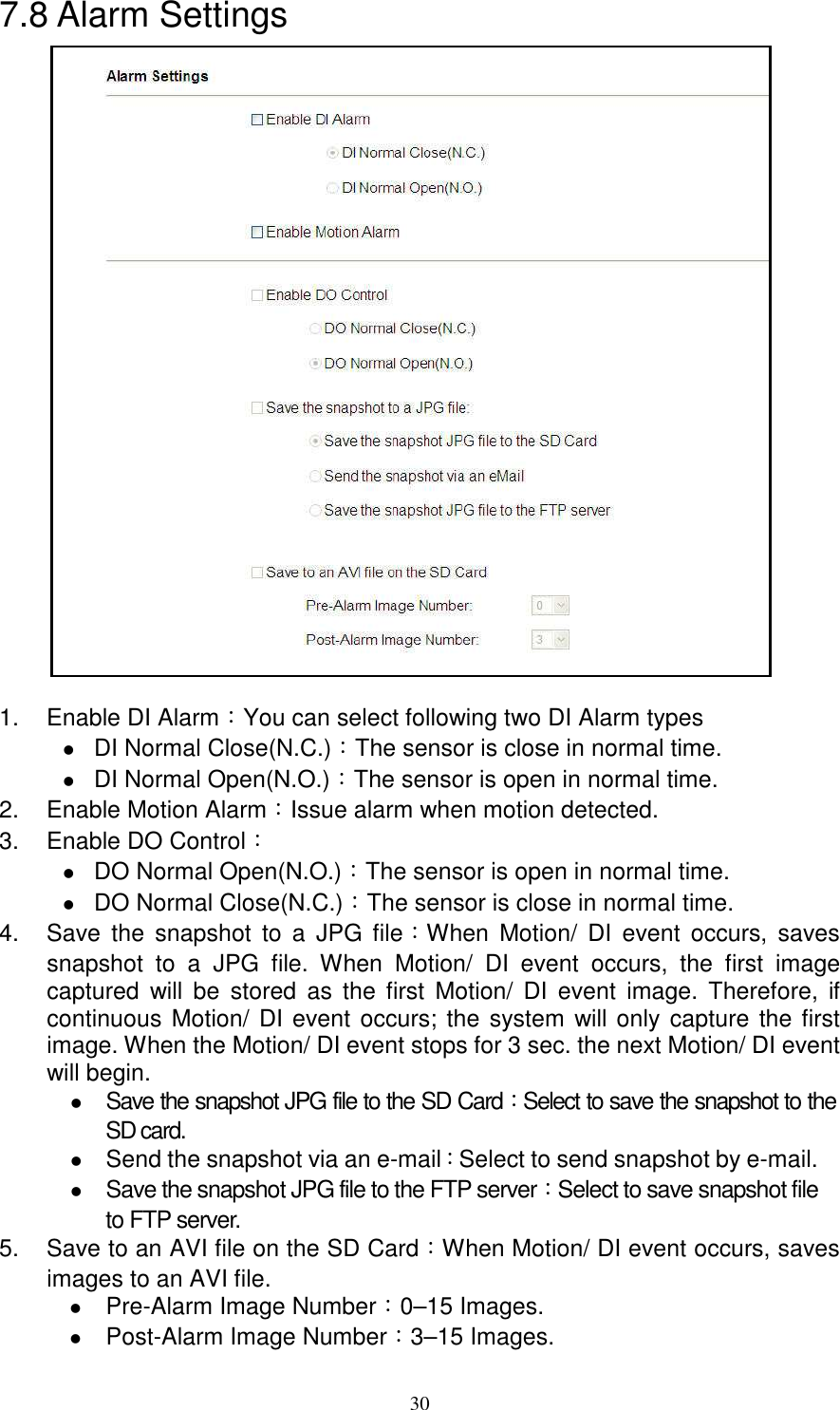
  307.8 Alarm Settings                   1.  Enable DI Alarm:You can select following two DI Alarm types  DI Normal Close(N.C.):The sensor is close in normal time.  DI Normal Open(N.O.):The sensor is open in normal time. 2.  Enable Motion Alarm:Issue alarm when motion detected. 3.  Enable DO Control:    DO Normal Open(N.O.):The sensor is open in normal time.  DO Normal Close(N.C.):The sensor is close in normal time. 4.  Save  the  snapshot  to  a  JPG  file:When  Motion/  DI  event  occurs,  saves snapshot  to  a  JPG  file.  When  Motion/  DI  event  occurs,  the  first  image captured  will  be  stored  as  the  first  Motion/  DI  event  image.  Therefore,  if continuous Motion/ DI event occurs; the system will only capture the first image. When the Motion/ DI event stops for 3 sec. the next Motion/ DI event will begin.  Save the snapshot JPG file to the SD Card:Select to save the snapshot to the SD card.  Send the snapshot via an e-mail:Select to send snapshot by e-mail.  Save the snapshot JPG file to the FTP server:Select to save snapshot file to FTP server. 5.  Save to an AVI file on the SD Card:When Motion/ DI event occurs, saves images to an AVI file.  Pre-Alarm Image Number:0–15 Images.  Post-Alarm Image Number:3–15 Images.
  31    6.  Alarm OFF/ Alarm On/ Alarm Schedule  When you select the Alarm Schedule, the above alarm settings will be triggered only within the scheduled timeline. Move the cursor to any white grid area, hold the left button and move the cursor to draw the grid from white to blue (each grid represents half an hour).    Click [Apply] button to complete the setup.           Note: Select either one of the function [Save the motion snapshot to a JPG file] or [Save motions to an AVI file on the SD Card], but not both.   Note: When  the  condition  of  the  bandwidth  is  inadequate,  unstable,  or  SMTP setup is incorrect. The system may not be able to send the motion event notification by e-mail and a message appears: “Some Motion Detection JPG  files  are  failed  to  be  sent  via  email  or  upload  to  FTP  due  to unstable bandwidth or wrong SMTP/FTP settings. To ensure you can receive the email or upload to FTP accurately, please make sure the quality of  network  or  check  the  SMTP/FTP  settings”.  To  ensure  that user can successfully receive e-mail or upload, it is suggested that the user should determine the quality of the bandwidth and check whether SMTP/ FTP has been correctly setup.
  327.9 IR LED Control                1  IR LED Control  IR LED OFF:  Disable IR function.  IR LED ON:Enable IR function.  Schedule ON:Enable IR LED Schedule  IR LED AUTO:Enable or Disable IR LED by IP Camera automatically. 2  Daily Schedule  Select IR LED ON from time 0:00 to 24:00. One grid indicates half an hour.    Move the cursor to any white grid area, hold the left button and move the cursor to draw the grid from white to blue indicates the area where the IR LED is ON.  Move the cursor to any blue grid area, hold the left button and move the cursor to draw the grid from blue to white indicates the area where the IR LED is OFF.  Select start and end time, from the starting time hold the left button and drag along to the selected ending time. This enables multiple grids to be selected at once.  Click [Apply] button to complete the setup.
  337.10 SD Card File Management                      1  SD Card status: Indicates SD card current storage status. 2  File list:Insert the SD card to the IP camera to display file list stored in the SD card.  Back:Click to return to previous folder.  Select All:Select all files in the file list.  Delete Select:Delete selected file in the file list.  Folder in the File Size field indicates a folder. Click File Name connection to enter the relevant folder.  File Size field indicates the size of the file. Click the right button to download the file.    File Delete:Click [Delete] to delete file.  Reload:Update current folder. 3  Safely Remove SD Card:Indicate it is safe to remove the SD card.  Remove:After  confirming  “Save  motion  to  AVI  files  on  the  SD card” function has been disabled. Click [Remove] button and wait for the message “SD Card not installed” to appear. Then, withdraw the SD card from the IP camera site. Thus, prevents data-damage during SD card hot swap process.          Install:Clicking [Remove] button without withdrawing the SD card from the SD card slot. Enables you to click [Install] button to use the SD card again.       Note:When “Save motion to AVI files on the SD card” function is enabled,    “Format SD Card” function is disabled.
  344  Format SD Card:Click [FORMAT] button to format SD card. All recorded data in the  SD  card  will  be  deleted.  After  format,  two  files  “AlarmPicture  and AlarmVideo” will be created and motion-event data will be stored in these two files.   5  When motion recording is activated it will be  stored instantly onto the SD card. Do not attempt to open recording files during recording as error may occur and the following message will appear. To view the file immediately, uncheck “Save motions to AVI file on the SD card” under Motion Alarm page, or refresh the web page and try again later, you may also take no action at all and allow Motion Recording to continue until it stops.
  357.11 SMTP Settings  1  SMTP Server:Setup simple mail transfer protocol to transfer mail reliably and efficiently(similar to mail function setup). 2  Recipient:Enter recipient’s e-mail address. 3  The SMTP Server need authorization:The user needs to give valid user name and password to send email via the server.  Username:Enter the user name of the e-mail address.    Password:Enter password.   Click [Apply] button to complete the setup.
  367.12 FTP Settings  1  FTP Server:Enter FTP address, to enable file transfer via FTP when a Motion/ DI event occurs. 2  FTP Port:Enter FTP Port(normally apply 21). 3  Username:Enter active user name of FTP server. 4  Password:Enter FTP user password. 5  Remote Folder:Create a remote folder; it should be the same name as your relative root folder. For example, if you setup an FTP account name user1 and wants to store a jpg file to“/home/user1/FolderName/”, then you need only to enter “/FolderName”. If the file is not found on the FTP server, it is auto created. When the file is found, enable the authority of the file ($chmod 777 /home/user1/FolderName).  6  Passive Mode:Select passive mode.  Click [Apply] button to complete the setup.      Note:The folder is created only when a motion-event occurs.
  377.13 Account Settings  Current User: Displays the current user.       1  Change Password    New Password: Enter new password.  Confirm: Enter the new password again to reconfirm.  Click [Change] to validate the setup. 2  Add New Account (Maximum 32 user accounts)  Account: Enter user account.  Password: Enter user password.  Confirm: Enter user password again to reconfirm.  Click [Add] to validate the setup.            3  Delete Account or Reset User Password    Select a user first.  Click [Delete] to delete the user.  Password: Enter new user password.  Confirm: Enter new user password again to reconfirm.  Click [Set Password] to validate the setup.        NOTE:Account Applicable alphanumeric characters (Maximum 10units):  numbers (0 - 9) and alphabet (a - z, A - Z).  Password Applicable alphanumeric characters (Maximum 12units):  numbers (0 - 9) and alphabet (a - z, A - Z).    NOTE: Only the Admin has full control authority, the rest has view and password modification access only.
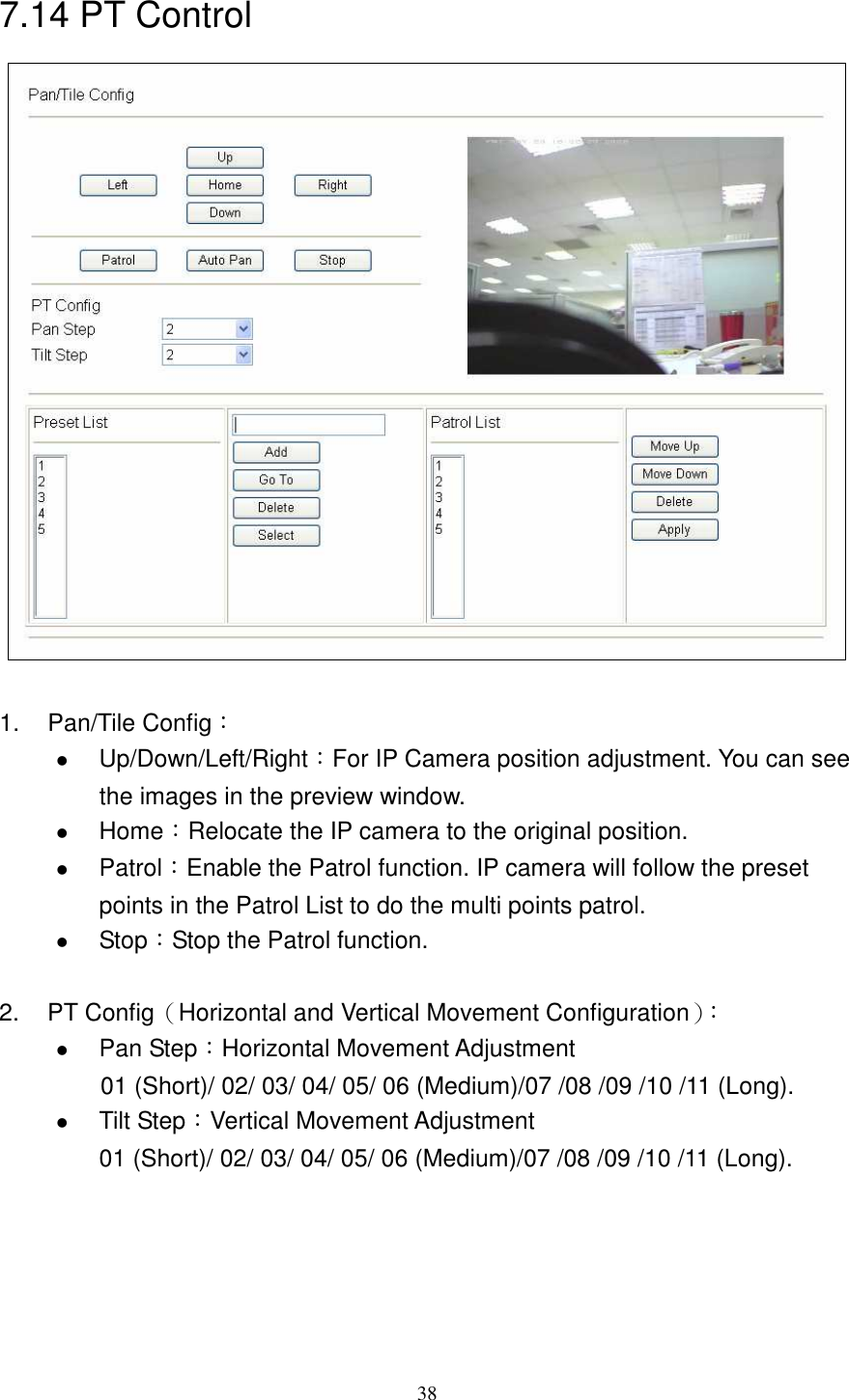
  387.14 PT Control   1.  Pan/Tile Config:  Up/Down/Left/Right:For IP Camera position adjustment. You can see the images in the preview window.  Home:Relocate the IP camera to the original position.  Patrol:Enable the Patrol function. IP camera will follow the preset points in the Patrol List to do the multi points patrol.      Stop:Stop the Patrol function.  2.  PT Config(Horizontal and Vertical Movement Configuration):  Pan Step:Horizontal Movement Adjustment 01 (Short)/ 02/ 03/ 04/ 05/ 06 (Medium)/07 /08 /09 /10 /11 (Long).  Tilt Step:Vertical Movement Adjustment   01 (Short)/ 02/ 03/ 04/ 05/ 06 (Medium)/07 /08 /09 /10 /11 (Long).
  393.  Preset List:User can set the desired camera position and save it as Preset point in the Preset List. It is a preset user-defined camera position; user can move the camera position very quickly when needed. 100 preset points are allowed in the Preset List.  Use the Up/Down/Left/Right buttons to adjust the camera position, and then input the preset point name in the right column of Preset List.  Click “Add” button to add to Preset List.  Select the desired Preset Point and then click “Go To” button, camera will move to the Preset Point position.    Click “Delete” button to delete the selected Preset Point.  Click “Select” button to add a selected Preset Point into Patrol List.     4.  Patrol List:IP camera will follow the Preset Points in the Patrol List to do the sequential patrol (Maximum 20 Patrol List).    Move Up/Move Down:To adjust the sequence of Preset Point in the Patrol List.    Click “Delete” button to delete the selected Preset Point.        NOTE:You have to click [Apply] button after you adding a Preset Point into the Patrol List.
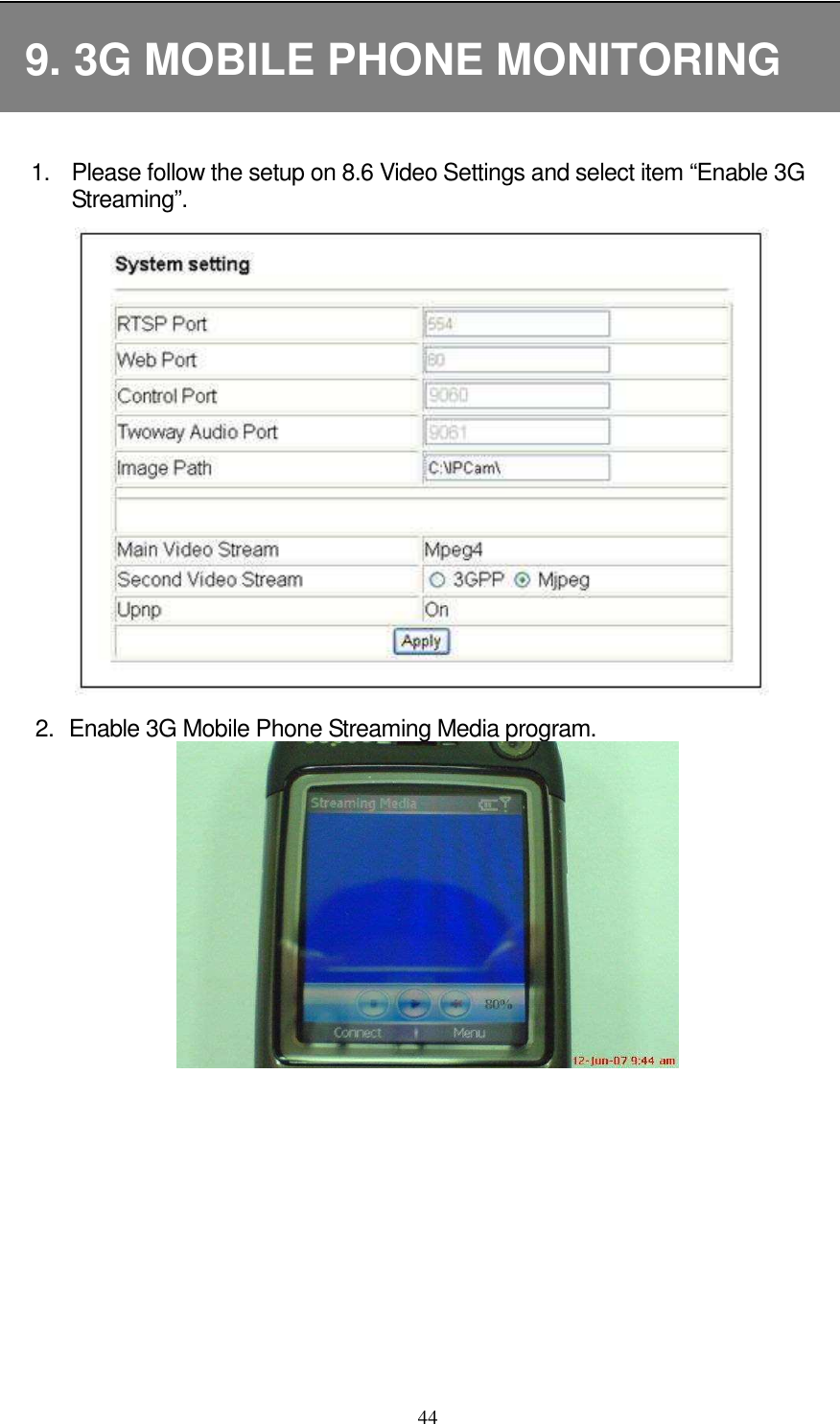
  407.15 System Settings               Image Path:The saving path of the image snapshots (*.JPG/*.AVI). The default path is C:\IPCam\.  Main Video Stream:Default is Mpeg-4 (this function is read only). Second Video Stream:You can select 3GPP (Output to 3G mobile phone) or Mjpeg format.          NOTE:The Profile is stored in PC and not in IP CAM. If you reinstall or renew your PC the parameter previously setup will not be stored in your new PC and the  same  happens  when  you  click  [Reset]  button,  it  will  not  restore  to factory default settings.
  417.16 Restore Factory Default       Click [Restore] to restore the factory default settings. Any changes made so far will  be  lost  and  the  system  auto  connects  to  the  default  IP  address (Http://192.168.100.100).   7.15 Reboot  Click [Reboot] and the IP camera will start rebooting.   NOTE:The  system  can  only  restore  factory  default  settings  of  the  parameter profiles within the IP CAM, but invalid to parameter profiles store on PC.
  427.18 Firmware Update   To install firmware updates for your IP camera. Click [Browsing] and select the firmware file named “IPCAM Firmware (bin file)”, and then click [Upgrade]. The whole process needs a few minutes, so please don’t turn off the power or press the reset button during a firmware update.  Note: 1  Please confirm the connection quality and make sure that the IP camera maintains uninterrupted connection to the network.   2  When the speed of Firmware upload is very slow, please remove proxy settings first. Please follow the steps below to disable proxy server:    Open IE and click [Stop] button. Click [Tools] --> [Internet Options].
  43 In the [Internet Options] window click the [Connections] tab. Next, click the [LAN Settings...] button.                  In the "Proxy Server" area, remove the check mark next to “Use a proxy server for ....”, and then click [OK] button.                   When firmware update failure occurs, first store the firmware file (bin file) to the SD card and then reboot the device to enable auto update. Please do not unplug the power supply or pull-out the SD card while upgrading.
  44  9. 3G MOBILE PHONE MONITORING  1.  Please follow the setup on 8.6 Video Settings and select item “Enable 3G Streaming”.            2.  Enable 3G Mobile Phone Streaming Media program.
  453.  Connect to the  IP  address of the IP  camera,  using  URL  format“rtsp://[IP address]/3gv2” (remember to add 3gv2 at the end of the IP address), as shown below:  4.  When online connection is successful, image will be displayed on the mobile phone screen display.     Supported cell phone brand type, listed below:        Brand Nokia  Motorolla  Sony Ericsson    Dopod Type N90 N80 N93 N95 E107  V3X  K608i  W900i  K610i  Z800i  595 CHT 9100
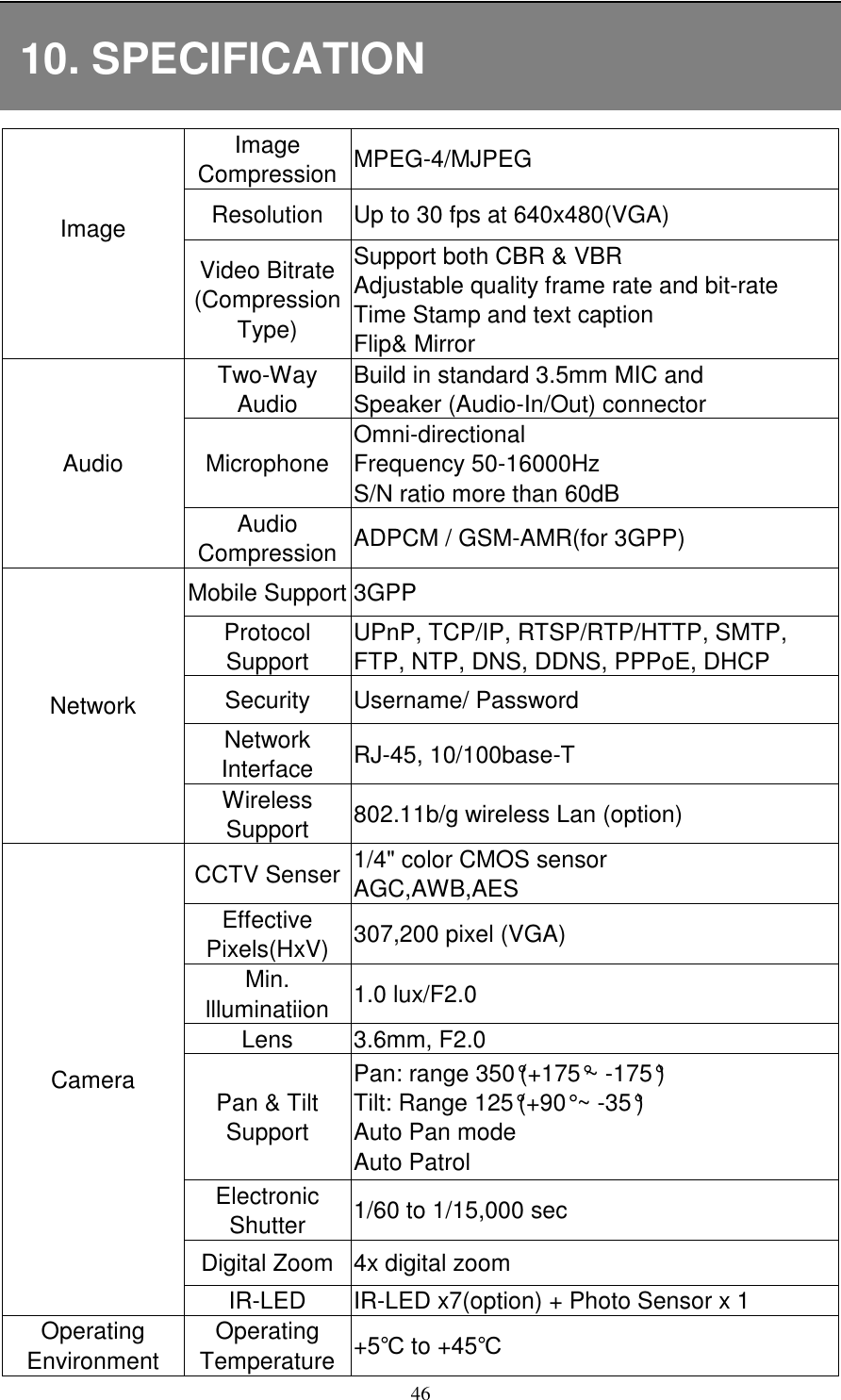
  4610. SPECIFICATION Image Compression MPEG-4/MJPEG Resolution  Up to 30 fps at 640x480(VGA) Image  Video Bitrate (Compression Type) Support both CBR & VBR Adjustable quality frame rate and bit-rate Time Stamp and text caption Flip& Mirror Two-Way Audio Build in standard 3.5mm MIC and   Speaker (Audio-In/Out) connector Microphone Omni-directional Frequency 50-16000Hz S/N ratio more than 60dB Audio Audio Compression ADPCM / GSM-AMR(for 3GPP) Mobile Support 3GPP Protocol Support UPnP, TCP/IP, RTSP/RTP/HTTP, SMTP, FTP, NTP, DNS, DDNS, PPPoE, DHCP Security  Username/ Password Network Interface  RJ-45, 10/100base-T Network Wireless Support  802.11b/g wireless Lan (option) CCTV Senser 1/4" color CMOS sensor AGC,AWB,AES                     Effective Pixels(HxV)  307,200 pixel (VGA) Min. llluminatiion  1.0 lux/F2.0 Lens  3.6mm, F2.0 Pan & Tilt Support Pan: range 350°(+175°~ -175°) Tilt: Range 125°(+90° ~ -35°) Auto Pan mode Auto Patrol Electronic Shutter  1/60 to 1/15,000 sec Digital Zoom  4x digital zoom Camera IR-LED  IR-LED x7(option) + Photo Sensor x 1 Operating Environment Operating Temperature +5℃ to +45℃
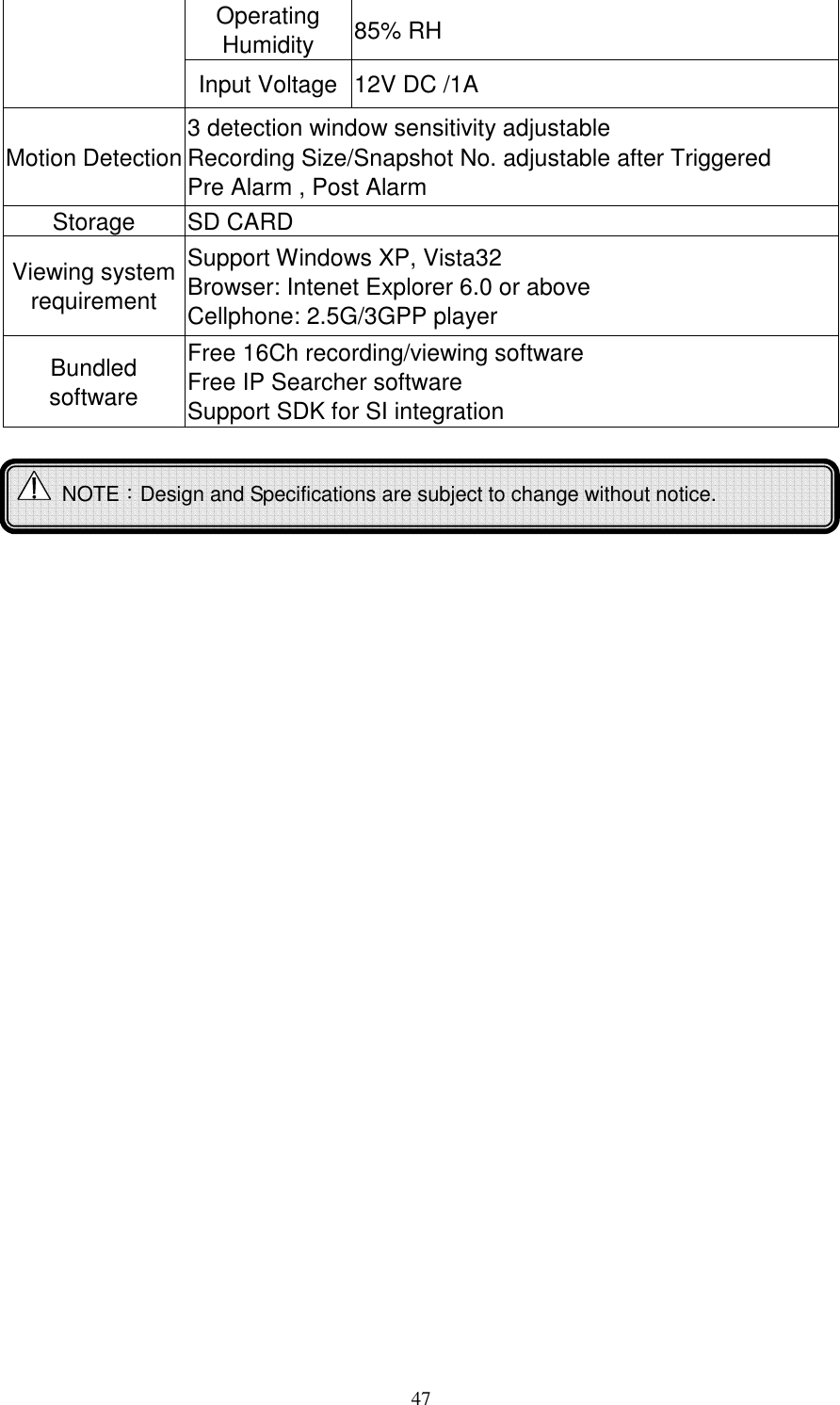
  47Operating Humidity  85% RH Input Voltage 12V DC /1A Motion Detection 3 detection window sensitivity adjustable Recording Size/Snapshot No. adjustable after Triggered Pre Alarm , Post Alarm Storage  SD CARD Viewing system requirement Support Windows XP, Vista32 Browser: Intenet Explorer 6.0 or above Cellphone: 2.5G/3GPP player Bundled software Free 16Ch recording/viewing software Free IP Searcher software Support SDK for SI integration    NOTE:Design and Specifications are subject to change without notice.
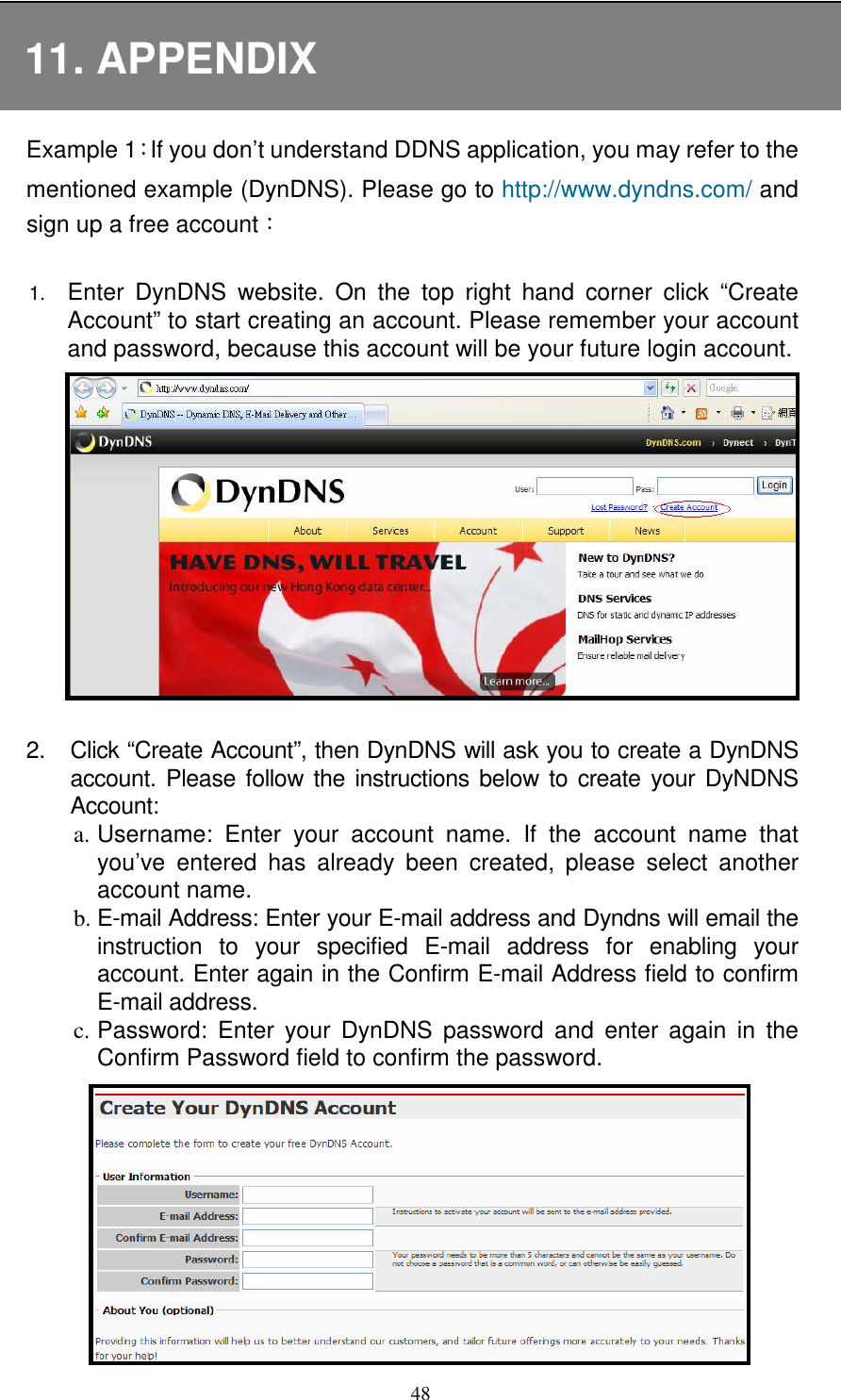
  4811. APPENDIX Example 1:If you don’t understand DDNS application, you may refer to the mentioned example (DynDNS). Please go to http://www.dyndns.com/ and sign up a free account:  1. Enter  DynDNS  website.  On  the  top  right  hand  corner  click  “Create Account” to start creating an account. Please remember your account and password, because this account will be your future login account.  2.  Click “Create Account”, then DynDNS will ask you to create a DynDNS account. Please follow the instructions below  to create your DyNDNS Account: a. Username:  Enter  your  account  name.  If  the  account  name  that you’ve  entered  has  already  been  created,  please  select  another account name.   b. E-mail Address: Enter your E-mail address and Dyndns will email the instruction  to  your  specified  E-mail  address  for  enabling  your account. Enter again in the Confirm E-mail Address field to confirm E-mail address. c. Password:  Enter  your  DynDNS  password  and  enter  again  in  the Confirm Password field to confirm the password.
  493.  Please read Acceptable Use Policy (AUP) and accept it prior to creating your account. Check “I agree to the AUP” and “I will only create one (1) free  account”,  and  make  sure  the  information  is  correct,  then  click [Create Account].  4.     Then, you will see the screen “Account Created”, and Dyndns will email the  instructions  to  your  specified  E-mail  address  for  enabling  your account.
  50 5.    Press the link in the mail and you will see “Account Confirmed”. Your account is created successfully now and then login with your account             6.  Please return to DynDNS website. On the top right hand corner enter the “User” and “Pass” field that you just created. Then click [Login] to enter.
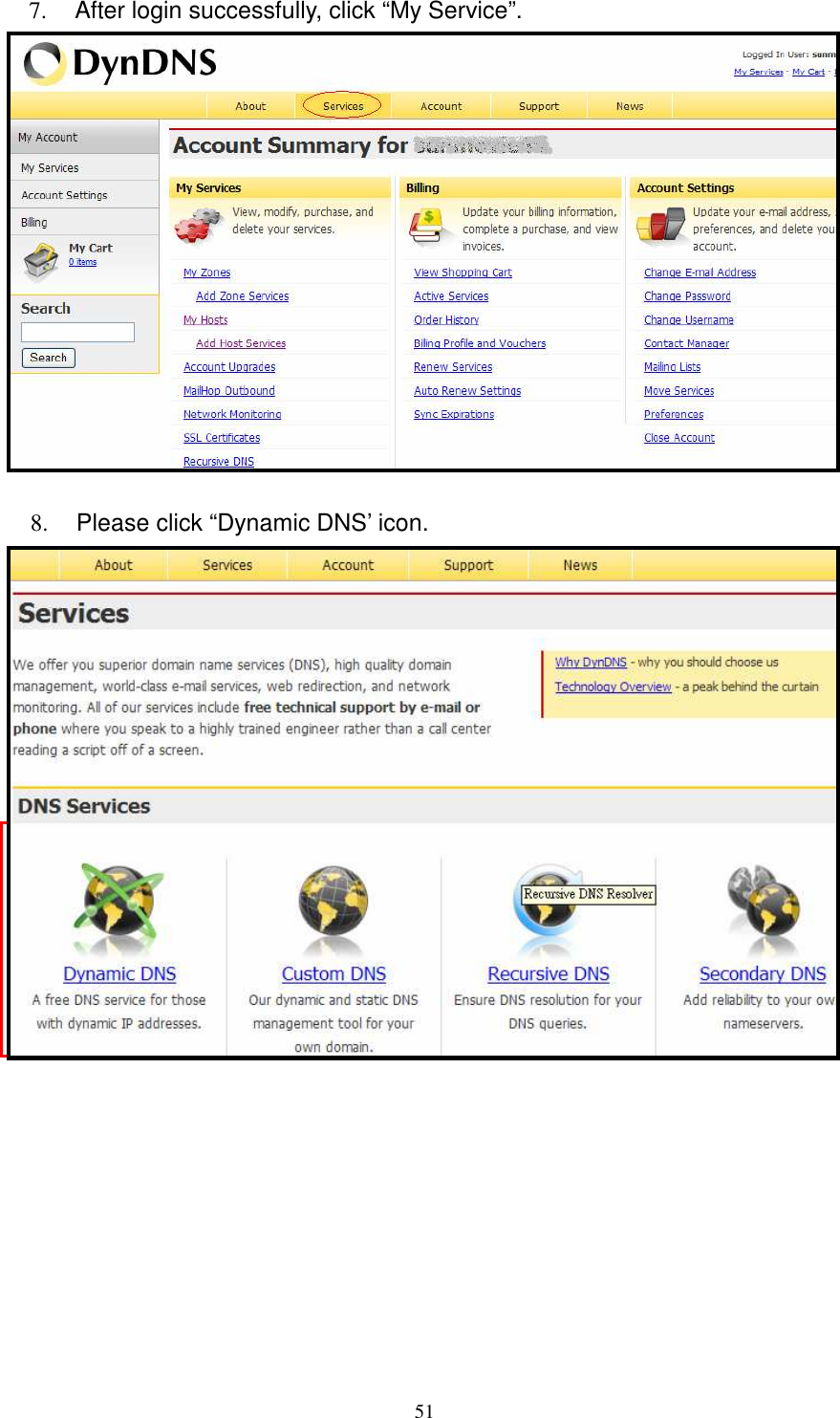
  517.  After login successfully, click “My Service”.  8.  Please click “Dynamic DNS’ icon.
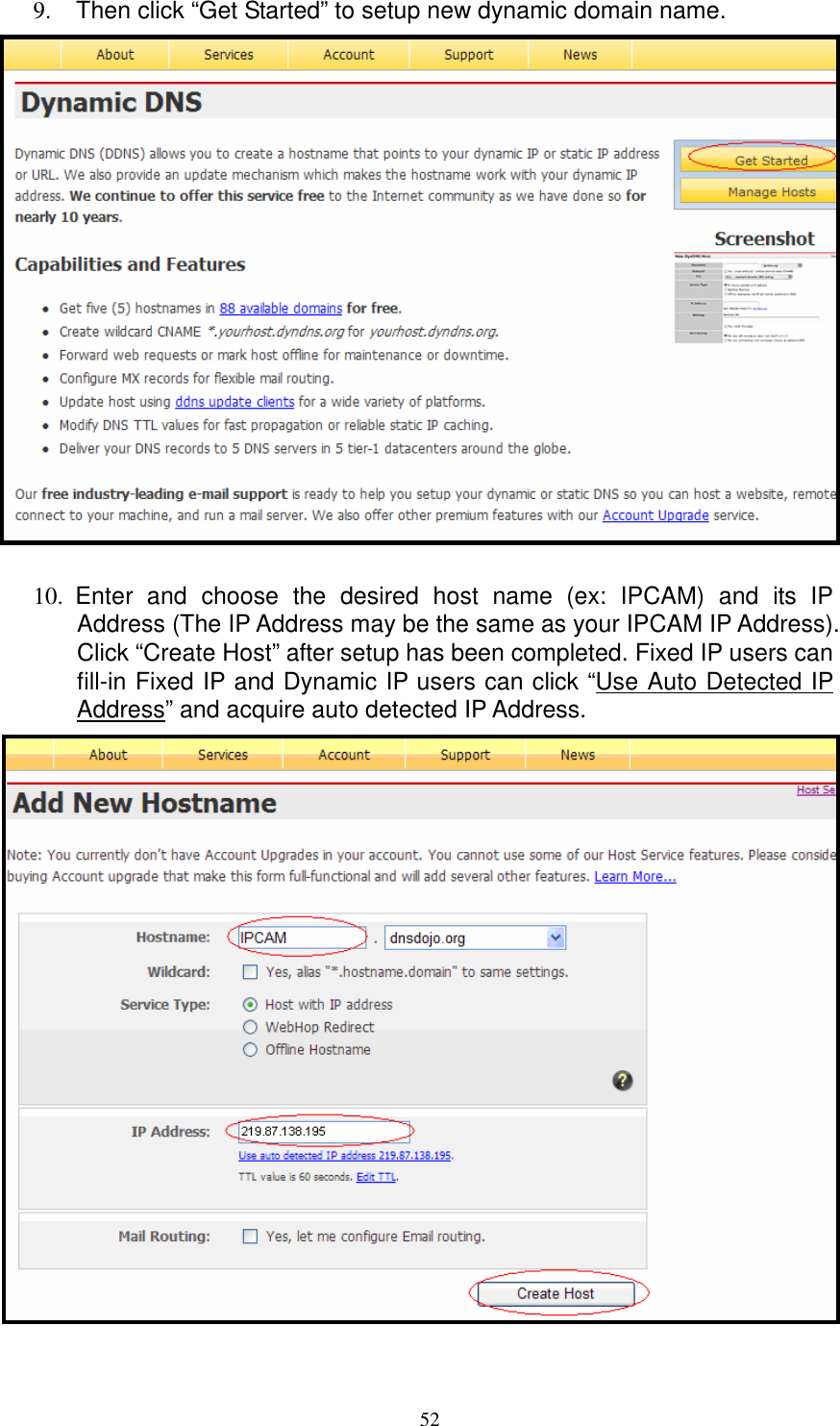
  529.  Then click “Get Started” to setup new dynamic domain name.   10.  Enter  and  choose  the  desired  host  name  (ex:  IPCAM)  and  its  IP Address (The IP Address may be the same as your IPCAM IP Address). Click “Create Host” after setup has been completed. Fixed IP users can fill-in Fixed IP and Dynamic IP users can click “Use Auto Detected IP Address” and acquire auto detected IP Address.
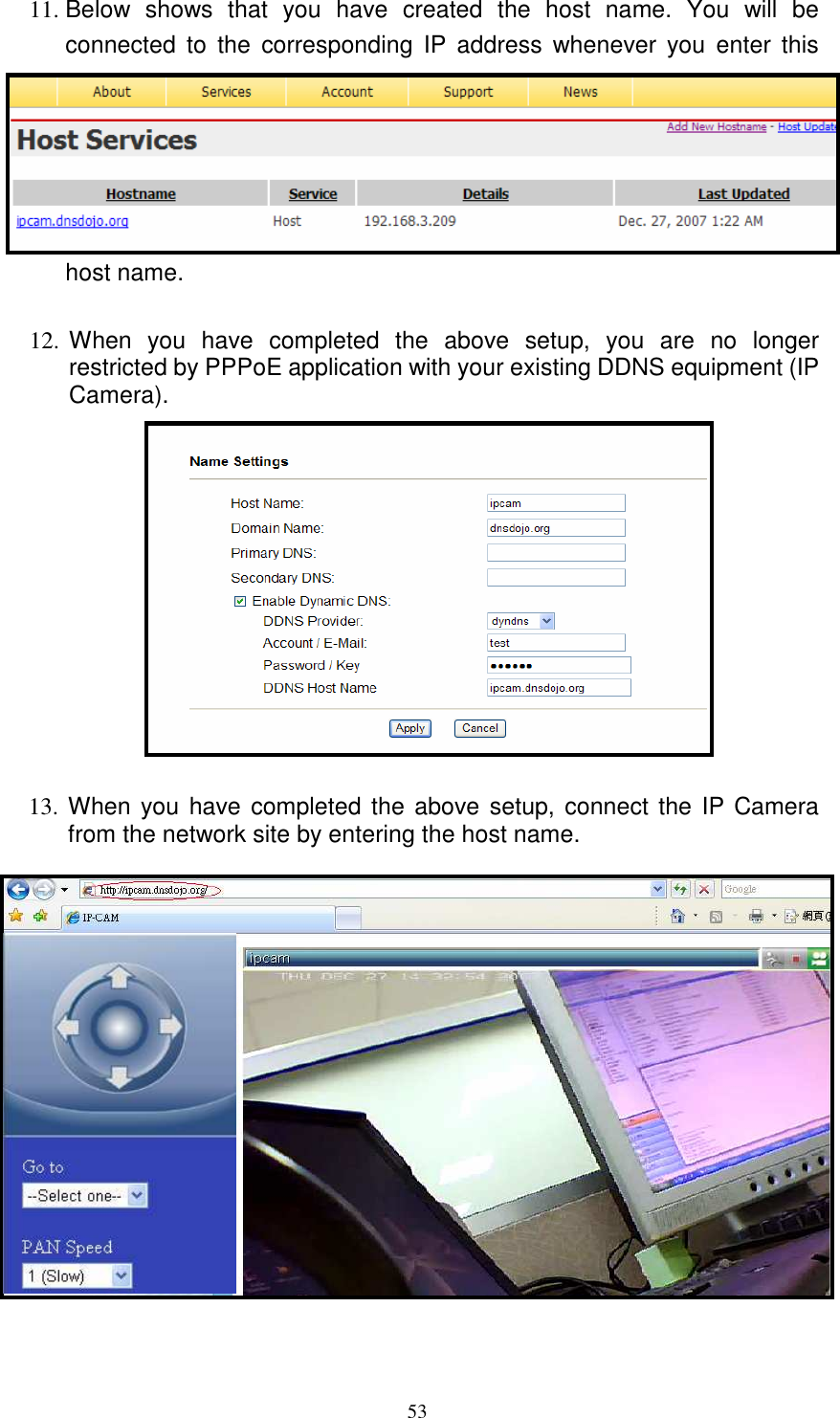
  5311. Below  shows  that  you  have  created  the  host  name.  You  will  be connected  to  the  corresponding  IP  address  whenever  you  enter  this host name.  12. When  you  have  completed  the  above  setup,  you  are  no  longer restricted by PPPoE application with your existing DDNS equipment (IP Camera).  13. When you have completed the above setup, connect the IP Camera from the network site by entering the host name.
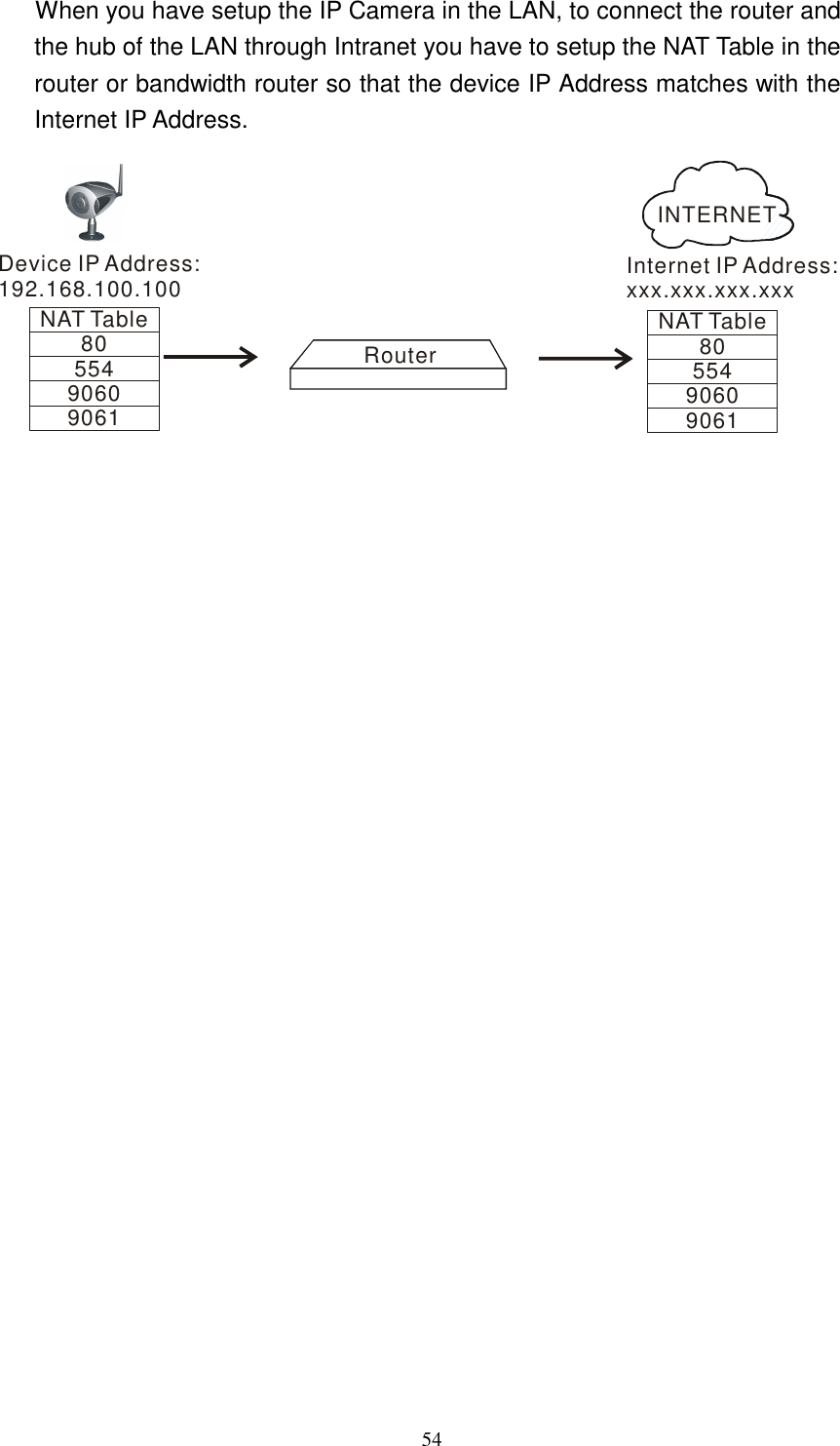
  54When you have setup the IP Camera in the LAN, to connect the router and the hub of the LAN through Intranet you have to setup the NAT Table in the router or bandwidth router so that the device IP Address matches with the Internet IP Address.           Device IP Address:192.168.100.100NAT Table8055490609061Internet IP Address:xxx.xxx.xxx.xxxRouterNAT Table8055490609061INTERNET

Navigation menu