ZHIBOTONG ELECTRONICS WS Wireless Router User Manual

SHENZHEN ZHIBOTONG ELECTRONICS CO.,LTD. Wireless Router Users Manual

Manual

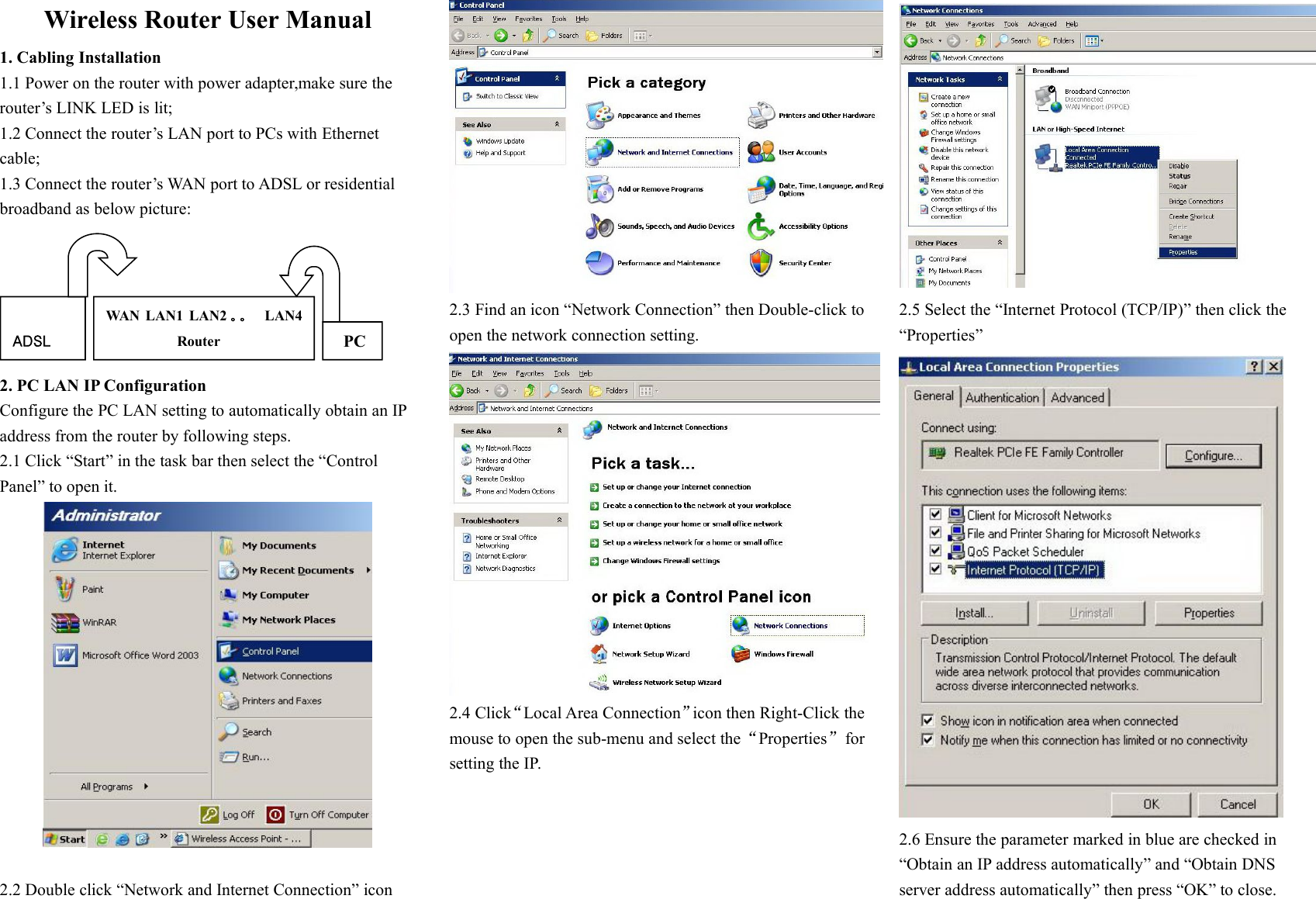
Wireless Router User Manual1. Cabling Installation1.1 Power on the router with power adapter,make sure therouter’s LINK LED is lit;1.2 Connect the router’s LAN port to PCs with Ethernetcable;1.3 Connect the router’s WAN port to ADSL or residentialbroadband as below picture:ADSLWAN LAN1 LAN2 。。 LAN4RouterPC2. PC LAN IP ConfigurationConfigure the PC LAN setting to automatically obtain an IPaddress from the router by following steps.2.1 Click “Start” in the task bar then select the “ControlPanel” to open it.2.2 Double click “Network and Internet Connection” icon2.3 Find an icon “Network Connection” then Double-click toopen the network connection setting.2.4 Click“Local Area Connection”icon then Right-Click themouse to open the sub-menu and select the“Properties”forsetting the IP.2.5 Select the “Internet Protocol (TCP/IP)” then click the“Properties”2.6 Ensure the parameter marked in blue are checked in“Obtain an IP address automatically” and “Obtain DNSserver address automatically” then press “OK” to close.
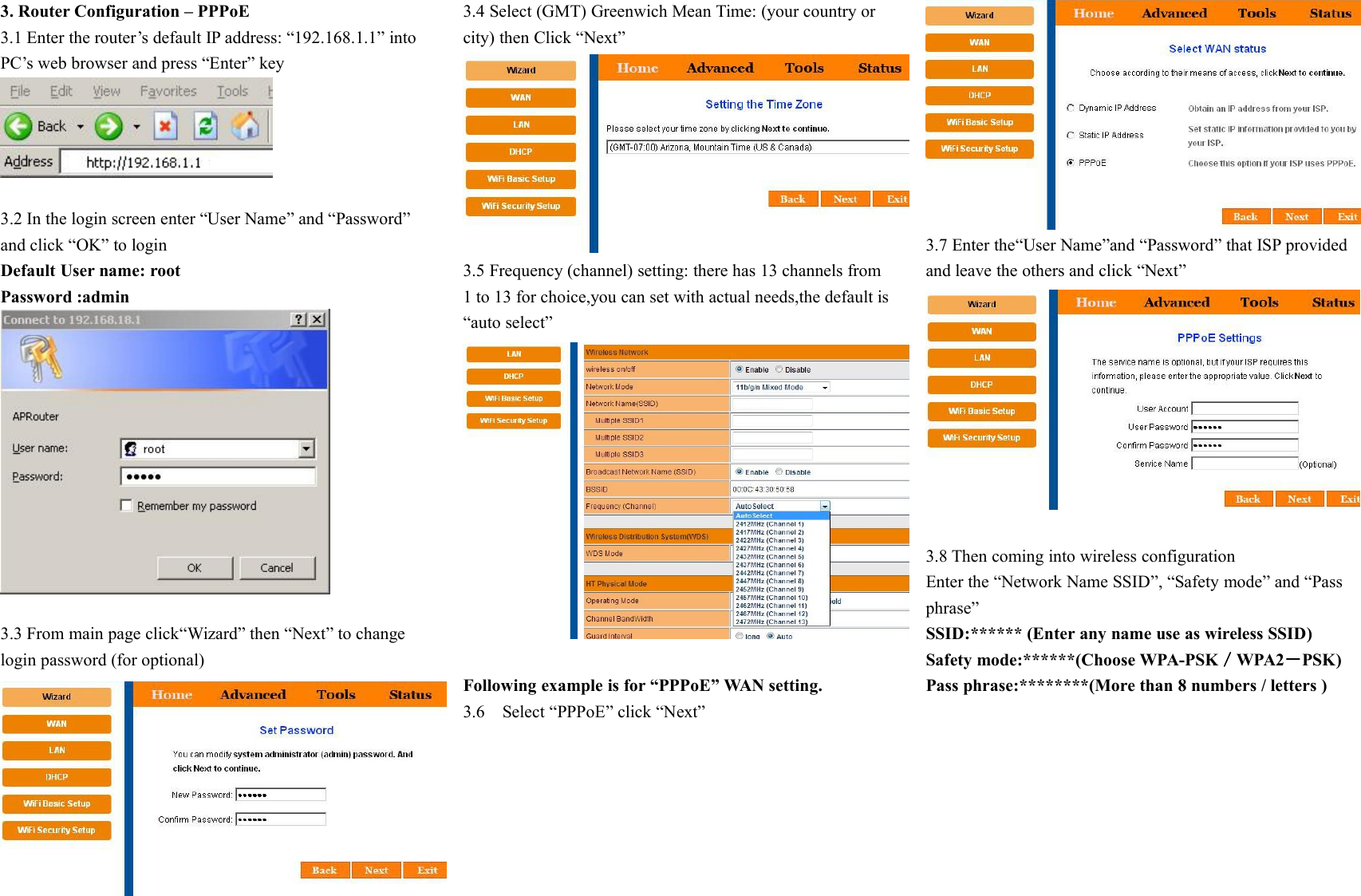
3. Router Configuration – PPPoE3.1 Enter the router’s default IP address: “192.168.1.1” intoPC’s web browser and press “Enter” key3.2 In the login screen enter “User Name” and “Password”and click “OK” to loginDefault User name: rootPassword :admin3.3 From main page click“Wizard” then “Next” to changelogin password (for optional)3.4 Select (GMT) Greenwich Mean Time: (your country orcity) then Click “Next”3.5 Frequency (channel) setting: there has 13 channels from1 to 13 for choice,you can set with actual needs,the default is“auto select”Following example is for “PPPoE” WAN setting.3.6 Select “PPPoE” click “Next”3.7 Enter the“User Name”and “Password” that ISP providedand leave the others and click “Next”3.8 Then coming into wireless configurationEnter the “Network Name SSID”, “Safety mode” and “Passphrase”SSID:****** (Enter any name use as wireless SSID)Safety mode:******(Choose WPA-PSK/WPA2-PSK)Pass phrase:********(More than 8 numbers / letters )
3.9 Click “Next” to reboot the router4.0 After reboot, router is success configuration and readyfor Internet connection.FCC Statement:This equipment has been tested and found to complywith the limits for a Class B digital device, pursuant topart 15 of the FCC Rules. These limits are designedto provide reasonable protection against harmfulinterference in a residential installation. This equipmentgenerates, uses and can radiate radio frequencyenergy and, if not installed and used in accordance withthe instructions, may cause harmful interference toradio communications.However, there is no guarantee that interference willnot occur in a particular installation. If this equipmentdoes cause harmful interference to radio or televisionreception, which can be determined by turning theequipment off and on, the user is encouraged to try tocorrect the interference by one or more of the followingmeasures:• Reorient or relocate the receiving antenna.• Increase the separation between the equipmentand receiver.• Connect the equipment to an outlet on a circuitdifferent from that to which the receiver is connected.This device complies with part 15 of the FCC rules.Operation is subject to the following two conditions: (1)This device may not cause harmful interference, and (2)this device must accept any interference received,including interference that may cause undesiredoperation.Note: Modifications to this product will void the user’sauthority to operate this equipment.

Navigation menu