ZINK Imaging 311011 hAppy Print User Manual QSG

ZINK Imaging Inc. hAppy Print QSG

Contents

User Manual QSG.pdf

QUICK START GUIDE
Congratulations  on your new  ZINK hAppy+™! In this guide we’ll get you  set up in no time.If you have any questions, call us at  877-711-ZINK (9465) or visit us online  at ZINK.com.
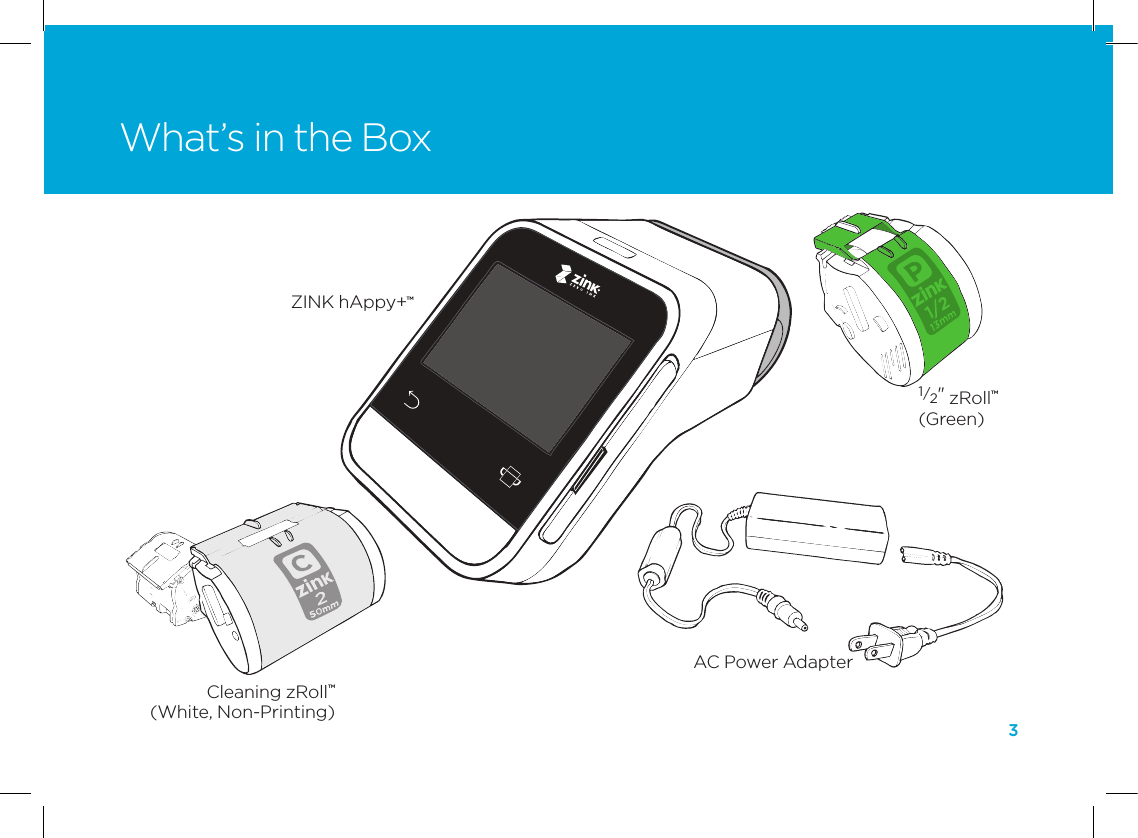
3What’s in the BoxZINK hAppy+™AC Power Adapter1/2" zRoll™(Green)Cleaning zRoll™(White, Non-Printing)
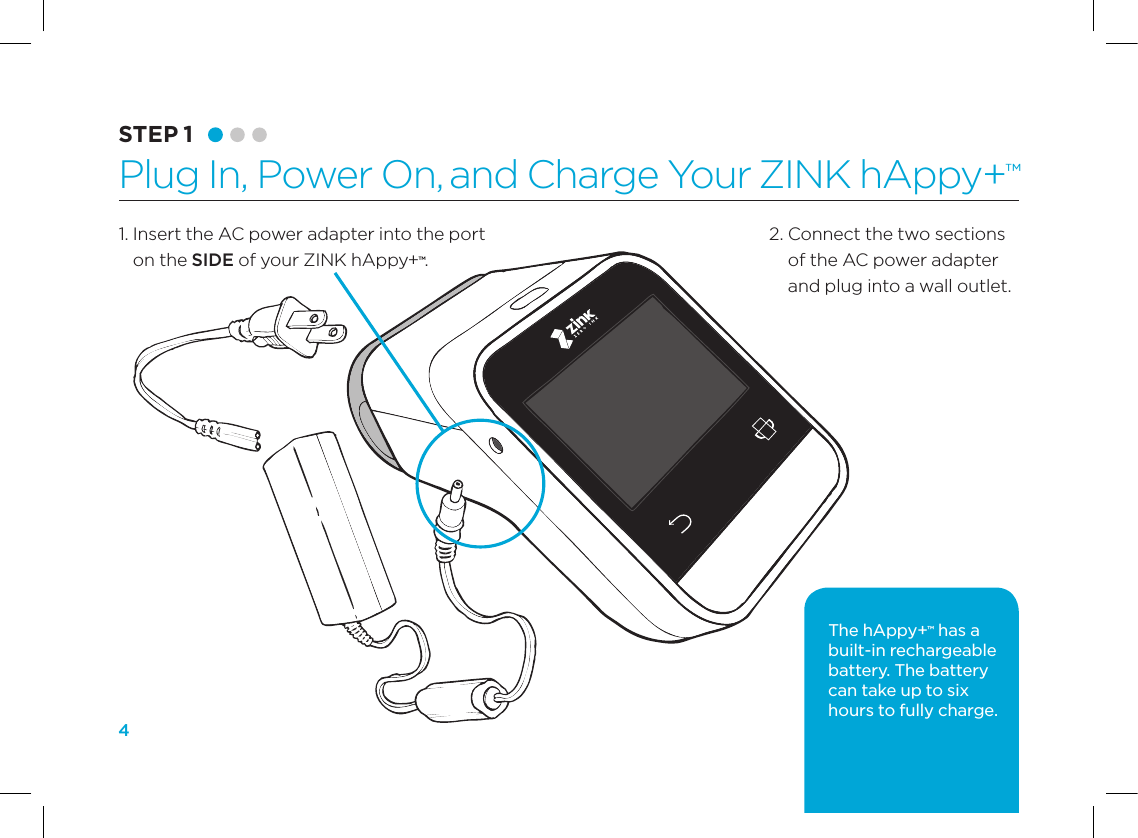
41.  Insert the AC power adapter into the port on the SIDE of your ZINK hAppy+™.STEP 1 Plug In, Power On, and Charge Your ZINK hAppy+™2.  Connect the two sections of the AC power adapter and plug into a wall outlet.The hAppy+™ has a built-in rechargeable battery. The battery can take up to six hours to fully charge.
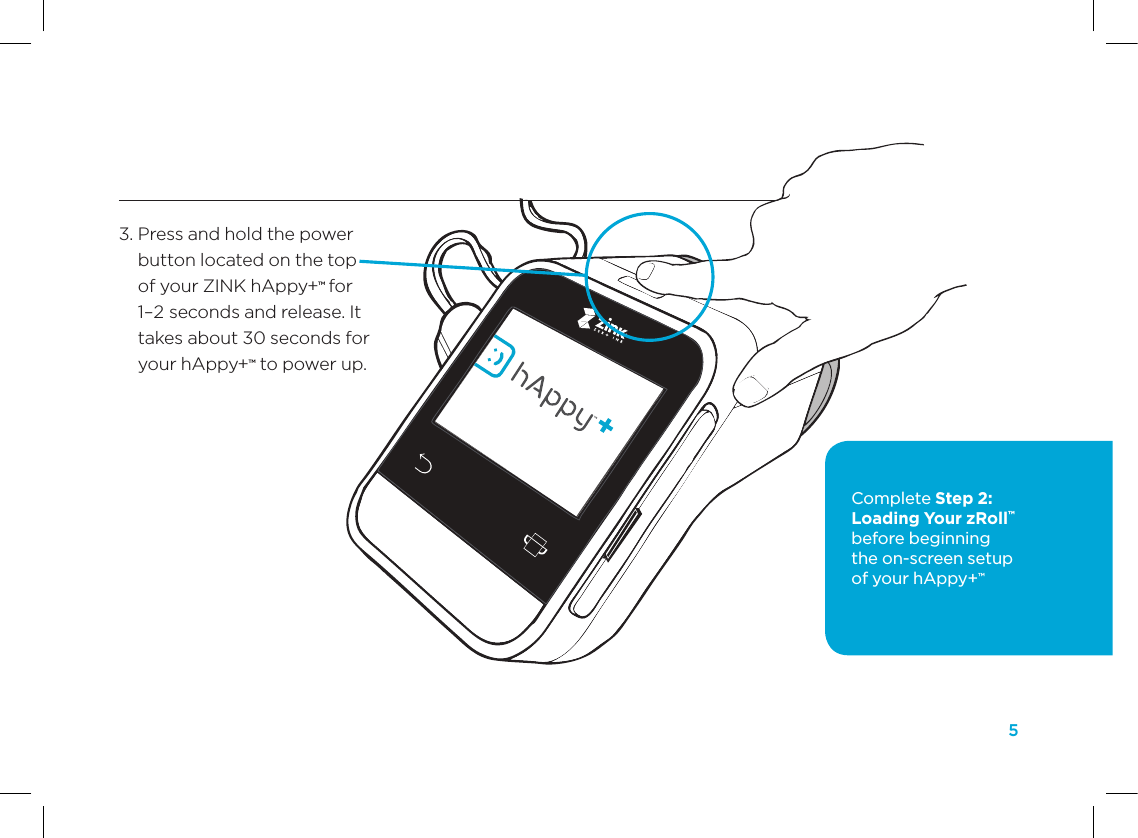
5STEP 1 Plug In, Power On, and Charge Your ZINK hAppy+™3.  Press and hold the power button located on the top of your ZINK hAppy+™ for 1–2 seconds and release. It takes about 30 seconds for your hAppy+™ to power up.Complete Step 2: Loading Your zRoll™ before beginning  the on-screen setup  of your hAppy+™
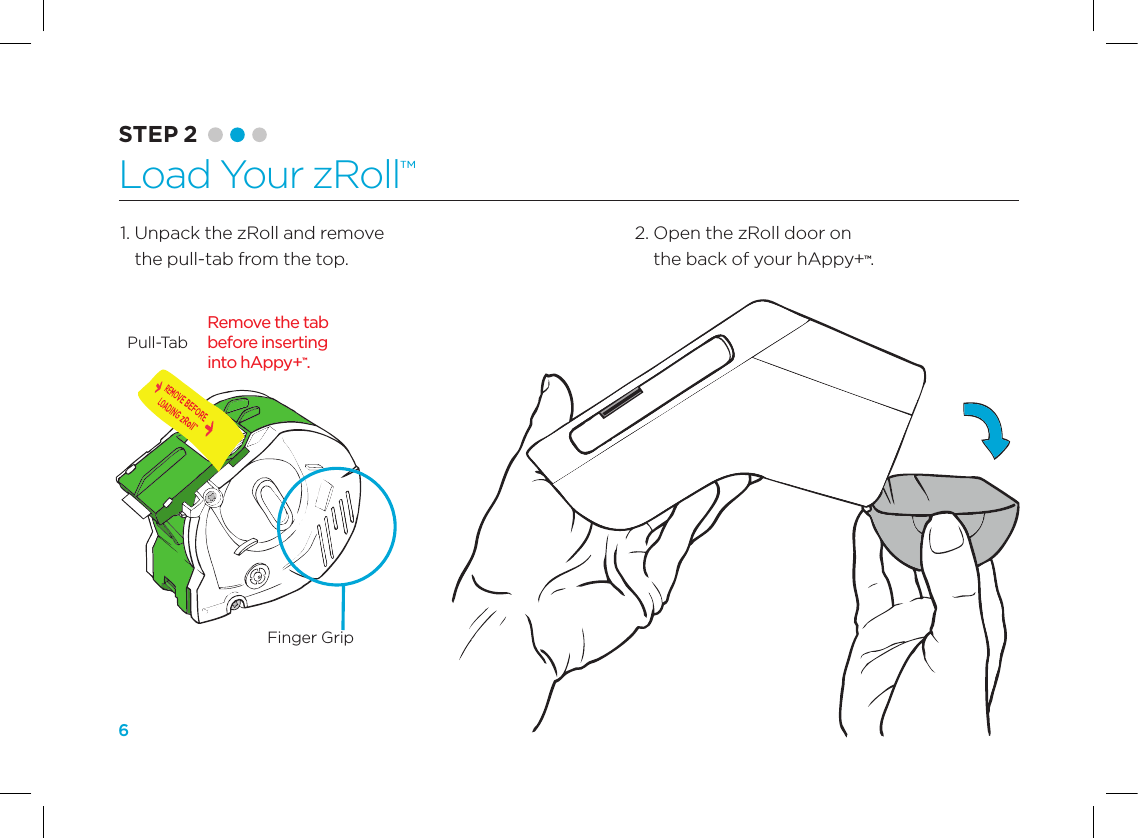
62.  Open the zRoll door on  the back of your hAppy+™. 1.  Unpack the zRoll and remove the pull-tab from the top.Pull-TabRemove the tab  before inserting  into hAppy+™.Finger GripSTEP 2 Load Your zRoll™
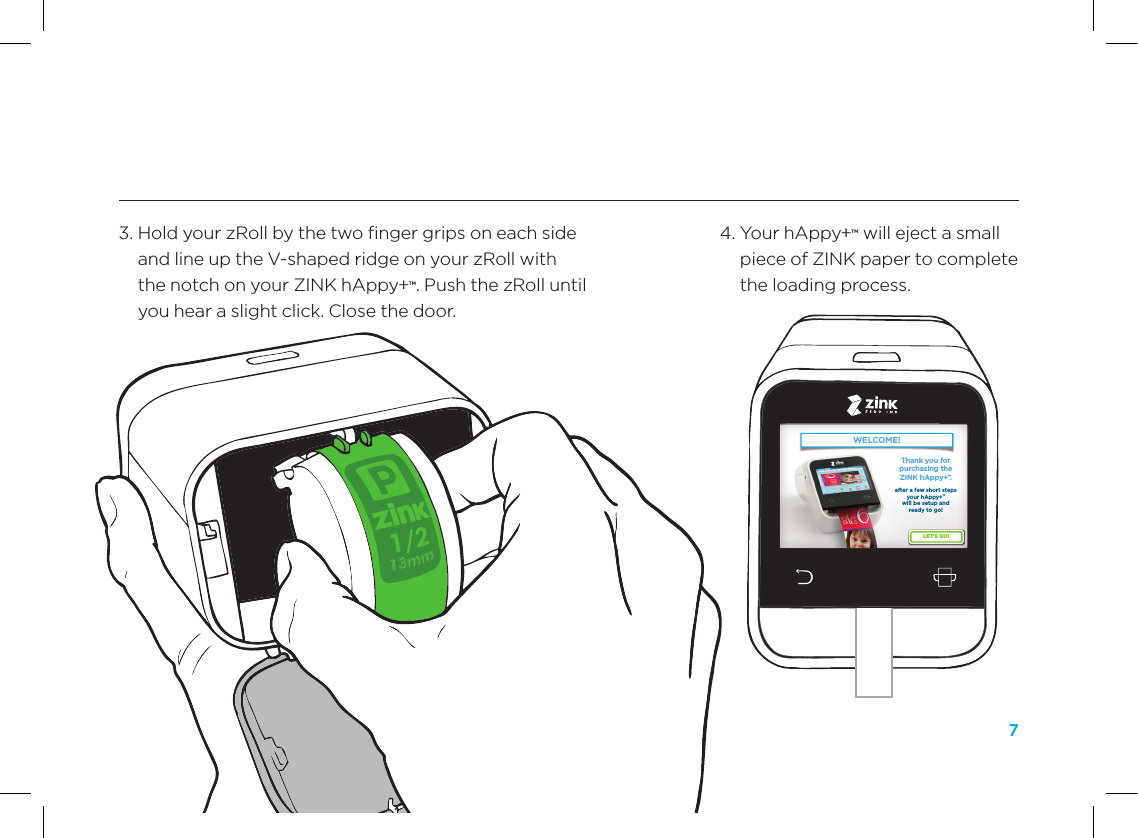
74.  Your hAppy+™ will eject a small piece of ZINK paper to complete the loading process. 3.  Hold your zRoll by the two finger grips on each side and line up the V-shaped ridge on your zRoll with the notch on your ZINK hAppy+™. Push the zRoll until you hear a slight click. Close the door.WELCOME!LET’S GO!Thank you for purchasing the ZINK hAppy+™.after a few short steps your hAppy+™ will be setup and ready to go! WELCOME!LET’S GO!Thank you for purchasing the ZINK hAppy+™.after a few short steps your hAppy+™ will be setup and ready to go!
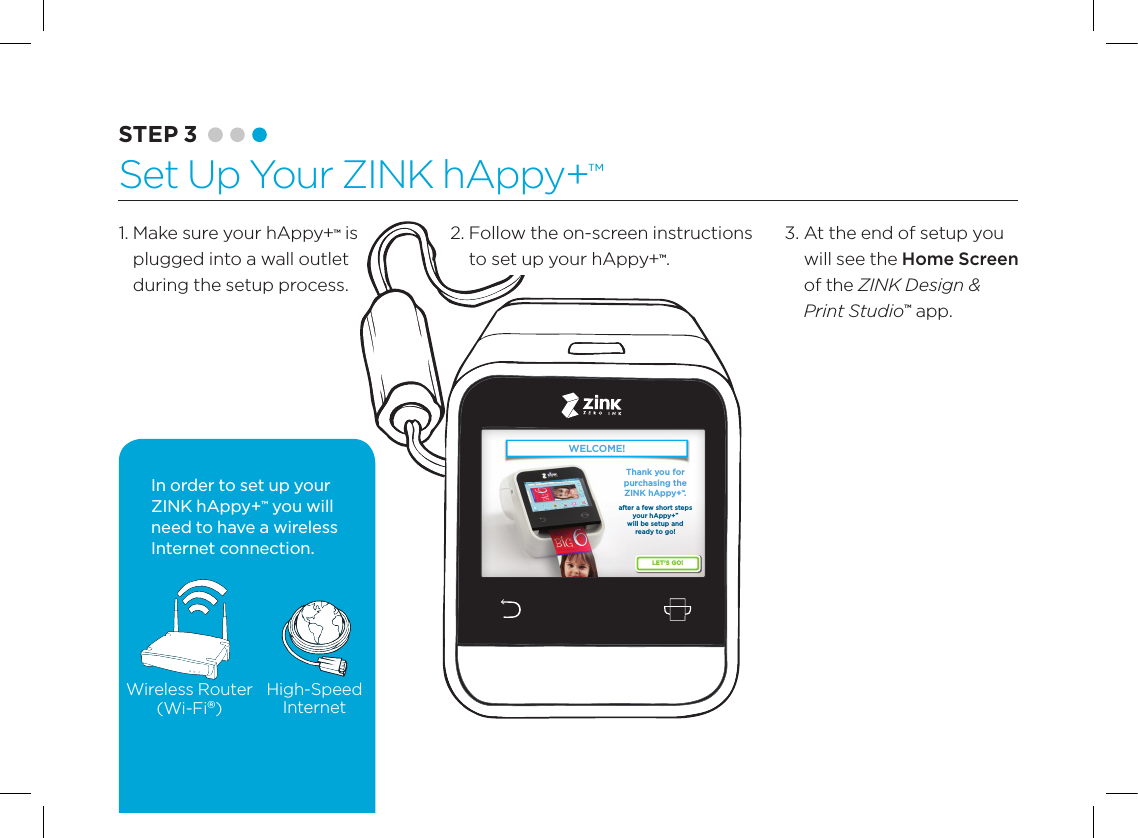
82.  Follow the on-screen instructions to set up your hAppy+™.WELCOME!LET’S GO!Thank you for purchasing the ZINK hAppy+™.after a few short steps your hAppy+™ will be setup and ready to go! WELCOME!LET’S GO!Thank you for purchasing the ZINK hAppy+™.after a few short steps your hAppy+™ will be setup and ready to go! Wireless Router(Wi-Fi®)High-SpeedInternetIn order to set up your ZINK hAppy+™ you will need to have a wireless Internet connection.1.  Make sure your hAppy+™ is plugged into a wall outlet  during the setup process.3.  At the end of setup you will see the Home Screen of the ZINK Design & Print Studio™ app.STEP 3 Set Up Your ZINK hAppy+™
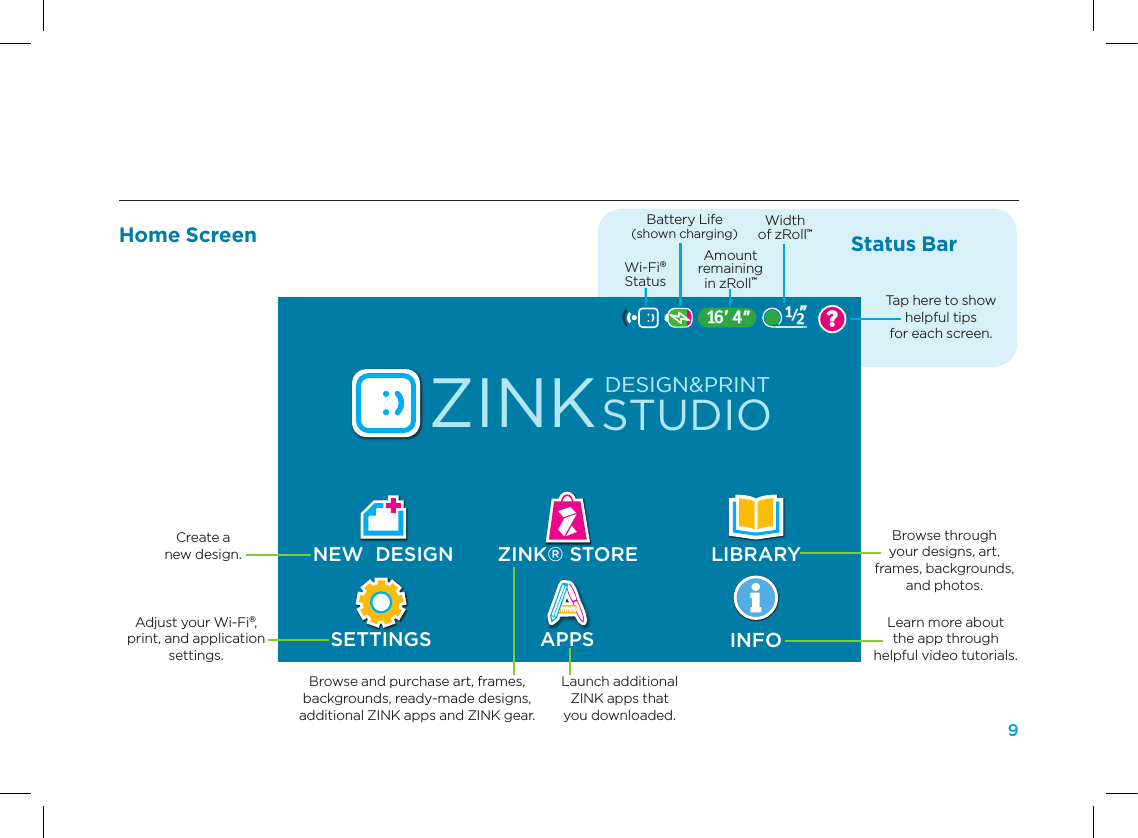
9ART16’ 4”Background: #0084A9LibraryBROWSE THE ELEMENTSBACKGROUNDSPHOTOS FRAMESDESIGNSZINK® STORE LIBRARYAPPSZINKSTUDIODESIGN&PRINTNEW  DESIGNSETTINGSHOME STORE?INFOhAppy not connectedhAppy statuson phone and tablets16’ 4” 1”/38”16’ 4”no  zRollEmptyEmpty/12”16’ 4”hAppy not connectedhAppy statuson phone and tablets16’ 4” 1”/38”16’ 4”no  zRollEmptyEmpty/12”16’ 4”/12”16’ 4”?/12”        wi-fi    battery       Paper Remaing   zRoll Size        helpCreate a  new design.Adjust your Wi-Fi®, print, and application settings.Browse through  your designs, art,  frames, backgrounds,  and photos.Learn more about  the app through  helpful video tutorials.Browse and purchase art, frames,  backgrounds, ready-made designs,  additional ZINK apps and ZINK gear.Launch additional  ZINK apps that  you downloaded.Width  of zRoll™Amount  remaining  in zRoll™Battery Life(shown charging)Wi-Fi® StatusTap here to show  helpful tips  for each screen.Status BarHome Screen
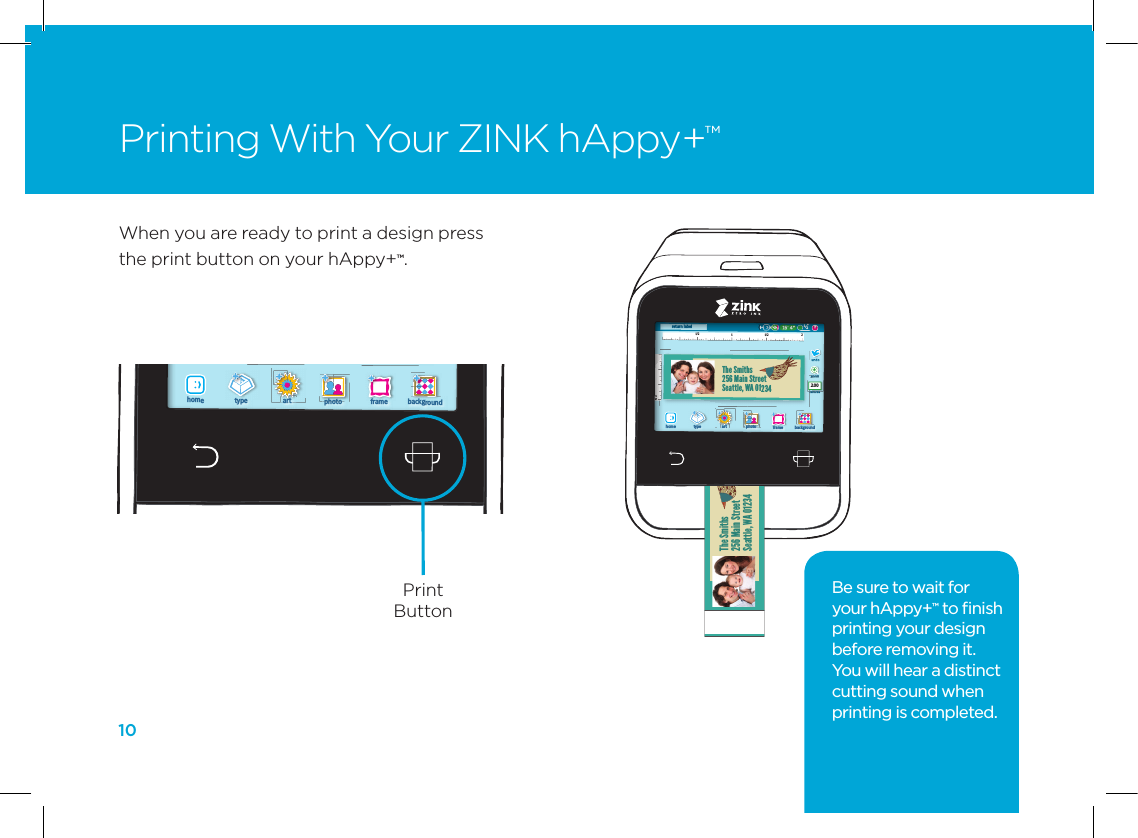
10Printing With Your ZINK hAppy+™1/2 11/2122return labelThe Smiths256 Main StreetSeattle, WA 01234backgroundframephotoarttype?/12”2.00home1/2 11/2122return labelThe Smiths256 Main StreetSeattle, WA 01234backgroundframephotoarttype?/12”2.00home1/2 11/2122return labelThe Smiths256 Main StreetSeattle, WA 01234backgroundframephotoarttype?/12”2.00home1/2 11/2122return labelThe Smiths256 Main StreetSeattle, WA 01234backgroundframephotoarttype?/12”2.00homeThe Smiths256 Main StreetSeattle, WA 01234When you are ready to print a design press the print button on your hAppy+™.Be sure to wait for  your hAppy+™ to finish printing your design before removing it. You will hear a distinct cutting sound when printing is completed.1/2 11/2122return labelThe Smiths256 Main StreetSeattle, WA 01234backgroundframephotoarttype?/12”2.00home1/2 11/2122return labelThe Smiths256 Main StreetSeattle, WA 01234backgroundframephotoarttype?/12”2.00home1/2 11/2122return labelThe Smiths256 Main StreetSeattle, WA 01234backgroundframephotoarttype?/12”2.00home1/2 11/2122return labelThe Smiths256 Main StreetSeattle, WA 01234backgroundframephotoarttype?/12”2.00homePrint Button
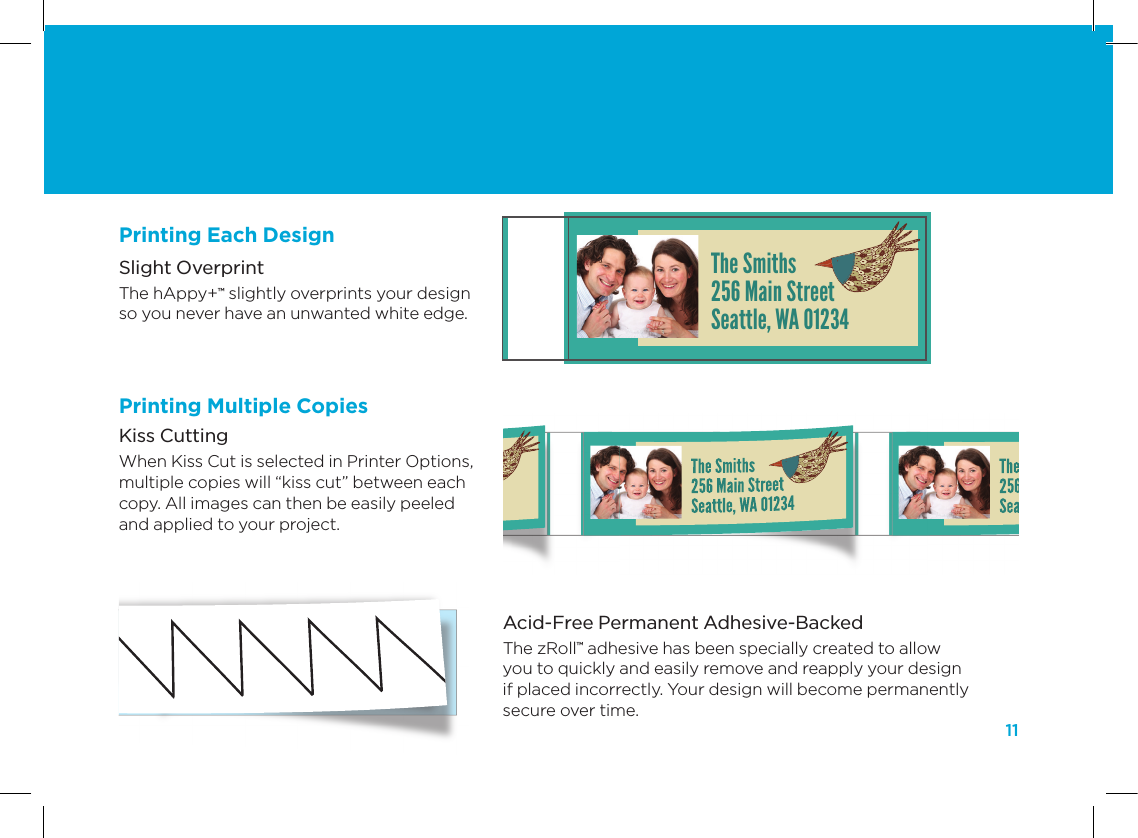
11Acid-Free Permanent Adhesive-Backed The zRoll™ adhesive has been specially created to allow you to quickly and easily remove and reapply your design if placed incorrectly. Your design will become permanently secure over time.Slight Overprint The hAppy+™ slightly overprints your design  so you never have an unwanted white edge.Kiss Cutting When Kiss Cut is selected in Printer Options, multiple copies will “kiss cut” between each copy. All images can then be easily peeled and applied to your project. The Smiths256 Main StreetSeattle, WA 01234The Smiths256 Main StreetSeattle, WA 01234Printing Each DesignPrinting Multiple Copies
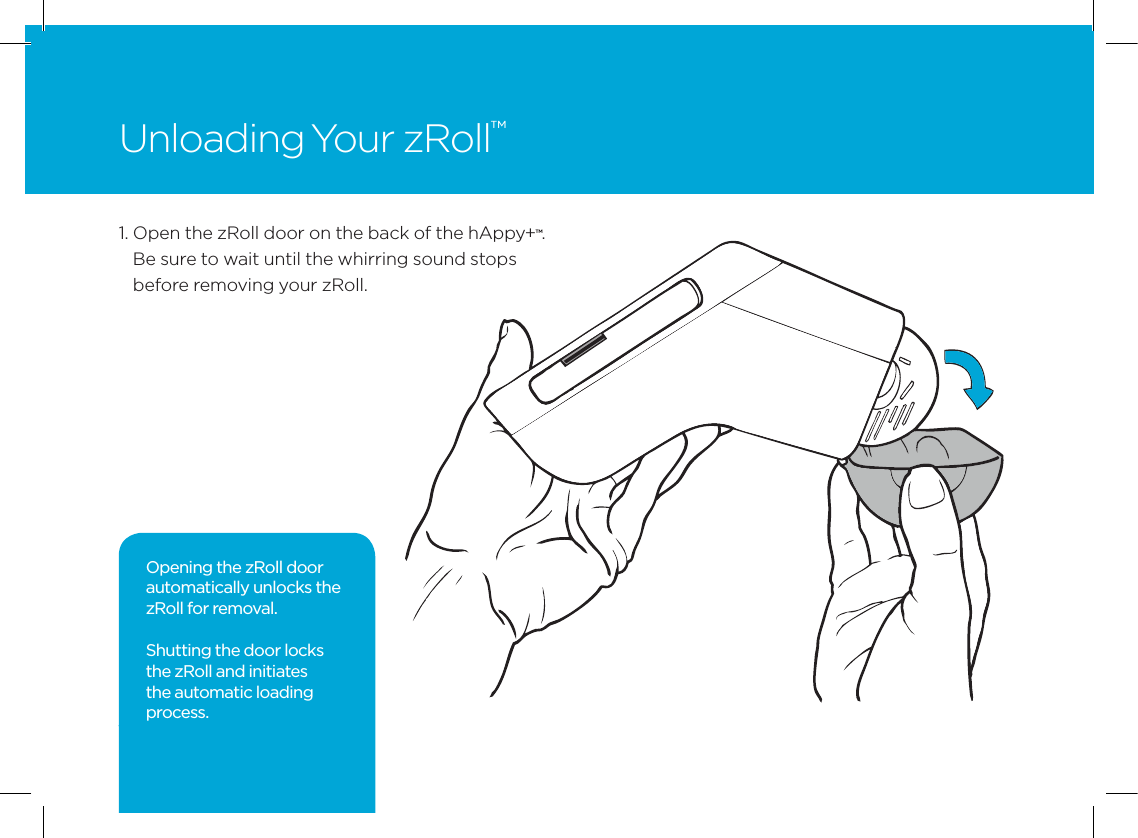
121.  Open the zRoll door on the back of the hAppy+™. Be sure to wait until the whirring sound stops before removing your zRoll.Unloading Your zRoll™Opening the zRoll door automatically unlocks the zRoll for removal. Shutting the door locks the zRoll and initiates the automatic loading process.
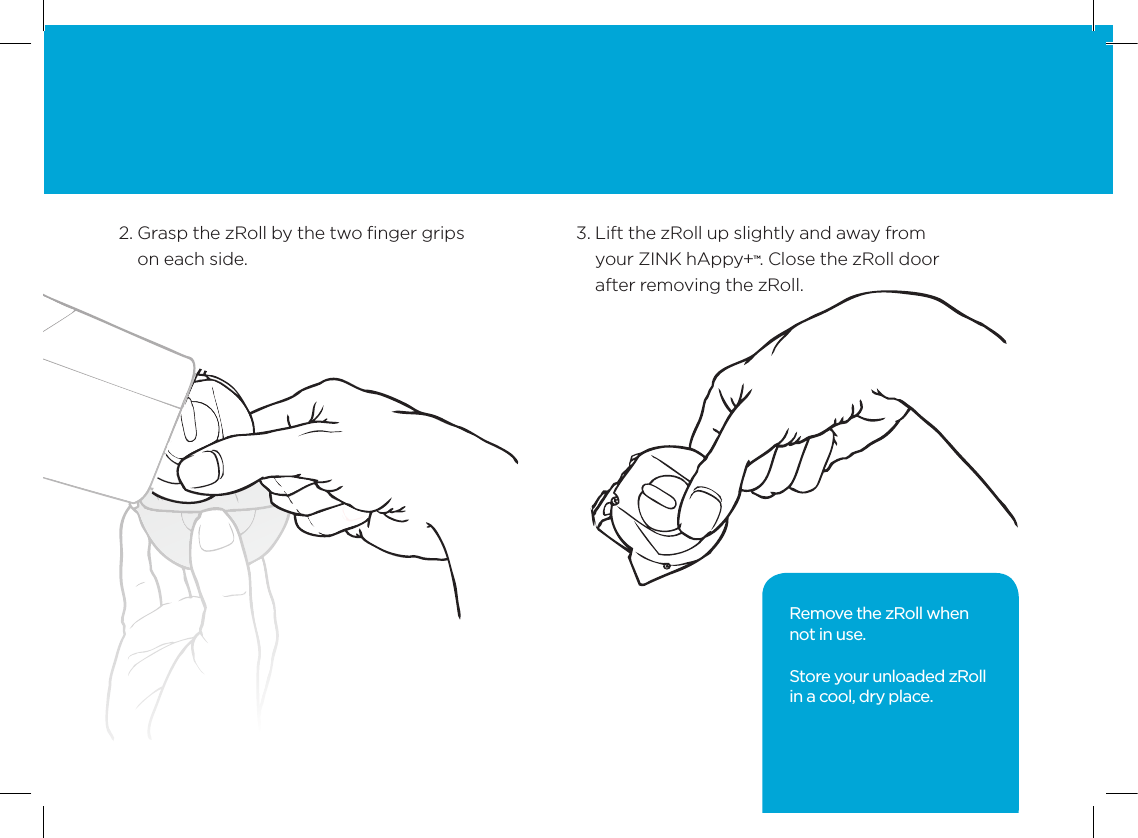
132.  Grasp the zRoll by the two finger grips on each side. 3.  Lift the zRoll up slightly and away from  your ZINK hAppy+™. Close the zRoll door after removing the zRoll.Remove the zRoll when  not in use. Store your unloaded zRoll in a cool, dry place.
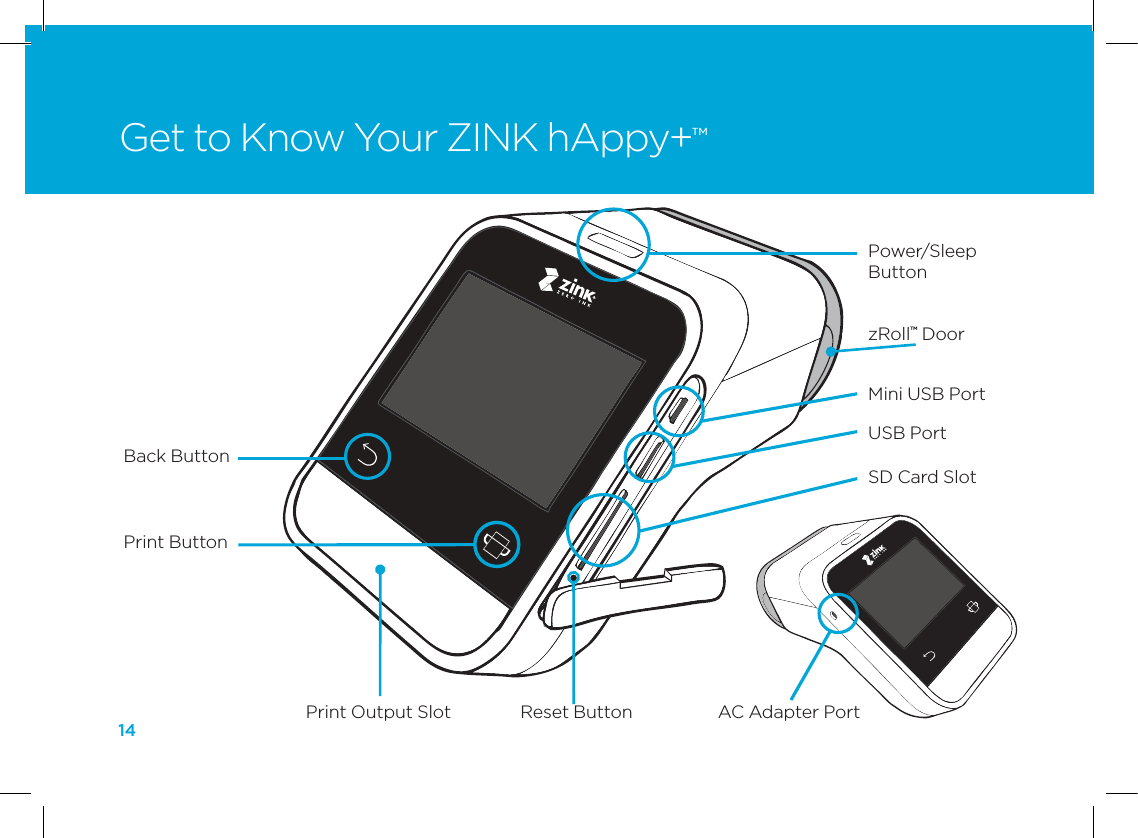
14Get to Know Your ZINK hAppy+™Print Output Slot Reset ButtonPower/Sleep ButtonAC Adapter PortMini USB PortzRoll™ DoorBack ButtonPrint ButtonUSB PortSD Card Slot
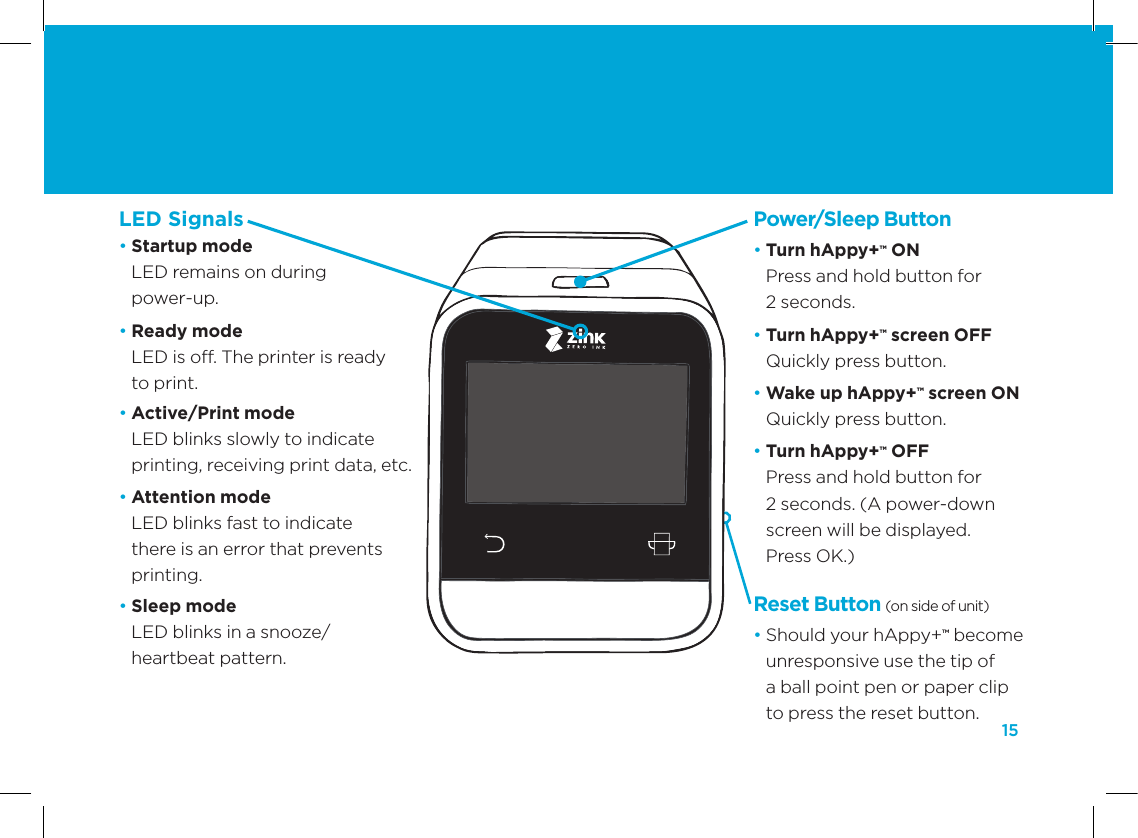
15Power/Sleep Button•  Turn hAppy+™ ON Press and hold button for  2 seconds.•  Turn hAppy+™ screen OFF Quickly press button.•  Wake up hAppy+™ screen ON Quickly press button. •  Turn hAppy+™ OFF Press and hold button for  2 seconds. (A power-down screen will be displayed.  Press OK.)Reset Button (on side of unit)•  Should your hAppy+™ become unresponsive use the tip of  a ball point pen or paper clip to press the reset button.LED Signals•  Startup mode  LED remains on during  power-up.•  Ready mode  LED is off. The printer is ready  to print.•  Active/Print mode  LED blinks slowly to indicate  printing, receiving print data, etc.•  Attention mode  LED blinks fast to indicate  there is an error that prevents  printing.•  Sleep mode LED blinks in a snooze/ heartbeat pattern.
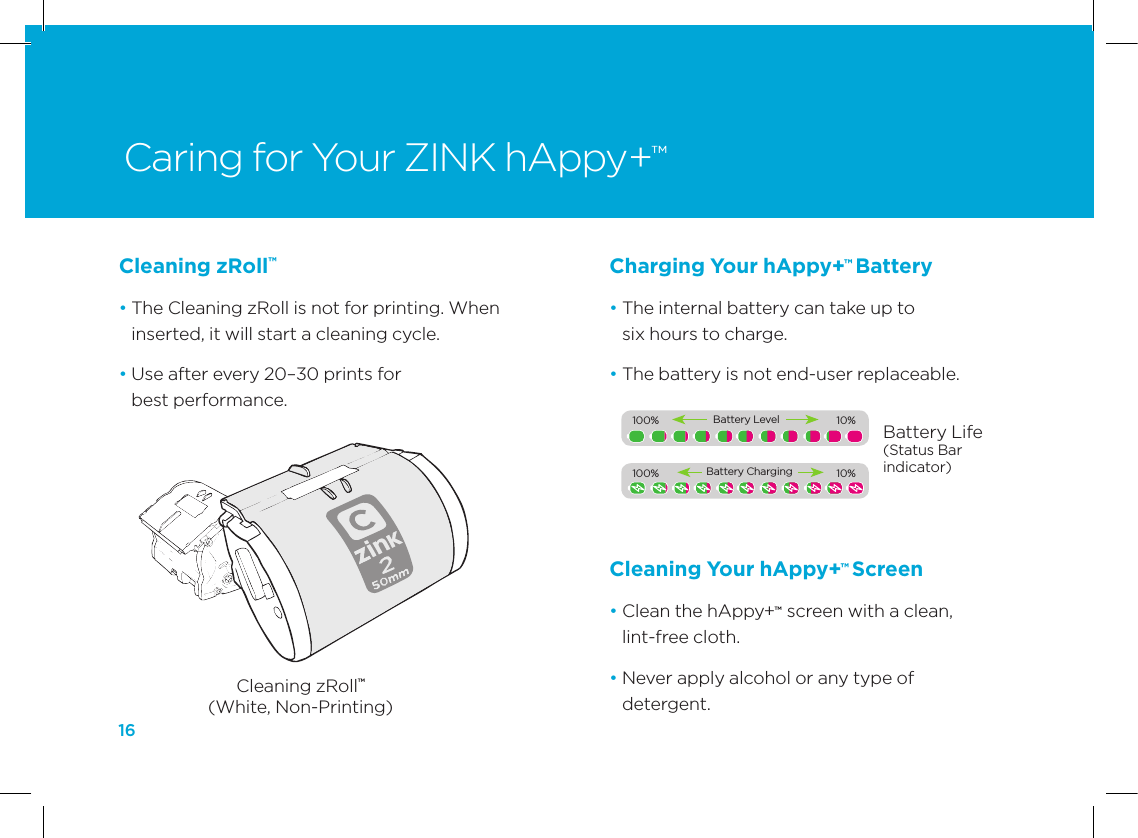
16Charging Your hAppy+™ Battery•  The internal battery can take up to  six hours to charge.•  The battery is not end-user replaceable.Caring for Your ZINK hAppy+™Cleaning zRoll™(White, Non-Printing)Battery Life(Status Bar indicator)Cleaning zRoll™ •  The Cleaning zRoll is not for printing. When inserted, it will start a cleaning cycle. •  Use after every 20–30 prints for  best performance.Cleaning Your hAppy+™ Screen •  Clean the hAppy+™  screen with a clean, lint-free cloth.•  Never apply alcohol or any type of  detergent.100%             10%Battery Level100%             10%Battery Charging
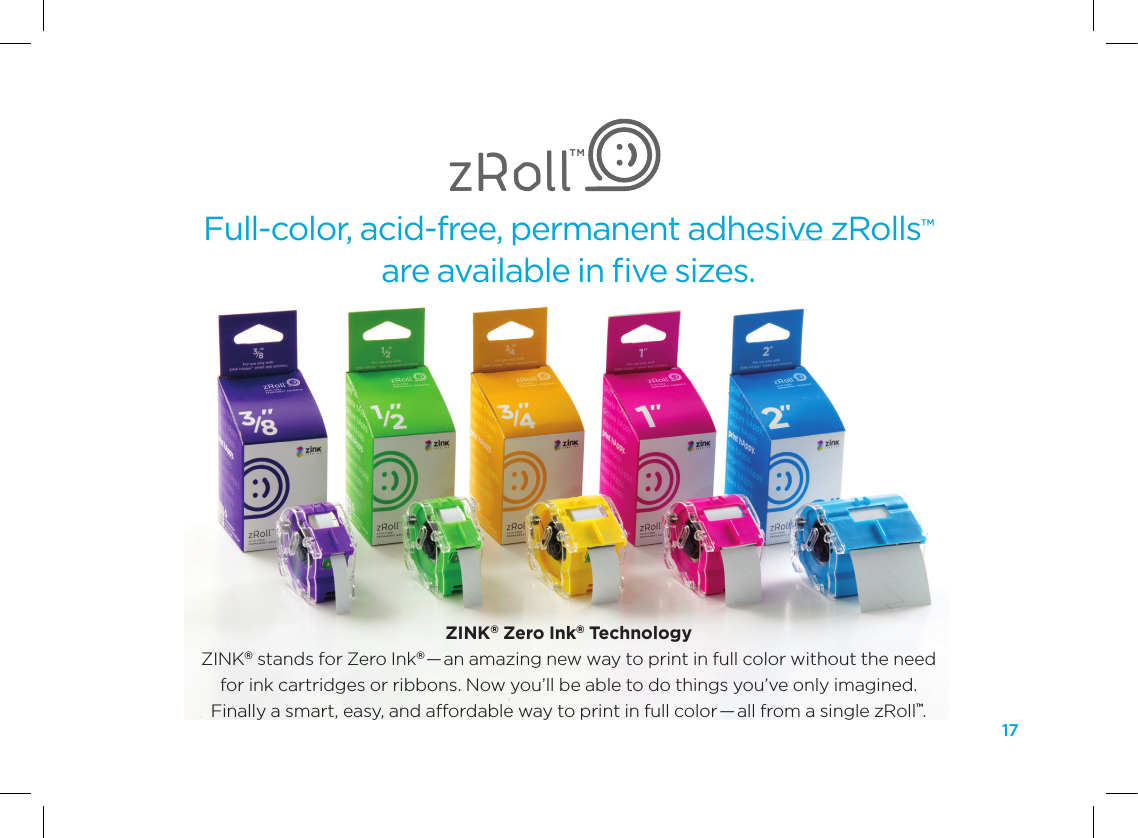
17Full-color, acid-free, permanent adhesive zRolls™  are available in five sizes.zRollTMZINK® Zero Ink® Technology ZINK® stands for Zero Ink®—an amazing new way to print in full color without the need  for ink cartridges or ribbons. Now you’ll be able to do things you’ve only imagined.  Finally a smart, easy, and affordable way to print in full color —all from a single zRoll™.
18LIMITED WARRANTY STATEMENTExtent of Limited WarrantyZINK Imaging (“ZINK”) warrants to the end-user customer that the ZINK products will be free from defects in material and workmanship from the date of original purchase from ZINK or an authorized ZINK dealer or distributor for the durations described below:  Product Type  Parts and Labor Warranty  ZINK hAppy+™  1 year  ZINK zRolls™  1 year  ZINK hAppy™ Accessories  1 year For software products, ZINK’s limited warranty applies only to a failure to execute programming instructions. ZINK does not warrant that the operation of any product will  be  uninterrupted  or  error  free.  ZINK’s  limited  warranty  covers  only  those defects that arise as a result of normal use of the product and does not cover any other problem, including those  that arise as a  result of: (i) improper maintenance or modification;  (ii) software, media, parts or  supplies not  provided or  supported by ZINK;  (iii)  operation  outside the  product’s specifications;  or (iv)  unauthorized modification or misuse.If ZINK  receives,  during the  applicable warranty period,  notice of  a defect  in  any product  which  is  covered  by  ZINK’s limited  warranty,  ZINK  shall  either  repair or replace  the  product,  at  ZINK’s  option.  If  ZINK  is  unable  to  repair  or  replace,  as applicable, a defective product which is covered by ZINK’s limited warranty, ZINK shall, within a reasonable time after being notified of the defect, refund the purchase price of the product.ZINK shall have no obligation to repair, replace or refund until the customer obtains a Return Material Authorization (RMA) number and returns the defective product to ZINK.Any  replacement  product  may  be  either  new  or  like-new,  provided  that  it  has functionality at least equal to that of the product being replaced. The limited warranty on any replacement product will be 90 days from the date that it is shipped to the customer or the remainder of the limited warranty on the original product, whichever is longer.ZINK  products  may  contain  remanufactured  parts,  components,  or  materials equivalent to new in performance. ZINK’s Limited Warranty Statement is valid in any country where the covered ZINK product is distributed by ZINK.TransferableThis limited warranty is transferable.Limitations of WarrantyTO THE EXTENT ALLOWED BY LOCAL LAW, NEITHER ZINK NOR ITS THIRD PARTY SUPPLIERS MAKE ANY OTHER WARRANTY OR CONDITION OF ANY KIND, WHETHER EXPRESS  OR  IMPLIED  WARRANTIES  OR  CONDITIONS  OF  MERCHANTABILITY, SATISFACTORY QUALITY, AND FITNESS FOR A PARTICULAR PURPOSE.Limitations of LiabilityTo the extent allowed by local law, the remedies provided in this Limited Warranty Statement are the customer’s sole and exclusive remedies.TO  THE  EXTENT  ALLOWED  BY  LOCAL LAW,  EXCEPT  FOR  THE  OBLIGATIONS SPECIFICALLY SET FORTH IN THIS LIMITED WARRANTY STATEMENT, IN NO EVENT SHALL ZINK OR ITS THIRD PARTY SUPPLIERS BE LIABLE FOR DIRECT, INDIRECT, SPECIAL,  INCIDENTAL  OR  CONSEQUENTIAL  DAMAGES,  WHETHER  BASED  ON CONTRACT, TORT, OR ANY OTHER LEGAL THEORY AND WHETHER ADVISED OF THE POSSIBILITY OF SUCH DAMAGES.Local LawThis  Limited  Warranty  Statement  gives  the  customer  specific  legal  rights.  The customer may also have other  rights which vary from state to state in  the United States, from province to province in Canada, and from country to country elsewhere in the world.To the extent that this Limited Warranty Statement is inconsistent with local law, this Limited Warranty Statement shall be deemed modified to be consistent with such local law.  Under  such local  law, certain  disclaimers and  limitations in  this  Limited Warranty Statement may not apply  to the customer. For example, some states in the United States, as well as some governments outside the United States (including provinces in Canada), may: (i) preclude some or all of the disclaimers and limitations set forth in this Limited Warranty Statement from limiting the statutory rights of a consumer (e.g., United Kingdom); (ii) otherwise restrict the ability of a manufacturer to  enforce such  disclaimers  or  limitations;  or  (iii)  grant  the  customer  additional warranty rights, specify the duration of implied warranties which the manufacturer cannot disclaim, or allow limitations on the duration of implied warranties.THE TERMS IN THIS LIMITED WARRANTY STATEMENT, EXCEPT TO THE EXTENT LAWFULLY  PERMITTED, DO NOT EXCLUDE, RESTRICT, OR MODIFY, AND ARE IN ADDITION TO, THE MANDATORY STATUTORY RIGHTS APPLICABLE TO THE SALE OF THE ZINK PRODUCTS TO SUCH CUSTOMERS.How You (the Customer) Can Obtain Service and Support To  obtain warranty service, an  RMA number or  support, please call  ZINK  Imaging Customer Care at  877-711-ZINK (9465).  If warranty service  is needed  at any  time during  the warranty  period, you  will  be  asked  to furnish  a  sales  receipt/proof of purchase from ZINK or an authorized ZINK dealer or distributor indicating the date of purchase, amount paid and place of purchase.
19COMPLIANCEThis  device  complies  with  Part  15  of  the  FCC  Rules.  Operation  is  subject  to  the following two conditions: (1) This device may not cause  harmful  interference, and  (2) this  device must accept any interference received,  including interference that may  cause  undesired  operation.  This  equipment  has  been  tested  and  found  to comply with the limits for a  Class  B  digital device,  pursuant to Part 15 of the FCC Rules. These limits are designed to provide  reasonable protection against harmful interference  in  a  residential  installation. This  equipment  generates, uses  and  can radiate radio frequency energy and, if not installed and used in accordance with the instructions,  may cause  harmful  interference  to radio  communications.  However, there is no guarantee that interference will not occur in a particular installation. If this equipment does cause harmful interference to radio or television reception, which can be determined by turning the equipment off and on, the user is encouraged to try to correct the interference by one of the following measures:  •  Reorient or relocate the receiving antenna.  •  Increase the separation between the equipment and receiver.  •   Connect the equipment into an outlet on a circuit different from that to which the receiver is connected.  •  Consult the dealer or an experienced radio/TV technician for help.FCC Caution: Any changes or  modifications not expressly approved by the  party responsible for compliance could void the user's authority to operate this equipment.This transmitter must not be co-located or operating in conjunction with any other antenna or transmitter.Radiation Exposure  Statement:  This product complies with  the FCC portable  RF exposure limit as set forth for an uncontrolled environment and is safe for its intended operation  as  described  in  this  manual.  Further  RF  exposure  reduction  can  be achieved by use as far as possible from the operator or by lowering the power output on the device if such a function is available.Note: The  country code  selection is  for non-US  models  only  and  is  not  available  on US models. Per FCC regulation, all WiFi product models marketed in the US must be fixed to US operation channels only.RECYCLING INFORMATIONFor information about recycling ZINK Imaging batteries or zRolls, please contact us at  877-711-ZINK (9465). Or check out our website at ZINK.com.DISCLAIMERThis guide  may not  be  indicative  of  the latest  version of  the Zink  Design  &  Print  Studio app. ZINK Imaging may make improvements and/or other changes to the app at any time.ZINK Imaging and other parties involved in the creation, production, or delivery of the Zink Design & Print Studio app make no warranty, implied or explicit, that any part of the service will be uninterrupted, error-free, virus-free, timely, secure, or accurate, nor that the content is safe in any manner for download.RISK OF EXPLOSION IF A NON-ZINK HAPPY™ BATTERY IS INSTALLED. DISPOSE OF USED BATTERIES ACCORDING TO THE INSTRUCTIONS.CAUTIONBATTERY GUIDELINES AND WARNINGS•  Don’t disassemble the battery. •  Don’t short circuit the battery. •  Don’t heat or expose the battery to open flame. Heating or exposing the battery to open flame may cause the battery to explode.•  Don’t use the battery near heat. •   Don’t  use  the  battery  near  an  open  fire,  oven  or  any  environment  where  the temperature is above 140°F/60°C.•  Keep the battery dry.•  Don’t charge the battery in direct sunlight or in excessive heat.•  Only use the specified power supply when charging the battery.•  Don’t  physically  alter  the  battery.  Don’t  chip,  break,  or  otherwise  damage  the battery housing.•  Don’t solder the battery. The high temperature of soldering will damage the battery housing. •  Don’t connect the battery directly to a main power source or any other improper power supply.•  Don’t use the battery in any other devices. •  Don’t touch any liquid that may leak from the battery. Electrolyte leakage can be dangerous. If electrolytes come in contact with skin or eyes, immediately flush with water and seek medical assistance.•  Don’t store the battery in a pocket or bag together with metallic objects such as keys, jewelry, hairpins, or coins.•  Don’t hit the battery with heavy objects such as a hammer or a weight.•  Don’t put the battery in a microwave oven, dryer, or high-pressure container.•  Stop charging the battery if charging is not completed within 6 hours.•  Stop using the battery if it becomes too hot to touch or if foul odors are detected.
If you have any questions, call us at 877-711-ZINK (9465) or visit us online at ZINK.com.©2013  ZINK  Imaging  Inc.  ZINK,  hAppy,  and  zRoll are  registered  trademarks  of ZINK Imaging  Inc.  All  rights  reserved.  Wi-Fi  is  a registered trademark  of  the Wi-Fi  Alliance. All other trademarks and copyrights are the property of their respective owners. Screen images and prints may be simulated. For use in the U.S.A. zonly. Designed by ZINK Imaging, 16 Crosby Drive, Bedford, MA 01760 USA                                                                                                                                                                                                    40103100_05102013

Navigation menu