ZIONCOM ELECTRONICS IP04336 1200Mbps Smart Home Wi-Fi Router User Manual

ZIONCOM ELECTRONICS (SHENZHEN) LTD. 1200Mbps Smart Home Wi-Fi Router

User Manual

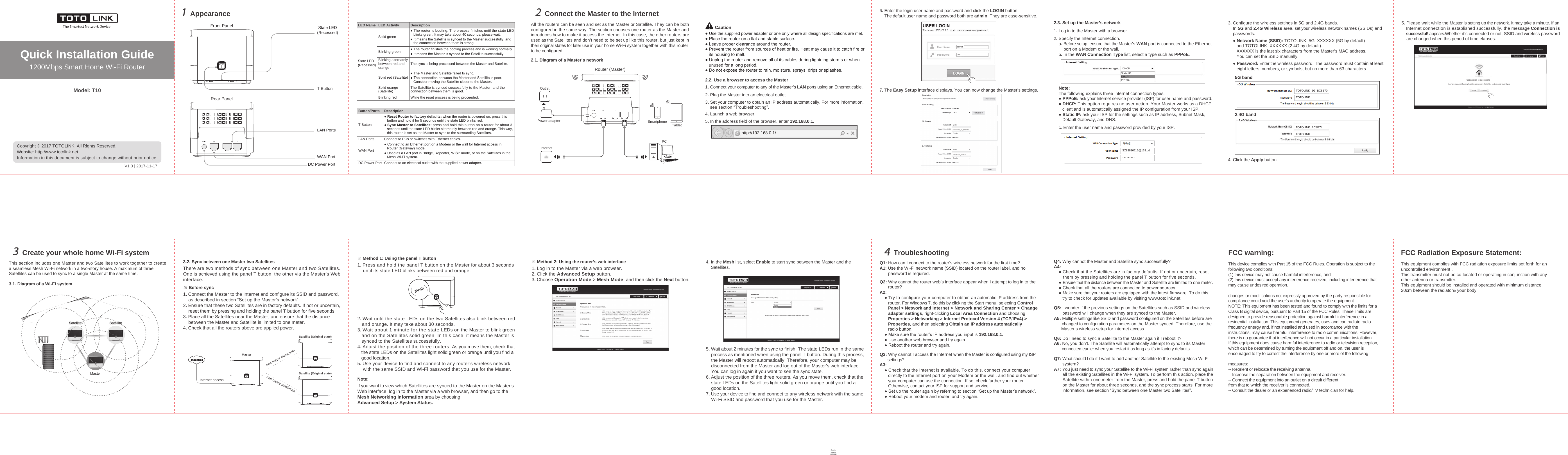
Quick Installation Guide1200Mbps Smart Home Wi-Fi RouterAppearance1MeshConnect the Master to the Internet22.1. Diagram of a Master’s networkQ1: How can I connect to the router’s wireless network for the first time?A1: Use the Wi-Fi network name (SSID) located on the router label, and no       password is required.Q2: Why cannot the router web’s interface appear when I attempt to log in to the       router?A2:    ● Try to configure your computer to obtain an automatic IP address from the       router. For Windows 7, do this by clicking the Start menu, selecting Control       Panel > Network and Internet > Network and Sharing Center > Change       adapter settings, right-clicking Local Area Connection and choosing       Properties > Networking > Internet Protocol Version 4 (TCP/IPv4) >       Properties, and then selecting Obtain an IP address automatically       radio button.    ● Make sure the router’s IP address you input is 192.168.0.1.    ● Use another web browser and try again.    ● Reboot the router and try again.Q3: Why cannot I access the Internet when the Master is configured using my ISP       settings?A3:    ● Check that the Internet is available. To do this, connect your computer       directly to the Internet port on your Modem or the wall, and find out whether       your computer can use the connection. If so, check further your router.        Otherwise, contact your ISP for support and service.    ● Set up the router again by referring to section “Set up the Master’s network”.    ● Reboot your modem and router, and try again.Create your whole home Wi-Fi system3This section includes one Master and two Satellites to work together to createa seamless Mesh Wi-Fi network in a two-story house. A maximum of threeSatellites can be used to sync to a single Master at the same time. There are two methods of sync between one Master and two Satellites.One is achieved using the panel T button, the other via the Master’s Webinterface.Troubleshooting4Model: T10Copyright © 2017 TOTOLINK. All Rights Reserved. Website: http://www.totolink.netInformation in this document is subject to change without prior notice. All the routers can be seen and set as the Master or Satellite. They can be bothconfigured in the same way. The section chooses one router as the Master andintroduces how to make it access the Internet. In this case, the other routers areused as the Satellites and don’t need to be set up like this router, but just kept intheir original states for later use in your home Wi-Fi system together with this routerto be configured.InternetRouter (Master)Power adapterOutletTabletPCSmartphone2.2. Use a browser to access the Master1. Connect your computer to any of the Master’s LAN ports using an Ethernet cable.2. Plug the Master into an electrical outlet.3. Set your computer to obtain an IP address automatically. For more information,    see section “Troubleshooting”.4. Launch a web browser.6. Enter the login user name and password and click the LOGIN button.    The default user name and password both are admin. They are case-sensitive.● Use the supplied power adapter or one only where all design specifications are met. ● Place the router on a flat and stable surface.● Leave proper clearance around the router.● Prevent the router from sources of heat or fire. Heat may cause it to catch fire or   its housing to melt.● Unplug the router and remove all of its cables during lightning storms or when   unused for a long period.● Do not expose the router to rain, moisture, sprays, drips or splashes.2.3. Set up the Master’s networkNote:The following explains three Internet connection types.● PPPoE: ask your Internet service provider (ISP) for user name and password. ● DHCP: This option requires no user action. Your Master works as a DHCP   client and is automatically assigned the IP configuration from your ISP.● Static IP: ask your ISP for the settings such as IP address, Subnet Mask,    Default Gateway, and DNS.c. Enter the user name and password provided by your ISP.1. Log in to the Master with a browser.2. Specify the Internet connection.    a. Before setup, ensure that the Master’s WAN port is connected to the Ethernet        port on a Modem or the wall.    b. In the WAN Connection Type list, select a type such as PPPoE.SZ83830116@163.gd3. Configure the wireless settings in 5G and 2.4G bands.    In 5G and 2.4G Wireless area, set your wireless network names (SSIDs) and    passwords.    ● Network Name (SSID): TOTOLINK_5G_XXXXXX (5G by default)       and TOTOLINK_XXXXXX (2.4G by default).       XXXXXX is the last six characters from the Master’s MAC address.        You can set the SSID manually.     ● Password: Enter the wireless password. The password must contain at least       eight letters, numbers, or symbols, but no more than 63 characters.4. Click the Apply button.5G bandTOTOLINK_5G_BC8E70TOTOLINK2.4G bandTOTOLINK_BC8E74TOTOLINK3.1. Diagram of a Wi-Fi system3.2. Sync between one Master two Satellites 1. Press and hold the panel T button on the Master for about 3 seconds    until its state LED blinks between red and orange.2. Wait until the state LEDs on the two Satellites also blink between red   and orange. It may take about 30 seconds.3. Wait about 1 minute for the state LEDs on the Master to blink green   and on the Satellites solid green. In this case, it means the Master is   synced to the Satellites successfully.4. Adjust the position of the three routers. As you move them, check that   the state LEDs on the Satellites light solid green or orange until you find a   good location.5. Use your device to find and connect to any router’s wireless network    with the same SSID and Wi-Fi password that you use for the Master.※ Method 1: Using the panel T button1. Log in to the Master via a web browser.2. Click the Advanced Setup button. 3. Choose Operation Mode > Mesh Mode, and then click the Next button.4. In the Mesh list, select Enable to start sync between the Master and the    Satellites. 5. Wait about 2 minutes for the sync to finish. The state LEDs run in the same    process as mentioned when using the panel T button. During this process,    the Master will reboot automatically. Therefore, your computer may be    disconnected from the Master and log out of the Master’s web interface.    You can log in again if you want to see the sync state.6. Adjust the position of the three routers. As you move them, check that the    state LEDs on the Satellites light solid green or orange until you find a    good location.7. Use your device to find and connect to any wireless network with the same    Wi-Fi SSID and password that you use for the Master.※ Method 2: Using the router’s web interfaceIf you want to view which Satellites are synced to the Master on the Master’sWeb interface, log in to the Master via a web browser, and then go to theMesh Networking Information area by choosingAdvanced Setup > System Status.   Note:1. Connect the Master to the Internet and configure its SSID and password,    as described in section “Set up the Master’s network”.2. Ensure that these two Satellites are in factory defaults. If not or uncertain,    reset them by pressing and holding the panel T button for five seconds.3. Place all the Satellites near the Master, and ensure that the distance    between the Master and Satellite is limited to one meter.4. Check that all the routers above are applied power.※ Before sync5. In the address field of the browser, enter 192.168.0.1.http://192.168.0.1/DHCPStatic IPPPPoEDHCP5. Please wait while the Master is setting up the network. It may take a minute. If an    Internet connection is established successfully, the message Connection is    successful! appears.Whether it’s connected or not, SSID and wireless password    are changed when this period of time elapses.Connection is successful !You have successfully completed the parameters that all the routers need to configureBack Finished7. The Easy Setup interface displays. You can now change the Master’s settings.Front Panel State LED(Recessed)T ButtonRear PanelLAN PortsWAN PortDC Power PortLED NameState LED(Recessed)Solid greenBlinking greenBlinking alternatelybetween red andorange● The router is booting. The process finishes until the state LED   blinks green. It may take about 40 seconds; please wait.● It means the Satellite is synced to the Master successfully, and   the connection between them is strong.● The router finishes the booting process and is working normally.● It means the Master is synced to the Satellite successfully.The sync is being processed between the Master and Satellite.● The Master and Satellite failed to sync.● The connection between the Master and Satellite is poor.   Consider moving the Satellite closer to the Master.Solid red (Satellite)The Satellite is synced successfully to the Master, and theconnection between them is good. Solid orange(Satellite)While the reset process is being proceeded.Blinking redLED Activity DescriptionButton/PortsT Button● Reset Router to factory defaults: when the router is powered on, press this   button and hold it for 5 seconds until the state LED blinks red.● Sync Master to Satellites: press and hold this button on a router for about 3   seconds until the state LED blinks alternately between red and orange. This way,   this router is set as the Master to sync to the surrounding Satellites.LAN PortsWAN Port● Connect to an Ethernet port on a Modem or the wall for Internet access in   Router (Gateway) mode.● Used as a LAN port in Bridge, Repeater, WISP mode, or on the Satellites in the   Mesh Wi-Fi system.Connect to PCs or switches with Ethernet cables.Connect to an electrical outlet with the supplied power adapter. DC Power PortDescriptionCautionadminSatellite SatelliteSatellite SatelliteMasterMasterSatellite (Original state)Satellite (Original state)Internet accessone meter maximumone meter maximumDisableDisableEnableQ5: I wonder if the previous settings on the Satellites such as SSID and wireless       password will change when they are synced to the Master.A5: Multiple settings like SSID and password configured on the Satellites before are       changed to configuration parameters on the Master synced. Therefore, use the      Master’s wireless setup for internet access.Q6: Do I need to sync a Satellite to the Master again if I reboot it?A6: No, you don’t. The Satellite will automatically attempt to sync to its Master       connected earlier when you restart it as long as it’s in factory defaults.Q7: What should I do if I want to add another Satellite to the existing Mesh Wi-Fi       system?A7: You just need to sync your Satellite to the Wi-Fi system rather than sync again       all the existing Satellites in the Wi-Fi system. To perform this action, place the       Satellite within one meter from the Master, press and hold the panel T button       on the Master for about three seconds, and the sync process starts. For more       information, see section “Sync between one Master two Satellites”.Q4: Why cannot the Master and Satellite sync successfully?A4:    ● Check that the Satellites are in factory defaults. If not or uncertain, reset       them by pressing and holding the panel T button for five seconds.     ● Ensure that the distance between the Master and Satellite are limited to one meter.    ● Check that all the routers are connected to power sources.    ● Make sure that your routers are equipped with the latest firmware. To do this,       try to check for updates available by visiting www.totolink.net.V1.0 | 2017-11-17FCC warning: This device complies with Part 15 of the FCC Rules. Operation is subject to the following two conditions: (1) this device may not cause harmful interference, and (2) this device must accept any interference received, including interference that may cause undesired operation.changes or modifications not expressly approved by the party responsible for compliance could void the user's authority to operate the equipment.NOTE: This equipment has been tested and found to comply with the limits for aClass B digital device, pursuant to Part 15 of the FCC Rules. These limits aredesigned to provide reasonable protection against harmful interference in aresidential installation. This equipment generates, uses and can radiate radiofrequency energy and, if not installed and used in accordance with theinstructions, may cause harmful interference to radio communications. However,there is no guarantee that interference will not occur in a particular installation.If this equipment does cause harmful interference to radio or television reception,which can be determined by turning the equipment off and on, the user isencouraged to try to correct the interference by one or more of the followingmeasures:-- Reorient or relocate the receiving antenna.-- Increase the separation between the equipment and receiver.-- Connect the equipment into an outlet on a circuit differentfrom that to which the receiver is connected.-- Consult the dealer or an experienced radio/TV technician for help.FCC Radiation Exposure Statement:  This equipment complies with FCC radiation exposure limits set forth for an uncontrolled environment .This transmitter must not be co-located or operating in conjunction with any other antenna or transmitter.This equipment should be installed and operated with minimum distance 20cm between the radiator& your body.TOTOLINK_BC8E74TOTOLINK_5G_BC8E70

Navigation menu