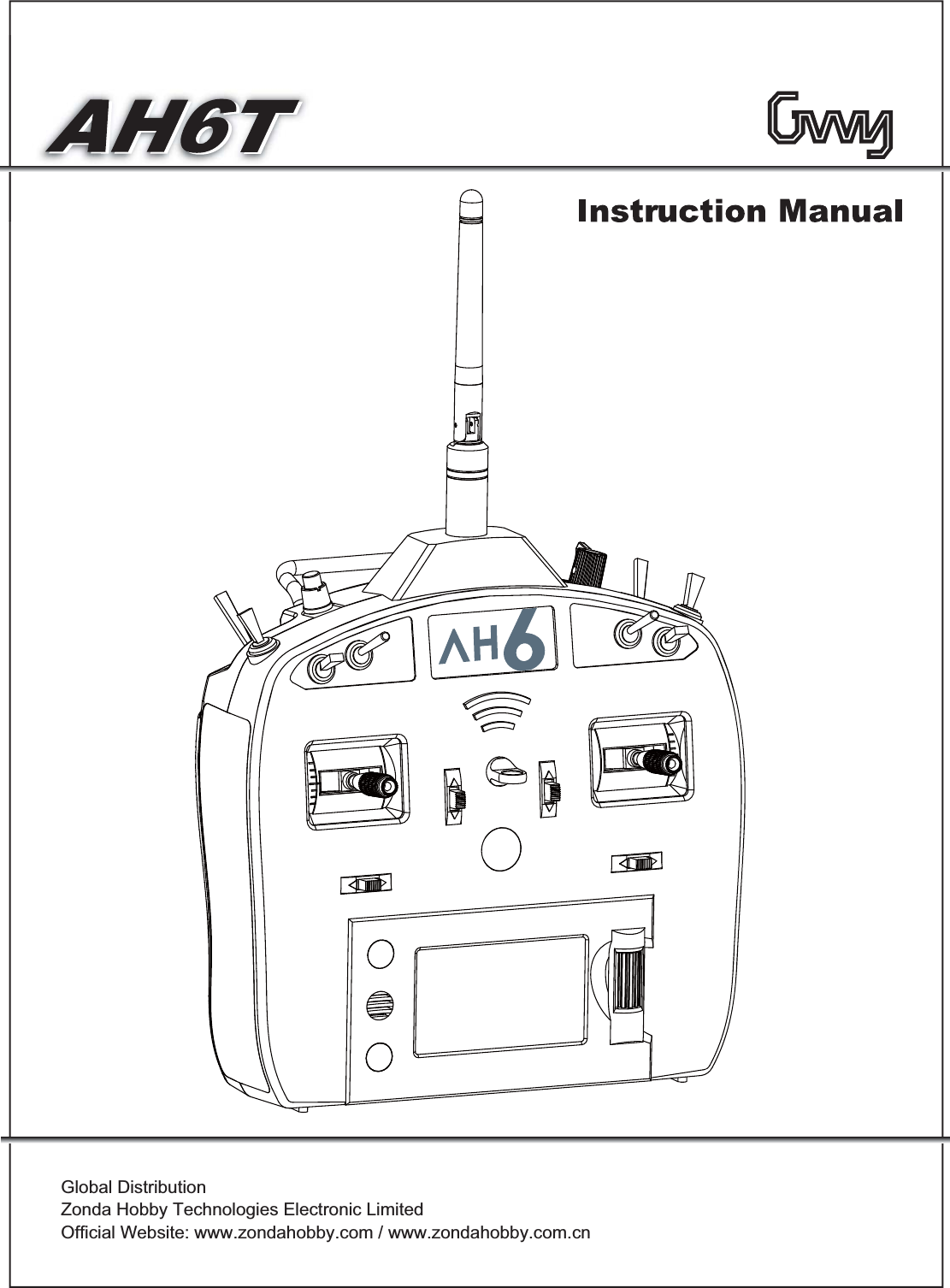
ZONDA HOBBY TECHNOLOGIES ELECTRONIC HK0004 Transmitter User Manual 11

ZONDA HOBBY TECHNOLOGIES ELECTRONIC LIMITED Transmitter 11

Users manual

Global Distribution Zonda Hobby Technologies Electronic LimitedOfficial Website: www.zondahobby.com / www.zondahobby.com.cn
ForewordWarning Label LegendSafety Precautions and WarningPre-flight checkFORBIDDENFORBIDDENDo not attempt under any circumstances.WARNINGMishandling due to failure to follow these instructions may result in danger or injury.CAUTIONMishandling due to failure to follow these instructions may result in danger.WARNINGStatementThank you for choosing GWY Product. To help you to understand and use this AH6T Transmitter, We hope you reading this manual carefully before operate.To learn more information, please visit our official website:www.zondahobby.com/www.zondahobby.com.cnRC helicopter is controlled by radio signals. It may be interfered by other radio signals during operation. These interference may cause the helicopter lose control. This is a sophisticated hobby product and NOT a toy. It must be operated with caution and common sense and requires some basic mechanical ability. Failure to operate this Product in a safe and responsible manner could result in injury or damage to the product or other property. This product is not intended for use by children without direct adult supervision. Do not attempt disassembly, use with incompatible components or augment product in any way without the approval of GWY. This manual contains instructions for safety, operation and maintenance. It is essential to read and follow all the instructions and warnings in the manual, prior to assembly, setup or use, in order to operate correctly and avoid damage or serious injury.1. An RC Model is not a toy! Improper operation or misuse may lead to serious damage or loss. It is prohibited for children under 14 years to operate this product.2. Keep it away from high temperature environment and corrosive chemicals for storage and flight.(the operation temperature: from -1 O.C to 50.C)3. If you are not an experienced pilot or have not flown this type of model before, we recommend that you get assistance of an experienced pilot for your first flights. Please avoid flying with other RC models with same frequency.4. Please choose a open flight area and use the training gear set for your first fight in order to minimize your loss due to control mistakes.1. To avoid the loss of the property of others, please keep away from high tension power lines, high buildings or any other obstacles while flying.2. Keep away from crowds in case of accidents.3. Do NOT operate in rain, thunder, storms, lighting, strong wind or any other bad weathers to ensure your and the helicopter’s safety.4. Please avoid using in a bathroom or a rainy day to prevent moisture or water vapor from entering the helicopter inside which may lead mechanical or electronic components malfunction and cause unexpected accidents!5. Do Not re-equip, upgrade or repair your helicopter with the accessories outside the DTS parts catalog in order to ensure the safety of the model structure.6. Keep people and objects away from the spinning unit and parts in case of damage or injury. 1. Please make sure the helicopter frequency will not interfered with others before every flight.2. You should confirm the batteries of your transmitter and helicopter are fully charged before every flight and your first flight.3. Both the throttle stick (left-hand stick) and throttle trim MUST be in their lowest position before every flight. Each time before your flight, you must ALWAYS turn on the transmitter power first before connecting the flight battery to the receiver. After your flight, you should disconnect the flight battery from the receiver before turn off the transmitter.4. Please make sure that every servos function properly with correct directions after powering on.5. Make sure every connection of pushrods is proper and the helicopter battery placed in fixed position. 2
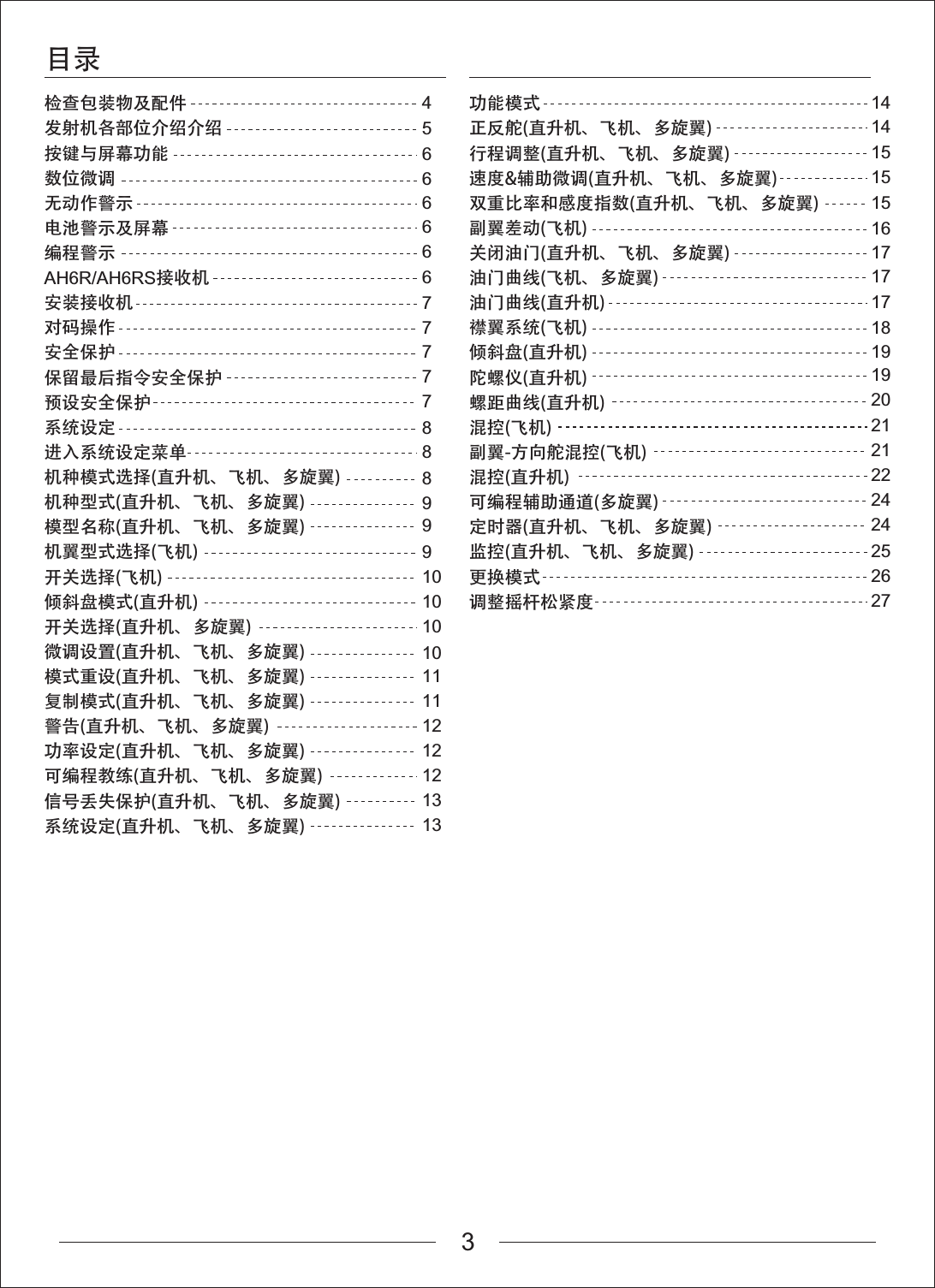
Table of ContentsIncluded Items Transmitter IdentificationKey Input and Display FunctionsDigital TrimsInactivity WarningBattery Alarm and DisplayProgrammable AlarmAH6R/AH6RS Receiver Receiver InstallationBindingSmartSafeHold Last CommandPreset FailsafeSystem SetupTo Access The System Setup ListModel select (Helicopter,Airplane,Multicopter)Model Type (Helicopter,Airplane,Multicopter)Model Name (Helicopter,Airplane,Multicopter)Wing Type (Airplane)Switch Select (Airplane)Swash Type (Airplane)Switch Select (Helicopter,Multicopter)Trims Step (Helicopter,Airplane,Multicopter)Model Reset (Helicopter,Airplane,Multicopter)Model Copy (Helicopter,Airplane,Multicopter)Warnings (Helicopter,Airplane,Multicopter)Power Setting (Helicopter,Airplane,Multicopter)Trainer (Helicopter,Airplane,Multicopter)Failsafes (Helicopter,Airplane,Multicopter)System Settings (Helicopter,Airplane,Multicopter)4 1414151515161717171819192021212224242526275666666777778889991010101011111212121313Function ModeServo Reverse (Helicopter,Airplane,Multicopter)Servo Travel (Helicopter,Airplane,Multicopter)Servo Speed & Trim(Helicopter,Airplane,Multicopter)D/R & Exponential (Helicopter,Airplane,Multicopter)Differential (Airplane)Throttle Cut (Helicopter,Airplane,Multicopter)Throttle Curve (Airplane,Multicopter)Throttle Curve (Helicopter)Flap System (Airplane)Swashplate (Helicopter)GYRO (Helicopter)Pitch Curve (Helicopter)Mixing (Airplane)Aileron to Rudder Mix (Airplane)Mixing (Helicopter)Programmable Mixes (Multicopter)Timer (Helicopter,Airplane,Multicopter)Monitor (Helicopter,Airplane,Multicopter)Mode ChangesAdjustable Stick Tension3
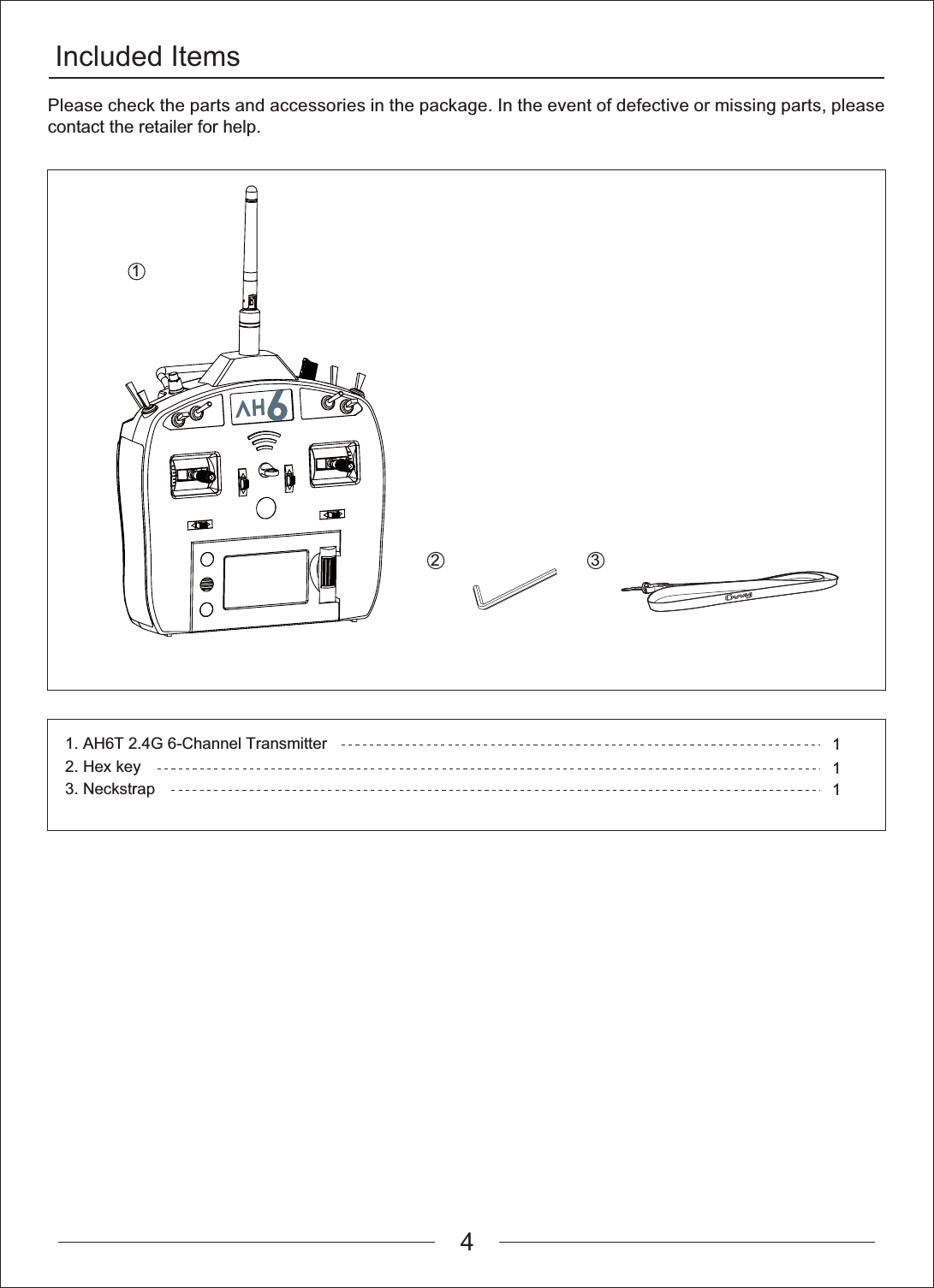
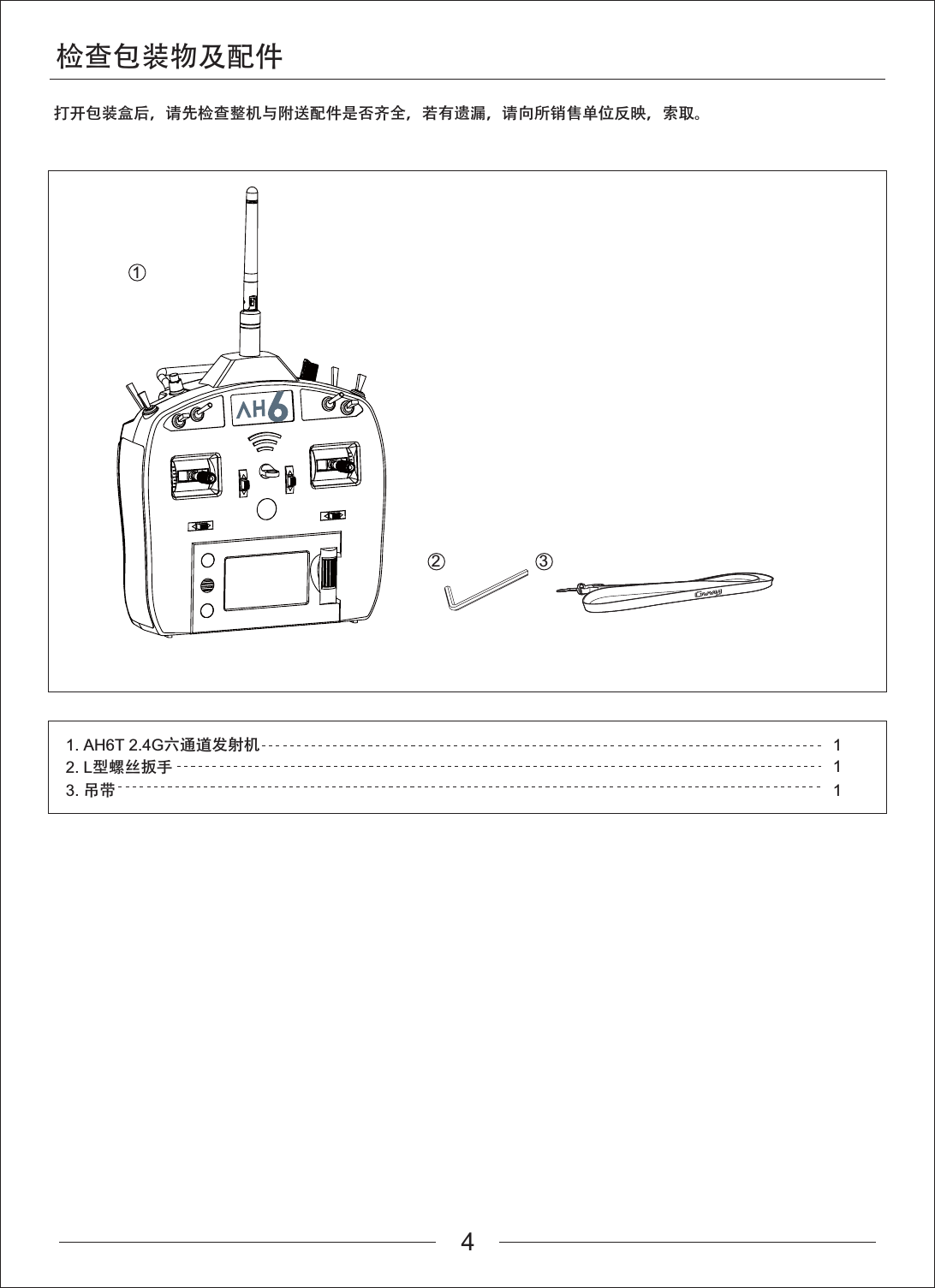
Included Items12 311. AH6T 2.4G 6-Channel Transmitter2. Hex key3. Neckstrap11Please check the parts and accessories in the package. In the event of defective or missing parts, please contact the retailer for help.4
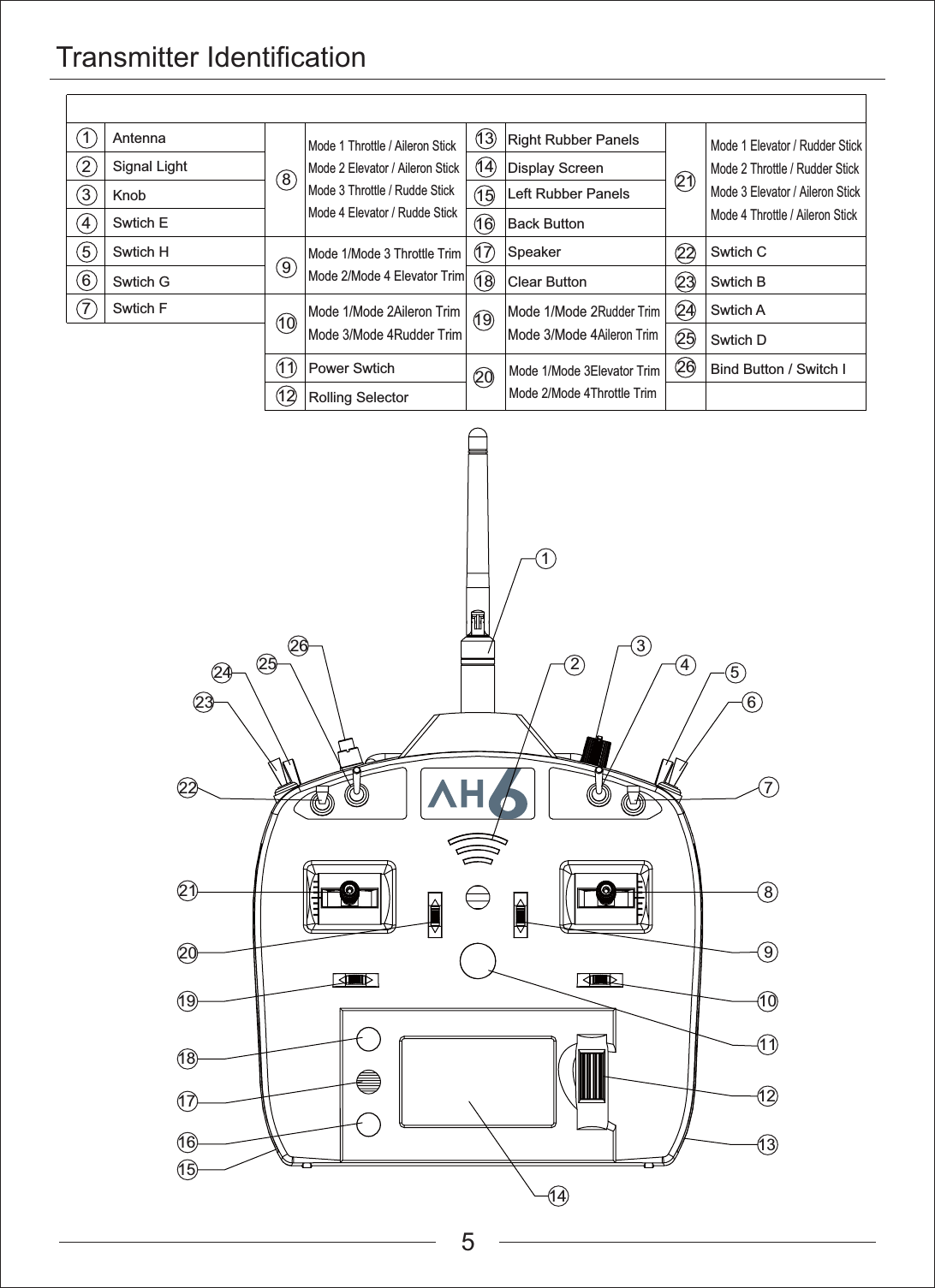
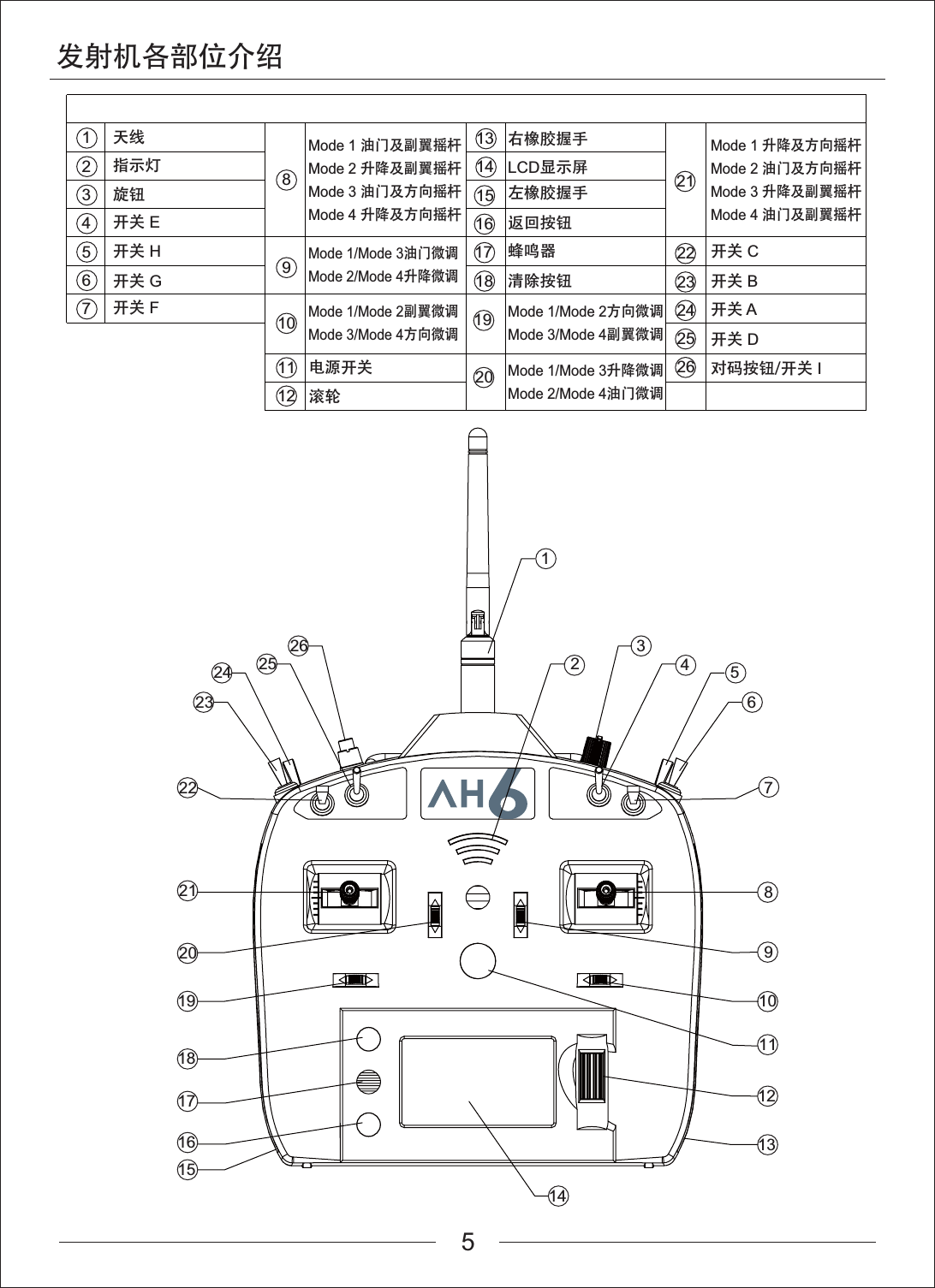
Transmitter IdentificationAntennaSignal LightKnobSwtich ESwtich CSwtich BSwtich ASwtich DBind Button / Switch ISwtich HSwtich GSwtich FPower SwtichDisplay ScreenLeft Rubber PanelsRight Rubber PanelsClear ButtonBack ButtonSpeakerRolling Selector1123456789101112131415161718192021222324252635426789111012131415161718192021222324 2526Mode 1 Elevator / Rudder StickMode 2 Throttle / Rudder StickMode 3 Elevator / Aileron StickMode 4 Throttle / Aileron StickMode 1 Throttle / Aileron StickMode 2 Elevator / Aileron StickMode 3 Throttle / Rudde StickMode 4 Elevator / Rudde StickMode 1/Mode 3 Throttle TrimMode 2/Mode 4 Elevator TrimMode 1/Mode 2Aileron TrimMode 3/Mode 4Rudder TrimMode 1/Mode 2Rudder TrimMode 3/Mode 4Aileron TrimMode 1/Mode 3Elevator TrimMode 2/Mode 4Throttle Trim5
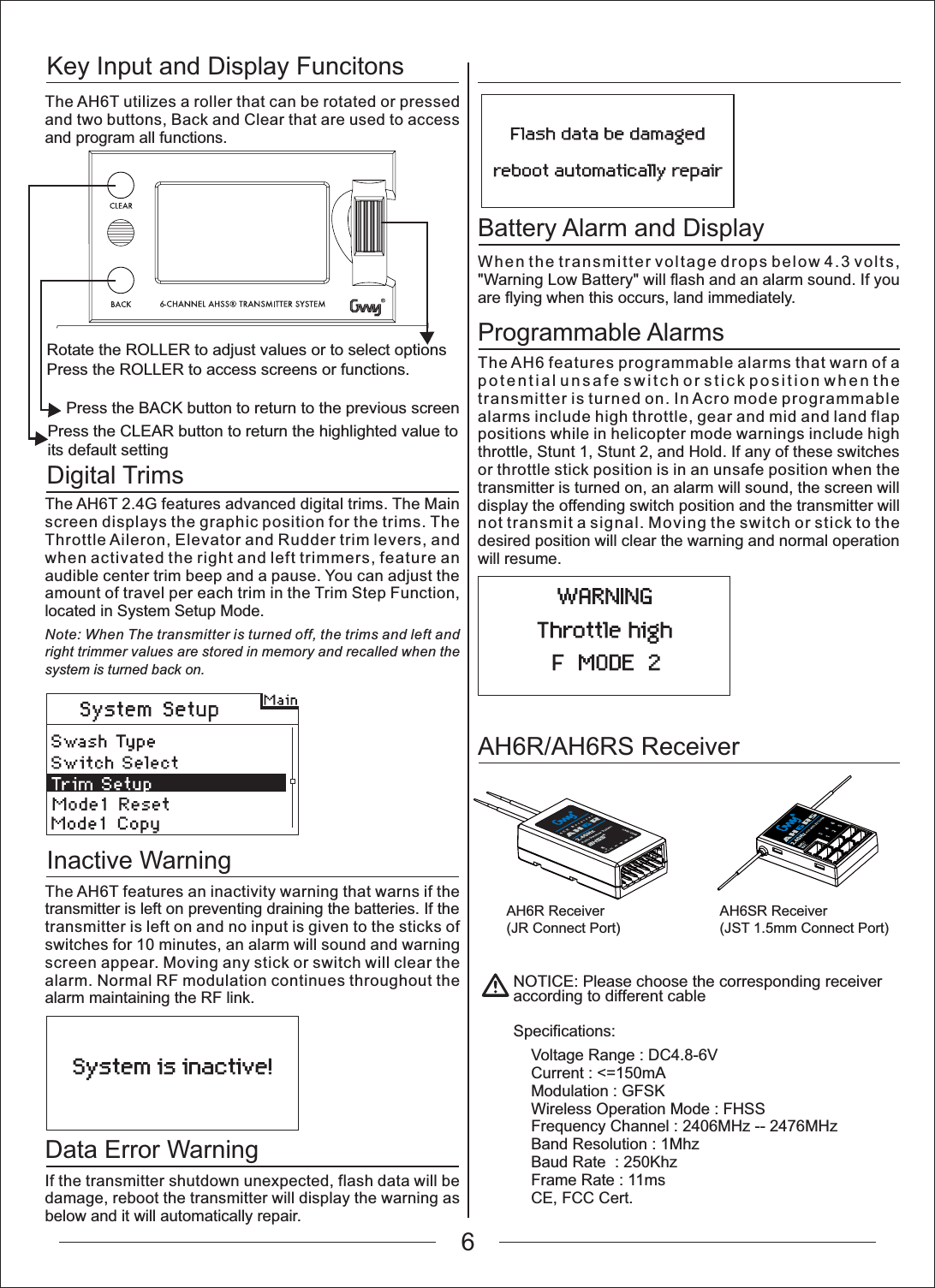
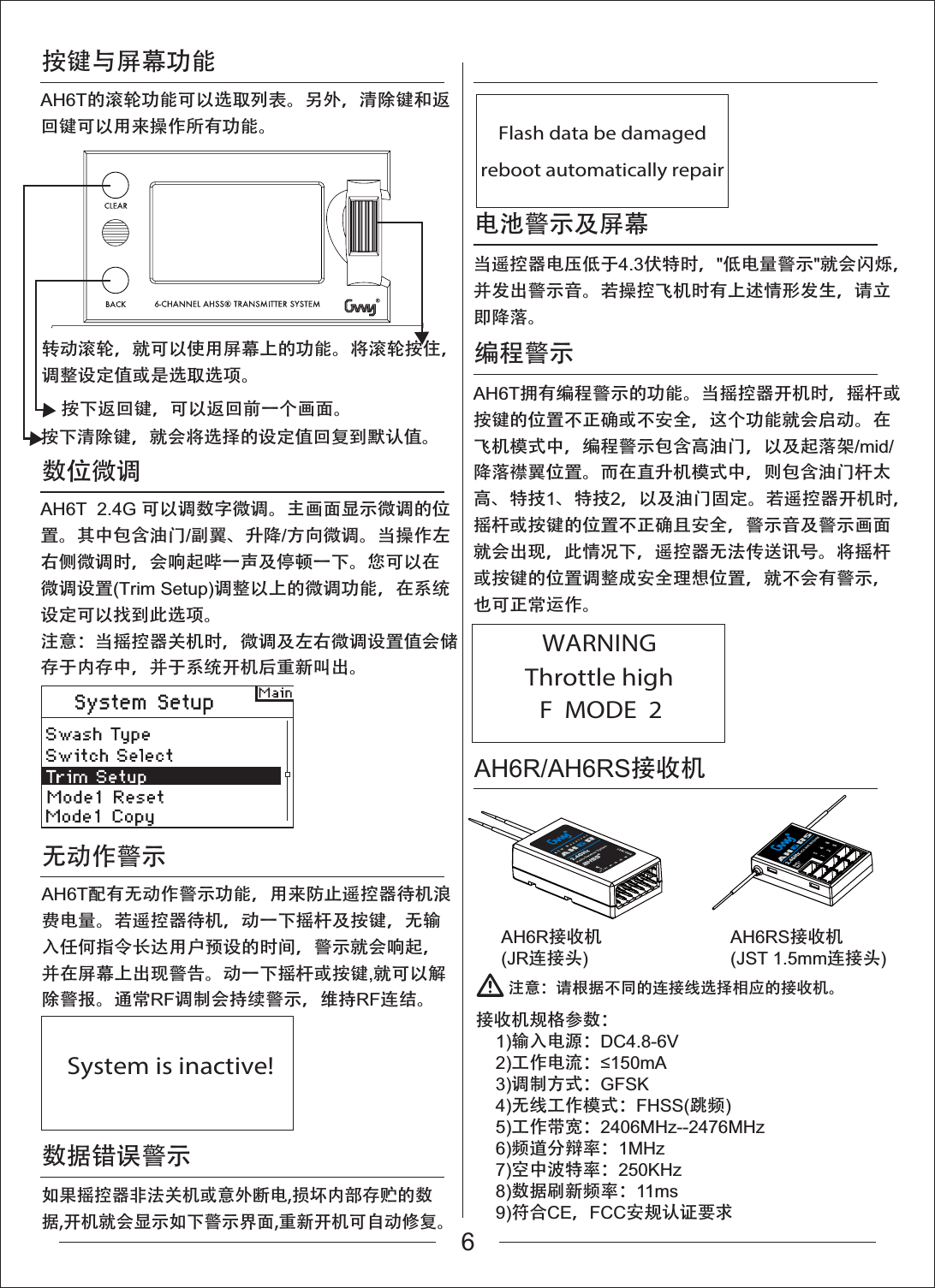
Key Input and Display FuncitonsProgrammable AlarmsAH6R/AH6RS ReceiverAH6R Receiver(JR Connect Port)AH6SR Receiver(JST 1.5mm Connect Port)Digital TrimsInactive WarningData Error WarningNOTICE: Please choose the corresponding receiver according to different cablePress the CLEAR button to return the highlighted value to its default settingPress the BACK button to return to the previous screen Rotate the ROLLER to adjust values or to select optionsPress the ROLLER to access screens or functions.Battery Alarm and DisplayThe AH6T utilizes a roller that can be rotated or pressed and two buttons, Back and Clear that are used to access and program all functions.The AH6T 2.4G features advanced digital trims. The Main screen displays the graphic position for the trims. The Throttle Aileron, Elevator and Rudder trim levers, and when activated the right and left trimmers, feature an audible center trim beep and a pause. You can adjust the amount of travel per each trim in the Trim Step Function, located in System Setup Mode.Note: When The transmitter is turned off, the trims and left and right trimmer values are stored in memory and recalled when the system is turned back on.The AH6T features an inactivity warning that warns if the transmitter is left on preventing draining the batteries. If the transmitter is left on and no input is given to the sticks of switches for 10 minutes, an alarm will sound and warning screen appear. Moving any stick or switch will clear the alarm. Normal RF modulation continues throughout the alarm maintaining the RF link.If the transmitter shutdown unexpected, flash data will be damage, reboot the transmitter will display the warning as below and it will automatically repair.When the transmitter voltage drops below 4.3 volts, "Warning Low Battery" will flash and an alarm sound. If you are flying when this occurs, land immediately.The AH6 features programmable alarms that warn of a potential unsafe switch or stick position when the transmitter is turned on. In Acro mode programmable alarms include high throttle, gear and mid and land flap positions while in helicopter mode warnings include high throttle, Stunt 1, Stunt 2, and Hold. If any of these switches or throttle stick position is in an unsafe position when the transmitter is turned on, an alarm will sound, the screen will display the offending switch position and the transmitter will not transmit a signal. Moving the switch or stick to the desired position will clear the warning and normal operation will resume.Specifications:    Voltage Range : DC4.8-6V    Current : <=150mA    Modulation : GFSK    Wireless Operation Mode : FHSS    Frequency Channel : 2406MHz -- 2476MHz    Band Resolution : 1Mhz    Baud Rate  : 250Khz    Frame Rate : 11ms    CE, FCC Cert.6
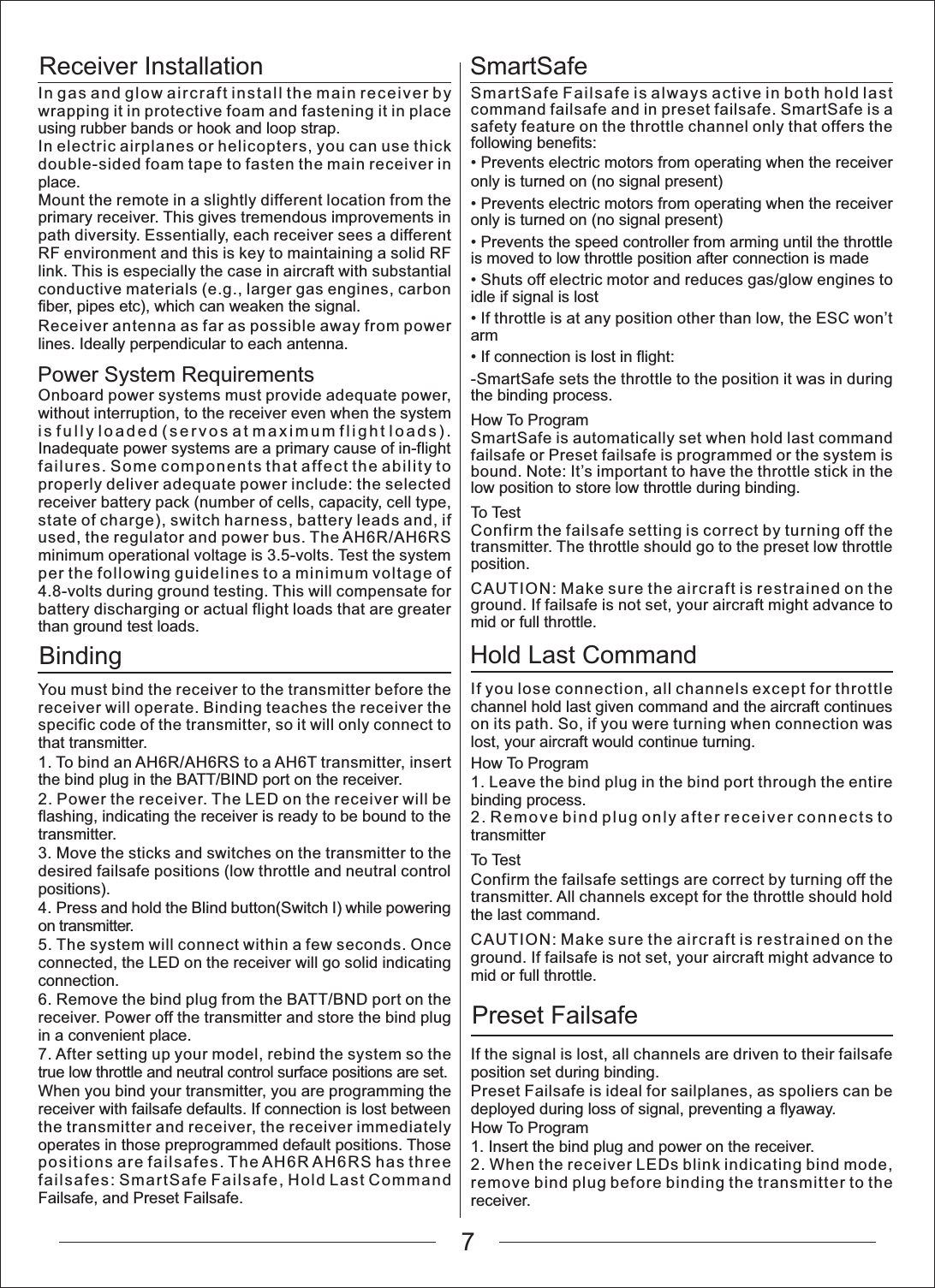
Receiver InstallationPower System RequirementsBindingSmartSafeHold Last CommandPreset FailsafeIn gas and glow aircraft install the main receiver by wrapping it in protective foam and fastening it in place using rubber bands or hook and loop strap.In electric airplanes or helicopters, you can use thick double-sided foam tape to fasten the main receiver in place.Mount the remote in a slightly different location from the primary receiver. This gives tremendous improvements in path diversity. Essentially, each receiver sees a different RF environment and this is key to maintaining a solid RF link. This is especially the case in aircraft with substantial conductive materials (e.g., larger gas engines, carbon fiber, pipes etc), which can weaken the signal.Receiver antenna as far as possible away from power lines. Ideally perpendicular to each antenna.Onboard power systems must provide adequate power, without interruption, to the receiver even when the system is fully loaded (servos at maximum flight loads). Inadequate power systems are a primary cause of in-flight failures. Some components that affect the ability to properly deliver adequate power include: the selected receiver battery pack (number of cells, capacity, cell type, state of charge), switch harness, battery leads and, if used, the regulator and power bus. The AH6R/AH6RS minimum operational voltage is 3.5-volts. Test the system per the following guidelines to a minimum voltage of 4.8-volts during ground testing. This will compensate for battery discharging or actual flight loads that are greater than ground test loads.You must bind the receiver to the transmitter before the receiver will operate. Binding teaches the receiver the specific code of the transmitter, so it will only connect to that transmitter.1. To bind an AH6R/AH6RS to a AH6T transmitter, insert the bind plug in the BATT/BIND port on the receiver.2. Power the receiver. The LED on the receiver will be flashing, indicating the receiver is ready to be bound to the transmitter.3. Move the sticks and switches on the transmitter to the desired failsafe positions (low throttle and neutral control positions).4. Press and hold the Blind button(Switch I) while powering on transmitter.5. The system will connect within a few seconds. Once connected, the LED on the receiver will go solid indicating connection.6. Remove the bind plug from the BATT/BND port on the receiver. Power off the transmitter and store the bind plug in a convenient place.7. After setting up your model, rebind the system so the true low throttle and neutral control surface positions are set.When you bind your transmitter, you are programming the receiver with failsafe defaults. If connection is lost between the transmitter and receiver, the receiver immediately operates in those preprogrammed default positions. Those positions are failsafes. The AH6R AH6RS has three failsafes: SmartSafe Failsafe, Hold Last Command Failsafe, and Preset Failsafe.SmartSafe Failsafe is always active in both hold last command failsafe and in preset failsafe. SmartSafe is a safety feature on the throttle channel only that offers the following benefits:3UHYHQWVHOHFWULFPRWRUVIURPRSHUDWLQJZKHQWKHUHFHLYHUonly is turned on (no signal present)3UHYHQWVHOHFWULFPRWRUVIURPRSHUDWLQJZKHQWKHUHFHLYHUonly is turned on (no signal present)3UHYHQWVWKHVSHHGFRQWUROOHUIURPDUPLQJXQWLOWKHWKURWWOHis moved to low throttle position after connection is made6KXWVRIIHOHFWULFPRWRUDQGUHGXFHVJDVJORZHQJLQHVWRidle if signal is lost,IWKURWWOHLVDWDQ\SRVLWLRQRWKHUWKDQORZWKH(6&ZRQ¶Warm,IFRQQHFWLRQLVORVWLQIOLJKW-SmartSafe sets the throttle to the position it was in during the binding process.How To ProgramSmartSafe is automatically set when hold last command failsafe or Preset failsafe is programmed or the system is bound. Note: It’s important to have the throttle stick in the low position to store low throttle during binding.To TestConfirm the failsafe setting is correct by turning off the transmitter. The throttle should go to the preset low throttle position.CAUTION: Make sure the aircraft is restrained on the ground. If failsafe is not set, your aircraft might advance to mid or full throttle.If you lose connection, all channels except for throttle channel hold last given command and the aircraft continues on its path. So, if you were turning when connection was lost, your aircraft would continue turning.How To Program1. Leave the bind plug in the bind port through the entire binding process.2. Remove bind plug only after receiver connects to transmitterTo TestConfirm the failsafe settings are correct by turning off the transmitter. All channels except for the throttle should hold the last command.CAUTION: Make sure the aircraft is restrained on the ground. If failsafe is not set, your aircraft might advance to mid or full throttle.If the signal is lost, all channels are driven to their failsafe position set during binding.Preset Failsafe is ideal for sailplanes, as spoliers can be deployed during loss of signal, preventing a flyaway.How To Program1. Insert the bind plug and power on the receiver.2. When the receiver LEDs blink indicating bind mode, remove bind plug before binding the transmitter to the receiver.7
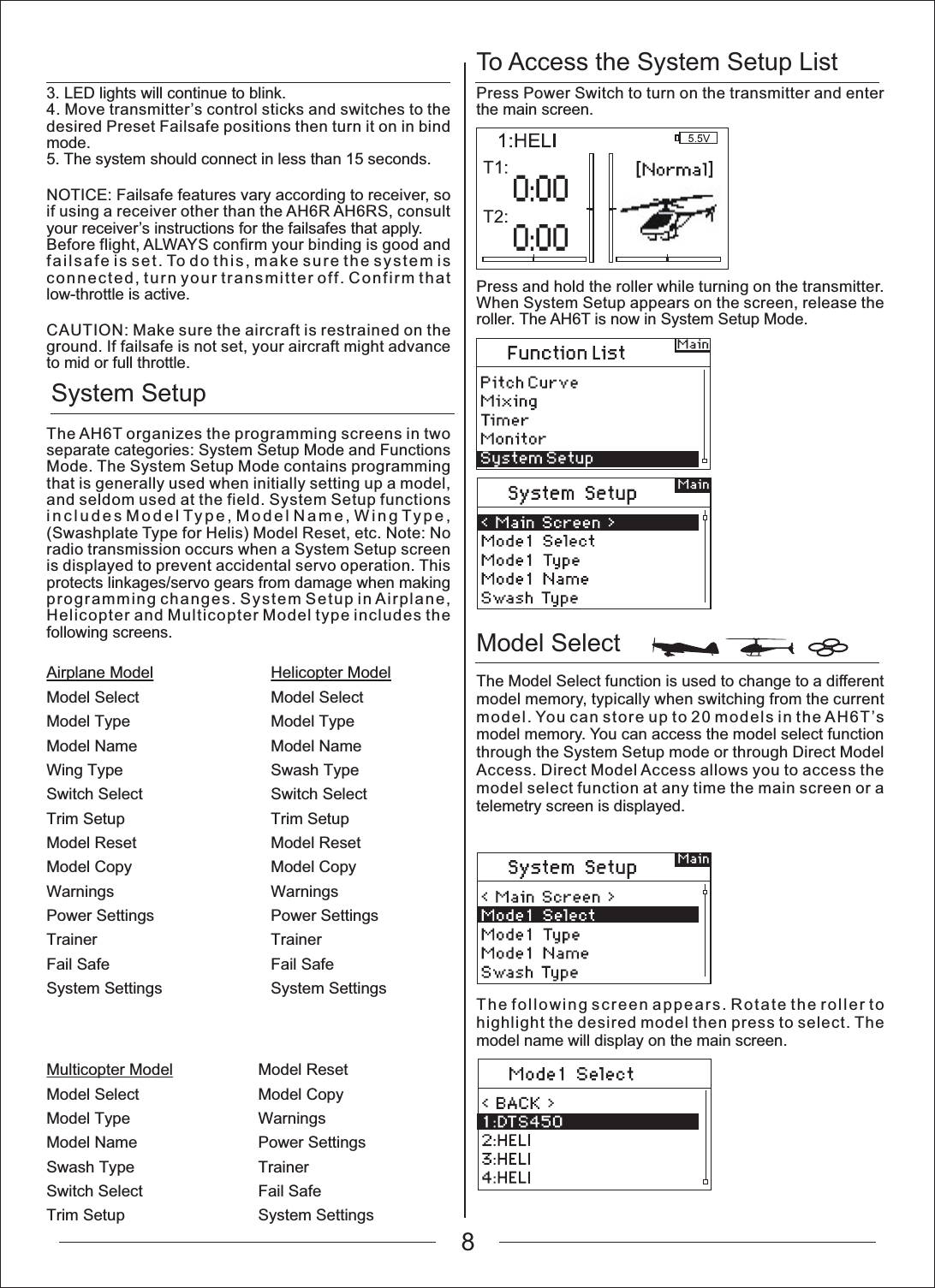
To Access the System Setup ListModel Select System SetupAirplane ModelModel SelectModel TypeModel NameWing TypeSwitch SelectTrim SetupModel ResetModel CopyWarningsPower SettingsTrainerFail SafeSystem SettingsMulticopter ModelModel SelectModel TypeModel NameSwash TypeSwitch SelectTrim SetupModel ResetModel CopyWarningsPower SettingsTrainerFail SafeSystem SettingsHelicopter ModelModel SelectModel TypeModel NameSwash TypeSwitch SelectTrim SetupModel ResetModel CopyWarningsPower SettingsTrainerFail SafeSystem Settings3. LED lights will continue to blink.4. Move transmitter’s control sticks and switches to the desired Preset Failsafe positions then turn it on in bind mode.5. The system should connect in less than 15 seconds.NOTICE: Failsafe features vary according to receiver, so if using a receiver other than the AH6R AH6RS, consult your receiver’s instructions for the failsafes that apply.Before flight, ALWAYS confirm your binding is good and failsafe is set. To do this, make sure the system is connected, turn your transmitter off. Confirm that low-throttle is active.CAUTION: Make sure the aircraft is restrained on the ground. If failsafe is not set, your aircraft might advance to mid or full throttle.The AH6T organizes the programming screens in two separate categories: System Setup Mode and Functions Mode. The System Setup Mode contains programming that is generally used when initially setting up a model, and seldom used at the field. System Setup functions includes Model Type, Model Name, Wing Type, (Swashplate Type for Helis) Model Reset, etc. Note: No radio transmission occurs when a System Setup screen is displayed to prevent accidental servo operation. This protects linkages/servo gears from damage when making programming changes. System Setup in Airplane, Helicopter and Multicopter Model type includes the following screens.Press Power Switch to turn on the transmitter and enter the main screen.Press and hold the roller while turning on the transmitter. When System Setup appears on the screen, release the roller. The AH6T is now in System Setup Mode.The Model Select function is used to change to a different model memory, typically when switching from the current model. You can store up to 20 models in the AH6T’s model memory. You can access the model select function through the System Setup mode or through Direct Model Access. Direct Model Access allows you to access the model select function at any time the main screen or a telemetry screen is displayed.The following screen appears. Rotate the roller to highlight the desired model then press to select. The model name will display on the main screen.8
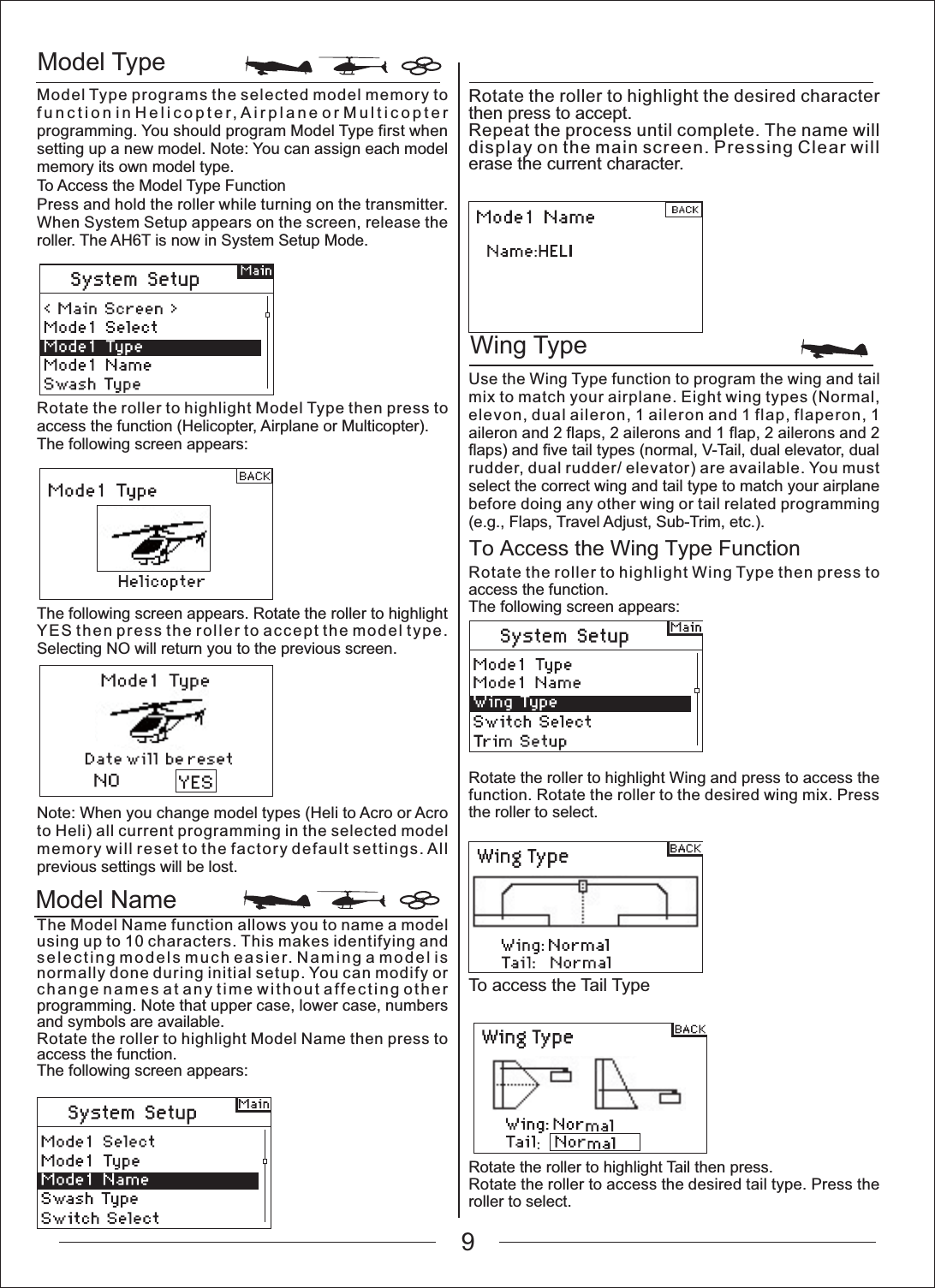
Model TypeWing TypeModel NameTo Access the Wing Type FunctionModel Type programs the selected model memory to function in Helicopter, Airplane or Multicopter programming. You should program Model Type first when setting up a new model. Note: You can assign each model memory its own model type.To Access the Model Type FunctionPress and hold the roller while turning on the transmitter. When System Setup appears on the screen, release the roller. The AH6T is now in System Setup Mode.Rotate the roller to highlight the desired character then press to accept.Repeat the process until complete. The name will display on the main screen. Pressing Clear will erase the current character.Use the Wing Type function to program the wing and tail mix to match your airplane. Eight wing types (Normal, elevon, dual aileron, 1 aileron and 1 flap, flaperon, 1 aileron and 2 flaps, 2 ailerons and 1 flap, 2 ailerons and 2 flaps) and five tail types (normal, V-Tail, dual elevator, dual rudder, dual rudder/ elevator) are available. You must select the correct wing and tail type to match your airplane before doing any other wing or tail related programming (e.g., Flaps, Travel Adjust, Sub-Trim, etc.).Rotate the roller to highlight Wing Type then press to access the function.The following screen appears:Rotate the roller to highlight Wing and press to access the function. Rotate the roller to the desired wing mix. Press the roller to select.Rotate the roller to highlight Tail then press.Rotate the roller to access the desired tail type. Press the roller to select.To access the Tail TypeRotate the roller to highlight Model Type then press to access the function (Helicopter, Airplane or Multicopter).The following screen appears:The following screen appears. Rotate the roller to highlight YES then press the roller to accept the model type. Selecting NO will return you to the previous screen.Note: When you change model types (Heli to Acro or Acro to Heli) all current programming in the selected model memory will reset to the factory default settings. All previous settings will be lost.The Model Name function allows you to name a model using up to 10 characters. This makes identifying and selecting models much easier. Naming a model is normally done during initial setup. You can modify or change names at any time without affecting other programming. Note that upper case, lower case, numbers and symbols are available.Rotate the roller to highlight Model Name then press to access the function.The following screen appears:9
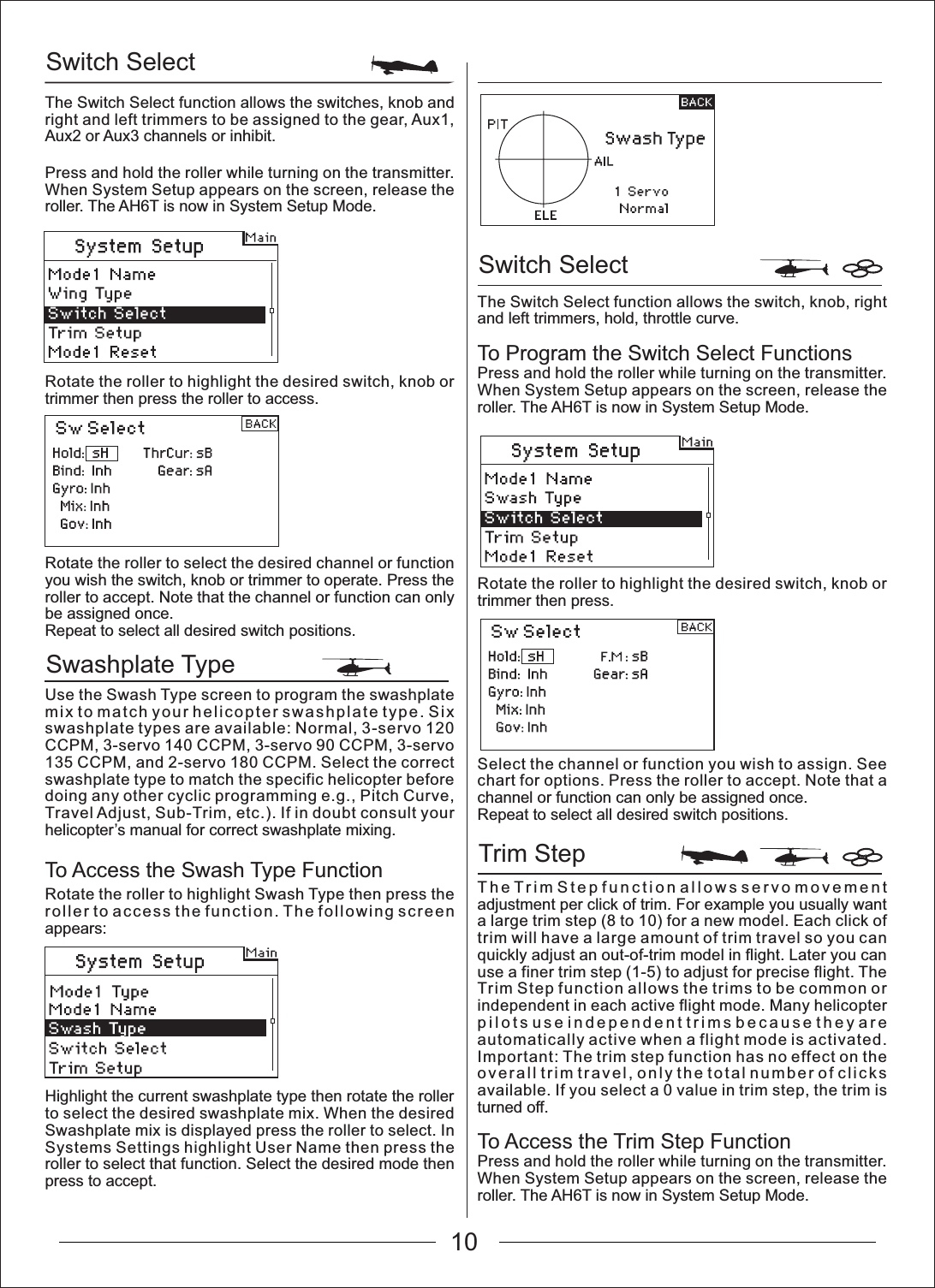
10Switch SelectSwashplate TypeSwitch SelectTrim StepThe Switch Select function allows the switches, knob and right and left trimmers to be assigned to the gear, Aux1, Aux2 or Aux3 channels or inhibit.Press and hold the roller while turning on the transmitter. When System Setup appears on the screen, release the roller. The AH6T is now in System Setup Mode.The Switch Select function allows the switch, knob, right and left trimmers, hold, throttle curve.To Program the Switch Select FunctionsPress and hold the roller while turning on the transmitter. When System Setup appears on the screen, release the roller. The AH6T is now in System Setup Mode.Rotate the roller to highlight the desired switch, knob or trimmer then press.Select the channel or function you wish to assign. See chart for options. Press the roller to accept. Note that a channel or function can only be assigned once.Repeat to select all desired switch positions.The Trim Step function allows servo movement adjustment per click of trim. For example you usually want a large trim step (8 to 10) for a new model. Each click of trim will have a large amount of trim travel so you can quickly adjust an out-of-trim model in flight. Later you can use a finer trim step (1-5) to adjust for precise flight. The Trim Step function allows the trims to be common or independent in each active flight mode. Many helicopter pilots use independent trims because they are automatically active when a flight mode is activated. Important: The trim step function has no effect on the overall trim travel, only the total number of clicks available. If you select a 0 value in trim step, the trim is turned off.To Access the Trim Step FunctionPress and hold the roller while turning on the transmitter. When System Setup appears on the screen, release the roller. The AH6T is now in System Setup Mode.Rotate the roller to highlight the desired switch, knob or trimmer then press the roller to access.Rotate the roller to select the desired channel or function you wish the switch, knob or trimmer to operate. Press the roller to accept. Note that the channel or function can only be assigned once.Repeat to select all desired switch positions.Use the Swash Type screen to program the swashplate mix to match your helicopter swashplate type. Six swashplate types are available: Normal, 3-servo 120 CCPM, 3-servo 140 CCPM, 3-servo 90 CCPM, 3-servo 135 CCPM, and 2-servo 180 CCPM. Select the correct swashplate type to match the specific helicopter before doing any other cyclic programming e.g., Pitch Curve, Travel Adjust, Sub-Trim, etc.). If in doubt consult your helicopter’s manual for correct swashplate mixing.Rotate the roller to highlight Swash Type then press the roller to access the function. The following screen appears:Highlight the current swashplate type then rotate the roller to select the desired swashplate mix. When the desired Swashplate mix is displayed press the roller to select. In Systems Settings highlight User Name then press the roller to select that function. Select the desired mode then press to accept.To Access the Swash Type Function
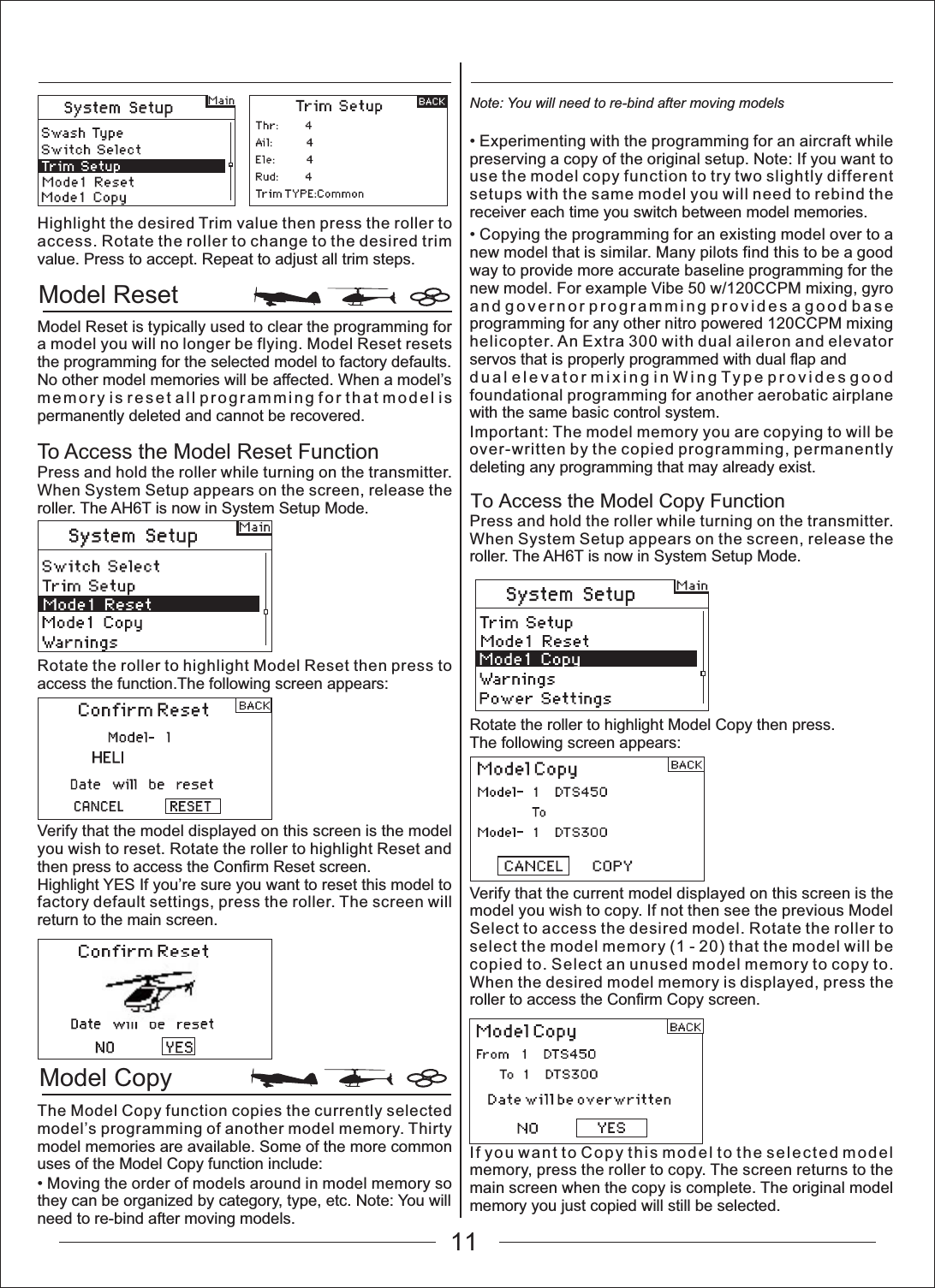
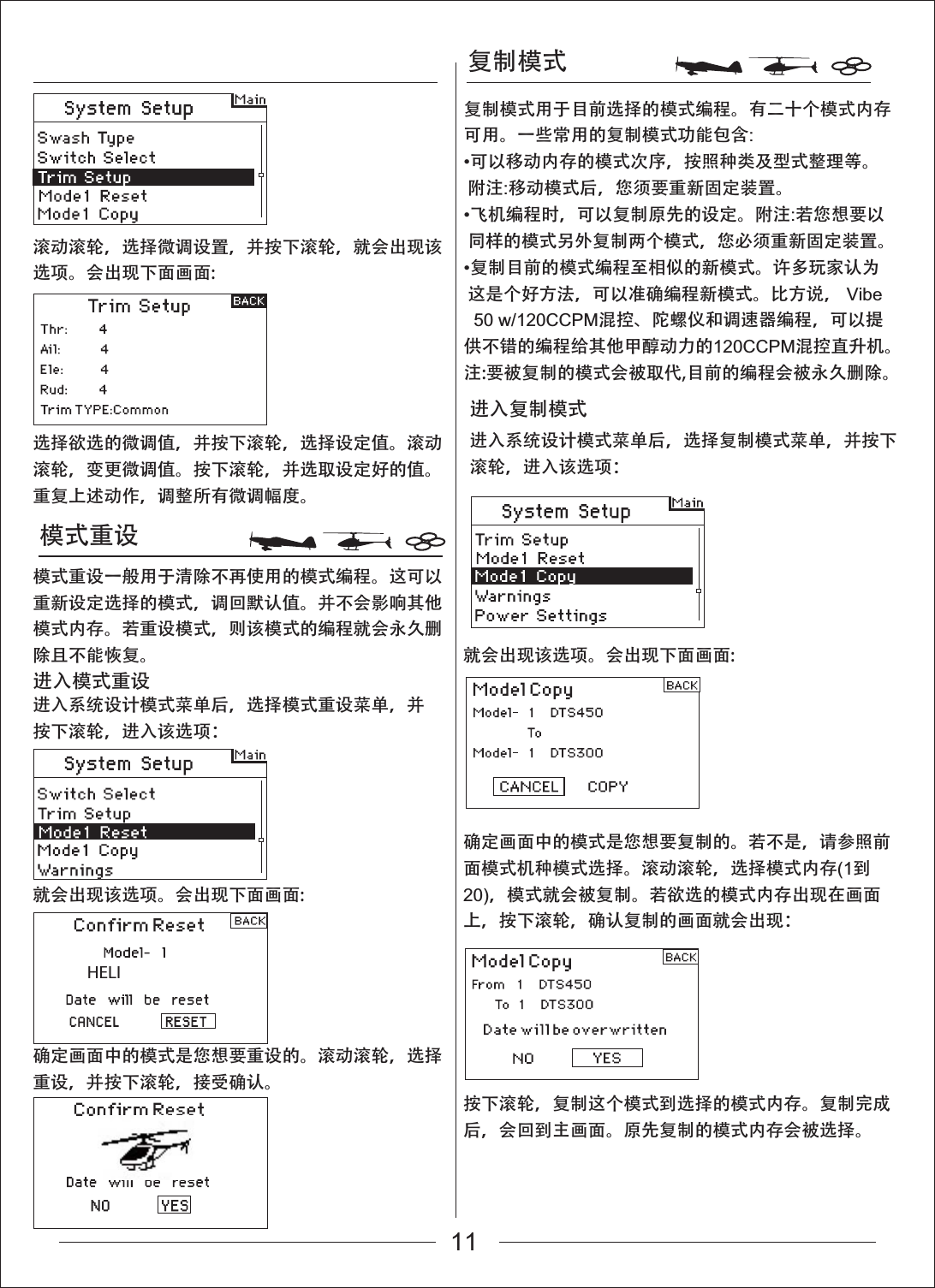
Model ResetModel Copy To Access the Model Copy FunctionHighlight the desired Trim value then press the roller to access. Rotate the roller to change to the desired trim value. Press to accept. Repeat to adjust all trim steps.Model Reset is typically used to clear the programming for a model you will no longer be flying. Model Reset resets the programming for the selected model to factory defaults. No other model memories will be affected. When a model’s memory is reset all programming for that model is permanently deleted and cannot be recovered.To Access the Model Reset FunctionPress and hold the roller while turning on the transmitter. When System Setup appears on the screen, release the roller. The AH6T is now in System Setup Mode.Rotate the roller to highlight Model Reset then press to access the function.The following screen appears:Verify that the model displayed on this screen is the model you wish to reset. Rotate the roller to highlight Reset and then press to access the Confirm Reset screen.Highlight YES If you’re sure you want to reset this model to factory default settings, press the roller. The screen will return to the main screen.The Model Copy function copies the currently selected model’s programming of another model memory. Thirty model memories are available. Some of the more common uses of the Model Copy function include:0RYLQJWKHRUGHURIPRGHOVDURXQGLQPRGHOPHPRU\VRthey can be organized by category, type, etc. Note: You will need to re-bind after moving models.Note: You will need to re-bind after moving models([SHULPHQWLQJZLWKWKHSURJUDPPLQJIRUDQDLUFUDIWZKLOHpreserving a copy of the original setup. Note: If you want to use the model copy function to try two slightly different setups with the same model you will need to rebind the receiver each time you switch between model memories.&RS\LQJWKHSURJUDPPLQJIRUDQH[LVWLQJPRGHORYHUWRDnew model that is similar. Many pilots find this to be a good way to provide more accurate baseline programming for the new model. For example Vibe 50 w/120CCPM mixing, gyro and governor programming provides a good base programming for any other nitro powered 120CCPM mixing helicopter. An Extra 300 with dual aileron and elevator servos that is properly programmed with dual flap anddual elevator mixing in Wing Type provides good foundational programming for another aerobatic airplane with the same basic control system.Important: The model memory you are copying to will be over-written by the copied programming, permanently deleting any programming that may already exist.Press and hold the roller while turning on the transmitter. When System Setup appears on the screen, release the roller. The AH6T is now in System Setup Mode.Rotate the roller to highlight Model Copy then press.The following screen appears:Verify that the current model displayed on this screen is the model you wish to copy. If not then see the previous Model Select to access the desired model. Rotate the roller to select the model memory (1 - 20) that the model will be copied to. Select an unused model memory to copy to. When the desired model memory is displayed, press the roller to access the Confirm Copy screen.If you want to Copy this model to the selected model memory, press the roller to copy. The screen returns to the main screen when the copy is complete. The original model memory you just copied will still be selected.11
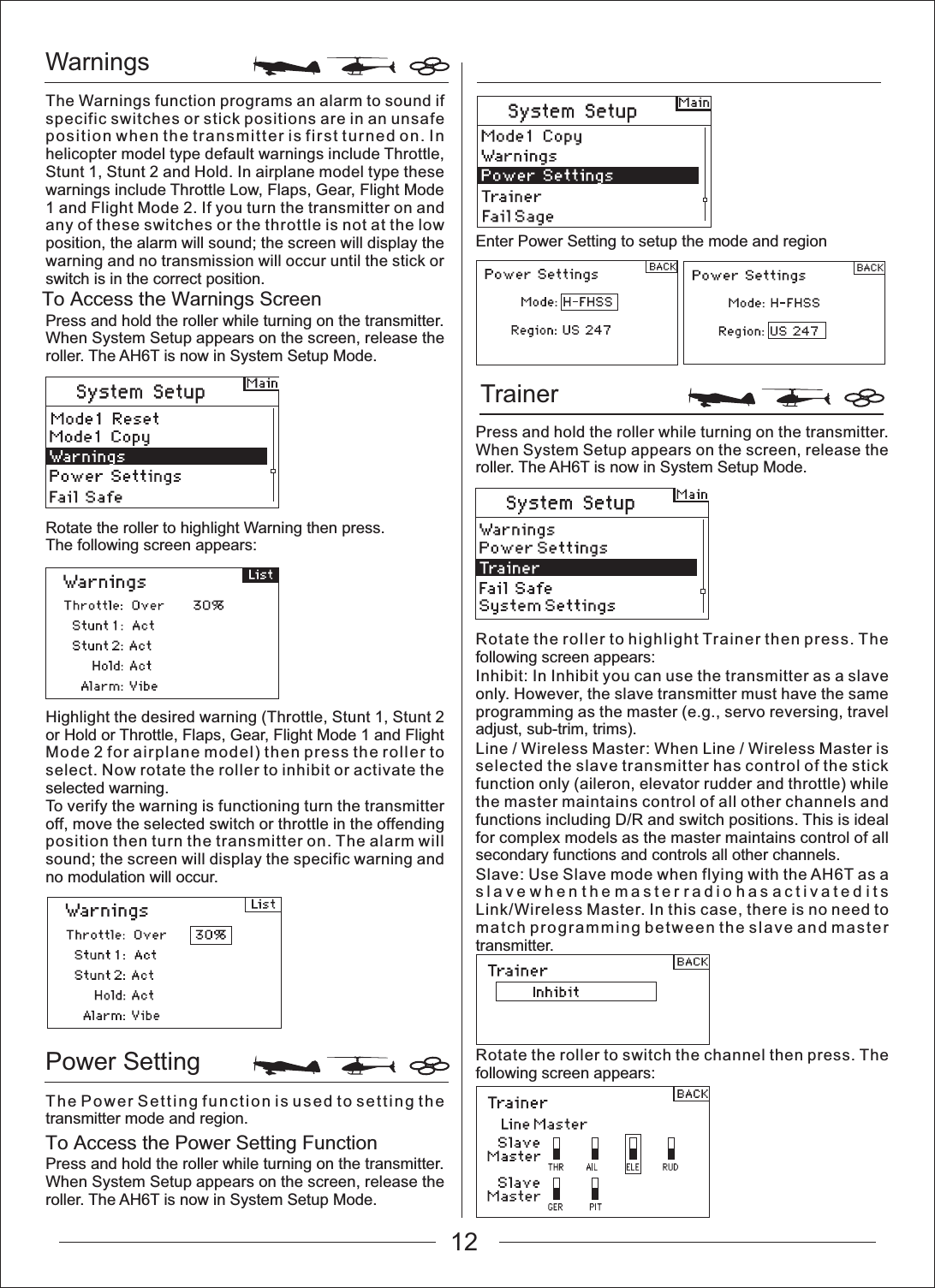
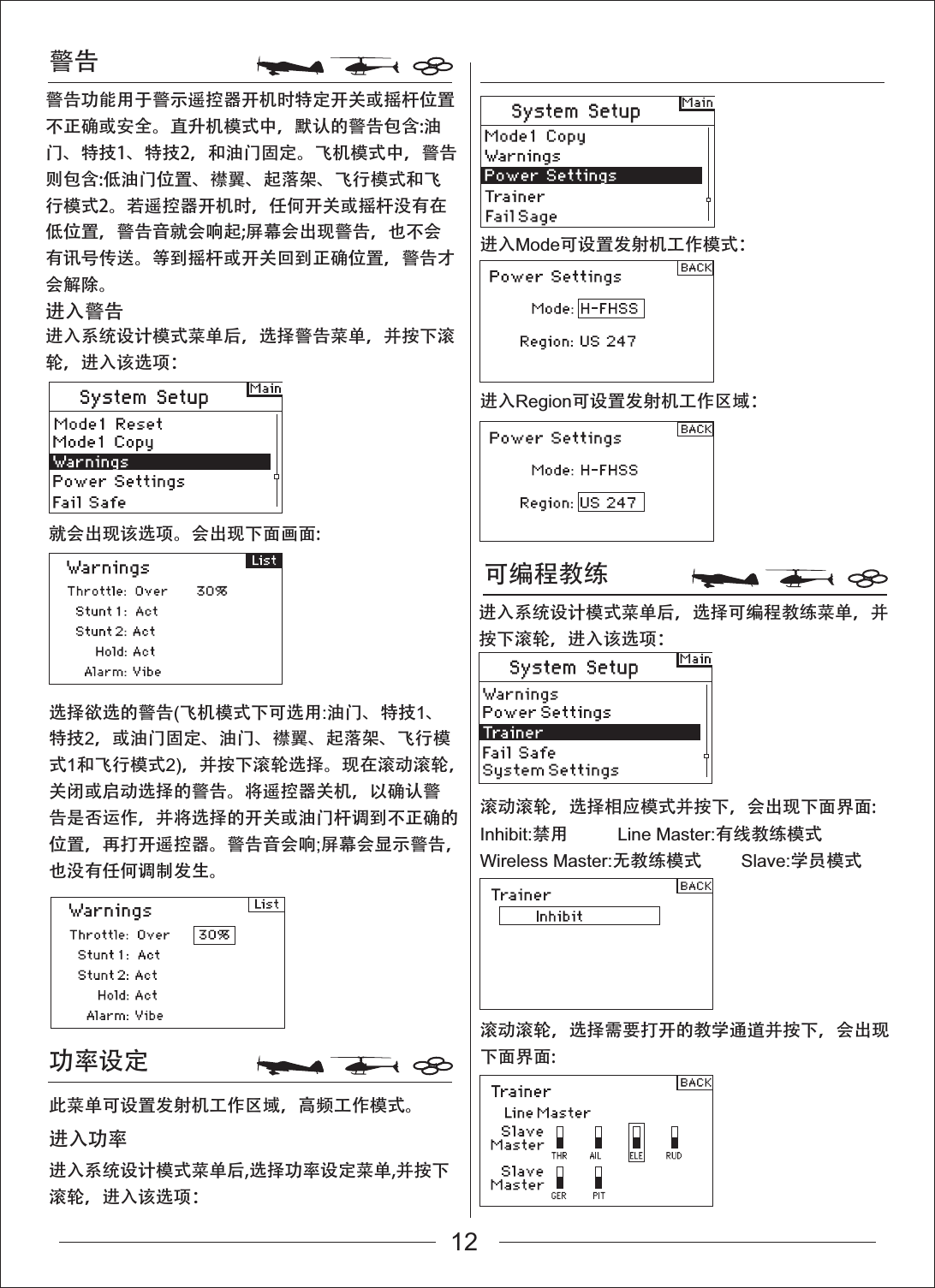
WarningsTrainer Power SettingTo Access the Power Setting FunctionTo Access the Warnings ScreenThe Warnings function programs an alarm to sound if specific switches or stick positions are in an unsafe position when the transmitter is first turned on. In helicopter model type default warnings include Throttle, Stunt 1, Stunt 2 and Hold. In airplane model type these warnings include Throttle Low, Flaps, Gear, Flight Mode 1 and Flight Mode 2. If you turn the transmitter on and any of these switches or the throttle is not at the low position, the alarm will sound; the screen will display the warning and no transmission will occur until the stick or switch is in the correct position.Press and hold the roller while turning on the transmitter. When System Setup appears on the screen, release the roller. The AH6T is now in System Setup Mode.Rotate the roller to highlight Warning then press.The following screen appears:Highlight the desired warning (Throttle, Stunt 1, Stunt 2 or Hold or Throttle, Flaps, Gear, Flight Mode 1 and Flight Mode 2 for airplane model) then press the roller to select. Now rotate the roller to inhibit or activate the selected warning.To verify the warning is functioning turn the transmitter off, move the selected switch or throttle in the offending position then turn the transmitter on. The alarm will sound; the screen will display the specific warning and no modulation will occur.The Power Setting function is used to setting the transmitter mode and region.Press and hold the roller while turning on the transmitter. When System Setup appears on the screen, release the roller. The AH6T is now in System Setup Mode.Enter Power Setting to setup the mode and regionPress and hold the roller while turning on the transmitter. When System Setup appears on the screen, release the roller. The AH6T is now in System Setup Mode.Rotate the roller to highlight Trainer then press. The following screen appears:Inhibit: In Inhibit you can use the transmitter as a slave only. However, the slave transmitter must have the same programming as the master (e.g., servo reversing, travel adjust, sub-trim, trims).Line / Wireless Master: When Line / Wireless Master is selected the slave transmitter has control of the stick function only (aileron, elevator rudder and throttle) while the master maintains control of all other channels and functions including D/R and switch positions. This is ideal for complex models as the master maintains control of all secondary functions and controls all other channels.Slave: Use Slave mode when flying with the AH6T as a slave when the master radio has activated its Link/Wireless Master. In this case, there is no need to match programming between the slave and master transmitter.Rotate the roller to switch the channel then press. The following screen appears:12
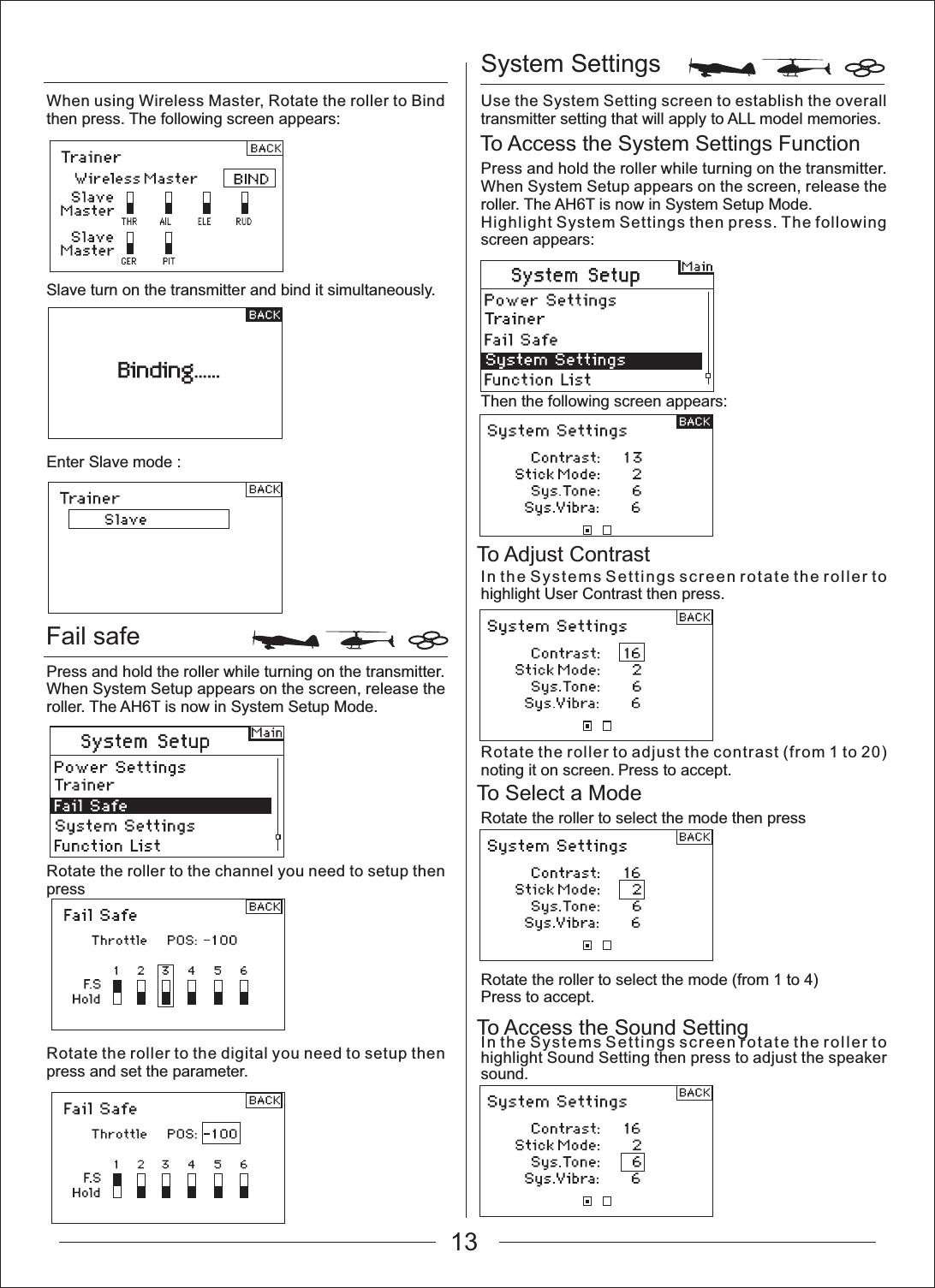
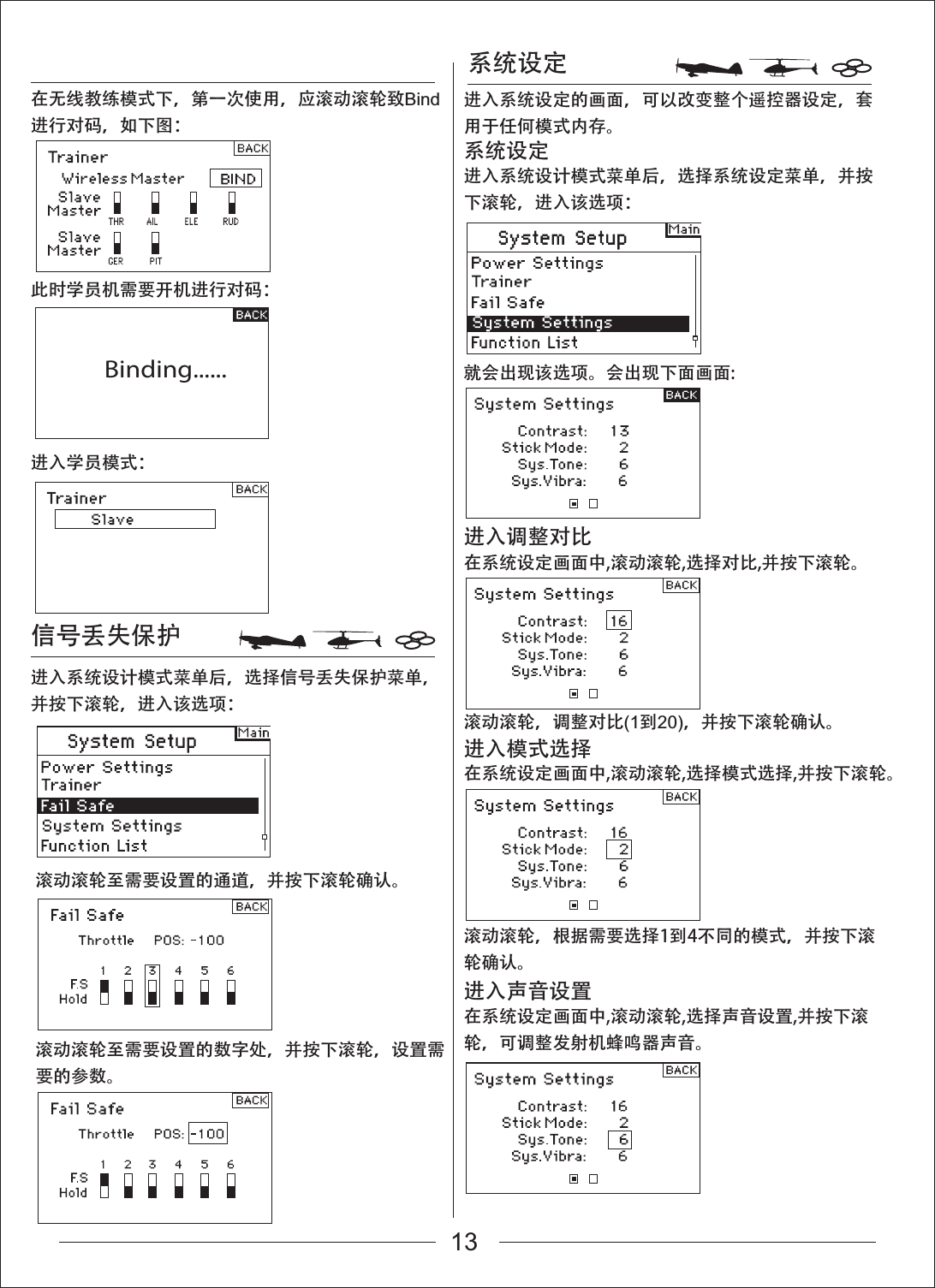
System SettingsTo Access the System Settings FunctionTo Adjust ContrastTo Select a ModeTo Access the Sound SettingFail safeWhen using Wireless Master, Rotate the roller to Bind then press. The following screen appears:Slave turn on the transmitter and bind it simultaneously.Enter Slave mode : Press and hold the roller while turning on the transmitter. When System Setup appears on the screen, release the roller. The AH6T is now in System Setup Mode.Rotate the roller to the channel you need to setup then pressRotate the roller to the digital you need to setup then press and set the parameter.Use the System Setting screen to establish the overall transmitter setting that will apply to ALL model memories.Press and hold the roller while turning on the transmitter. When System Setup appears on the screen, release the roller. The AH6T is now in System Setup Mode.Highlight System Settings then press. The following screen appears:Then the following screen appears:In the Systems Settings screen rotate the roller to highlight User Contrast then press.Rotate the roller to adjust the contrast (from 1 to 20) noting it on screen. Press to accept.Rotate the roller to select the mode then pressRotate the roller to select the mode (from 1 to 4)Press to accept.In the Systems Settings screen rotate the roller to highlight Sound Setting then press to adjust the speaker sound.13
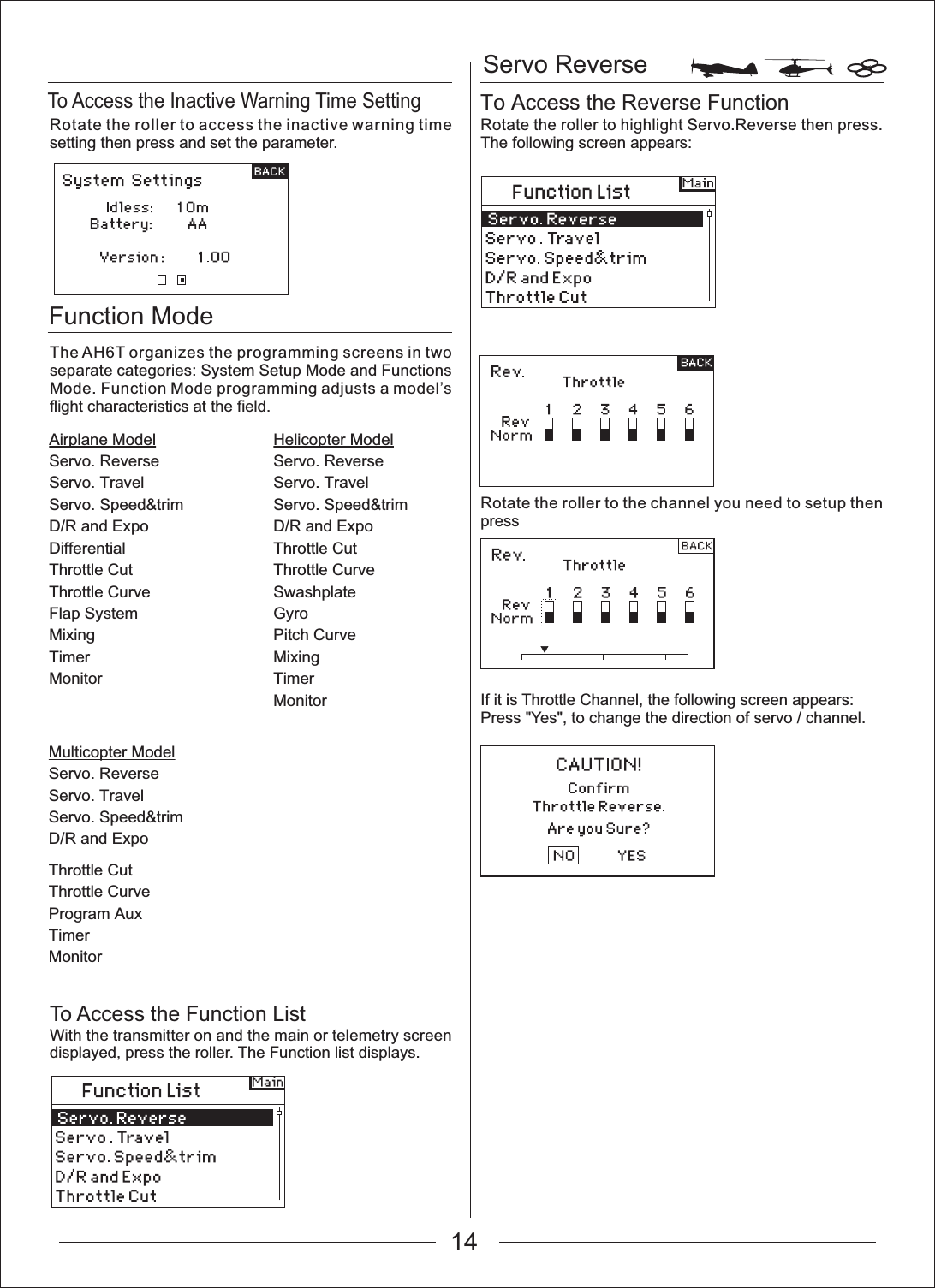
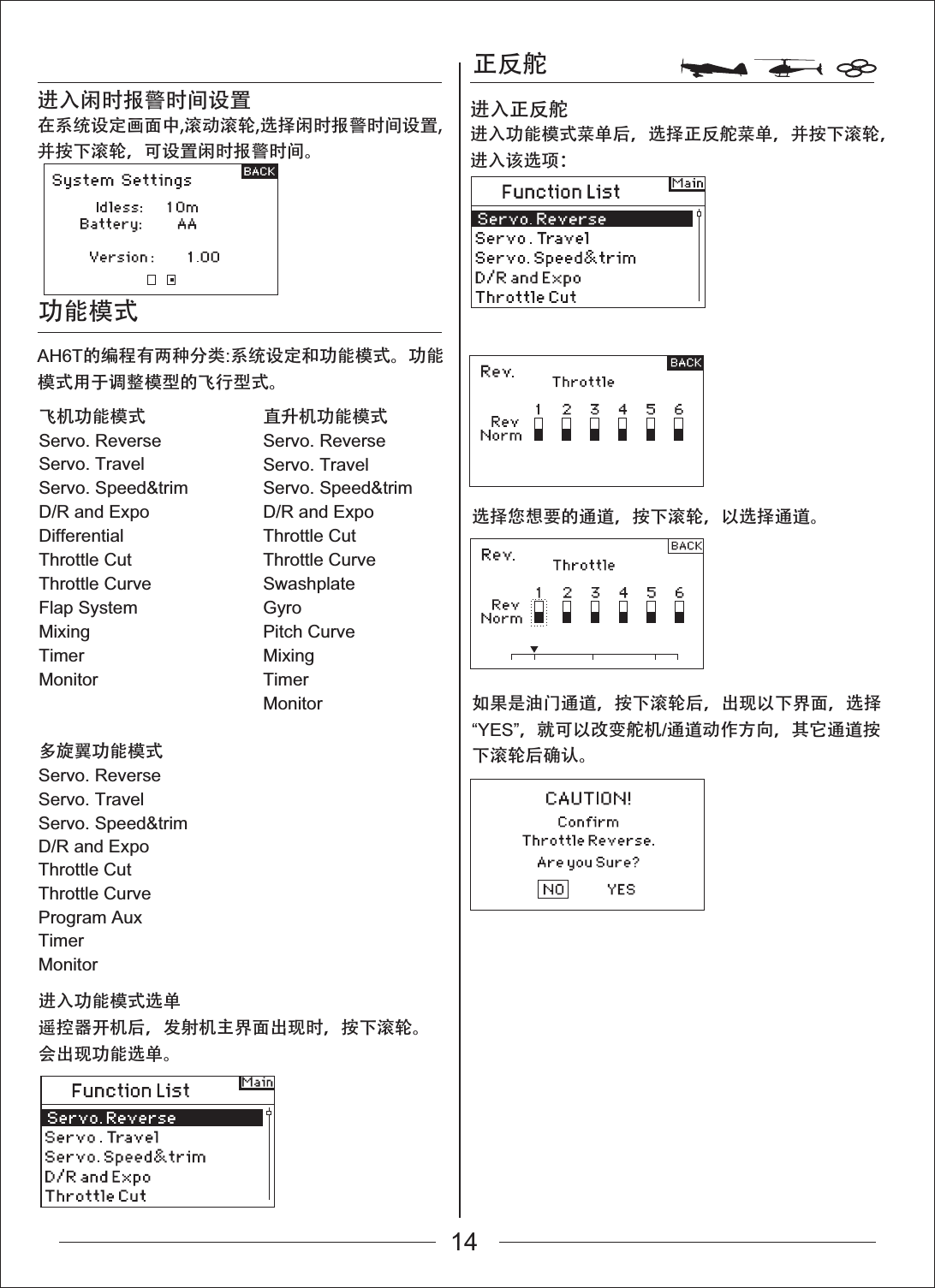
Function ModeAirplane ModelServo. ReverseServo. TravelServo. Speed&trimD/R and ExpoDifferentialThrottle CutThrottle CurveFlap SystemMixingTimerMonitorMulticopter ModelServo. ReverseServo. TravelServo. Speed&trimD/R and ExpoHelicopter ModelServo. ReverseServo. TravelServo. Speed&trimD/R and ExpoThrottle CutThrottle CurveSwashplateGyroPitch CurveMixingTimerMonitorServo ReverseTo Access the Inactive Warning Time SettingTo Access the Reverse FunctionThrottle CutThrottle CurveProgram AuxTimerMonitorRotate the roller to access the inactive warning time setting then press and set the parameter.The AH6T organizes the programming screens in two separate categories: System Setup Mode and Functions Mode. Function Mode programming adjusts a model’s flight characteristics at the field.To Access the Function ListWith the transmitter on and the main or telemetry screen displayed, press the roller. The Function list displays.Rotate the roller to highlight Servo.Reverse then press. The following screen appears:Rotate the roller to the channel you need to setup then pressIf it is Throttle Channel, the following screen appears:Press "Yes", to change the direction of servo / channel.14
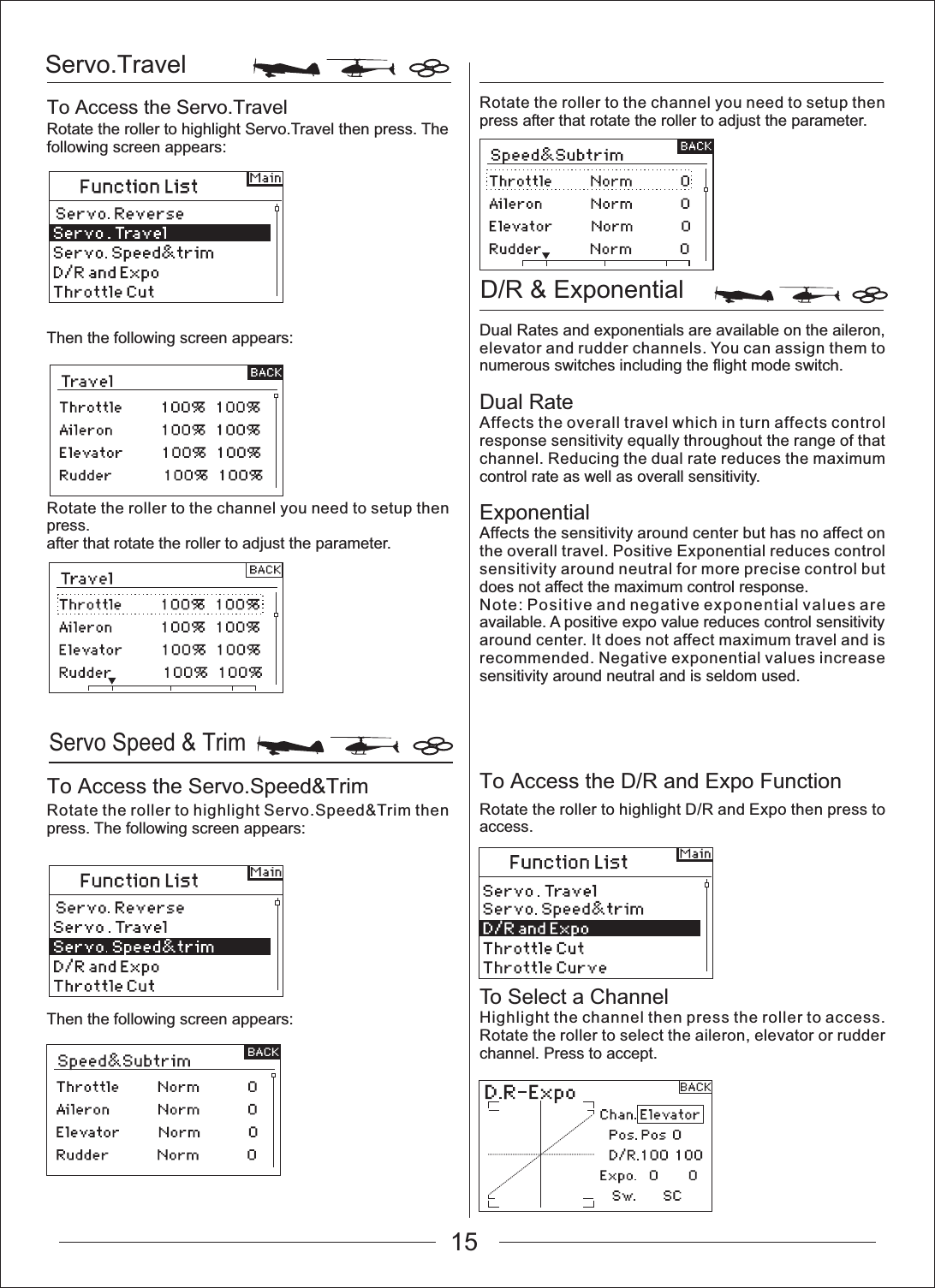
Servo.TravelServo Speed & TrimD/R & Exponential To Access the Servo.TravelTo Access the Servo.Speed&Trim To Access the D/R and Expo FunctionRotate the roller to highlight Servo.Travel then press. The following screen appears:Then the following screen appears:Rotate the roller to the channel you need to setup then press.after that rotate the roller to adjust the parameter.Rotate the roller to highlight Servo.Speed&Trim then press. The following screen appears:Then the following screen appears:Rotate the roller to the channel you need to setup then press after that rotate the roller to adjust the parameter.Dual Rates and exponentials are available on the aileron, elevator and rudder channels. You can assign them to numerous switches including the flight mode switch.Dual RateAffects the overall travel which in turn affects control response sensitivity equally throughout the range of that channel. Reducing the dual rate reduces the maximum control rate as well as overall sensitivity.ExponentialAffects the sensitivity around center but has no affect on the overall travel. Positive Exponential reduces control sensitivity around neutral for more precise control but does not affect the maximum control response.Note: Positive and negative exponential values are available. A positive expo value reduces control sensitivity around center. It does not affect maximum travel and is recommended. Negative exponential values increase sensitivity around neutral and is seldom used.Rotate the roller to highlight D/R and Expo then press to access.To Select a ChannelHighlight the channel then press the roller to access. Rotate the roller to select the aileron, elevator or rudder channel. Press to accept.15
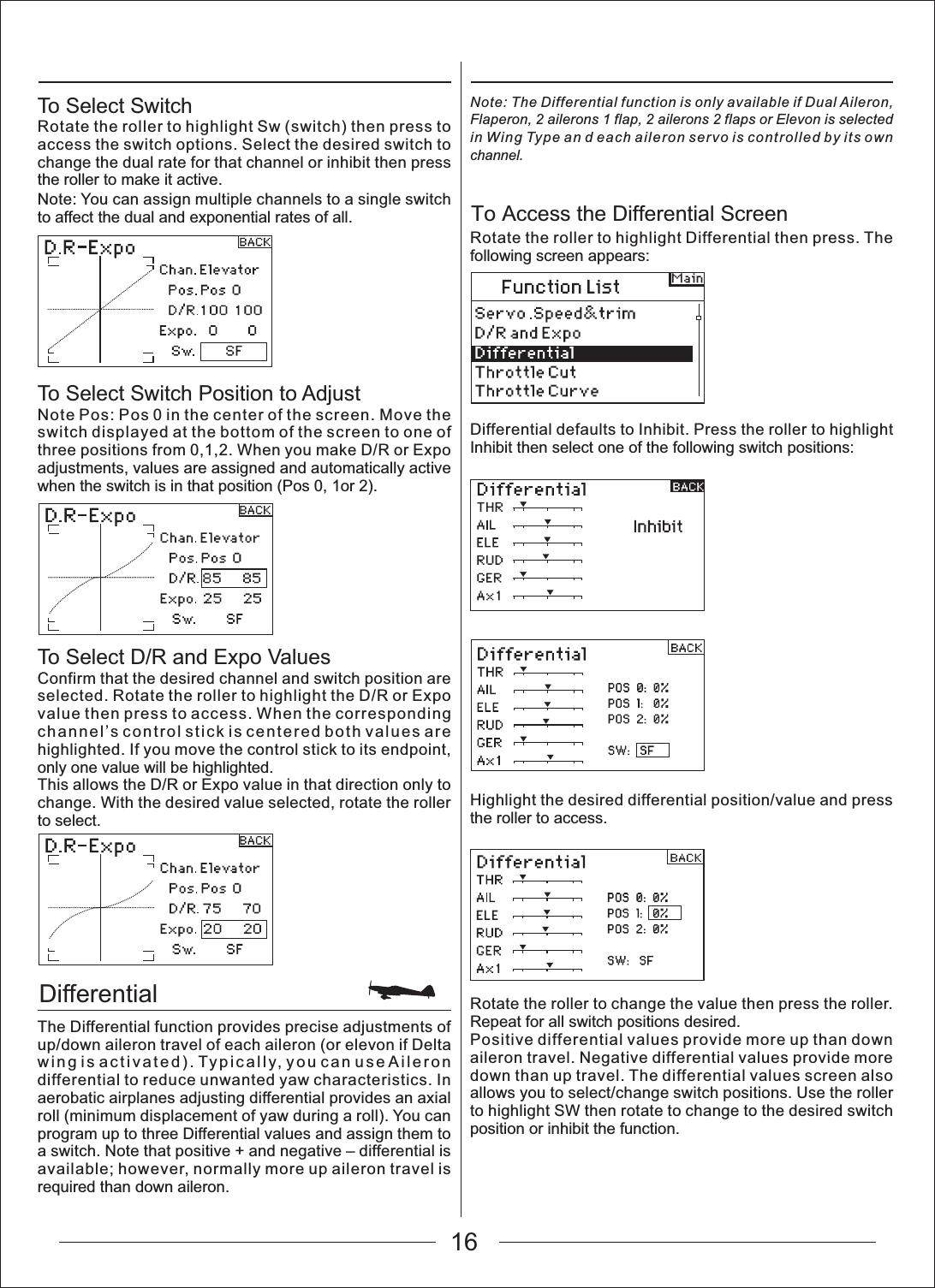
16DifferentialTo Access the Differential ScreenTo Select SwitchRotate the roller to highlight Sw (switch) then press to access the switch options. Select the desired switch to change the dual rate for that channel or inhibit then press the roller to make it active.Note: You can assign multiple channels to a single switch to affect the dual and exponential rates of all.To Select Switch Position to AdjustNote Pos: Pos 0 in the center of the screen. Move the switch displayed at the bottom of the screen to one of three positions from 0,1,2. When you make D/R or Expo adjustments, values are assigned and automatically active when the switch is in that position (Pos 0, 1or 2).To Select D/R and Expo ValuesConfirm that the desired channel and switch position are selected. Rotate the roller to highlight the D/R or Expo value then press to access. When the corresponding channel’s control stick is centered both values are highlighted. If you move the control stick to its endpoint, only one value will be highlighted.This allows the D/R or Expo value in that direction only to change. With the desired value selected, rotate the roller to select.The Differential function provides precise adjustments of up/down aileron travel of each aileron (or elevon if Delta wing is activated). Typically, you can use Aileron differential to reduce unwanted yaw characteristics. In aerobatic airplanes adjusting differential provides an axial roll (minimum displacement of yaw during a roll). You can program up to three Differential values and assign them to a switch. Note that positive + and negative – differential is available; however, normally more up aileron travel is required than down aileron. Note: The Differential function is only available if Dual Aileron, Flaperon, 2 ailerons 1 flap, 2 ailerons 2 flaps or Elevon is selected in Wing Type an d each aileron servo is controlled by its own channel.Rotate the roller to highlight Differential then press. The following screen appears:Differential defaults to Inhibit. Press the roller to highlight Inhibit then select one of the following switch positions:Highlight the desired differential position/value and press the roller to access.Rotate the roller to change the value then press the roller. Repeat for all switch positions desired.Positive differential values provide more up than down aileron travel. Negative differential values provide more down than up travel. The differential values screen also allows you to select/change switch positions. Use the roller to highlight SW then rotate to change to the desired switch position or inhibit the function.
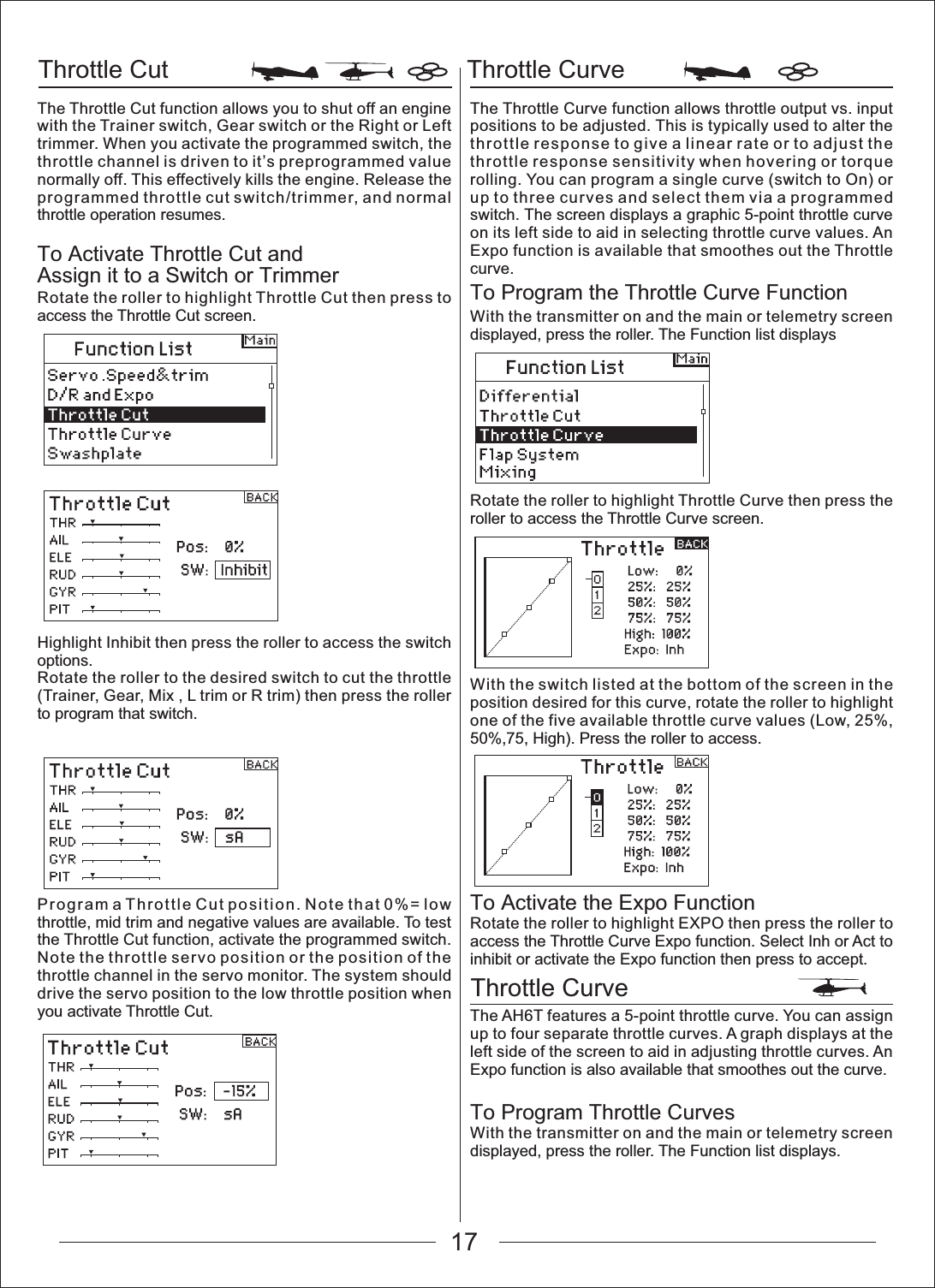
17Throttle Cut Throttle CurveThrottle CurveThe Throttle Cut function allows you to shut off an engine with the Trainer switch, Gear switch or the Right or Left trimmer. When you activate the programmed switch, the throttle channel is driven to it’s preprogrammed value normally off. This effectively kills the engine. Release the programmed throttle cut switch/trimmer, and normal throttle operation resumes.To Activate Throttle Cut and Assign it to a Switch or TrimmerRotate the roller to highlight Throttle Cut then press to access the Throttle Cut screen.Highlight Inhibit then press the roller to access the switch options.Rotate the roller to the desired switch to cut the throttle (Trainer, Gear, Mix , L trim or R trim) then press the roller to program that switch.Program a Throttle Cut position. Note that 0%= low throttle, mid trim and negative values are available. To test the Throttle Cut function, activate the programmed switch. Note the throttle servo position or the position of the throttle channel in the servo monitor. The system should drive the servo position to the low throttle position when you activate Throttle Cut.The Throttle Curve function allows throttle output vs. input positions to be adjusted. This is typically used to alter the throttle response to give a linear rate or to adjust the throttle response sensitivity when hovering or torque rolling. You can program a single curve (switch to On) or up to three curves and select them via a programmed switch. The screen displays a graphic 5-point throttle curve on its left side to aid in selecting throttle curve values. An Expo function is available that smoothes out the Throttle curve.To Program the Throttle Curve FunctionWith the transmitter on and the main or telemetry screen displayed, press the roller. The Function list displaysRotate the roller to highlight Throttle Curve then press the roller to access the Throttle Curve screen.With the switch listed at the bottom of the screen in the position desired for this curve, rotate the roller to highlight one of the five available throttle curve values (Low, 25%, 50%,75, High). Press the roller to access.To Activate the Expo FunctionRotate the roller to highlight EXPO then press the roller to access the Throttle Curve Expo function. Select Inh or Act to inhibit or activate the Expo function then press to accept.The AH6T features a 5-point throttle curve. You can assign up to four separate throttle curves. A graph displays at the left side of the screen to aid in adjusting throttle curves. An Expo function is also available that smoothes out the curve.To Program Throttle CurvesWith the transmitter on and the main or telemetry screen displayed, press the roller. The Function list displays.
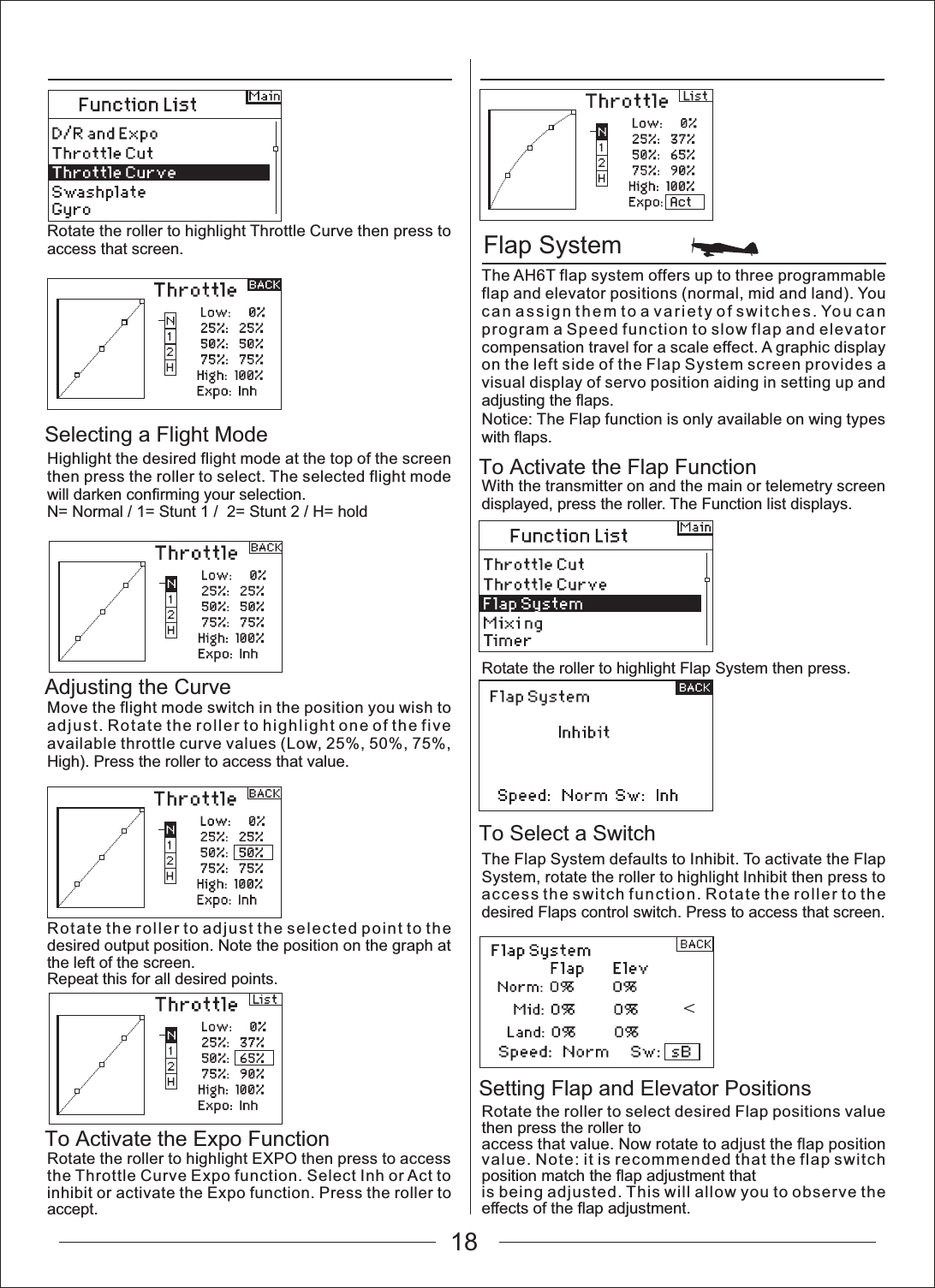
18Flap SystemTo Activate the Flap FunctionTo Select a SwitchSetting Flap and Elevator PositionsSelecting a Flight ModeAdjusting the CurveTo Activate the Expo FunctionRotate the roller to highlight Throttle Curve then press to access that screen.Highlight the desired flight mode at the top of the screen then press the roller to select. The selected flight mode will darken confirming your selection.N= Normal / 1= Stunt 1 /  2= Stunt 2 / H= holdMove the flight mode switch in the position you wish to adjust. Rotate the roller to highlight one of the five available throttle curve values (Low, 25%, 50%, 75%, High). Press the roller to access that value.Rotate the roller to adjust the selected point to the desired output position. Note the position on the graph at the left of the screen.Repeat this for all desired points.Rotate the roller to highlight EXPO then press to access the Throttle Curve Expo function. Select Inh or Act to inhibit or activate the Expo function. Press the roller to accept.The AH6T flap system offers up to three programmable flap and elevator positions (normal, mid and land). You can assign them to a variety of switches. You can program a Speed function to slow flap and elevator compensation travel for a scale effect. A graphic display on the left side of the Flap System screen provides a visual display of servo position aiding in setting up and adjusting the flaps.Notice: The Flap function is only available on wing types with flaps.With the transmitter on and the main or telemetry screen displayed, press the roller. The Function list displays.Rotate the roller to highlight Flap System then press.The Flap System defaults to Inhibit. To activate the Flap System, rotate the roller to highlight Inhibit then press to access the switch function. Rotate the roller to the desired Flaps control switch. Press to access that screen.Rotate the roller to select desired Flap positions value then press the roller toaccess that value. Now rotate to adjust the flap position value. Note: it is recommended that the flap switch position match the flap adjustment thatis being adjusted. This will allow you to observe the effects of the flap adjustment.
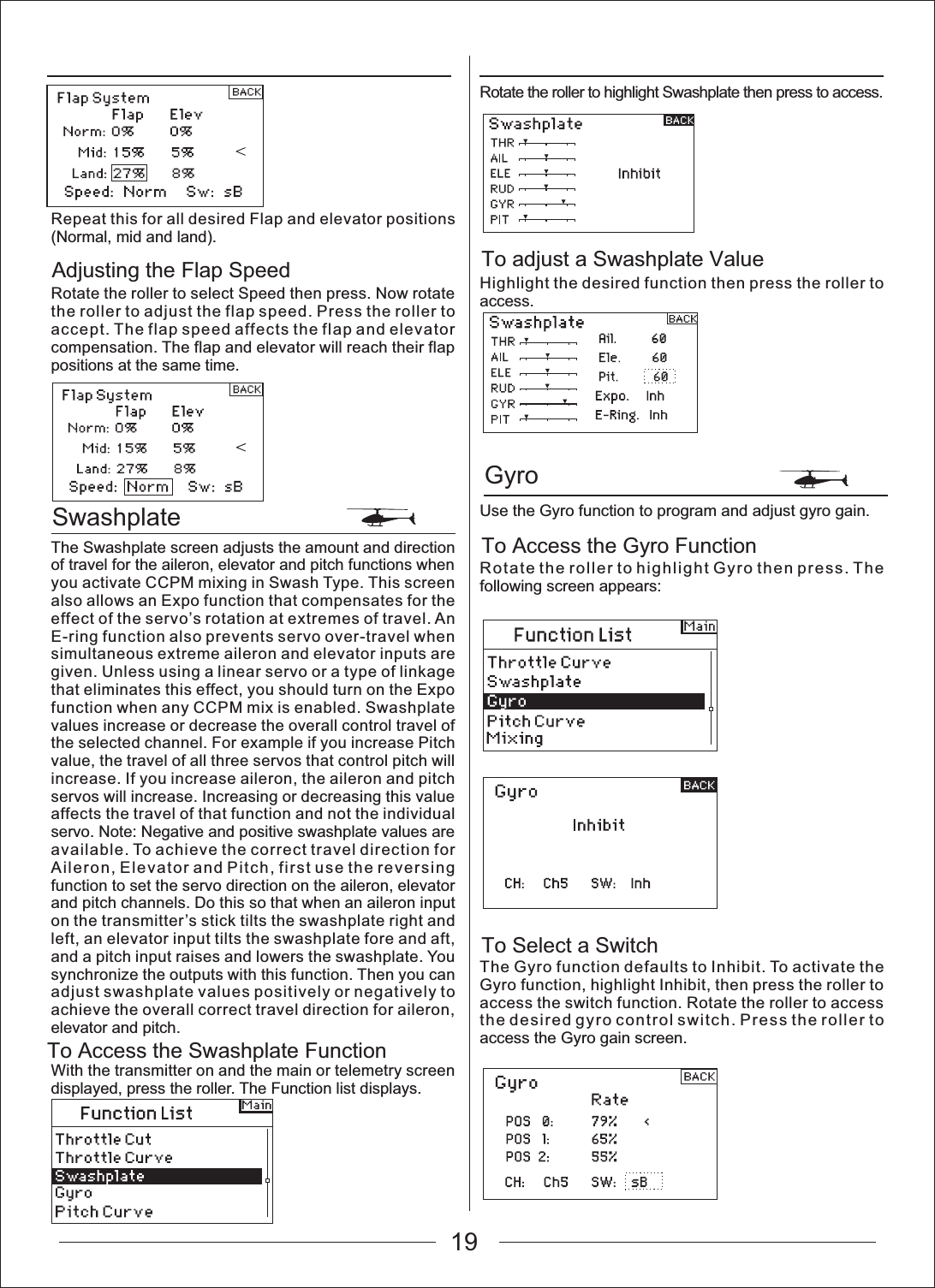
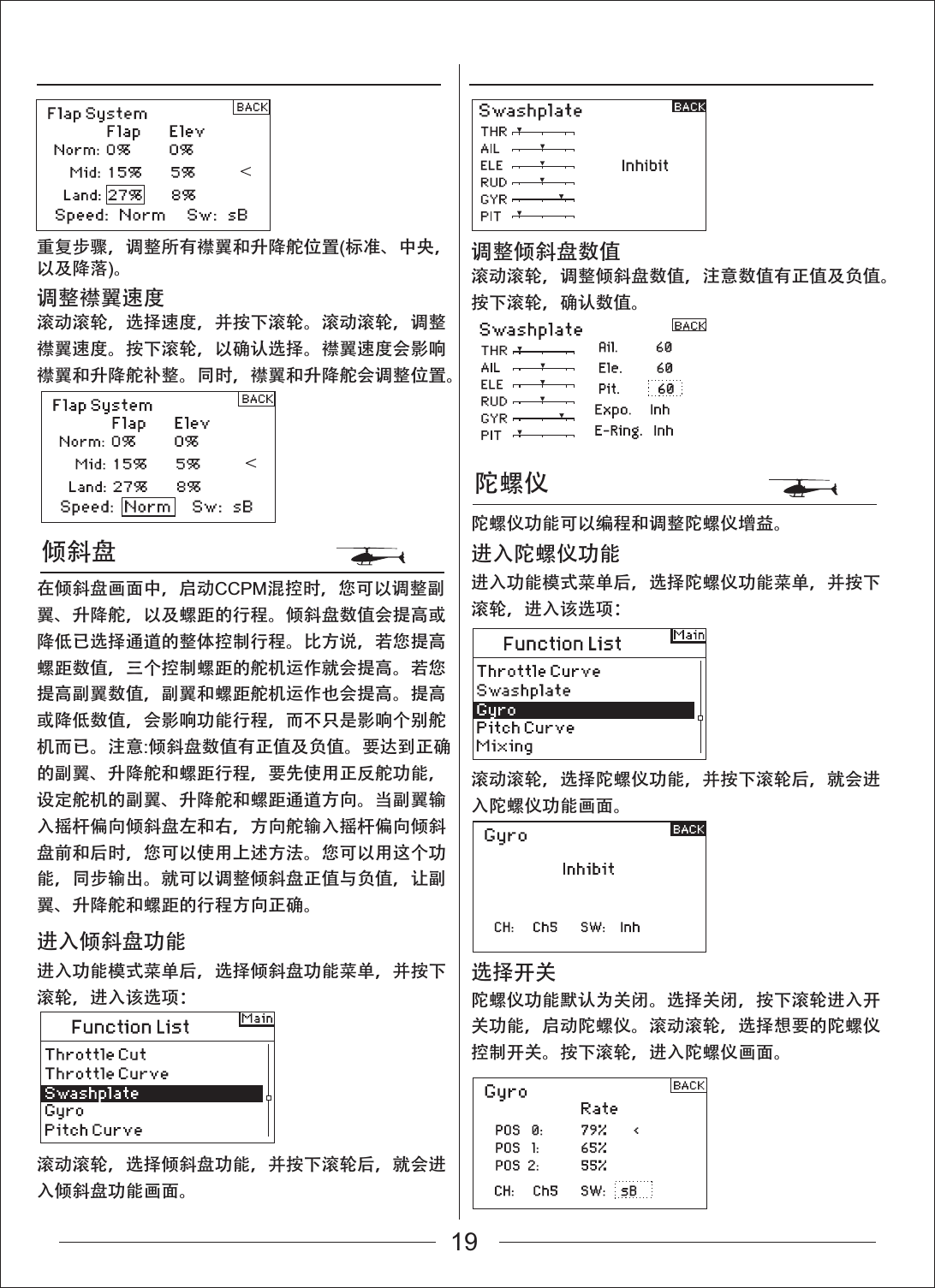
19SwashplateGyroTo Access the Swashplate FunctionAdjusting the Flap Speed To adjust a Swashplate ValueTo Access the Gyro FunctionTo Select a SwitchRepeat this for all desired Flap and elevator positions (Normal, mid and land).Rotate the roller to select Speed then press. Now rotate the roller to adjust the flap speed. Press the roller to accept. The flap speed affects the flap and elevator compensation. The flap and elevator will reach their flap positions at the same time.The Swashplate screen adjusts the amount and direction of travel for the aileron, elevator and pitch functions when you activate CCPM mixing in Swash Type. This screen also allows an Expo function that compensates for the effect of the servo’s rotation at extremes of travel. An E-ring function also prevents servo over-travel when simultaneous extreme aileron and elevator inputs are given. Unless using a linear servo or a type of linkage that eliminates this effect, you should turn on the Expo function when any CCPM mix is enabled. Swashplate values increase or decrease the overall control travel of the selected channel. For example if you increase Pitch value, the travel of all three servos that control pitch will increase. If you increase aileron, the aileron and pitch servos will increase. Increasing or decreasing this value affects the travel of that function and not the individual servo. Note: Negative and positive swashplate values are available. To achieve the correct travel direction for Aileron, Elevator and Pitch, first use the reversing function to set the servo direction on the aileron, elevator and pitch channels. Do this so that when an aileron input on the transmitter’s stick tilts the swashplate right and left, an elevator input tilts the swashplate fore and aft, and a pitch input raises and lowers the swashplate. You synchronize the outputs with this function. Then you can adjust swashplate values positively or negatively to achieve the overall correct travel direction for aileron, elevator and pitch.With the transmitter on and the main or telemetry screen displayed, press the roller. The Function list displays.Rotate the roller to highlight Swashplate then press to access.Highlight the desired function then press the roller to access.Use the Gyro function to program and adjust gyro gain.Rotate the roller to highlight Gyro then press. The following screen appears:The Gyro function defaults to Inhibit. To activate the Gyro function, highlight Inhibit, then press the roller to access the switch function. Rotate the roller to access the desired gyro control switch. Press the roller to access the Gyro gain screen.
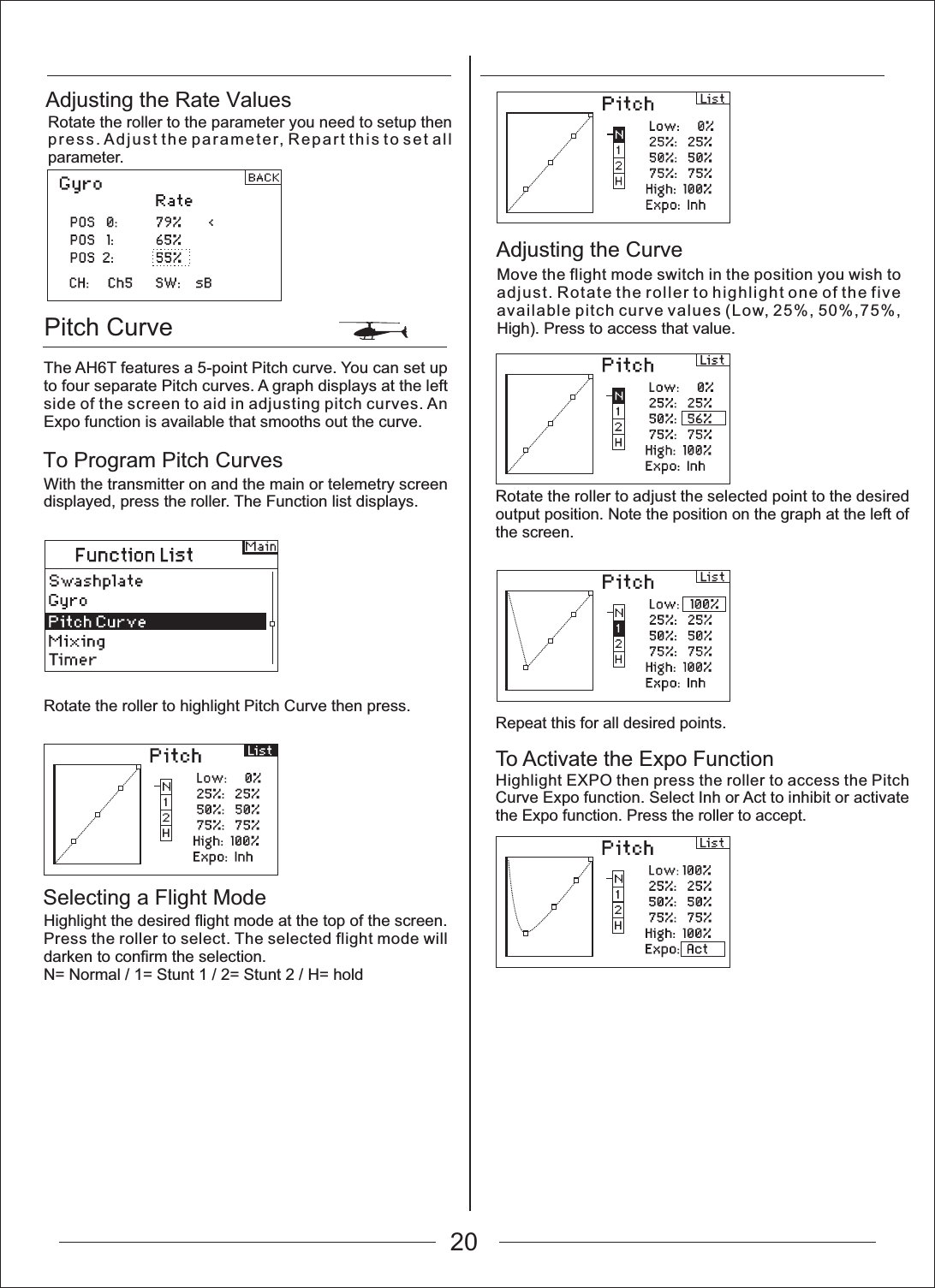
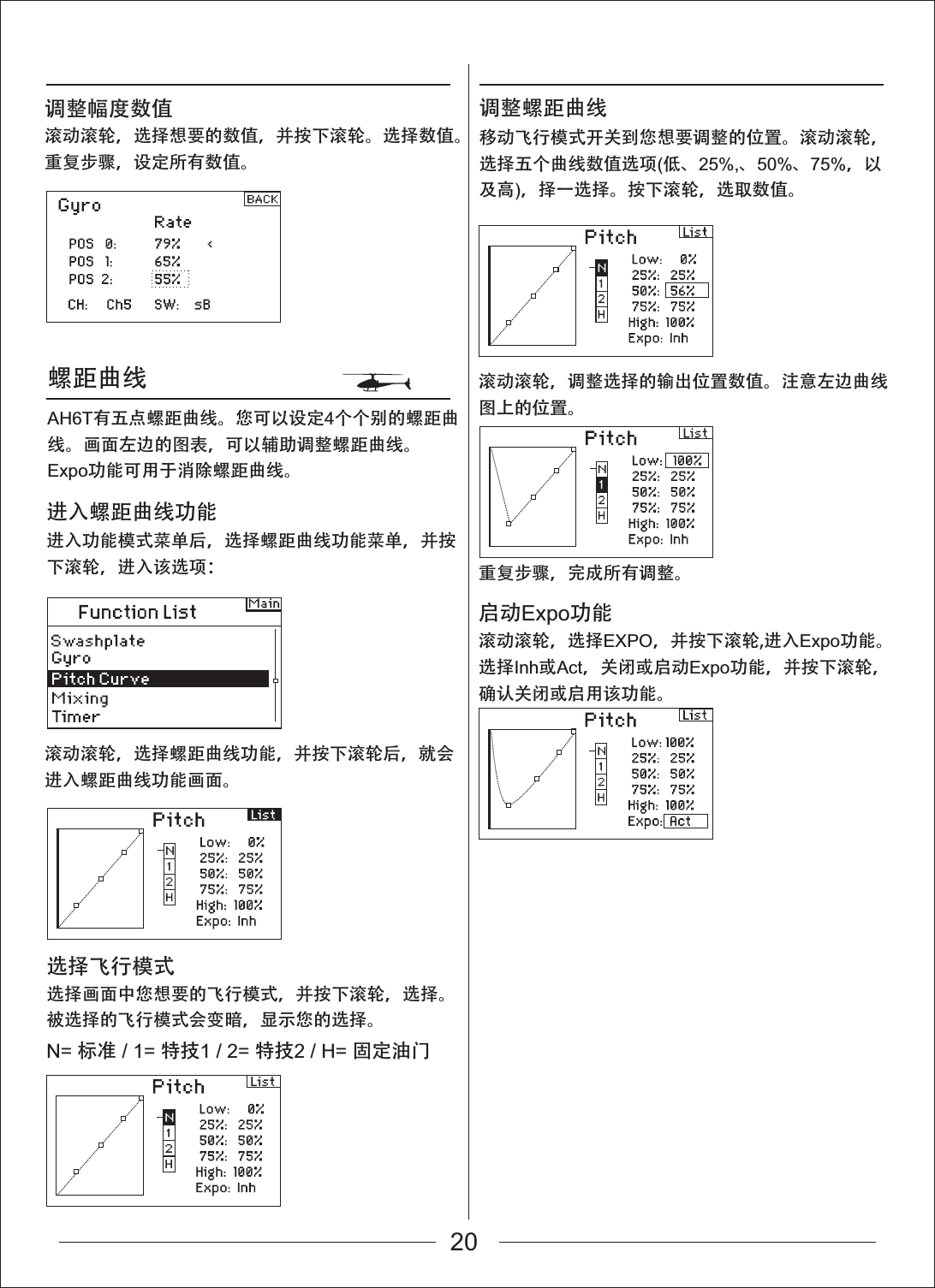
Pitch CurveTo Program Pitch CurvesSelecting a Flight ModeAdjusting the Rate ValuesRotate the roller to the parameter you need to setup then press. Adjust the parameter, Repart this to set all parameter.The AH6T features a 5-point Pitch curve. You can set up to four separate Pitch curves. A graph displays at the left side of the screen to aid in adjusting pitch curves. An Expo function is available that smooths out the curve.With the transmitter on and the main or telemetry screen displayed, press the roller. The Function list displays.Rotate the roller to highlight Pitch Curve then press.Highlight the desired flight mode at the top of the screen. Press the roller to select. The selected flight mode will darken to confirm the selection.N= Normal / 1= Stunt 1 / 2= Stunt 2 / H= holdAdjusting the CurveMove the flight mode switch in the position you wish to adjust. Rotate the roller to highlight one of the five available pitch curve values (Low, 25%, 50%,75%, High). Press to access that value.20Rotate the roller to adjust the selected point to the desired output position. Note the position on the graph at the left of the screen.Repeat this for all desired points.To Activate the Expo FunctionHighlight EXPO then press the roller to access the Pitch Curve Expo function. Select Inh or Act to inhibit or activate the Expo function. Press the roller to accept.
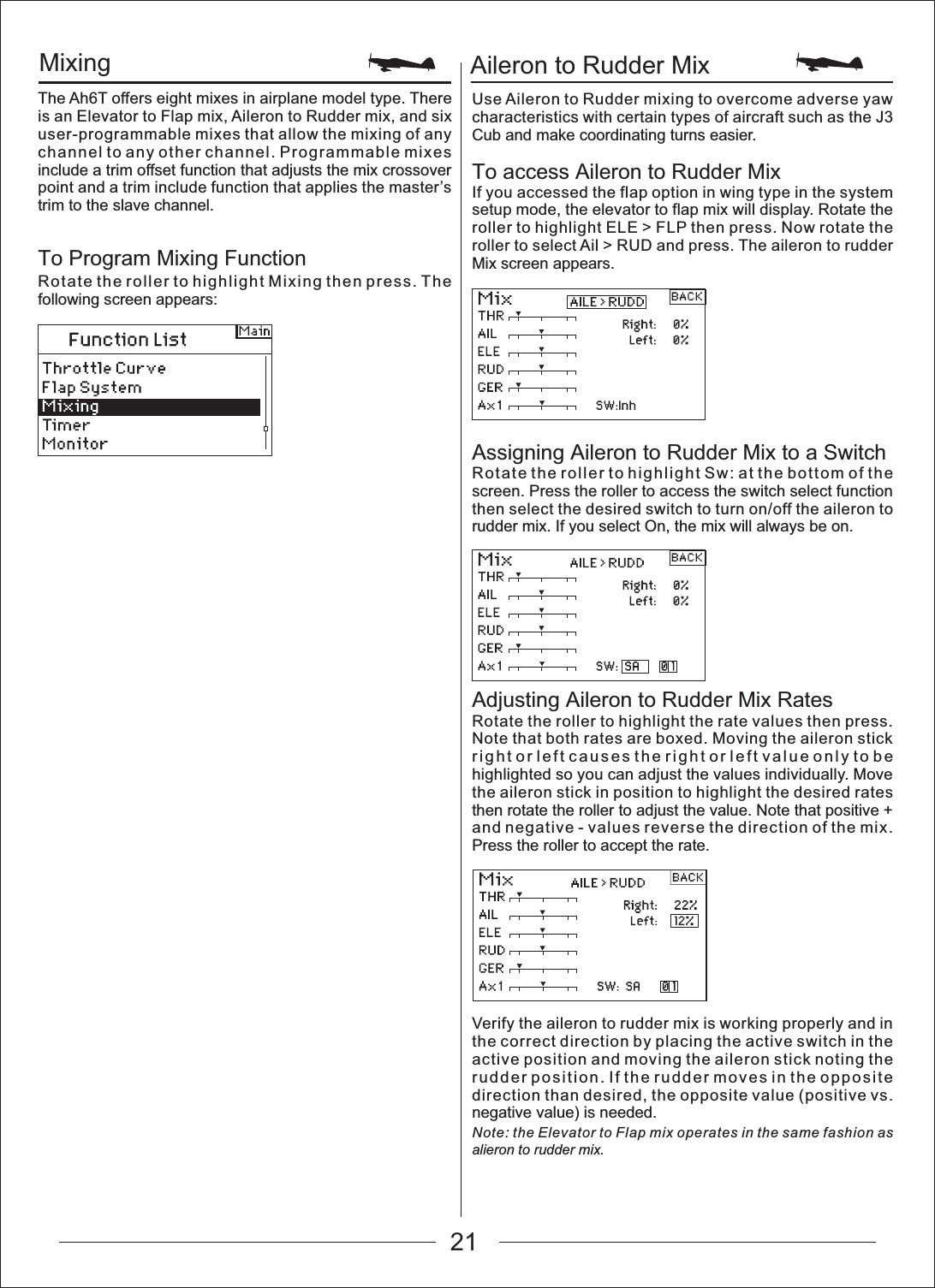
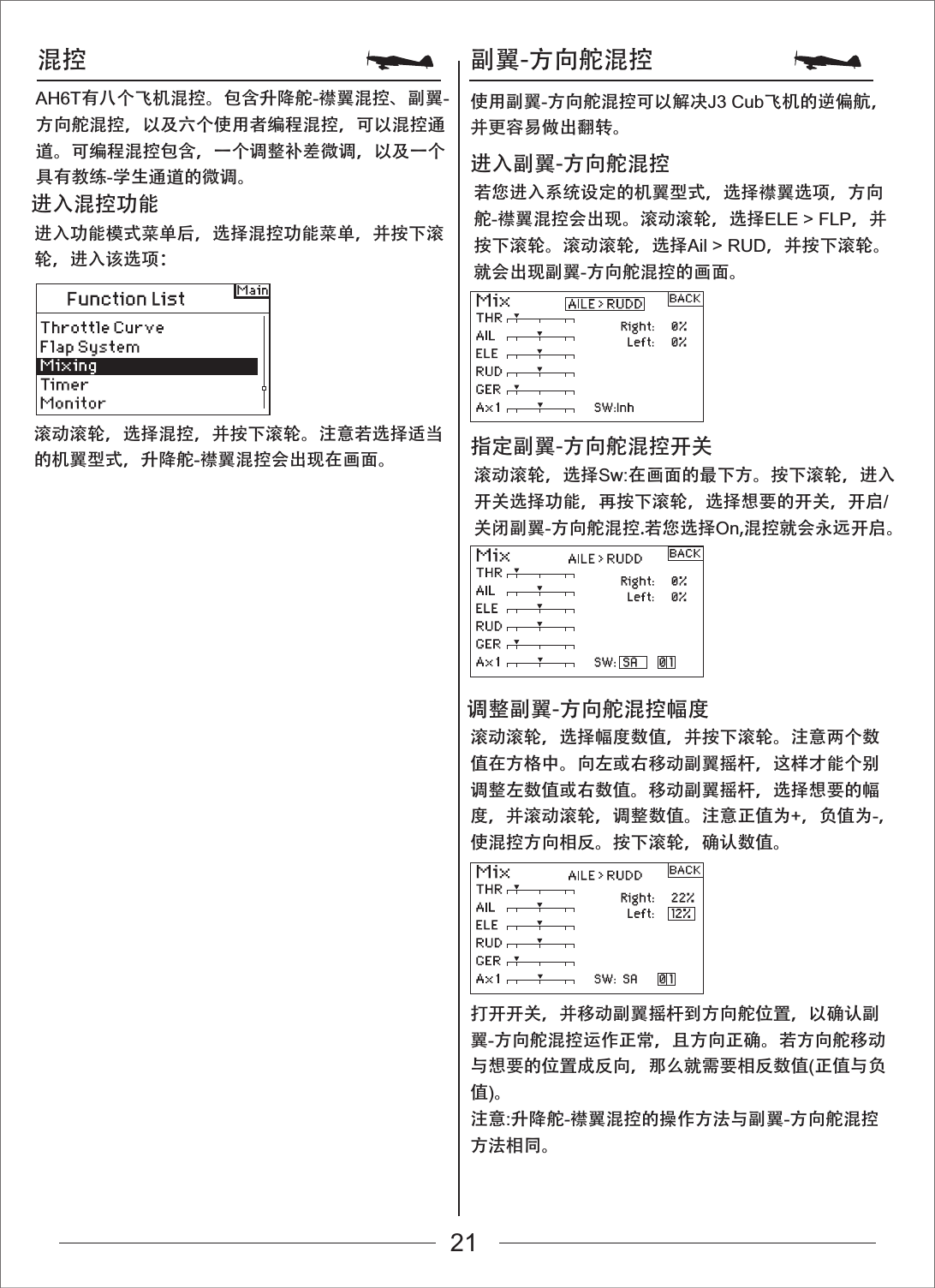
Mixing Aileron to Rudder MixTo Program Mixing FunctionTo access Aileron to Rudder MixUse Aileron to Rudder mixing to overcome adverse yaw characteristics with certain types of aircraft such as the J3 Cub and make coordinating turns easier.If you accessed the flap option in wing type in the system setup mode, the elevator to flap mix will display. Rotate the roller to highlight ELE > FLP then press. Now rotate the roller to select Ail > RUD and press. The aileron to rudder Mix screen appears.Assigning Aileron to Rudder Mix to a SwitchRotate the roller to highlight Sw: at the bottom of the screen. Press the roller to access the switch select function then select the desired switch to turn on/off the aileron to rudder mix. If you select On, the mix will always be on.Adjusting Aileron to Rudder Mix RatesRotate the roller to highlight the rate values then press. Note that both rates are boxed. Moving the aileron stick right or left causes the right or left value only to be highlighted so you can adjust the values individually. Move the aileron stick in position to highlight the desired rates then rotate the roller to adjust the value. Note that positive + and negative - values reverse the direction of the mix. Press the roller to accept the rate.Verify the aileron to rudder mix is working properly and in the correct direction by placing the active switch in the active position and moving the aileron stick noting the rudder position. If the rudder moves in the opposite direction than desired, the opposite value (positive vs. negative value) is needed.Note: the Elevator to Flap mix operates in the same fashion as alieron to rudder mix.The Ah6T offers eight mixes in airplane model type. There is an Elevator to Flap mix, Aileron to Rudder mix, and six user-programmable mixes that allow the mixing of any channel to any other channel. Programmable mixes include a trim offset function that adjusts the mix crossover point and a trim include function that applies the master’s trim to the slave channel.Rotate the roller to highlight Mixing then press. The following screen appears:21
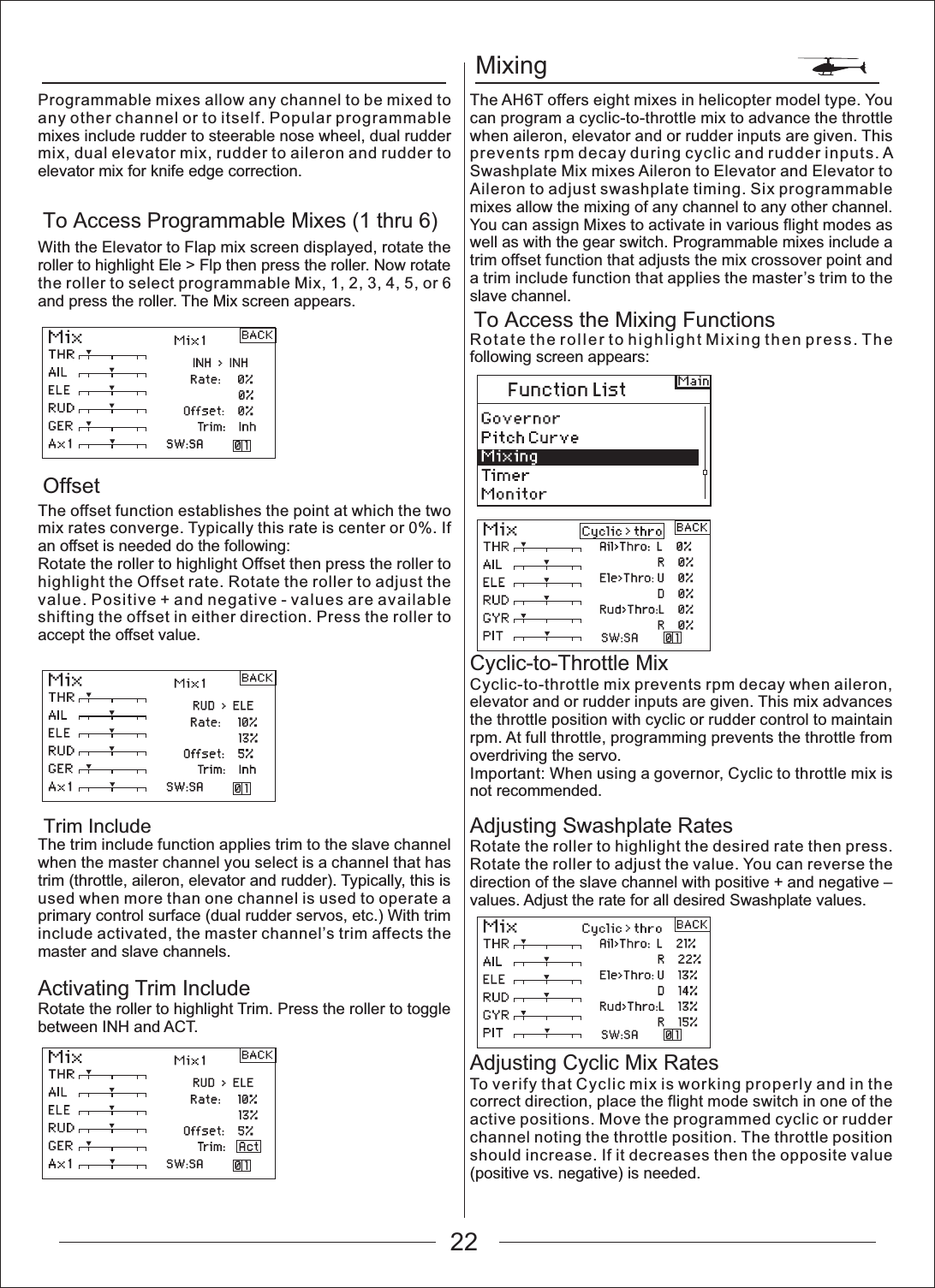
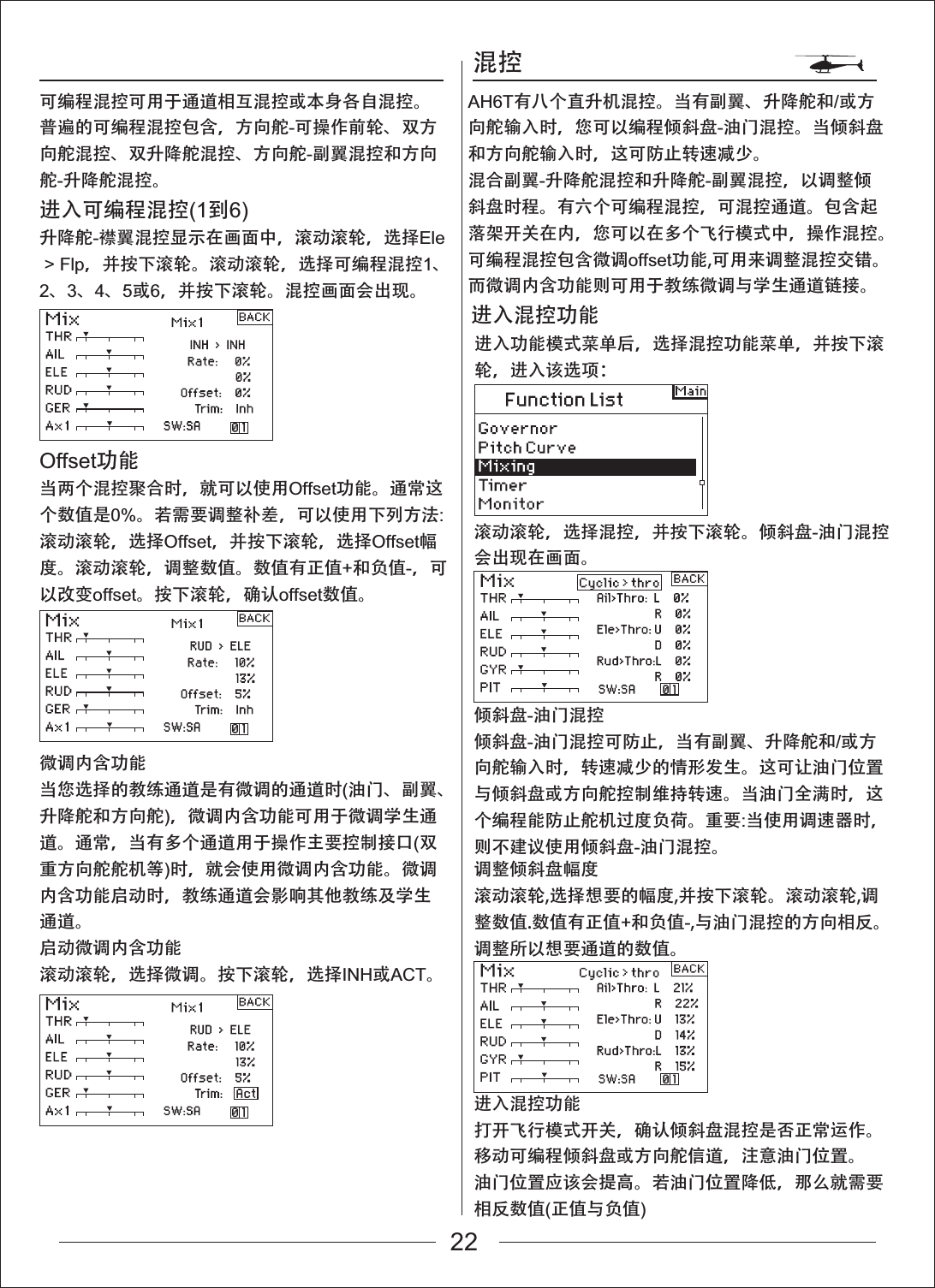
MixingTo Access the Mixing FunctionsTo Access Programmable Mixes (1 thru 6)OffsetTrim IncludeProgrammable mixes allow any channel to be mixed to any other channel or to itself. Popular programmable mixes include rudder to steerable nose wheel, dual rudder mix, dual elevator mix, rudder to aileron and rudder to elevator mix for knife edge correction.With the Elevator to Flap mix screen displayed, rotate the roller to highlight Ele > Flp then press the roller. Now rotate the roller to select programmable Mix, 1, 2, 3, 4, 5, or 6 and press the roller. The Mix screen appears.The offset function establishes the point at which the two mix rates converge. Typically this rate is center or 0%. If an offset is needed do the following:Rotate the roller to highlight Offset then press the roller to highlight the Offset rate. Rotate the roller to adjust the value. Positive + and negative - values are available shifting the offset in either direction. Press the roller to accept the offset value.The trim include function applies trim to the slave channel when the master channel you select is a channel that has trim (throttle, aileron, elevator and rudder). Typically, this is used when more than one channel is used to operate a primary control surface (dual rudder servos, etc.) With trim include activated, the master channel’s trim affects the master and slave channels.Activating Trim IncludeRotate the roller to highlight Trim. Press the roller to toggle between INH and ACT.The AH6T offers eight mixes in helicopter model type. You can program a cyclic-to-throttle mix to advance the throttle when aileron, elevator and or rudder inputs are given. This prevents rpm decay during cyclic and rudder inputs. A Swashplate Mix mixes Aileron to Elevator and Elevator to Aileron to adjust swashplate timing. Six programmable mixes allow the mixing of any channel to any other channel. You can assign Mixes to activate in various flight modes as well as with the gear switch. Programmable mixes include a trim offset function that adjusts the mix crossover point and a trim include function that applies the master’s trim to the slave channel.Rotate the roller to highlight Mixing then press. The following screen appears:Cyclic-to-Throttle MixCyclic-to-throttle mix prevents rpm decay when aileron, elevator and or rudder inputs are given. This mix advances the throttle position with cyclic or rudder control to maintain rpm. At full throttle, programming prevents the throttle from overdriving the servo.Important: When using a governor, Cyclic to throttle mix is not recommended.Adjusting Swashplate RatesRotate the roller to highlight the desired rate then press. Rotate the roller to adjust the value. You can reverse the direction of the slave channel with positive + and negative – values. Adjust the rate for all desired Swashplate values.Adjusting Cyclic Mix RatesTo verify that Cyclic mix is working properly and in the correct direction, place the flight mode switch in one of the active positions. Move the programmed cyclic or rudder channel noting the throttle position. The throttle position should increase. If it decreases then the opposite value (positive vs. negative) is needed.22
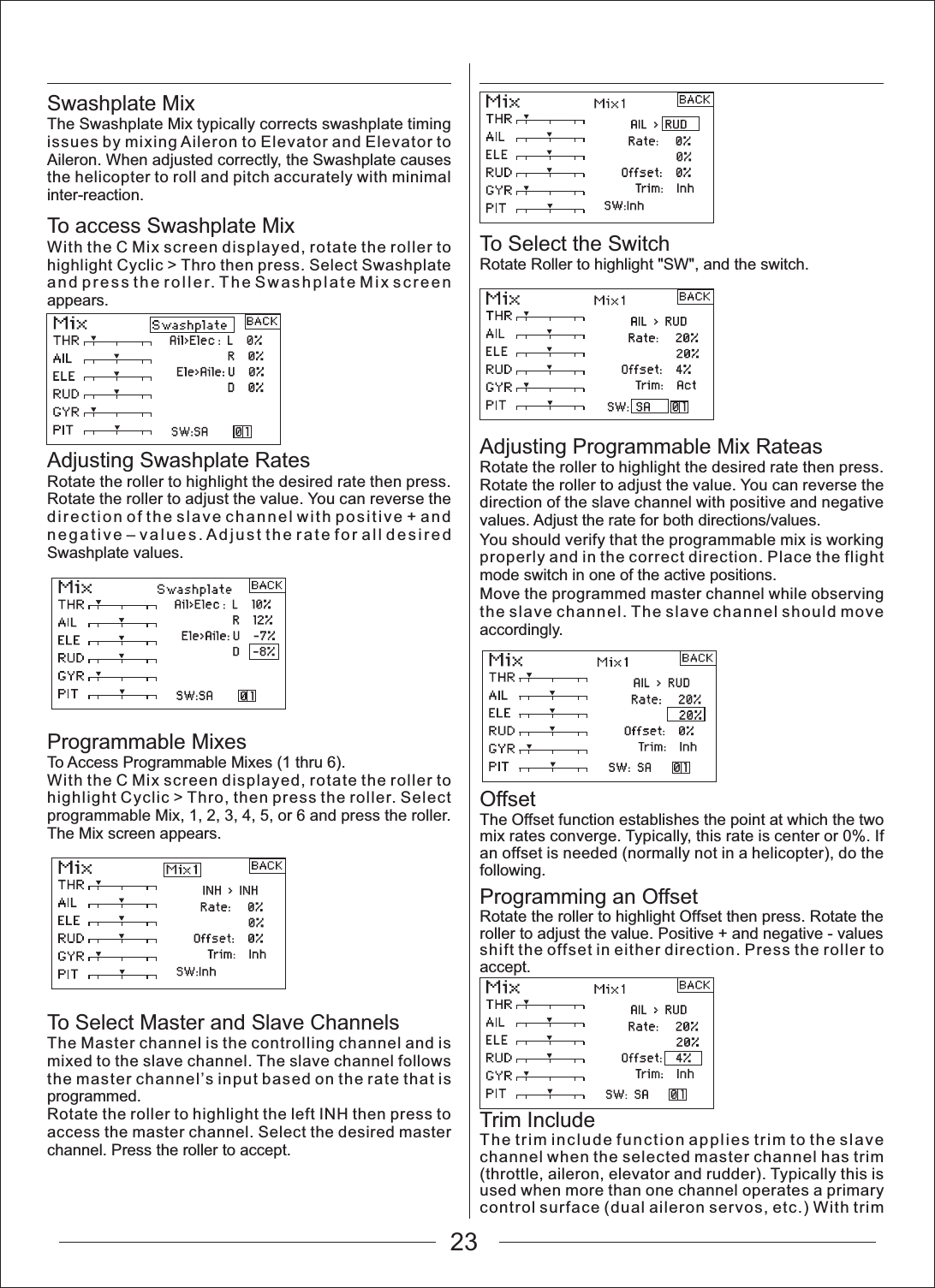
Swashplate MixThe Swashplate Mix typically corrects swashplate timing issues by mixing Aileron to Elevator and Elevator to Aileron. When adjusted correctly, the Swashplate causes the helicopter to roll and pitch accurately with minimal inter-reaction.To access Swashplate MixWith the C Mix screen displayed, rotate the roller to highlight Cyclic > Thro then press. Select Swashplate and press the roller. The Swashplate Mix screen appears.Adjusting Swashplate RatesRotate the roller to highlight the desired rate then press. Rotate the roller to adjust the value. You can reverse the direction of the slave channel with positive + and negative – values. Adjust the rate for all desired Swashplate values.Programmable Mixes To Access Programmable Mixes (1 thru 6).With the C Mix screen displayed, rotate the roller to highlight Cyclic > Thro, then press the roller. Select programmable Mix, 1, 2, 3, 4, 5, or 6 and press the roller. The Mix screen appears.To Select Master and Slave ChannelsThe Master channel is the controlling channel and is mixed to the slave channel. The slave channel follows the master channel’s input based on the rate that is programmed.Rotate the roller to highlight the left INH then press to access the master channel. Select the desired master channel. Press the roller to accept.To Select the Switch Rotate Roller to highlight "SW", and the switch.Adjusting Programmable Mix RateasRotate the roller to highlight the desired rate then press. Rotate the roller to adjust the value. You can reverse the direction of the slave channel with positive and negative values. Adjust the rate for both directions/values.You should verify that the programmable mix is working properly and in the correct direction. Place the flight mode switch in one of the active positions.Move the programmed master channel while observing the slave channel. The slave channel should move accordingly.OffsetThe Offset function establishes the point at which the two mix rates converge. Typically, this rate is center or 0%. If an offset is needed (normally not in a helicopter), do the following.Programming an OffsetRotate the roller to highlight Offset then press. Rotate the roller to adjust the value. Positive + and negative - values shift the offset in either direction. Press the roller to accept.Trim IncludeThe trim include function applies trim to the slave channel when the selected master channel has trim (throttle, aileron, elevator and rudder). Typically this is used when more than one channel operates a primary control surface (dual aileron servos, etc.) With trim 23
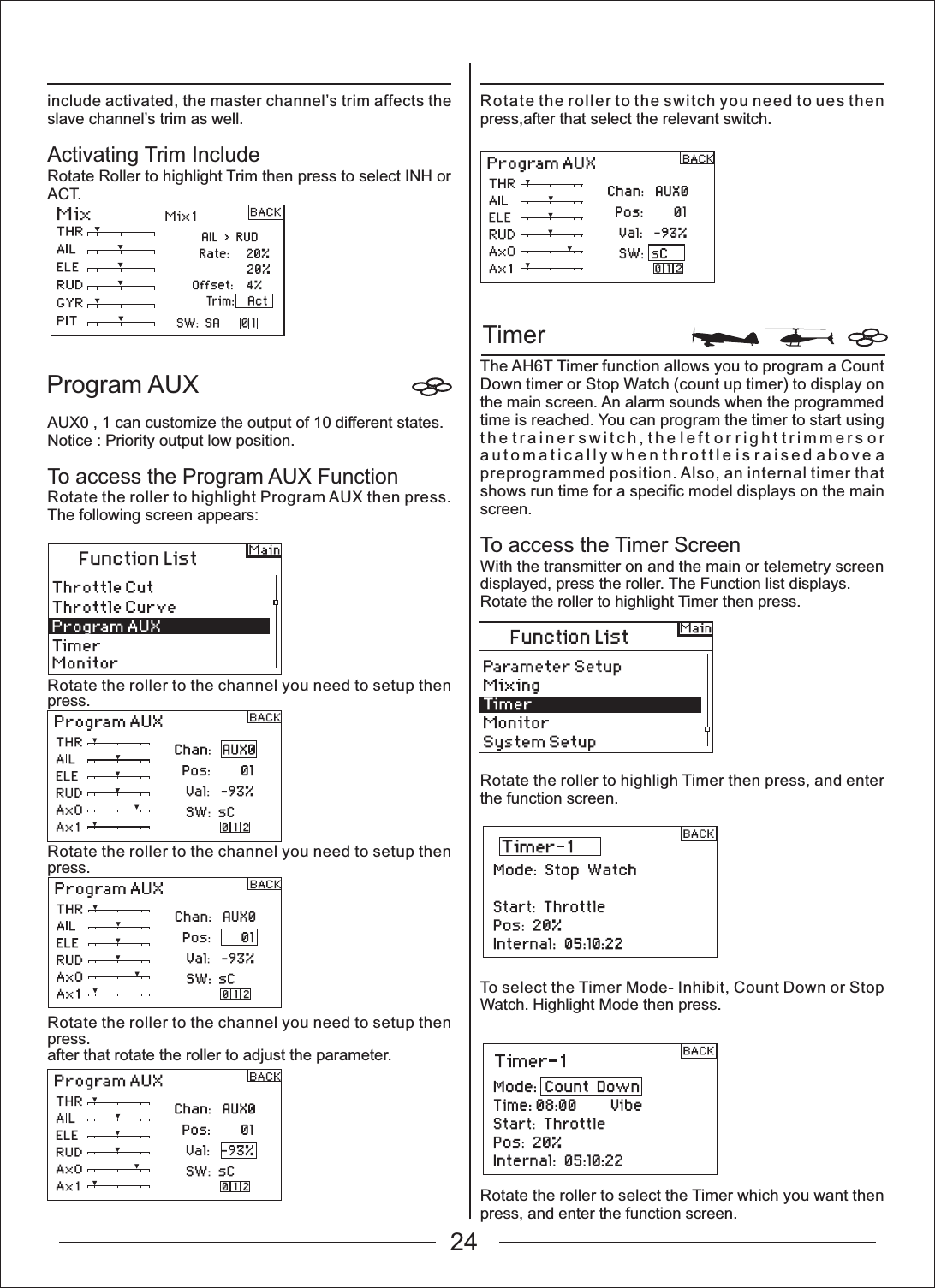
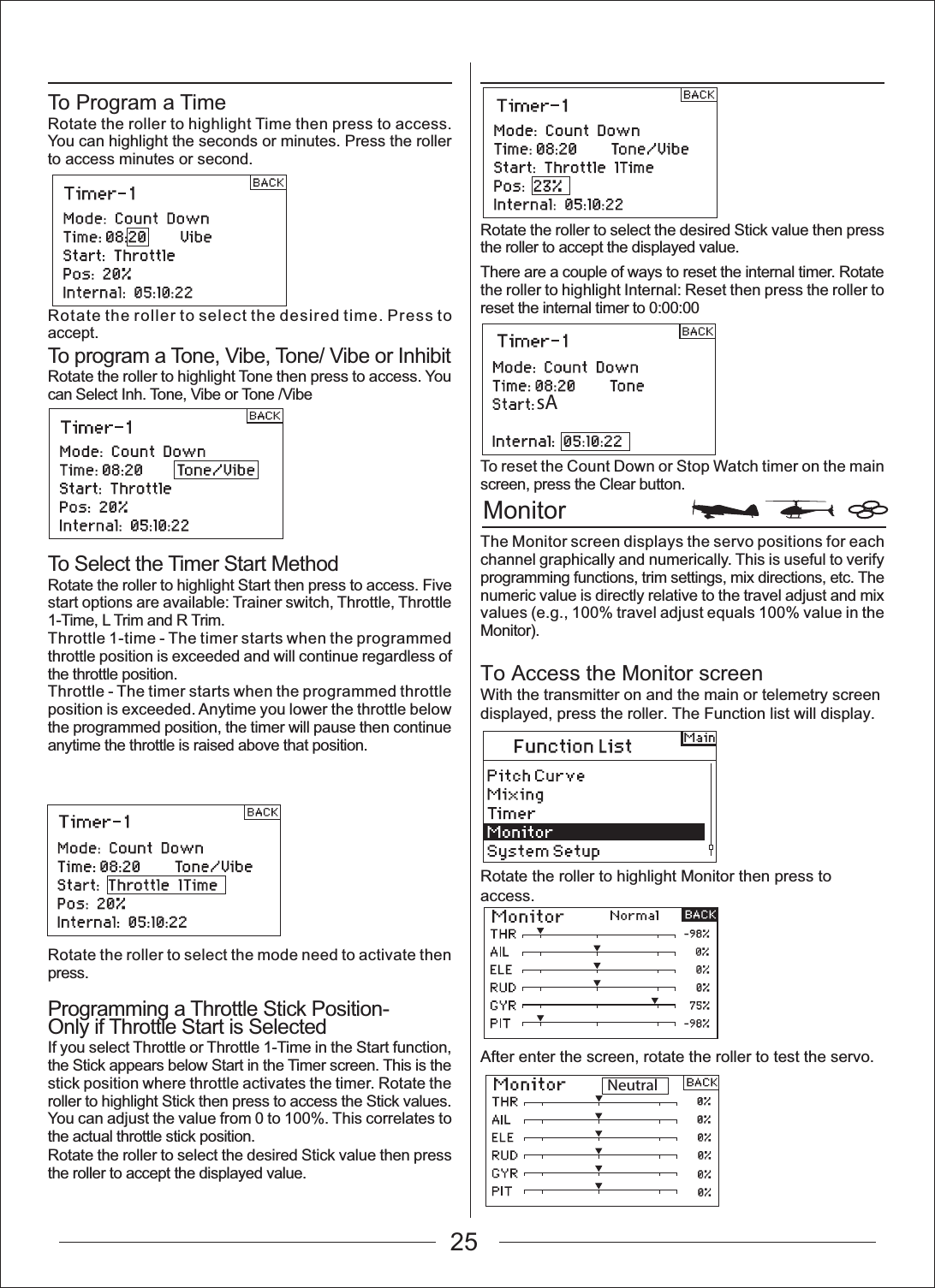
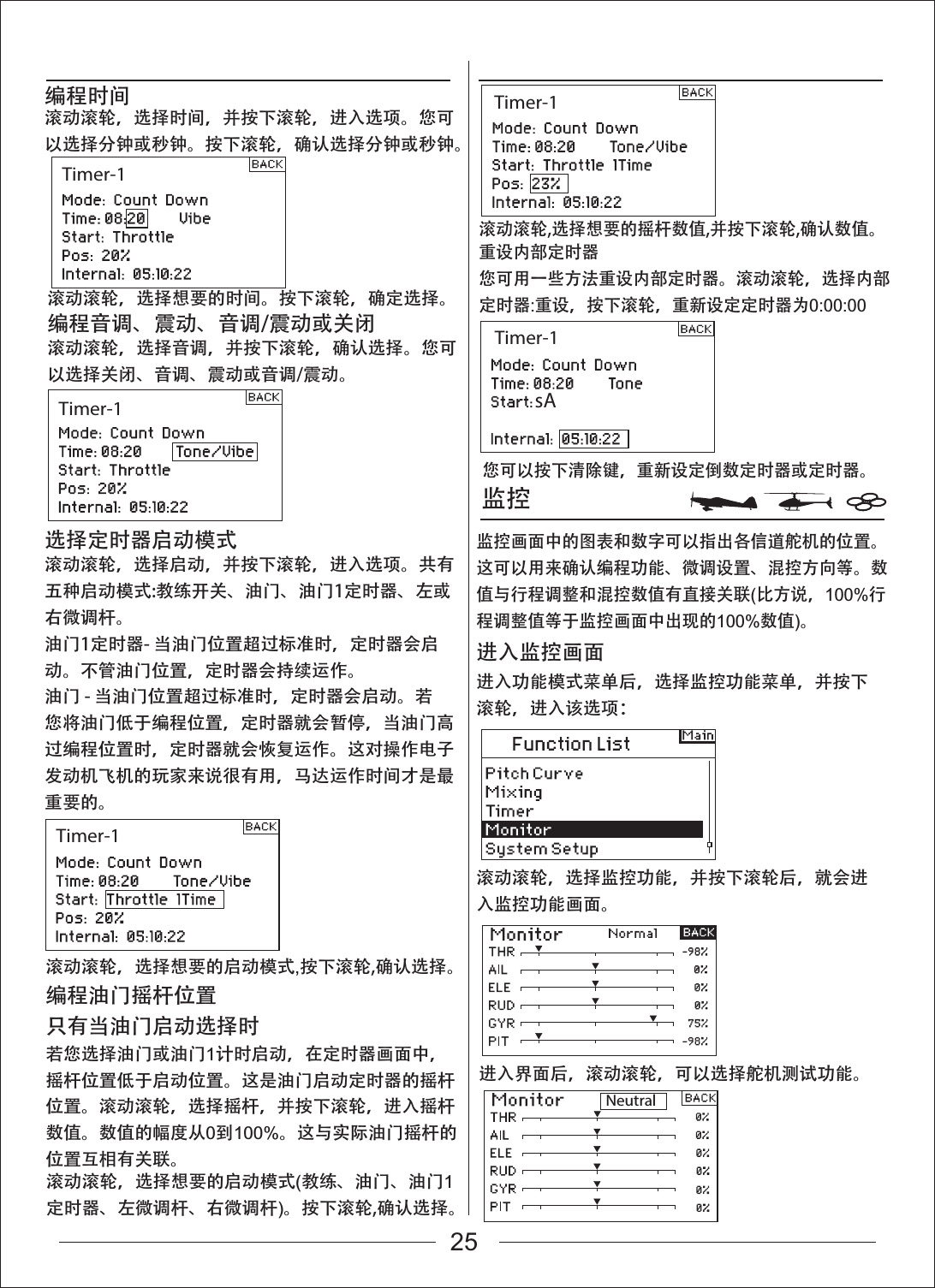
TimerProgram AUXinclude activated, the master channel’s trim affects the slave channel’s trim as well.Activating Trim IncludeRotate Roller to highlight Trim then press to select INH or ACT.AUX0 , 1 can customize the output of 10 different states.Notice : Priority output low position.To access the Program AUX FunctionRotate the roller to highlight Program AUX then press. The following screen appears:Rotate the roller to the channel you need to setup then press.Rotate the roller to the channel you need to setup then press.Rotate the roller to the channel you need to setup then press.after that rotate the roller to adjust the parameter.Rotate the roller to the switch you need to ues then press,after that select the relevant switch.The AH6T Timer function allows you to program a Count Down timer or Stop Watch (count up timer) to display on the main screen. An alarm sounds when the programmed time is reached. You can program the timer to start using the trainer switch, the left or right trimmers or automatically when throttle is raised above a preprogrammed position. Also, an internal timer that shows run time for a specific model displays on the main screen.To access the Timer ScreenWith the transmitter on and the main or telemetry screen displayed, press the roller. The Function list displays.Rotate the roller to highlight Timer then press.Rotate the roller to highligh Timer then press, and enter the function screen.To select the Timer Mode- Inhibit, Count Down or Stop Watch. Highlight Mode then press.Rotate the roller to select the Timer which you want then press, and enter the function screen.24
NeutralMonitorsATo Program a TimeRotate the roller to highlight Time then press to access. You can highlight the seconds or minutes. Press the roller to access minutes or second.Rotate the roller to select the desired time. Press to accept.To program a Tone, Vibe, Tone/ Vibe or InhibitRotate the roller to highlight Tone then press to access. You can Select Inh. Tone, Vibe or Tone /VibeTo Select the Timer Start MethodRotate the roller to highlight Start then press to access. Five start options are available: Trainer switch, Throttle, Throttle 1-Time, L Trim and R Trim.Throttle 1-time - The timer starts when the programmed throttle position is exceeded and will continue regardless of the throttle position.Throttle - The timer starts when the programmed throttle position is exceeded. Anytime you lower the throttle below the programmed position, the timer will pause then continue anytime the throttle is raised above that position.Rotate the roller to select the mode need to activate then press.Programming a Throttle Stick Position-Only if Throttle Start is SelectedIf you select Throttle or Throttle 1-Time in the Start function, the Stick appears below Start in the Timer screen. This is the stick position where throttle activates the timer. Rotate the roller to highlight Stick then press to access the Stick values. You can adjust the value from 0 to 100%. This correlates to the actual throttle stick position.Rotate the roller to select the desired Stick value then press the roller to accept the displayed value.Rotate the roller to select the desired Stick value then press the roller to accept the displayed value.There are a couple of ways to reset the internal timer. Rotate the roller to highlight Internal: Reset then press the roller to reset the internal timer to 0:00:00To reset the Count Down or Stop Watch timer on the main screen, press the Clear button.The Monitor screen displays the servo positions for each channel graphically and numerically. This is useful to verify programming functions, trim settings, mix directions, etc. The numeric value is directly relative to the travel adjust and mix values (e.g., 100% travel adjust equals 100% value in the Monitor).To Access the Monitor screenWith the transmitter on and the main or telemetry screen displayed, press the roller. The Function list will display.Rotate the roller to highlight Monitor then press to access.After enter the screen, rotate the roller to test the servo.25
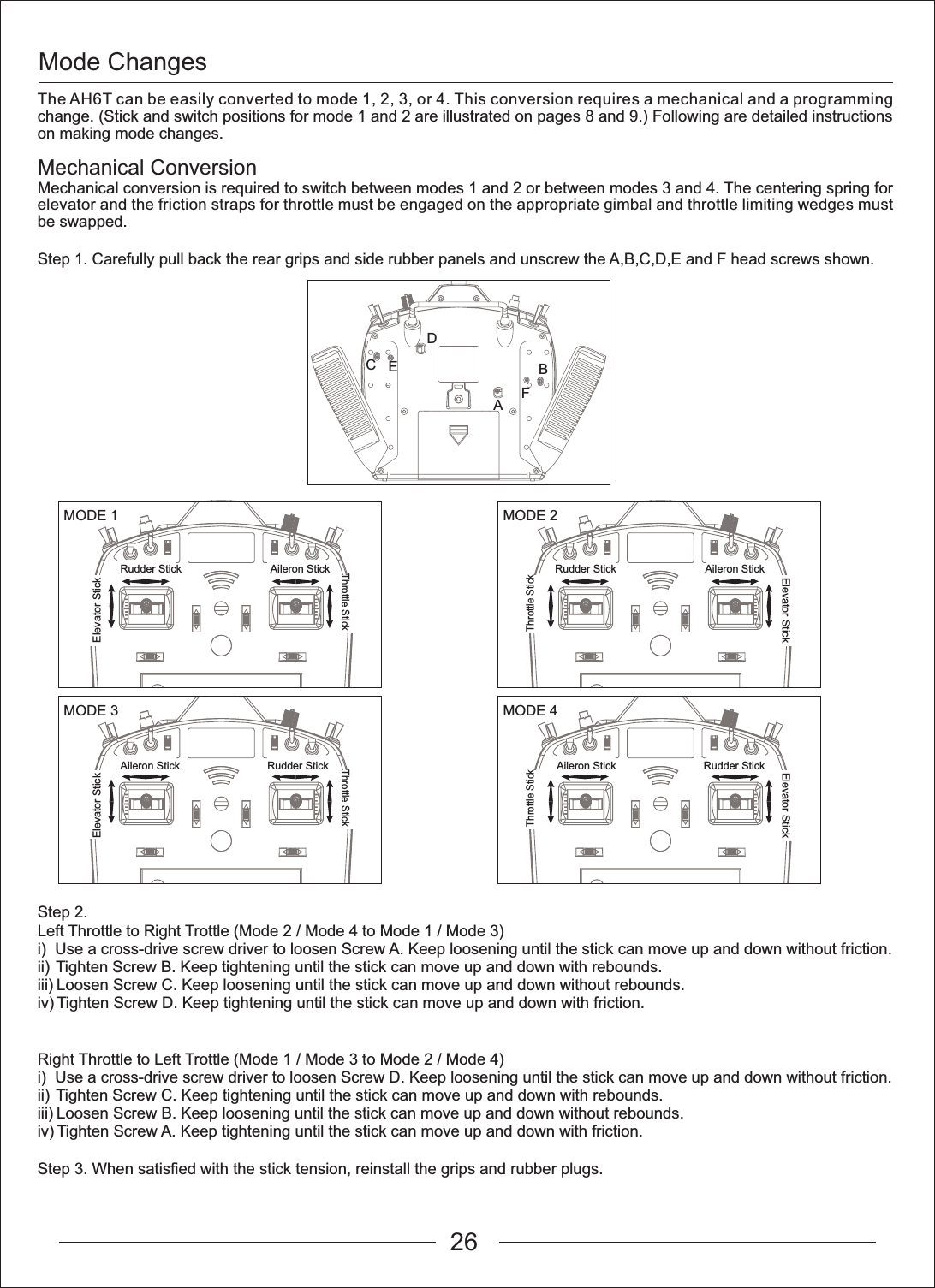
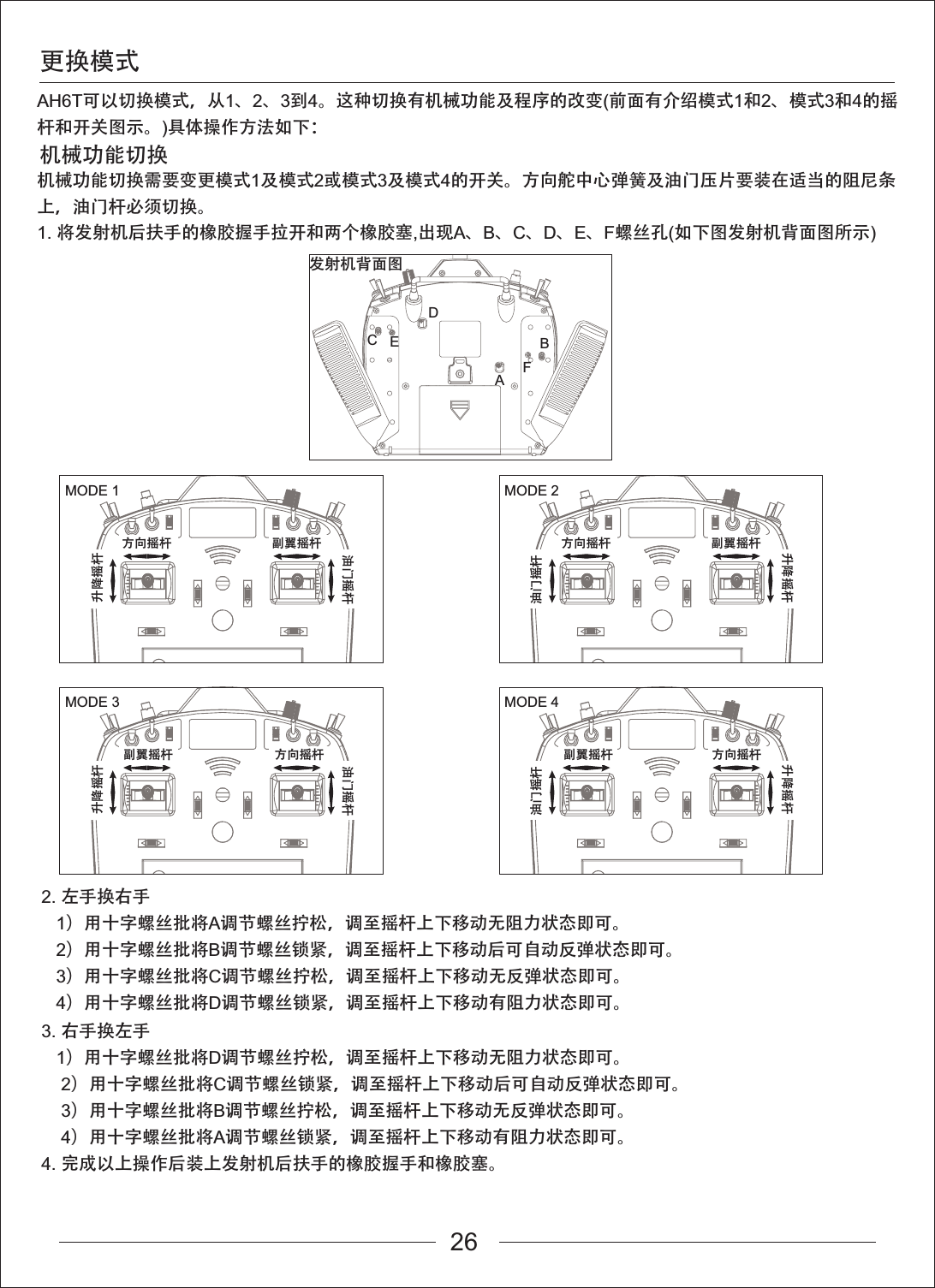
Mode ChangesABCDEFMODE 1Rudder Stick Aileron StickMODE 2MODE 3 MODE 4Elevator StickThrottle StickElevator StickElevator StickThrottle StickThrottle StickElevator StickThrottle StickRudder StickAileron Stick Rudder StickAileron StickRudder Stick Aileron StickThe AH6T can be easily converted to mode 1, 2, 3, or 4. This conversion requires a mechanical and a programming change. (Stick and switch positions for mode 1 and 2 are illustrated on pages 8 and 9.) Following are detailed instructions on making mode changes.Mechanical ConversionMechanical conversion is required to switch between modes 1 and 2 or between modes 3 and 4. The centering spring for elevator and the friction straps for throttle must be engaged on the appropriate gimbal and throttle limiting wedges must be swapped.Step 1. Carefully pull back the rear grips and side rubber panels and unscrew the A,B,C,D,E and F head screws shown.Step 2.Left Throttle to Right Trottle (Mode 2 / Mode 4 to Mode 1 / Mode 3)i)  Use a cross-drive screw driver to loosen Screw A. Keep loosening until the stick can move up and down without friction.ii) Tighten Screw B. Keep tightening until the stick can move up and down with rebounds.iii) Loosen Screw C. Keep loosening until the stick can move up and down without rebounds.iv) Tighten Screw D. Keep tightening until the stick can move up and down with friction.Right Throttle to Left Trottle (Mode 1 / Mode 3 to Mode 2 / Mode 4)i) Use a cross-drive screw driver to loosen Screw D. Keep loosening until the stick can move up and down without friction.ii) Tighten Screw C. Keep tightening until the stick can move up and down with rebounds.iii) Loosen Screw B. Keep loosening until the stick can move up and down without rebounds.iv) Tighten Screw A. Keep tightening until the stick can move up and down with friction.Step 3. When satisfied with the stick tension, reinstall the grips and rubber plugs.26
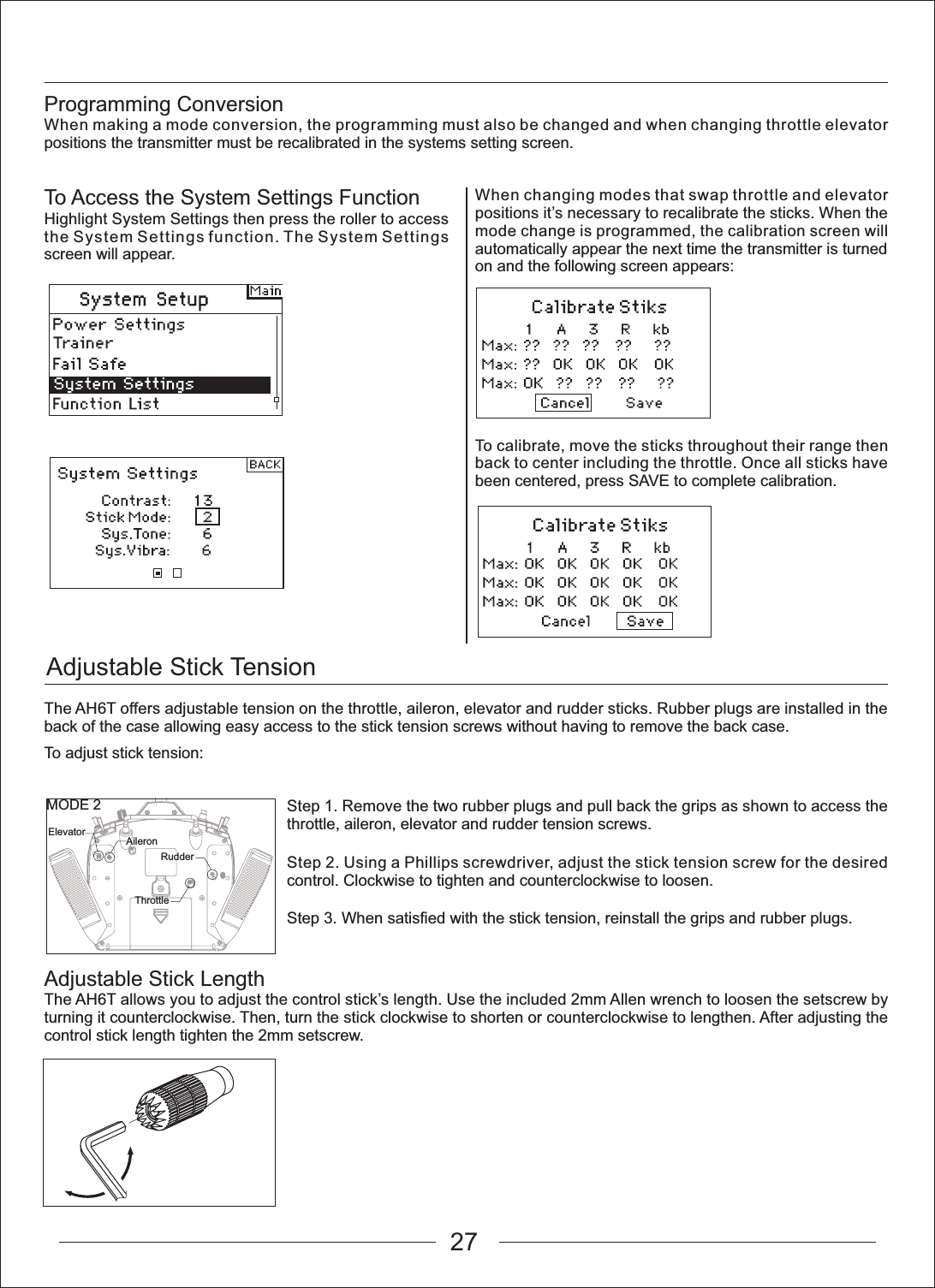
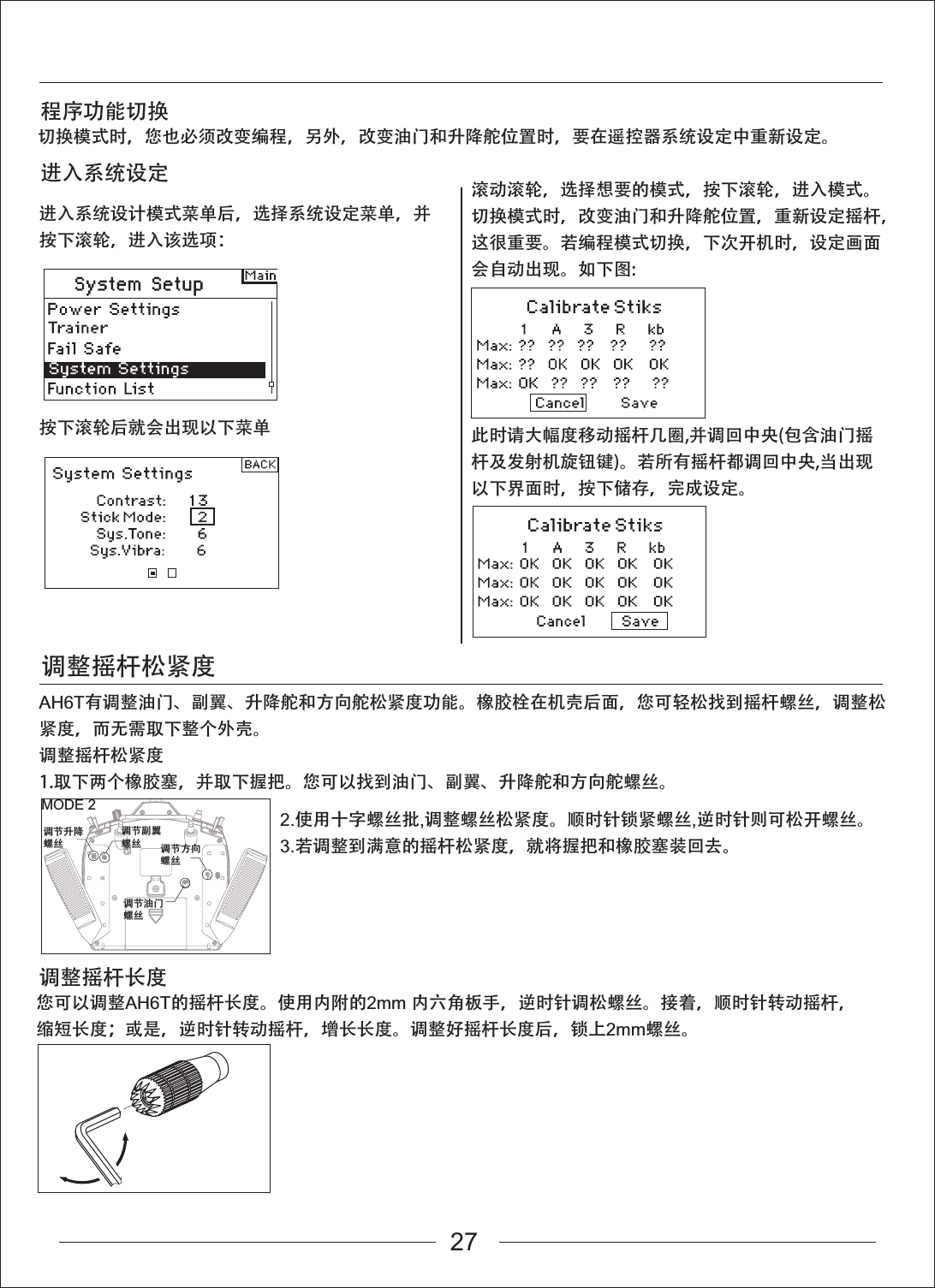
Adjustable Stick TensionMODE 2Elevator AileronThrottleRudderProgramming ConversionWhen making a mode conversion, the programming must also be changed and when changing throttle elevator positions the transmitter must be recalibrated in the systems setting screen.Adjustable Stick LengthThe AH6T allows you to adjust the control stick’s length. Use the included 2mm Allen wrench to loosen the setscrew by turning it counterclockwise. Then, turn the stick clockwise to shorten or counterclockwise to lengthen. After adjusting the control stick length tighten the 2mm setscrew.The AH6T offers adjustable tension on the throttle, aileron, elevator and rudder sticks. Rubber plugs are installed in the back of the case allowing easy access to the stick tension screws without having to remove the back case.To adjust stick tension:To Access the System Settings FunctionHighlight System Settings then press the roller to access the System Settings function. The System Settings screen will appear.When changing modes that swap throttle and elevator positions it’s necessary to recalibrate the sticks. When the mode change is programmed, the calibration screen will automatically appear the next time the transmitter is turned on and the following screen appears:To calibrate, move the sticks throughout their range then back to center including the throttle. Once all sticks have been centered, press SAVE to complete calibration.Step 1. Remove the two rubber plugs and pull back the grips as shown to access the throttle, aileron, elevator and rudder tension screws.Step 2. Using a Phillips screwdriver, adjust the stick tension screw for the desired control. Clockwise to tighten and counterclockwise to loosen.Step 3. When satisfied with the stick tension, reinstall the grips and rubber plugs.27
FCC Statement: This equipment has been tested and found to comply with the limits for a Class B digital device, pursuant to part 15 of the FCC Rules.  These limits are designed to provide reasonable protection against harmful interference in a residential installation. This equipment generates, uses and can radiate radio frequency energy and, if not installed and used in accordance with the instructions, may cause harmful interference to radio communications.However, there is no guarantee that interference will not occur in a particular installation. If this equipment does cause harmful interference to radio or  television  reception,  which can be determined by turning the equipment off and on, the user is encouraged to try to correct the interference by one or more of the following measures: •   Reorient or relocate the receiving antenna. •   Increase the separation between the equipment and receiver. •  Connect the equipment to an outlet on a circuit different from that to which the  receiver is connected. This device complies with part 15 of the FCC rules. Operation is subject to the following two conditions: (1) This device may not cause harmful interference, and (2) this device must accept any interference received, including interference that may cause undesired operation. Note: Modifications to this product will void the user’s authority to operate this equipment.
感谢您选择GWY的产品。为了让您能够更好的了解和使用这台AH6T发射机,我们衷心的希望您认真地阅读完这本说明书之后再进行相关操作,并请妥善保管以备后用。  如需了解更多资讯,请访问官方网址:www.zondahobby.com / www.zondahobby.com.cn前言标志说明安全注意事项和警告飞行前检查重要声明禁   止禁   止在任何禁止的环境下,请勿尝试操作。警   告 因为疏忽这些操作说明,而使用错误可能造成财产损失或严重伤害。注   意 因为疏忽这些操作说明,而使用错误可能造成危险。     遥控模型是通过无线电信号控制的,在操作时,可能会受到其它无线电信号的干扰,此干扰可能会导致直升机失控。警   告    遥控模型不是玩具!为避免危险事故的发生,请勿随意操作遥控模型,模型商品必须在当地政府允许和规定的情况或条件下使用。消费者自购买当日起即承担该模型使用的一切风险,产品售出后GWY将不负任何操作和使用控制上的任何性能与安全责任。也无法对消费者零件使用的损耗异常或组装不当所发生的意外负任何责任.为了您的切身安全,GWY建议模型新手在操作之前,请咨询或求助于专业模型玩家或当地的模型店。模型产品包含部分消耗零件,反复拆装、长期使用会造成零部件损耗,属于正常范围。请定期检测并更换损耗配件,以确保安全飞行。在购买配件时,如果您所购买的不是GWY原装产品,可能会导致遥控模型性能不匹配、甚至不能正常运行等问题,本公司对此概不负责。请妥善保存该产品的说明书,以协助您顺利的进行直升机的调整、维修等作业。1.遥控模型不是玩具!具有一定的危险性,禁止14岁以下人士进行操作!2.遥控模型在存放与飞行时,需要远离高温环境或其他具有腐蚀性的化学物品!(使用温度范围:-10℃到50℃)3.初学者请勿独自操控!初次飞行时最好请有经验的飞行员进行指导之后再进行飞行,请避免相同频率的  模型直升机同时飞行。4.开机前请将油门摇杆及油门微调打到最低点。开关机时请务必遵守开关机的顺序,开机时请先开发射机  电源,再接通直升机电源;关机时请先断开直升机电源,然后再关闭发射机电源。1.飞行时应该远离高压线或其他影响飞行的建筑物,避免操控不当造成自己与他人财产的损失!2.飞行时要远离人群,避免旁人围观!以免误伤他人!3.不要在遥控器电力低时,操控模型。4.请勿在下雨、打雷、阴天或是视线不清楚的天气进行飞行,以确保本身及直升机的安全!5.遥控内部是由许多精密的电子零件组成,所以必须绝对的防止潮气或水气,避免在浴室或雨天时使用,防止不气进入机身内部导致机件及电子零件故障而引发不可预期的意外!6.请勿自行改造加工,任何的升级改装或维修,请使用GWY产品目录中的零件,以确保结构的安全。1.检查遥控器和接收机电池组电压,遥控器低于4.3伏特或接收机低于4.7伏特时,请勿飞行。若低于此限  制,飞机会坠毁。注意:当您检查电池时,确认扩充电压表的正负极是正确的。2.每日飞行前,检查所有硬件(连接装置、螺丝、螺帽和螺栓)。确定所有零件都正确锁紧。3.启动飞机前,先关闭遥控器,然后重新打开。每次启动飞机时都要这么做。如果任何开关在不知情的  情况下打开,这时遥控器的警示器会警告您。4.检查所有微调杆设于正确的位置。5.所有舵机连接线和开关线束插头应该要固定在接收机上。确定开关线束在两个方向可以随时移动。2
目录检查包装物及配件发射机各部位介绍介绍按键与屏幕功能数位微调无动作警示电池警示及屏幕编程警示AH6R/AH6RS接收机安装接收机对码操作安全保护保留最后指令安全保护预设安全保护系统设定进入系统设定菜单机种模式选择(直升机、飞机、多旋翼)机种型式(直升机、飞机、多旋翼)模型名称(直升机、飞机、多旋翼)机翼型式选择(飞机)开关选择(飞机)倾斜盘模式(直升机)开关选择(直升机、多旋翼)微调设置(直升机、飞机、多旋翼)模式重设(直升机、飞机、多旋翼)复制模式(直升机、飞机、多旋翼)警告(直升机、飞机、多旋翼)功率设定(直升机、飞机、多旋翼)可编程教练(直升机、飞机、多旋翼)信号丢失保护(直升机、飞机、多旋翼)系统设定(直升机、飞机、多旋翼)4 1414151515161717171819192021212224242526275666666777778889991010101011111212121313功能模式正反舵(直升机、飞机、多旋翼)行程调整(直升机、飞机、多旋翼)速度&辅助微调(直升机、飞机、多旋翼)双重比率和感度指数(直升机、飞机、多旋翼)副翼差动(飞机)关闭油门(直升机、飞机、多旋翼)油门曲线(飞机、多旋翼)油门曲线(直升机)襟翼系统(飞机)倾斜盘(直升机)陀螺仪(直升机)螺距曲线(直升机)混控(飞机)副翼-方向舵混控(飞机)混控(直升机)可编程辅助通道(多旋翼)定时器(直升机、飞机、多旋翼)监控(直升机、飞机、多旋翼)更换模式调整摇杆松紧度3
检查包装物及配件打开包装盒后,请先检查整机与附送配件是否齐全,若有遗漏,请向所销售单位反映,索取。12 311. AH6T 2.4G六通道发射机2. L型螺丝扳手3. 吊带114
发射机各部位介绍天线指示灯旋钮开关 E开关 C开关 B开关 A开关 D对码按钮/开关 I开关 H开关 G开关 F电源开关LCD显示屏左橡胶握手右橡胶握手清除按钮返回按钮蜂鸣器滚轮1123456789101112131415161718192021222324252635426789111012131415161718192021222324 2526Mode 1 升降及方向摇杆Mode 2 油门及方向摇杆Mode 3 升降及副翼摇杆Mode 4 油门及副翼摇杆Mode 1 油门及副翼摇杆Mode 2 升降及副翼摇杆Mode 3 油门及方向摇杆Mode 4 升降及方向摇杆Mode 1/Mode 3油门微调Mode 2/Mode 4升降微调Mode 1/Mode 2副翼微调Mode 3/Mode 4方向微调Mode 1/Mode 2方向微调Mode 3/Mode 4副翼微调Mode 1/Mode 3升降微调Mode 2/Mode 4油门微调5
按键与屏幕功能编程警示AH6R/AH6RS接收机AH6R接收机(JR连接头)AH6RS接收机(JST 1.5mm连接头)数位微调无动作警示数据错误警示注意:请根据不同的连接线选择相应的接收机。接收机规格参数:    1)输入电源:DC4.8-6V    2)工作电流:P$    3)调制方式:GFSK    4)无线工作模式:FHSS(跳频)    5)工作带宽:2406MHz--2476MHz    6)频道分辩率:1MHz    7)空中波特率:250KHz    8)数据刷新频率:11ms    9)符合CE,FCC安规认证要求AH6T的滚轮功能可以选取列表。另外,清除键和返回键可以用来操作所有功能。按下清除键,就会将选择的设定值回复到默认值。按下返回键,可以返回前一个画面。转动滚轮,就可以使用屏幕上的功能。将滚轮按住,调整设定值或是选取选项。AH6T  2.4G 可以调数字微调。主画面显示微调的位置。其中包含油门/副翼、升降/方向微调。当操作左右侧微调时,会响起哔一声及停顿一下。您可以在微调设置(Trim Setup)调整以上的微调功能,在系统设定可以找到此选项。注意:当摇控器关机时,微调及左右微调设置值会储存于内存中,并于系统开机后重新叫出。System is inactive!Flash data be damagedreboot automatically repairThrottle highWARNINGF  MODE  2AH6T配有无动作警示功能,用来防止遥控器待机浪费电量。若遥控器待机,动一下摇杆及按键,无输入任何指令长达用户预设的时间,警示就会响起,并在屏幕上出现警告。动一下摇杆或按键,就可以解除警报。通常RF调制会持续警示,维持RF连结。如果摇控器非法关机或意外断电,损坏内部存贮的数据,开机就会显示如下警示界面,重新开机可自动修复。电池警示及屏幕当遥控器电压低于4.3伏特时,"低电量警示"就会闪烁,并发出警示音。若操控飞机时有上述情形发生,请立即降落。AH6T拥有编程警示的功能。当摇控器开机时,摇杆或按键的位置不正确或不安全,这个功能就会启动。在飞机模式中,编程警示包含高油门,以及起落架/mid/降落襟翼位置。而在直升机模式中,则包含油门杆太高、特技1、特技2,以及油门固定。若遥控器开机时,摇杆或按键的位置不正确且安全,警示音及警示画面就会出现,此情况下,遥控器无法传送讯号。将摇杆或按键的位置调整成安全理想位置,就不会有警示,也可正常运作。6
安装接收机接收机电源需求对码操作安全保护保留最后指令安全保护预设安全保护使用汽油与甲醇发动机飞机时,用保护泡棉把主接收机包好,并用橡皮筋,或钩子、吊条将之固定住。使用电动飞机或直升机,您可用厚双面泡棉胶带固定接收机。注意,飞机有很多材质容易导电(例如:较大型汽油发动机, 碳纤维, 导管等),讯号可能会减弱。注意:接收机天线尽可能的远离电源线,最理想的是天线相互垂直。当系统完全负载时,机载电源系统提供无中断的足够电力是重要的(舵机最大的飞行负荷)。不足的电源系统是造成肇事的主因。一些电源系统零件会影响适机载传输足够电力,包含:挑选的接收机电池组(一些电池、电容、电池种类、充电状况)、开关线束、电池引线(如果有使用)、调节器(如果有使用)。AH6R最小的操作电压3.5伏特。地面测试时,以下的指南可以接受的最低电压为4.8伏特。这会弥补电池放电或大于地面测试负载的实际飞行负载。接收机在操作前一定要先与遥控器对码。对码是要让接收机知道遥控器的特定代码,所以它会连接特定的遥控器。1.将对码插头插入接收机的对码插槽。2.打开接收机开关。接收机的LED灯会亮,表示接收机已与遥控器连接。3.设定想要的故障安全防护操纵杆位置(通常为低油门和飞行控制中枢)。4.打开发射机电源时,按住"对码"按钮(开关"I")。5.系统在几秒内就会连接。接收机的LED灯会亮,表示系统已连接。6.将对码插头从接收机连接插槽拔除。关掉遥控器,并把对码插头放置方便拿取的地方。注意:拔除对码插头,以预防下次开机时,系统显示为对码模式。7.设定模式后,重新链接系统是很重要的,因此低油门和中枢控制面位置才能被设定。当你连结遥控器时,你正将安全保护系统与接收机做默认。若遥控器与接收机失去连结,接收机会立即启用预设,也就是安全保护。AH6R有三个安全保护:SmartSafe安全保护、保留最后指令安全保护,以及预设安全保护。SmartSafe安全保护在保留最后指令安全保护与默认安全保护中执行。SmartSafe是油门通道的特色,提供下列好处:防止只有接收机开机时,电动马达突然启动(无讯号)。防止变速器启动。直到链接后,才变成低油门位置。当讯号消失时,可以关闭电动马达及让汽油/甲醇发 动机怠速。油门低于标准,变速器不会启动。若飞行时,失去连结:-在接收机固定时,SmartSafe设定油门为正确位置。如何编程:当设定保留最后指令与默认安全保护或系统链接时,SmartSafe会被自动设定。注意:在连结时,把油门杆调为低油门位置以维持低油门是重要的。测试:将遥控器关机,以确认安全保护设定是否正确。油门应会跑到默认的低油门位置。特别注意:请确认您的飞机是在地上。若安全保护没有设定,飞机的油门位置可能会变成中段或全满。若您失去链接,所有信道外只有油门信道保留最后指令,且飞机还是持续飞行。因此,若失去连结,您的飞机还是可以继续飞行。如何编程:1.将连接插头在链接过程中插在连接插槽。2.在接收机与遥控器链接后,拔除连接插头。测试:将遥控器关机,以确认安全保护设定是否正确。所有通道外只有油门信道保留最后指令。特别注意: 请确认您的飞机是在地上。若安全保护没有设定,飞机的油门位置可能会变成中段或全满。若讯号消失,所有通道会转成接收机连结时的安全保护位置。预设安全保护很适合用于滑翔机,当讯号消失时,阻流板会启动,以防飞机飞走。如何编程:1.把连接插头接上接收机,并打开开关。2.连接器LED灯闪烁,显示固定模式,先拔除连接插头。再将遥控器与接收机连结。7
进入系统设定菜单机种模式选择 系统设定[Normal]0:003.LED灯会持续闪烁。4.将遥控器的摇杆及按键设为理想的默认安全回复位置,并将之调成固定模式。5.系统链接时间应少于15秒。注意:任何接收机有所不同,安全回复也不大一样,若使用AH6R或AH6RS以外的接收机,请参照接收机手册。飞行前,随时确认接收机固定是否正确以及安全回复是否设定。您可以确认您的系统是否链接,关掉遥控器。确认是否为低油门位置。特别注意:请确认您的飞机是在地上。若安全回复没有设定,飞机的油门位置可能会变成中段或全满。AH6T有两个编程分类:系统设定模式及功能模式。系统设定模式的编程通常用于设定机种。其中包含:机种型式、模式名称、机翼型式选择、(直升机倾斜盘型式),机种重设等。注意:于系统设定模式时,会没有无线电传输,以防止舵机意外运作。在编程变换时,这可以让舵机起落架不会损害。飞机、直升机和多旋翼的系统设定模式如下:飞机系统设定模式Model SelectModel TypeModel NameWing TypeSwitch SelectTrim SetupModel ResetModel CopyWarningsPower SettingsTrainerFail SafeSystem Settings多旋翼系统设定模式Model SelectModel TypeModel NameSwash TypeSwitch SelectTrim SetupModel ResetModel CopyWarningsPower SettingsTrainerFail SafeSystem Settings直升机系统设定模式Model SelectModel TypeModel NameSwash TypeSwitch SelectTrim SetupModel ResetModel CopyWarningsPower SettingsTrainerFail SafeSystem Settings按一下发射机电源开关,打开发射机,进入发射机主界面。按一下滚轮键,进入功能模式菜单,通过滚轮键选择菜单“System Setup”,选择“YES”进入系统设计模式菜单。机种模式选择可用来改变不同模式记忆,从目前的模式变成另一个。AH6T可以储存高达20个模式记忆。进入系统设计模式菜单后,选择机种模式菜单,并按下滚轮,进入该选项:出现下面画面。滚动滚轮,以选择所需模式,并按下滚轮,选取模式。机种模式的名称会出现在主屏幕中。1:HELI 5.5VT1:0:00T2:8
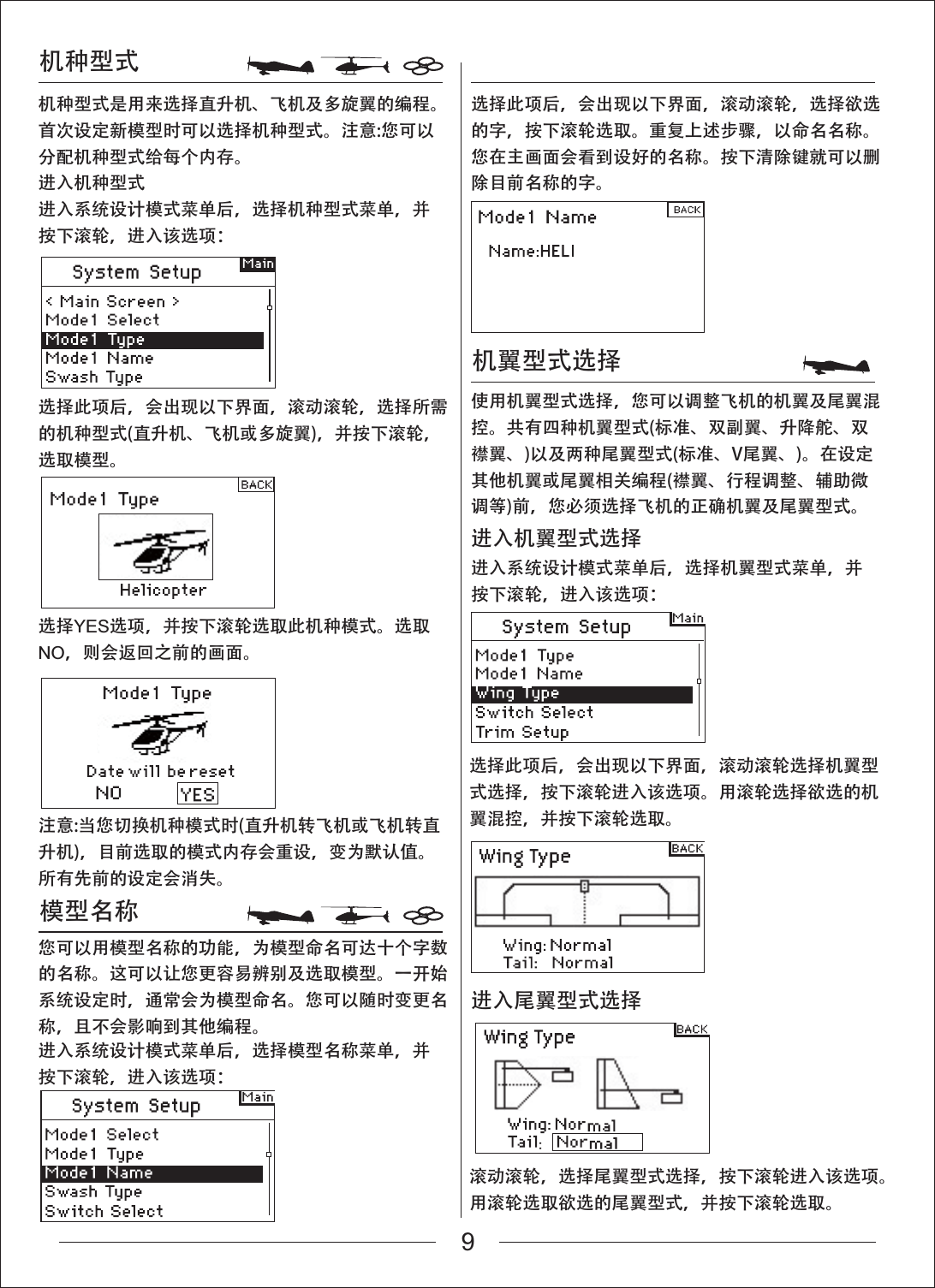
机种型式机种型式是用来选择直升机、飞机及多旋翼的编程。首次设定新模型时可以选择机种型式。注意:您可以分配机种型式给每个内存。进入机种型式进入系统设计模式菜单后,选择机种型式菜单,并按下滚轮,进入该选项:选择此项后,会出现以下界面,滚动滚轮,选择欲选的字,按下滚轮选取。重复上述步骤,以命名名称。您在主画面会看到设好的名称。按下清除键就可以删除目前名称的字。使用机翼型式选择,您可以调整飞机的机翼及尾翼混控。共有四种机翼型式(标准、双副翼、升降舵、双襟翼、)以及两种尾翼型式(标准、V尾翼、)。在设定其他机翼或尾翼相关编程(襟翼、行程调整、辅助微调等)前,您必须选择飞机的正确机翼及尾翼型式。选择此项后,会出现以下界面,滚动滚轮,选择所需的机种型式(直升机、飞机或多旋翼),并按下滚轮,选取模型。选择此项后,会出现以下界面,滚动滚轮选择机翼型式选择,按下滚轮进入该选项。用滚轮选择欲选的机翼混控,并按下滚轮选取。滚动滚轮,选择尾翼型式选择,按下滚轮进入该选项。用滚轮选取欲选的尾翼型式,并按下滚轮选取。选择YES选项,并按下滚轮选取此机种模式。选取NO,则会返回之前的画面。您可以用模型名称的功能,为模型命名可达十个字数的名称。这可以让您更容易辨别及选取模型。一开始系统设定时,通常会为模型命名。您可以随时变更名称,且不会影响到其他编程。进入系统设计模式菜单后,选择模型名称菜单,并按下滚轮,进入该选项:注意:当您切换机种模式时(直升机转飞机或飞机转直升机),目前选取的模式内存会重设,变为默认值。所有先前的设定会消失。机翼型式选择模型名称进入系统设计模式菜单后,选择机翼型式菜单,并按下滚轮,进入该选项:进入机翼型式选择进入尾翼型式选择9
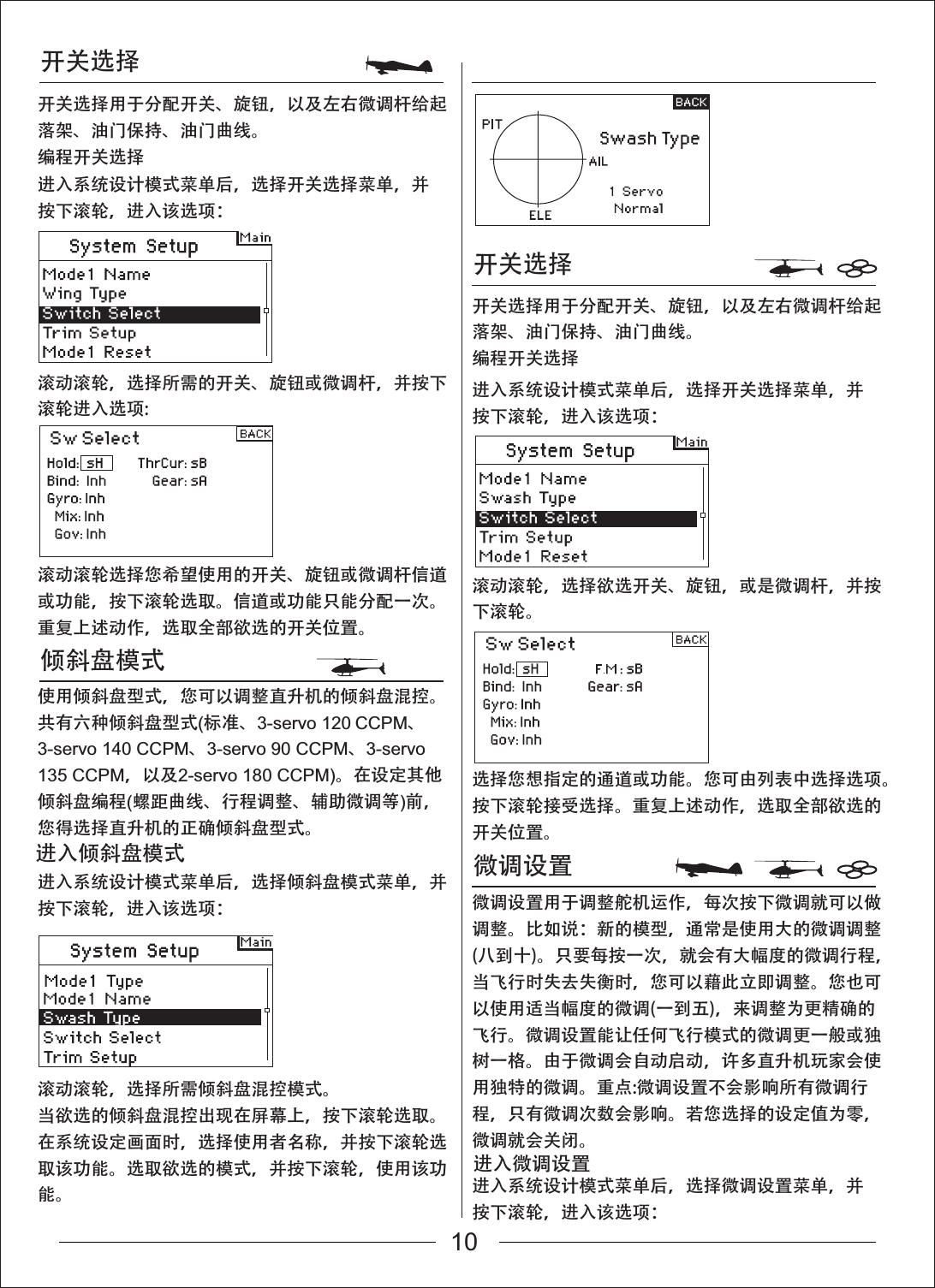
开关选择倾斜盘模式开关选择开关选择用于分配开关、旋钮,以及左右微调杆给起落架、油门保持、油门曲线。编程开关选择开关选择用于分配开关、旋钮,以及左右微调杆给起落架、油门保持、油门曲线。编程开关选择微调设置进入系统设计模式菜单后,选择开关选择菜单,并按下滚轮,进入该选项:进入系统设计模式菜单后,选择开关选择菜单,并按下滚轮,进入该选项:进入系统设计模式菜单后,选择微调设置菜单,并按下滚轮,进入该选项:滚动滚轮,选择欲选开关、旋钮,或是微调杆,并按下滚轮。选择您想指定的通道或功能。您可由列表中选择选项。按下滚轮接受选择。重复上述动作,选取全部欲选的开关位置。微调设置用于调整舵机运作,每次按下微调就可以做调整。比如说:新的模型,通常是使用大的微调调整(八到十)。只要每按一次,就会有大幅度的微调行程,当飞行时失去失衡时,您可以藉此立即调整。您也可以使用适当幅度的微调(一到五),来调整为更精确的飞行。微调设置能让任何飞行模式的微调更一般或独树一格。由于微调会自动启动,许多直升机玩家会使用独特的微调。重点:微调设置不会影响所有微调行程,只有微调次数会影响。若您选择的设定值为零,微调就会关闭。进入系统设计模式菜单后,选择倾斜盘模式菜单,并按下滚轮,进入该选项:滚动滚轮,选择所需的开关、旋钮或微调杆,并按下滚轮进入选项:滚动滚轮选择您希望使用的开关、旋钮或微调杆信道或功能,按下滚轮选取。信道或功能只能分配一次。重复上述动作,选取全部欲选的开关位置。使用倾斜盘型式,您可以调整直升机的倾斜盘混控。共有六种倾斜盘型式(标准、3-servo 120 CCPM、3-servo 140 CCPM、3-servo 90 CCPM、3-servo135 CCPM,以及2-servo 180 CCPM)。在设定其他倾斜盘编程(螺距曲线、行程调整、辅助微调等)前,您得选择直升机的正确倾斜盘型式。进入倾斜盘模式滚动滚轮,选择所需倾斜盘混控模式。当欲选的倾斜盘混控出现在屏幕上,按下滚轮选取。在系统设定画面时,选择使用者名称,并按下滚轮选取该功能。选取欲选的模式,并按下滚轮,使用该功能。进入微调设置10
复制模式模式重设HELI进入系统设计模式菜单后,选择模式重设菜单,并按下滚轮,进入该选项:滚动滚轮,选择微调设置,并按下滚轮,就会出现该选项。会出现下面画面:就会出现该选项。会出现下面画面:就会出现该选项。会出现下面画面:确定画面中的模式是您想要复制的。若不是,请参照前面模式机种模式选择。滚动滚轮,选择模式内存(1到20),模式就会被复制。若欲选的模式内存出现在画面上,按下滚轮,确认复制的画面就会出现:按下滚轮,复制这个模式到选择的模式内存。复制完成后,会回到主画面。原先复制的模式内存会被选择。选择欲选的微调值,并按下滚轮,选择设定值。滚动滚轮,变更微调值。按下滚轮,并选取设定好的值。重复上述动作,调整所有微调幅度。模式重设一般用于清除不再使用的模式编程。这可以重新设定选择的模式,调回默认值。并不会影响其他模式内存。若重设模式,则该模式的编程就会永久删除且不能恢复。进入模式重设进入系统设计模式菜单后,选择复制模式菜单,并按下滚轮,进入该选项:进入复制模式确定画面中的模式是您想要重设的。滚动滚轮,选择重设,并按下滚轮,接受确认。复制模式用于目前选择的模式编程。有二十个模式内存可用。一些常用的复制模式功能包含:可以移动内存的模式次序,按照种类及型式整理等。 附注:移动模式后,您须要重新固定装置。飞机编程时,可以复制原先的设定。附注:若您想要以 同样的模式另外复制两个模式,您必须重新固定装置。复制目前的模式编程至相似的新模式。许多玩家认为 这是个好方法,可以准确编程新模式。比方说, Vibe   50 w/120CCPM混控、陀螺仪和调速器编程,可以提供不错的编程给其他甲醇动力的120CCPM混控直升机。注:要被复制的模式会被取代,目前的编程会被永久删除。11
警告可编程教练功率设定就会出现该选项。会出现下面画面:滚动滚轮,选择相应模式并按下,会出现下面界面:滚动滚轮,选择需要打开的教学通道并按下,会出现下面界面:Inhibit:禁用          Line Master:有线教练模式Wireless Master:无教练模式        Slave:学员模式选择欲选的警告(飞机模式下可选用:油门、特技1、特技2,或油门固定、油门、襟翼、起落架、飞行模式1和飞行模式2),并按下滚轮选择。现在滚动滚轮,关闭或启动选择的警告。将遥控器关机,以确认警告是否运作,并将选择的开关或油门杆调到不正确的位置,再打开遥控器。警告音会响;屏幕会显示警告,也没有任何调制发生。进入系统设计模式菜单后,选择功率设定菜单,并按下滚轮,进入该选项:此菜单可设置发射机工作区域,高频工作模式。进入功率进入系统设计模式菜单后,选择警告菜单,并按下滚轮,进入该选项:进入系统设计模式菜单后,选择可编程教练菜单,并按下滚轮,进入该选项:进入Mode可设置发射机工作模式:进入警告警告功能用于警示遥控器开机时特定开关或摇杆位置不正确或安全。直升机模式中,默认的警告包含:油门、特技1、特技2,和油门固定。飞机模式中,警告则包含:低油门位置、襟翼、起落架、飞行模式和飞行模式2。若遥控器开机时,任何开关或摇杆没有在低位置,警告音就会响起;屏幕会出现警告,也不会有讯号传送。等到摇杆或开关回到正确位置,警告才会解除。进入Region可设置发射机工作区域:12
Binding......系统设定就会出现该选项。会出现下面画面:进入系统设计模式菜单后,选择信号丢失保护菜单,并按下滚轮,进入该选项:进入系统设计模式菜单后,选择系统设定菜单,并按下滚轮,进入该选项:在无线教练模式下,第一次使用,应滚动滚轮致Bind进行对码,如下图:此时学员机需要开机进行对码:进入学员模式:系统设定在系统设定画面中,滚动滚轮,选择对比,并按下滚轮。滚动滚轮,调整对比(1到20),并按下滚轮确认。滚动滚轮,根据需要选择1到4不同的模式,并按下滚轮确认。滚动滚轮至需要设置的通道,并按下滚轮确认。进入调整对比在系统设定画面中,滚动滚轮,选择模式选择,并按下滚轮。进入模式选择在系统设定画面中,滚动滚轮,选择声音设置,并按下滚轮,可调整发射机蜂鸣器声音。进入声音设置进入系统设定的画面,可以改变整个遥控器设定,套用于任何模式内存。信号丢失保护滚动滚轮至需要设置的数字处,并按下滚轮,设置需要的参数。13
功能模式飞机功能模式Servo. ReverseServo. TravelServo. Speed&trimD/R and ExpoDifferentialThrottle CutThrottle CurveFlap SystemMixingTimerMonitor多旋翼功能模式Servo. ReverseServo. TravelServo. Speed&trimD/R and Expo直升机功能模式Servo. ReverseServo. TravelServo. Speed&trimD/R and ExpoThrottle CutThrottle CurveSwashplateGyroPitch CurveMixingTimerMonitor正反舵选择您想要的通道,按下滚轮,以选择通道。如果是油门通道,按下滚轮后,出现以下界面,选择“YES”,就可以改变舵机/通道动作方向,其它通道按下滚轮后确认。在系统设定画面中,滚动滚轮,选择闲时报警时间设置,并按下滚轮,可设置闲时报警时间。进入闲时报警时间设置进入功能模式菜单后,选择正反舵菜单,并按下滚轮,进入该选项:进入正反舵AH6T的编程有两种分类:系统设定和功能模式。功能模式用于调整模型的飞行型式。进入功能模式选单遥控器开机后,发射机主界面出现时,按下滚轮。会出现功能选单。Throttle CutThrottle CurveProgram AuxTimerMonitor14
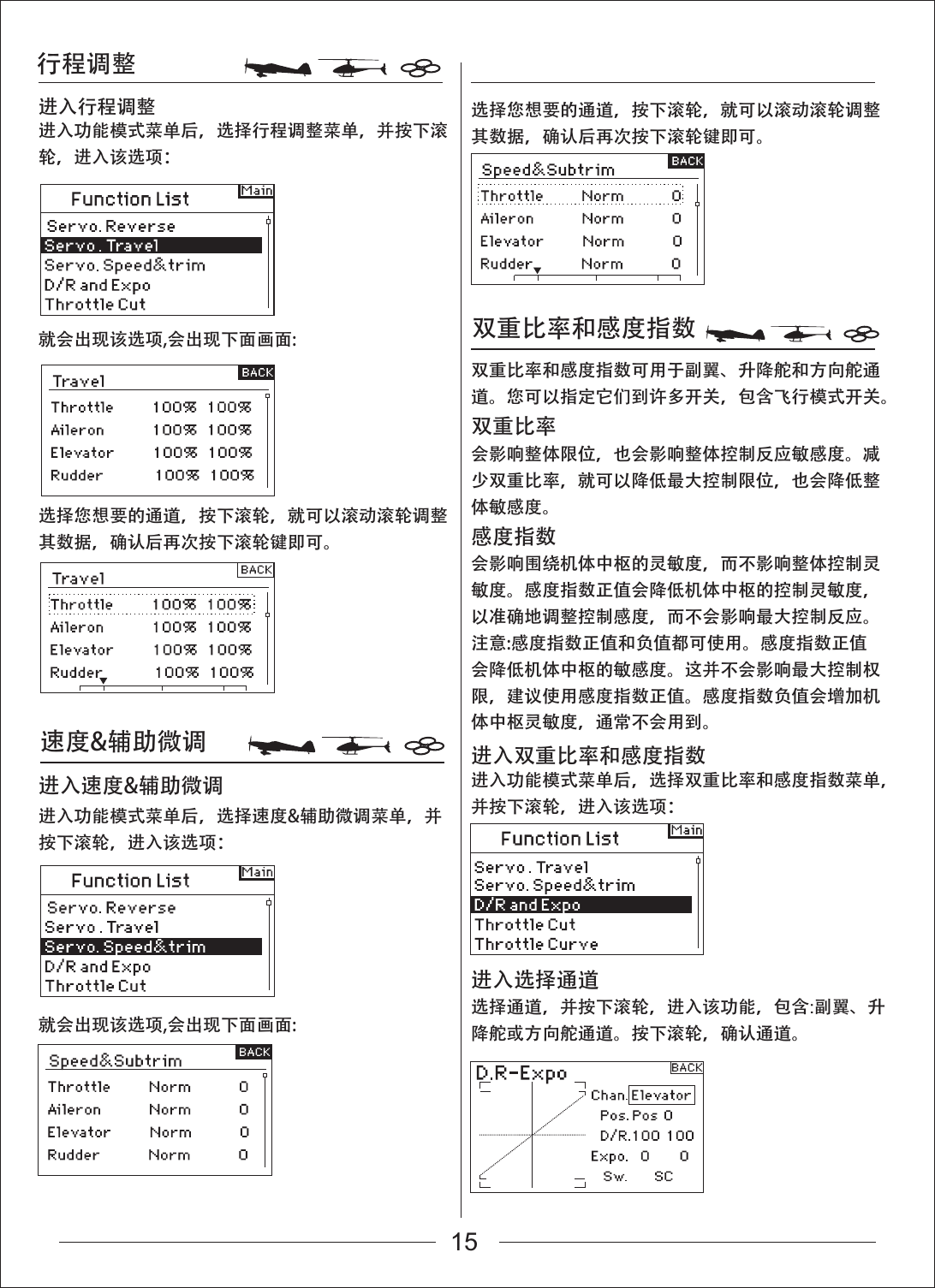
行程调整速度&辅助微调双重比率和感度指数就会出现该选项,会出现下面画面:就会出现该选项,会出现下面画面:选择您想要的通道,按下滚轮,就可以滚动滚轮调整其数据,确认后再次按下滚轮键即可。选择您想要的通道,按下滚轮,就可以滚动滚轮调整其数据,确认后再次按下滚轮键即可。进入功能模式菜单后,选择行程调整菜单,并按下滚轮,进入该选项:双重比率和感度指数可用于副翼、升降舵和方向舵通道。您可以指定它们到许多开关,包含飞行模式开关。双重比率会影响整体限位,也会影响整体控制反应敏感度。减少双重比率,就可以降低最大控制限位,也会降低整体敏感度。感度指数会影响围绕机体中枢的灵敏度,而不影响整体控制灵敏度。感度指数正值会降低机体中枢的控制灵敏度,以准确地调整控制感度,而不会影响最大控制反应。注意:感度指数正值和负值都可使用。感度指数正值会降低机体中枢的敏感度。这并不会影响最大控制权限,建议使用感度指数正值。感度指数负值会增加机体中枢灵敏度,通常不会用到。进入行程调整进入功能模式菜单后,选择速度&辅助微调菜单,并按下滚轮,进入该选项:进入速度&辅助微调 进入功能模式菜单后,选择双重比率和感度指数菜单,并按下滚轮,进入该选项:进入双重比率和感度指数进入选择通道选择通道,并按下滚轮,进入该功能,包含:副翼、升降舵或方向舵通道。按下滚轮,确认通道。15
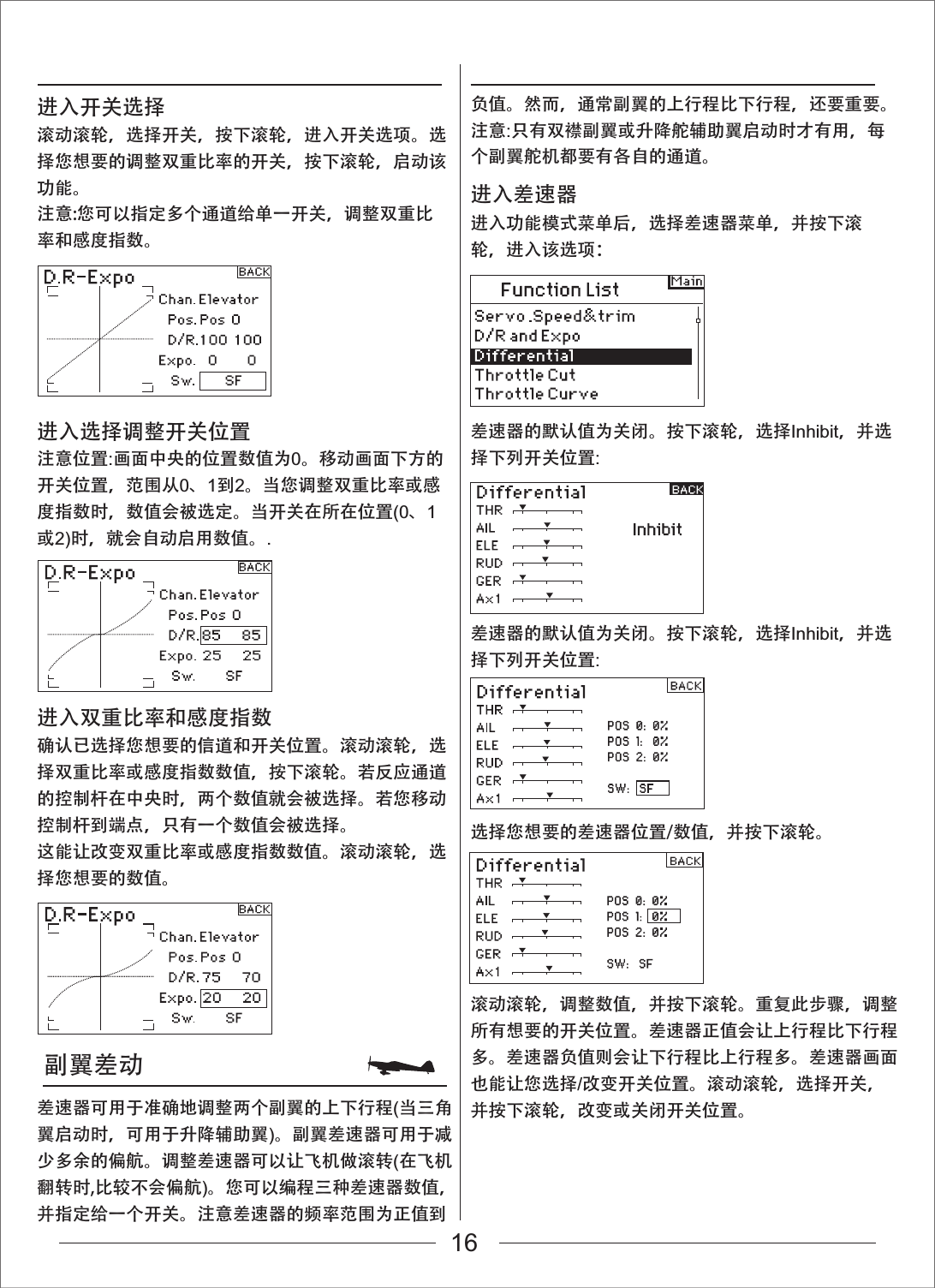
副翼差动进入功能模式菜单后,选择差速器菜单,并按下滚轮,进入该选项:差速器的默认值为关闭。按下滚轮,选择Inhibit,并选择下列开关位置:差速器的默认值为关闭。按下滚轮,选择Inhibit,并选择下列开关位置:选择您想要的差速器位置/数值,并按下滚轮。滚动滚轮,调整数值,并按下滚轮。重复此步骤,调整所有想要的开关位置。差速器正值会让上行程比下行程多。差速器负值则会让下行程比上行程多。差速器画面也能让您选择/改变开关位置。滚动滚轮,选择开关,并按下滚轮,改变或关闭开关位置。进入开关选择滚动滚轮,选择开关,按下滚轮,进入开关选项。选择您想要的调整双重比率的开关,按下滚轮,启动该功能。注意:您可以指定多个通道给单一开关,调整双重比率和感度指数。进入选择调整开关位置注意位置:画面中央的位置数值为0。移动画面下方的开关位置,范围从0、1到2。当您调整双重比率或感度指数时,数值会被选定。当开关在所在位置(0、1或2)时,就会自动启用数值。.进入差速器进入双重比率和感度指数确认已选择您想要的信道和开关位置。滚动滚轮,选择双重比率或感度指数数值,按下滚轮。若反应通道的控制杆在中央时,两个数值就会被选择。若您移动控制杆到端点,只有一个数值会被选择。这能让改变双重比率或感度指数数值。滚动滚轮,选择您想要的数值。差速器可用于准确地调整两个副翼的上下行程(当三角翼启动时,可用于升降辅助翼)。副翼差速器可用于减少多余的偏航。调整差速器可以让飞机做滚转(在飞机翻转时,比较不会偏航)。您可以编程三种差速器数值,并指定给一个开关。注意差速器的频率范围为正值到负值。然而,通常副翼的上行程比下行程,还要重要。注意:只有双襟副翼或升降舵辅助翼启动时才有用,每个副翼舵机都要有各自的通道。16
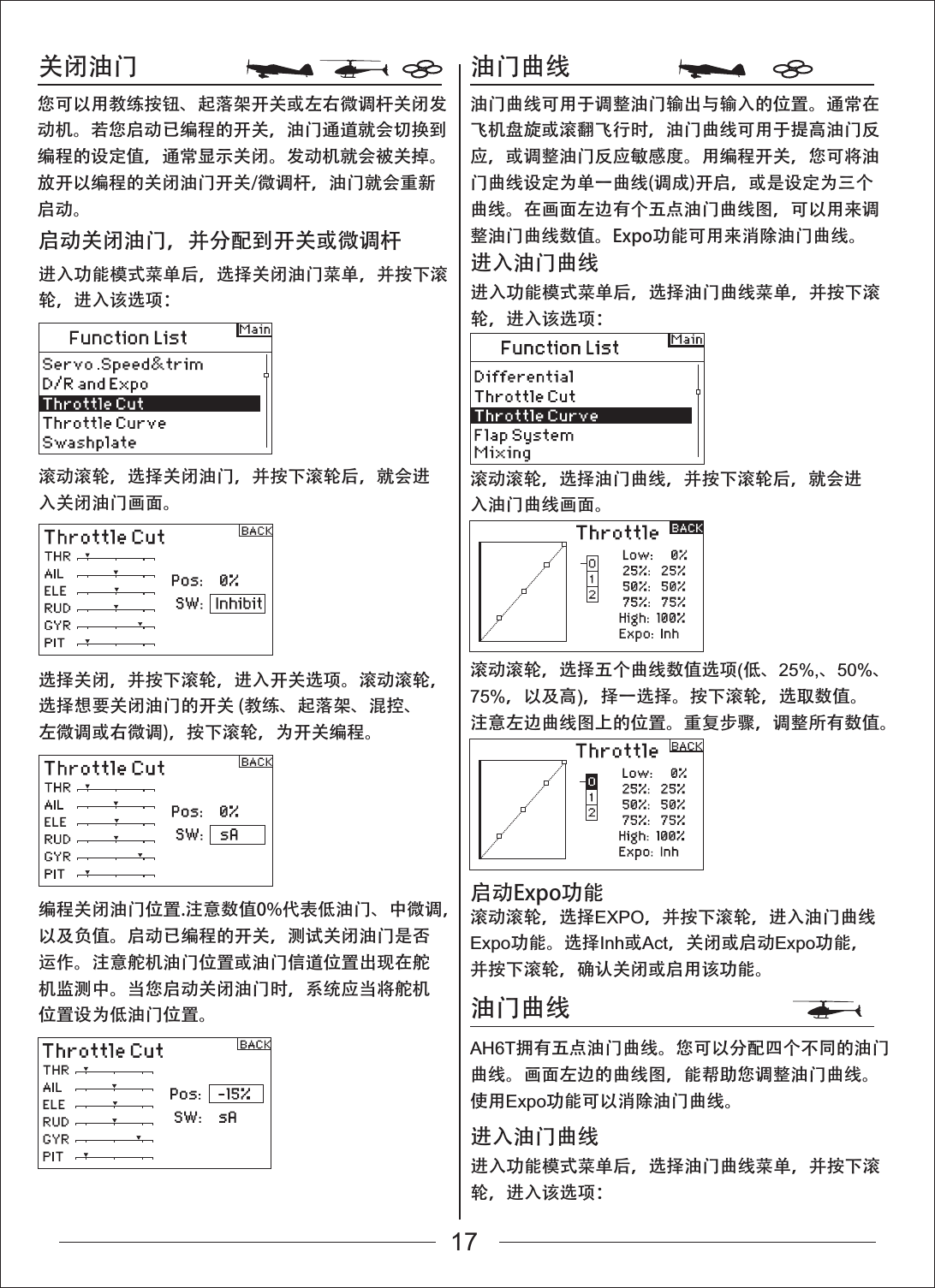
关闭油门 油门曲线油门曲线进入功能模式菜单后,选择关闭油门菜单,并按下滚轮,进入该选项:滚动滚轮,选择关闭油门,并按下滚轮后,就会进入关闭油门画面。滚动滚轮,选择油门曲线,并按下滚轮后,就会进入油门曲线画面。滚动滚轮,选择五个曲线数值选项(低、25%,、50%、75%,以及高),择一选择。按下滚轮,选取数值。注意左边曲线图上的位置。重复步骤,调整所有数值。滚动滚轮,选择EXPO,并按下滚轮,进入油门曲线Expo功能。选择Inh或Act,关闭或启动Expo功能,并按下滚轮,确认关闭或启用该功能。AH6T拥有五点油门曲线。您可以分配四个不同的油门曲线。画面左边的曲线图,能帮助您调整油门曲线。使用Expo功能可以消除油门曲线。选择关闭,并按下滚轮,进入开关选项。滚动滚轮,选择想要关闭油门的开关 (教练、起落架、混控、左微调或右微调),按下滚轮,为开关编程。编程关闭油门位置.注意数值0%代表低油门、中微调,以及负值。启动已编程的开关,测试关闭油门是否运作。注意舵机油门位置或油门信道位置出现在舵机监测中。当您启动关闭油门时,系统应当将舵机位置设为低油门位置。您可以用教练按钮、起落架开关或左右微调杆关闭发动机。若您启动已编程的开关,油门通道就会切换到编程的设定值,通常显示关闭。发动机就会被关掉。放开以编程的关闭油门开关/微调杆,油门就会重新启动。油门曲线可用于调整油门输出与输入的位置。通常在飞机盘旋或滚翻飞行时,油门曲线可用于提高油门反应,或调整油门反应敏感度。用编程开关,您可将油门曲线设定为单一曲线(调成)开启,或是设定为三个曲线。在画面左边有个五点油门曲线图,可以用来调整油门曲线数值。Expo功能可用来消除油门曲线。启动关闭油门,并分配到开关或微调杆进入功能模式菜单后,选择油门曲线菜单,并按下滚轮,进入该选项:进入油门曲线进入功能模式菜单后,选择油门曲线菜单,并按下滚轮,进入该选项:进入油门曲线启动Expo功能17
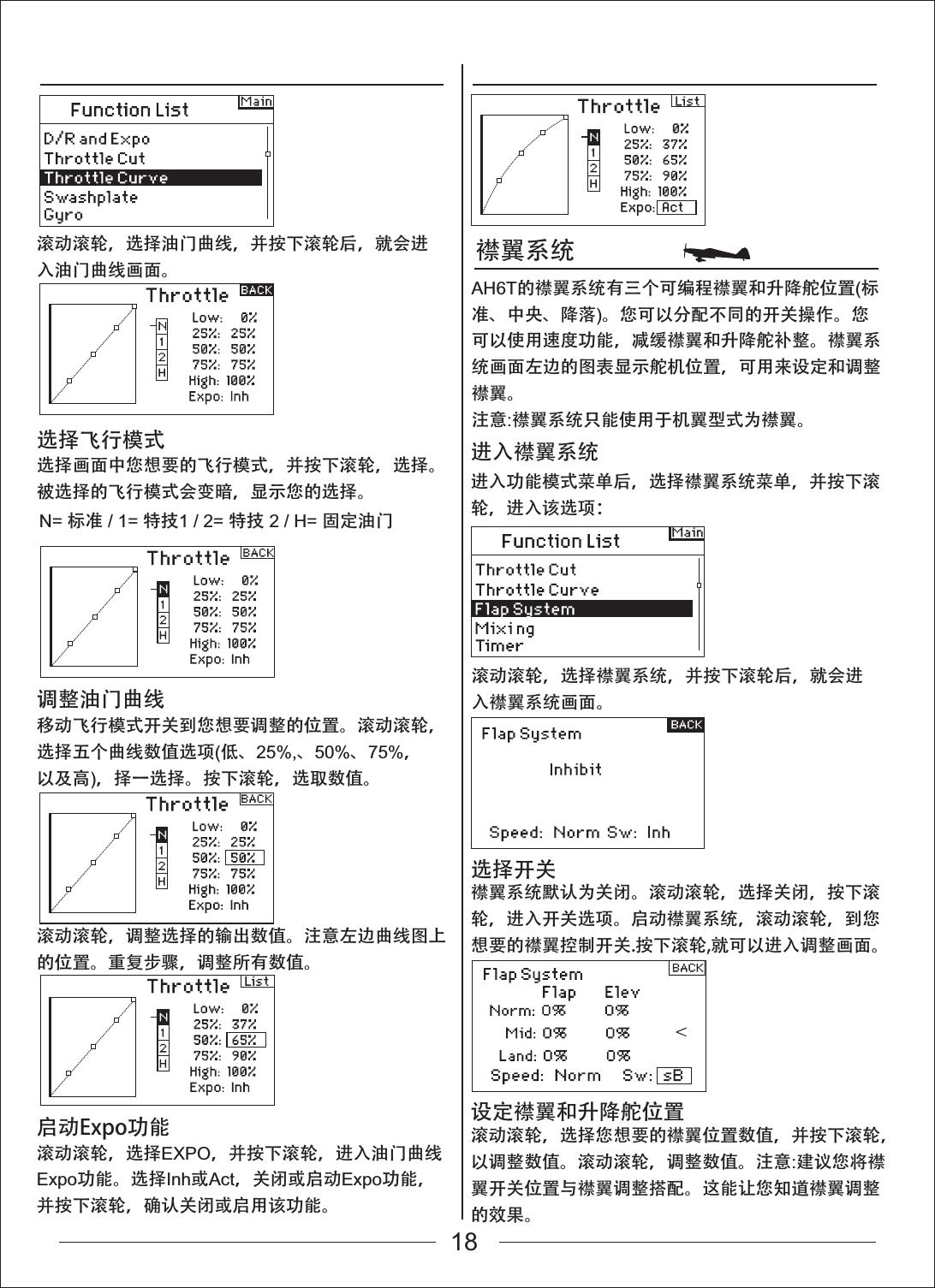
襟翼系统滚动滚轮,选择油门曲线,并按下滚轮后,就会进入油门曲线画面。滚动滚轮,选择襟翼系统,并按下滚轮后,就会进入襟翼系统画面。进入功能模式菜单后,选择襟翼系统菜单,并按下滚轮,进入该选项:进入襟翼系统襟翼系统默认为关闭。滚动滚轮,选择关闭,按下滚轮,进入开关选项。启动襟翼系统,滚动滚轮,到您想要的襟翼控制开关.按下滚轮,就可以进入调整画面。选择开关滚动滚轮,选择您想要的襟翼位置数值,并按下滚轮,以调整数值。滚动滚轮,调整数值。注意:建议您将襟翼开关位置与襟翼调整搭配。这能让您知道襟翼调整的效果。设定襟翼和升降舵位置选择画面中您想要的飞行模式,并按下滚轮,选择。被选择的飞行模式会变暗,显示您的选择。AH6T的襟翼系统有三个可编程襟翼和升降舵位置(标准、中央、降落)。您可以分配不同的开关操作。您可以使用速度功能,减缓襟翼和升降舵补整。襟翼系统画面左边的图表显示舵机位置,可用来设定和调整襟翼。注意:襟翼系统只能使用于机翼型式为襟翼。选择飞行模式移动飞行模式开关到您想要调整的位置。滚动滚轮,选择五个曲线数值选项(低、25%,、50%、75%,以及高),择一选择。按下滚轮,选取数值。滚动滚轮,调整选择的输出数值。注意左边曲线图上的位置。重复步骤,调整所有数值。调整油门曲线滚动滚轮,选择EXPO,并按下滚轮,进入油门曲线Expo功能。选择Inh或Act,关闭或启动Expo功能,并按下滚轮,确认关闭或启用该功能。启动Expo功能N= 标准 / 1= 特技1 / 2= 特技 2 / H= 固定油门18
倾斜盘陀螺仪滚动滚轮,选择倾斜盘功能,并按下滚轮后,就会进入倾斜盘功能画面。滚动滚轮,选择陀螺仪功能,并按下滚轮后,就会进入陀螺仪功能画面。进入功能模式菜单后,选择倾斜盘功能菜单,并按下滚轮,进入该选项:进入功能模式菜单后,选择陀螺仪功能菜单,并按下滚轮,进入该选项:进入倾斜盘功能滚动滚轮,选择速度,并按下滚轮。滚动滚轮,调整襟翼速度。按下滚轮,以确认选择。襟翼速度会影响襟翼和升降舵补整。同时,襟翼和升降舵会调整位置。在倾斜盘画面中,启动CCPM混控时,您可以调整副翼、升降舵,以及螺距的行程。倾斜盘数值会提高或降低已选择通道的整体控制行程。比方说,若您提高螺距数值,三个控制螺距的舵机运作就会提高。若您提高副翼数值,副翼和螺距舵机运作也会提高。提高或降低数值,会影响功能行程,而不只是影响个别舵机而已。注意:倾斜盘数值有正值及负值。要达到正确的副翼、升降舵和螺距行程,要先使用正反舵功能,设定舵机的副翼、升降舵和螺距通道方向。当副翼输入摇杆偏向倾斜盘左和右,方向舵输入摇杆偏向倾斜盘前和后时,您可以使用上述方法。您可以用这个功能,同步输出。就可以调整倾斜盘正值与负值,让副翼、升降舵和螺距的行程方向正确。调整襟翼速度滚动滚轮,调整倾斜盘数值,注意数值有正值及负值。按下滚轮,确认数值。陀螺仪功能可以编程和调整陀螺仪增益。调整倾斜盘数值进入陀螺仪功能陀螺仪功能默认为关闭。选择关闭,按下滚轮进入开关功能,启动陀螺仪。滚动滚轮,选择想要的陀螺仪控制开关。按下滚轮,进入陀螺仪画面。选择开关重复步骤,调整所有襟翼和升降舵位置(标准、中央,以及降落)。19
螺距曲线滚动滚轮,选择螺距曲线功能,并按下滚轮后,就会进入螺距曲线功能画面。进入功能模式菜单后,选择螺距曲线功能菜单,并按下滚轮,进入该选项:进入螺距曲线功能选择画面中您想要的飞行模式,并按下滚轮,选择。被选择的飞行模式会变暗,显示您的选择。选择飞行模式移动飞行模式开关到您想要调整的位置。滚动滚轮,选择五个曲线数值选项(低、25%,、50%、75%,以及高),择一选择。按下滚轮,选取数值。调整螺距曲线滚动滚轮,选择想要的数值,并按下滚轮。选择数值。重复步骤,设定所有数值。AH6T有五点螺距曲线。您可以设定4个个别的螺距曲线。画面左边的图表,可以辅助调整螺距曲线。Expo功能可用于消除螺距曲线。调整幅度数值N= 标准 / 1= 特技1 / 2= 特技2 / H= 固定油门启动Expo功能滚动滚轮,选择EXPO,并按下滚轮,进入Expo功能。选择Inh或Act,关闭或启动Expo功能,并按下滚轮,确认关闭或启用该功能。滚动滚轮,调整选择的输出位置数值。注意左边曲线图上的位置。重复步骤,完成所有调整。20
混控 副翼-方向舵混控进入功能模式菜单后,选择混控功能菜单,并按下滚轮,进入该选项:滚动滚轮,选择混控,并按下滚轮。注意若选择适当的机翼型式,升降舵-襟翼混控会出现在画面。进入混控功能 若您进入系统设定的机翼型式,选择襟翼选项,方向舵-襟翼混控会出现。滚动滚轮,选择ELE > FLP,并按下滚轮。滚动滚轮,选择Ail > RUD,并按下滚轮。就会出现副翼-方向舵混控的画面。进入副翼-方向舵混控滚动滚轮,选择Sw:在画面的最下方。按下滚轮,进入开关选择功能,再按下滚轮,选择想要的开关,开启/关闭副翼-方向舵混控.若您选择On,混控就会永远开启。滚动滚轮,选择幅度数值,并按下滚轮。注意两个数值在方格中。向左或右移动副翼摇杆,这样才能个别调整左数值或右数值。移动副翼摇杆,选择想要的幅度,并滚动滚轮,调整数值。注意正值为+,负值为-,使混控方向相反。按下滚轮,确认数值。打开开关,并移动副翼摇杆到方向舵位置,以确认副翼-方向舵混控运作正常,且方向正确。若方向舵移动与想要的位置成反向,那么就需要相反数值(正值与负值)。注意:升降舵-襟翼混控的操作方法与副翼-方向舵混控方法相同。指定副翼-方向舵混控开关调整副翼-方向舵混控幅度AH6T有八个飞机混控。包含升降舵-襟翼混控、副翼-方向舵混控,以及六个使用者编程混控,可以混控通道。可编程混控包含,一个调整补差微调,以及一个具有教练-学生通道的微调。使用副翼-方向舵混控可以解决J3 Cub飞机的逆偏航,并更容易做出翻转。21
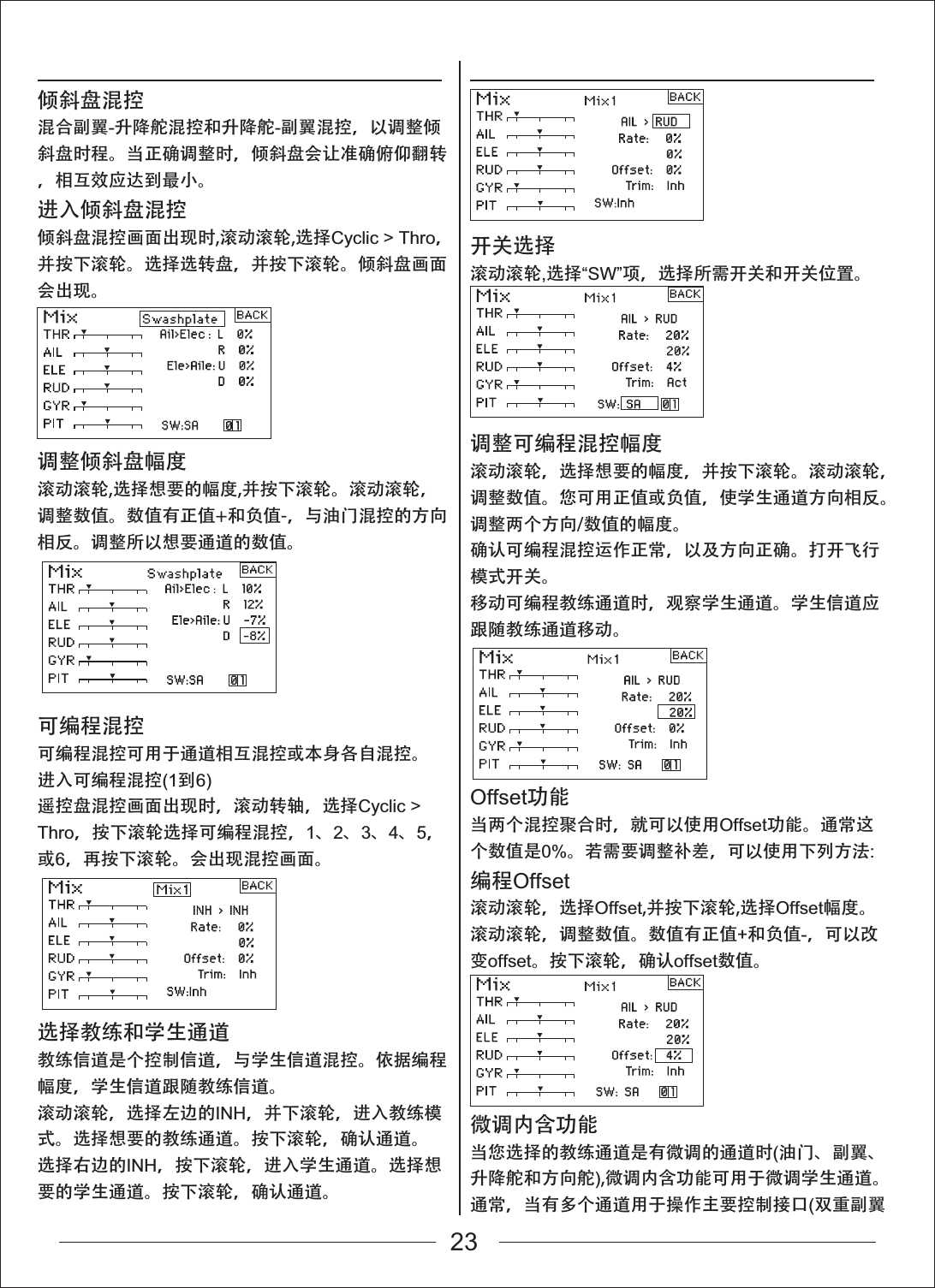
混控进入功能模式菜单后,选择混控功能菜单,并按下滚轮,进入该选项:滚动滚轮,选择混控,并按下滚轮。倾斜盘-油门混控会出现在画面。倾斜盘-油门混控倾斜盘-油门混控可防止,当有副翼、升降舵和/或方向舵输入时,转速减少的情形发生。这可让油门位置与倾斜盘或方向舵控制维持转速。当油门全满时,这个编程能防止舵机过度负荷。重要:当使用调速器时,则不建议使用倾斜盘-油门混控。调整倾斜盘幅度滚动滚轮,选择想要的幅度,并按下滚轮。滚动滚轮,调整数值.数值有正值+和负值-,与油门混控的方向相反。调整所以想要通道的数值。进入混控功能打开飞行模式开关,确认倾斜盘混控是否正常运作。移动可编程倾斜盘或方向舵信道,注意油门位置。油门位置应该会提高。若油门位置降低,那么就需要相反数值(正值与负值)进入混控功能AH6T有八个直升机混控。当有副翼、升降舵和/或方向舵输入时,您可以编程倾斜盘-油门混控。当倾斜盘和方向舵输入时,这可防止转速减少。混合副翼-升降舵混控和升降舵-副翼混控,以调整倾斜盘时程。有六个可编程混控,可混控通道。包含起落架开关在内,您可以在多个飞行模式中,操作混控。可编程混控包含微调offset功能,可用来调整混控交错。而微调内含功能则可用于教练微调与学生通道链接。可编程混控可用于通道相互混控或本身各自混控。普遍的可编程混控包含,方向舵-可操作前轮、双方向舵混控、双升降舵混控、方向舵-副翼混控和方向舵-升降舵混控。进入可编程混控(1到6)升降舵-襟翼混控显示在画面中,滚动滚轮,选择Ele > Flp,并按下滚轮。滚动滚轮,选择可编程混控1、2、3、4、5或6,并按下滚轮。混控画面会出现。Offset功能当两个混控聚合时,就可以使用Offset功能。通常这个数值是0%。若需要调整补差,可以使用下列方法:滚动滚轮,选择Offset,并按下滚轮,选择Offset幅度。滚动滚轮,调整数值。数值有正值+和负值-,可以改变offset。按下滚轮,确认offset数值。微调内含功能当您选择的教练通道是有微调的通道时(油门、副翼、升降舵和方向舵),微调内含功能可用于微调学生通道。通常,当有多个通道用于操作主要控制接口(双重方向舵舵机等)时,就会使用微调内含功能。微调内含功能启动时,教练通道会影响其他教练及学生通道。启动微调内含功能滚动滚轮,选择微调。按下滚轮,选择INH或ACT。22
倾斜盘混控混合副翼-升降舵混控和升降舵-副翼混控,以调整倾斜盘时程。当正确调整时,倾斜盘会让准确俯仰翻转,相互效应达到最小。进入倾斜盘混控倾斜盘混控画面出现时,滚动滚轮,选择Cyclic > Thro,并按下滚轮。选择选转盘,并按下滚轮。倾斜盘画面会出现。调整倾斜盘幅度滚动滚轮,选择想要的幅度,并按下滚轮。滚动滚轮,调整数值。数值有正值+和负值-,与油门混控的方向相反。调整所以想要通道的数值。开关选择滚动滚轮,选择“SW”项,选择所需开关和开关位置。调整可编程混控幅度滚动滚轮,选择想要的幅度,并按下滚轮。滚动滚轮,调整数值。您可用正值或负值,使学生通道方向相反。调整两个方向/数值的幅度。确认可编程混控运作正常,以及方向正确。打开飞行模式开关。移动可编程教练通道时,观察学生通道。学生信道应跟随教练通道移动。Offset功能当两个混控聚合时,就可以使用Offset功能。通常这个数值是0%。若需要调整补差,可以使用下列方法:编程Offset滚动滚轮,选择Offset,并按下滚轮,选择Offset幅度。滚动滚轮,调整数值。数值有正值+和负值-,可以改变offset。按下滚轮,确认offset数值。微调内含功能当您选择的教练通道是有微调的通道时(油门、副翼、升降舵和方向舵),微调内含功能可用于微调学生通道。通常,当有多个通道用于操作主要控制接口(双重副翼可编程混控可编程混控可用于通道相互混控或本身各自混控。进入可编程混控(1到6)遥控盘混控画面出现时,滚动转轴,选择Cyclic > Thro,按下滚轮选择可编程混控,1、2、3、4、5,或6,再按下滚轮。会出现混控画面。选择教练和学生通道教练信道是个控制信道,与学生信道混控。依据编程幅度,学生信道跟随教练信道。滚动滚轮,选择左边的INH,并下滚轮,进入教练模式。选择想要的教练通道。按下滚轮,确认通道。选择右边的INH,按下滚轮,进入学生通道。选择想要的学生通道。按下滚轮,确认通道。23
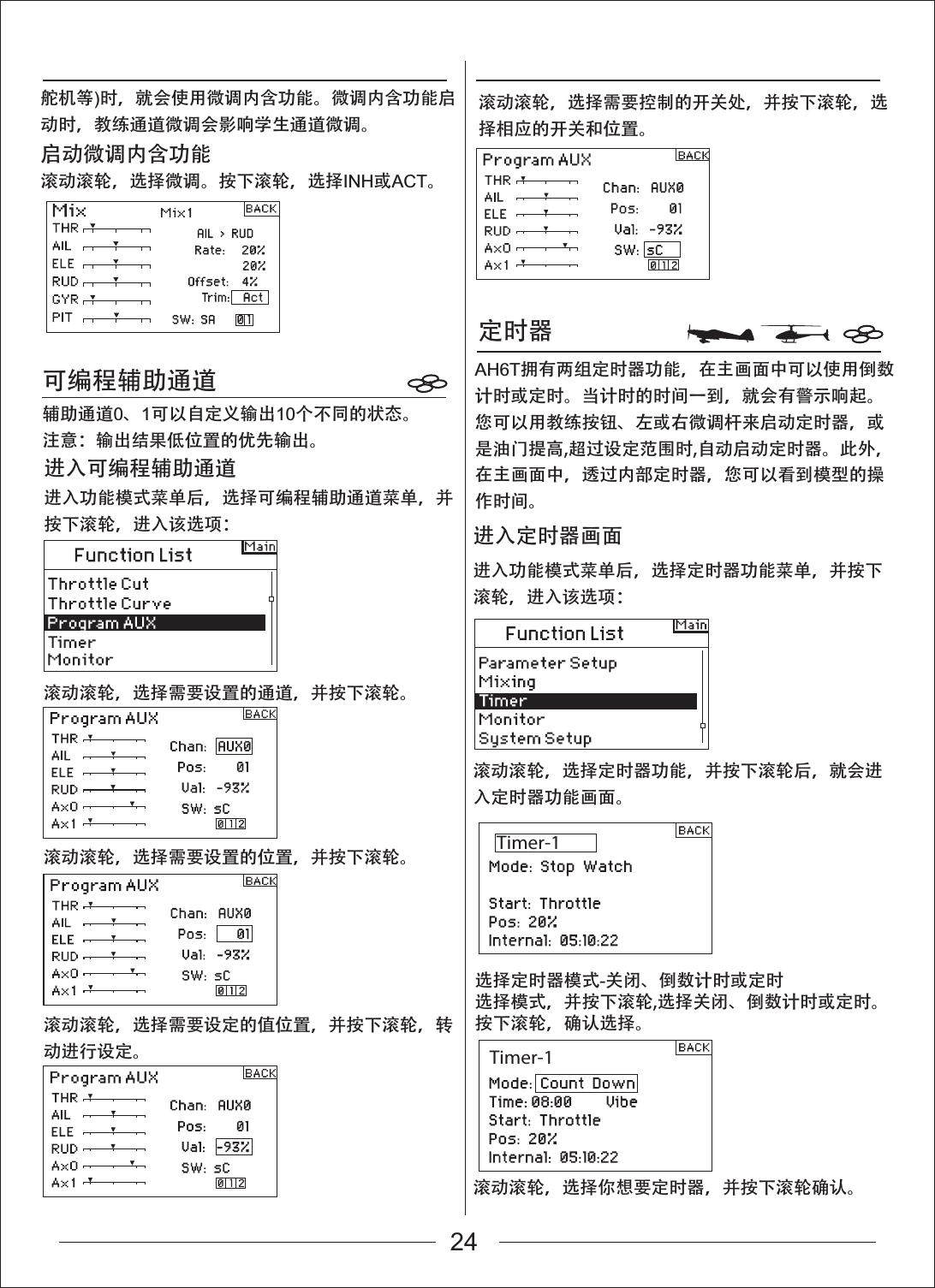
Timer-1Timer-1定时器可编程辅助通道滚动滚轮,选择定时器功能,并按下滚轮后,就会进入定时器功能画面。滚动滚轮,选择你想要定时器,并按下滚轮确认。进入功能模式菜单后,选择定时器功能菜单,并按下滚轮,进入该选项:进入定时器画面滚动滚轮,选择需要设置的通道,并按下滚轮。滚动滚轮,选择需要设置的位置,并按下滚轮。滚动滚轮,选择需要设定的值位置,并按下滚轮,转动进行设定。滚动滚轮,选择需要控制的开关处,并按下滚轮,选择相应的开关和位置。进入功能模式菜单后,选择可编程辅助通道菜单,并按下滚轮,进入该选项:进入可编程辅助通道辅助通道0、1可以自定义输出10个不同的状态。注意:输出结果低位置的优先输出。选择定时器模式-关闭、倒数计时或定时选择模式,并按下滚轮,选择关闭、倒数计时或定时。按下滚轮,确认选择。舵机等)时,就会使用微调内含功能。微调内含功能启动时,教练通道微调会影响学生通道微调。启动微调内含功能滚动滚轮,选择微调。按下滚轮,选择INH或ACT。AH6T拥有两组定时器功能,在主画面中可以使用倒数计时或定时。当计时的时间一到,就会有警示响起。您可以用教练按钮、左或右微调杆来启动定时器,或是油门提高,超过设定范围时,自动启动定时器。此外,在主画面中,透过内部定时器,您可以看到模型的操作时间。   24
Timer-1Timer-1NeutralTimer-1Timer-1Timer-1监控滚动滚轮,选择想要的启动模式,按下滚轮,确认选择。编程油门摇杆位置只有当油门启动选择时若您选择油门或油门1计时启动,在定时器画面中,摇杆位置低于启动位置。这是油门启动定时器的摇杆位置。滚动滚轮,选择摇杆,并按下滚轮,进入摇杆数值。数值的幅度从0到100%。这与实际油门摇杆的位置互相有关联。滚动滚轮,选择监控功能,并按下滚轮后,就会进入监控功能画面。进入界面后,滚动滚轮,可以选择舵机测试功能。进入功能模式菜单后,选择监控功能菜单,并按下滚轮,进入该选项:进入监控画面滚动滚轮,选择时间,并按下滚轮,进入选项。您可以选择分钟或秒钟。按下滚轮,确认选择分钟或秒钟。滚动滚轮,选择想要的启动模式(教练、油门、油门1定时器、左微调杆、右微调杆)。按下滚轮,确认选择。滚动滚轮,选择想要的摇杆数值,并按下滚轮,确认数值。重设内部定时器您可用一些方法重设内部定时器。滚动滚轮,选择内部定时器:重设,按下滚轮,重新设定定时器为0:00:00您可以按下清除键,重新设定倒数定时器或定时器。监控画面中的图表和数字可以指出各信道舵机的位置。这可以用来确认编程功能、微调设置、混控方向等。数值与行程调整和混控数值有直接关联(比方说,100%行程调整值等于监控画面中出现的100%数值)。滚动滚轮,选择想要的时间。按下滚轮,确定选择。编程时间滚动滚轮,选择音调,并按下滚轮,确认选择。您可以选择关闭、音调、震动或音调/震动。编程音调、震动、音调/震动或关闭滚动滚轮,选择启动,并按下滚轮,进入选项。共有五种启动模式:教练开关、油门、油门1定时器、左或右微调杆。油门1定时器- 当油门位置超过标准时,定时器会启动。不管油门位置,定时器会持续运作。油门 - 当油门位置超过标准时,定时器会启动。若您将油门低于编程位置,定时器就会暂停,当油门高过编程位置时,定时器就会恢复运作。这对操作电子发动机飞机的玩家来说很有用,马达运作时间才是最重要的。选择定时器启动模式sA25
更换模式机械功能切换AH6T可以切换模式,从1、2、3到4。这种切换有机械功能及程序的改变(前面有介绍模式1和2、模式3和4的摇杆和开关图示。)具体操作方法如下:机械功能切换需要变更模式1及模式2或模式3及模式4的开关。方向舵中心弹簧及油门压片要装在适当的阻尼条上,油门杆必须切换。1. 将发射机后扶手的橡胶握手拉开和两个橡胶塞,出现A、B、C、D、E、F螺丝孔(如下图发射机背面图所示)2. 左手换右手   1)用十字螺丝批将A调节螺丝拧松,调至摇杆上下移动无阻力状态即可。   2)用十字螺丝批将B调节螺丝锁紧,调至摇杆上下移动后可自动反弹状态即可。   3)用十字螺丝批将C调节螺丝拧松,调至摇杆上下移动无反弹状态即可。   4)用十字螺丝批将D调节螺丝锁紧,调至摇杆上下移动有阻力状态即可。3. 右手换左手   1)用十字螺丝批将D调节螺丝拧松,调至摇杆上下移动无阻力状态即可。    2)用十字螺丝批将C调节螺丝锁紧,调至摇杆上下移动后可自动反弹状态即可。    3)用十字螺丝批将B调节螺丝拧松,调至摇杆上下移动无反弹状态即可。    4)用十字螺丝批将A调节螺丝锁紧,调至摇杆上下移动有阻力状态即可。4. 完成以上操作后装上发射机后扶手的橡胶握手和橡胶塞。发射机背面图ABCDEFMODE 1升降摇杆方向摇杆油门摇杆副翼摇杆MODE 2方向摇杆油门摇杆副翼摇杆升降摇杆MODE 3升降摇杆油门摇杆副翼摇杆MODE 4油门摇杆副翼摇杆升降摇杆方向摇杆 方向摇杆26
进入系统设计模式菜单后,选择系统设定菜单,并按下滚轮,进入该选项:按下滚轮后就会出现以下菜单滚动滚轮,选择想要的模式,按下滚轮,进入模式。切换模式时,改变油门和升降舵位置,重新设定摇杆,这很重要。若编程模式切换,下次开机时,设定画面会自动出现。如下图:此时请大幅度移动摇杆几圈,并调回中央(包含油门摇杆及发射机旋钮键)。若所有摇杆都调回中央,当出现以下界面时,按下储存,完成设定。AH6T有调整油门、副翼、升降舵和方向舵松紧度功能。橡胶栓在机壳后面,您可轻松找到摇杆螺丝,调整松紧度,而无需取下整个外壳。调整摇杆松紧度1.取下两个橡胶塞,并取下握把。您可以找到油门、副翼、升降舵和方向舵螺丝。调整摇杆松紧度程序功能切换进入系统设定切换模式时,您也必须改变编程,另外,改变油门和升降舵位置时,要在遥控器系统设定中重新设定。调整摇杆长度您可以调整AH6T的摇杆长度。使用内附的2mm 内六角板手,逆时针调松螺丝。接着,顺时针转动摇杆,缩短长度;或是,逆时针转动摇杆,增长长度。调整好摇杆长度后,锁上2mm螺丝。MODE 2调节升降螺丝调节副翼螺丝调节油门螺丝调节方向螺丝2.使用十字螺丝批,调整螺丝松紧度。顺时针锁紧螺丝,逆时针则可松开螺丝。3.若调整到满意的摇杆松紧度,就将握把和橡胶塞装回去。27
Global Distribution Office:Zonda Hobby Technologies Electronic LimitedRoom 1, 1/F, Kam Hon Industrial Building, No.8 Wang Kwun Road, Kowloon Bay, Kowloon, Hong KongTel: (852) 3160 8886           Fax: (852) 3160 8884Official Website: www.zondahobby.com / www.zondahobby.com.cn※本型号机型在尚未进行重大改版之前,配件可能进行调整,外观、型号可能稍有不同。GWY保留配件内容更改权,并不另行通知。Before this model has being significantly changed to another new version, the parts, appearance and the existing version can be developed and modified that would lead to a slight difference from the original design. GWY reserve ALL the Rights of change of parts and contents WITHOUT specified notification.

Navigation menu