Zenithink Technologies ZT280-C91 MID User Manual C91

Shenzhen Zenithink Technologies Co., Ltd. MID C91

Users Manual

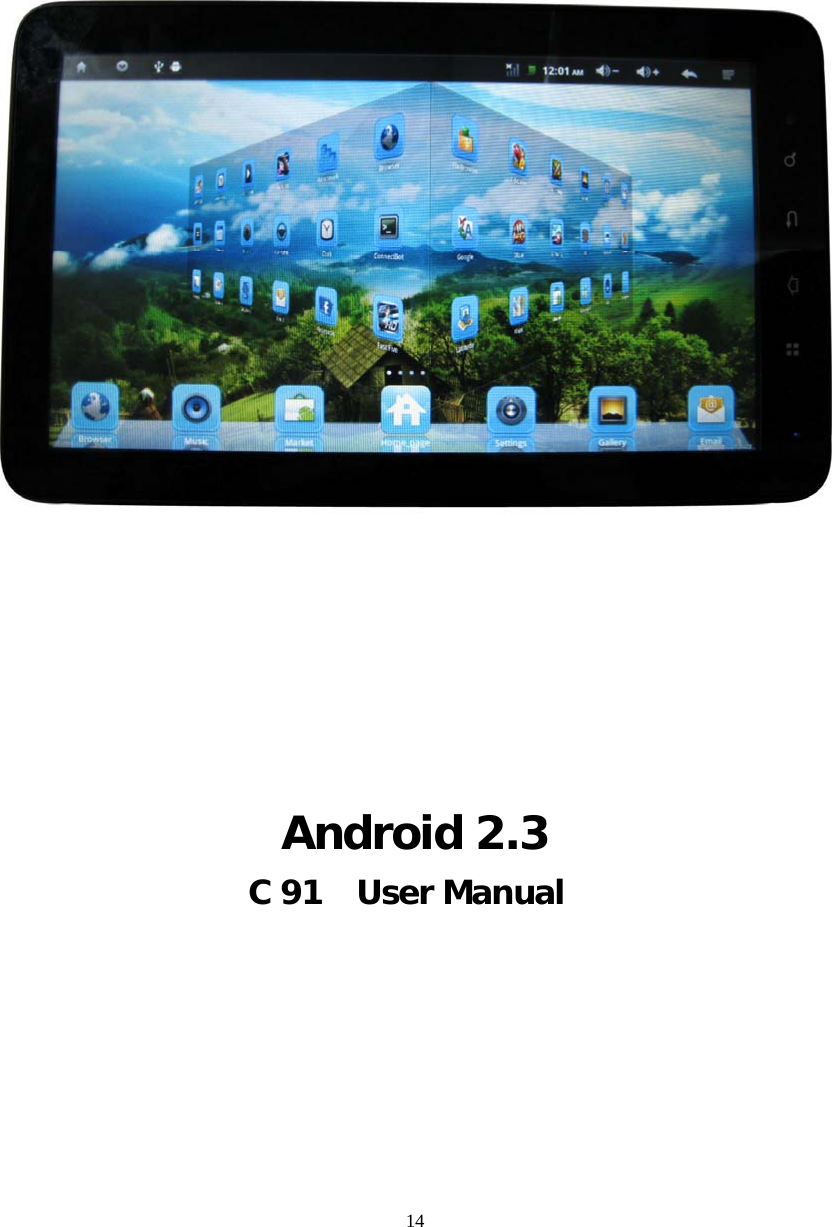
14               Android 2.3 C 91    User Manual
14  Directory--------------------------------------------------2   1.Use statement------------------------------------------3   2.Appearance Description-------------------------------3 2.1 Overall structure---------------------------------3      2.2 Button, and plug-ins-----------------------------4   3. The description of menu interface------------------4      3.1 Desktop description------------------------------4      3.2 Status Bar Description --------------------------5   4.Basic set of equipment --------------------------------5      4.1 Wireless Control ---------------------------------5   4.2 Sound and display-------------------------------6   4.3 Security and location----------------------------7   4.4 Date and time------------------------------------7   4.5 Locate and text----------------------------------8   4.6 Battery Charging---------------------------------9   5. Software installation and management------------9   5.1 Browser-------------------------------------------9   5.2 E-mail--------------------------------------------10   5.3 Google Map -------------------------------------10   5.4 Alarm clock --------------------------------------11 5.5 HDMI digital output------------------------------11 6. O / I File Manager -----------------------------------12    7.FAQ------------------------------------------------------13      7.1 Can not open the media player----------------13      7.2 Screen flashing-----------------------------------13      7.3 Headphones can not hear sound--------------13      7.4 Can not copy the file-----------------------------13      7.5 how connect the tablet PC with computer----13 8. Operating instruction----------------------------------13      8.1 helpfile----------------------------------------------13      8.2 version information-------------------------------14
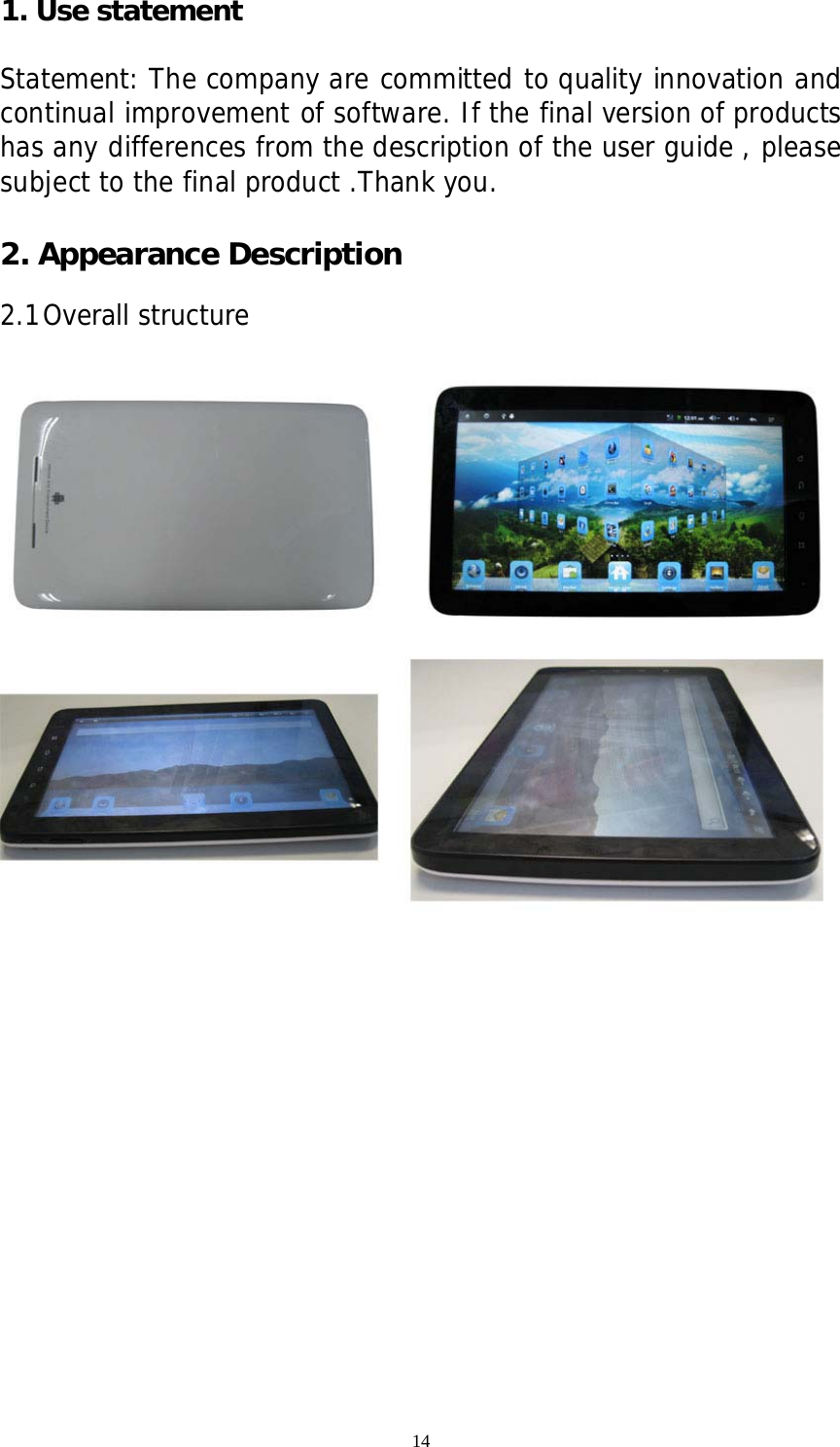
14 1. Use statement    Statement: The company are committed to quality innovation and continual improvement of software. If the final version of products has any differences from the description of the user guide , please subject to the final product .Thank you.                               2. Appearance Description  2.1 Overall structure
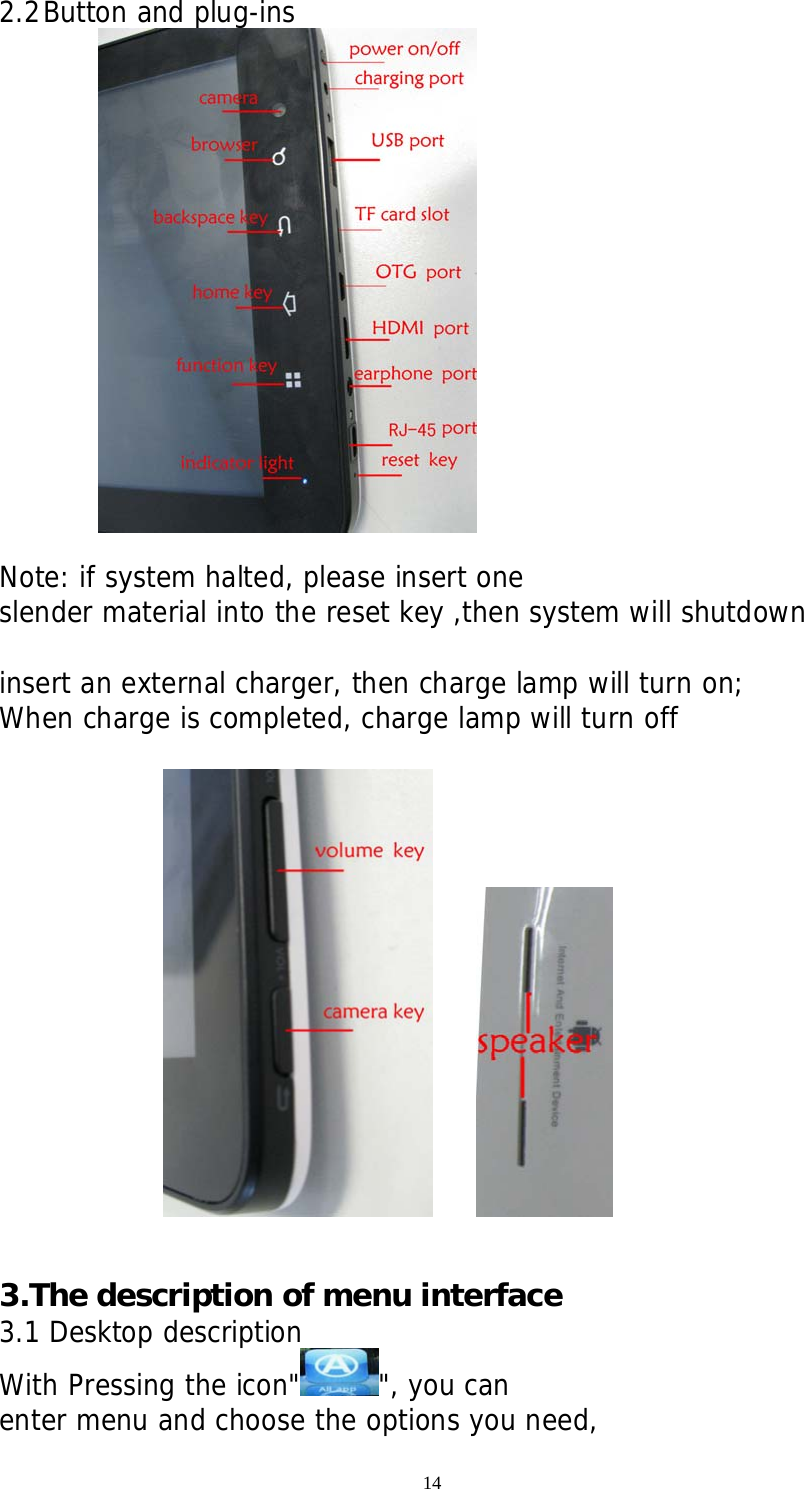
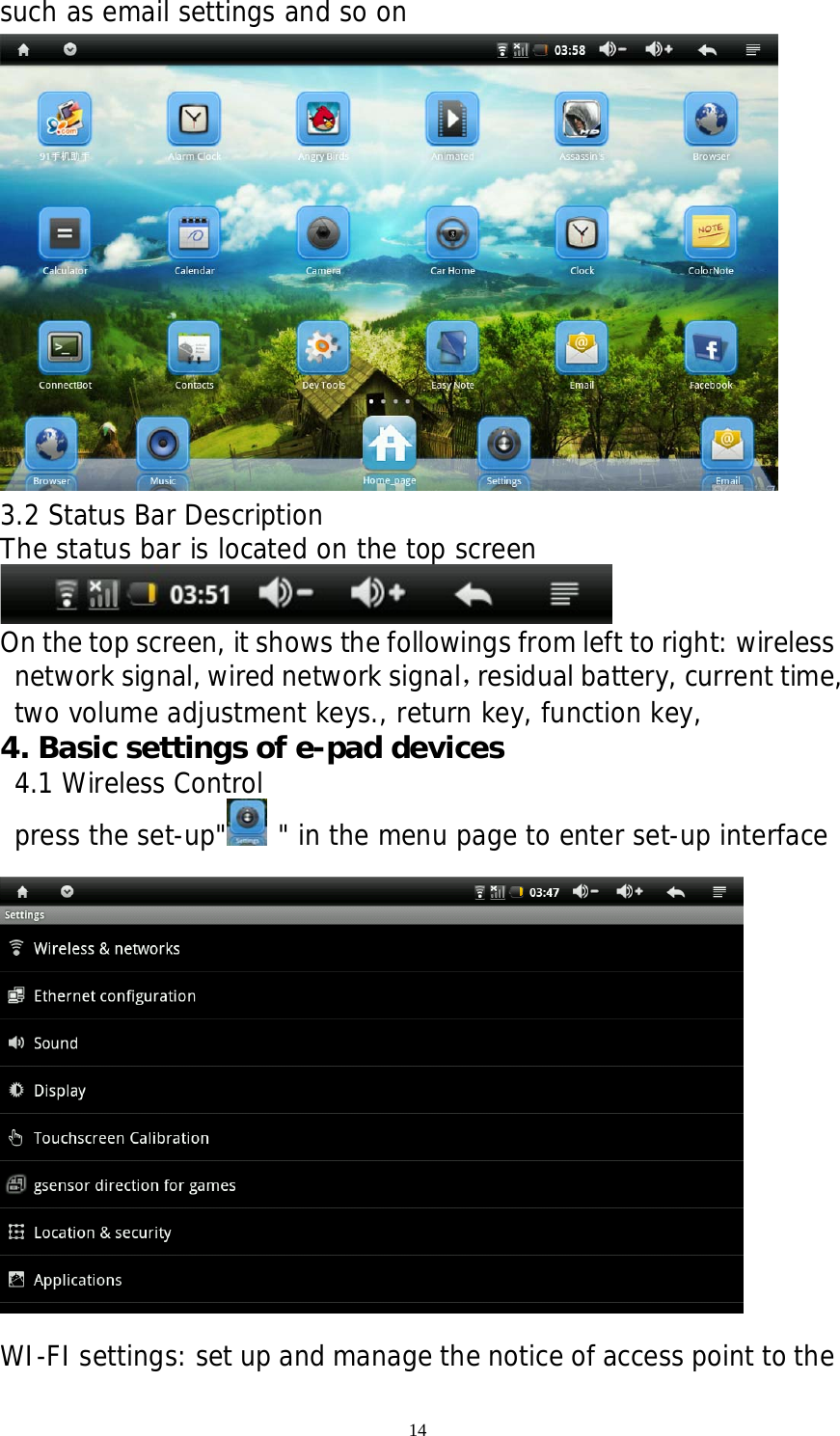
14 2.2 Button and plug-ins   Note: if system halted, please insert one slender material into the reset key ,then system will shutdown  insert an external charger, then charge lamp will turn on; When charge is completed, charge lamp will turn off          3.The description of menu interface 3.1 Desktop description With Pressing the icon" ", you can enter menu and choose the options you need,
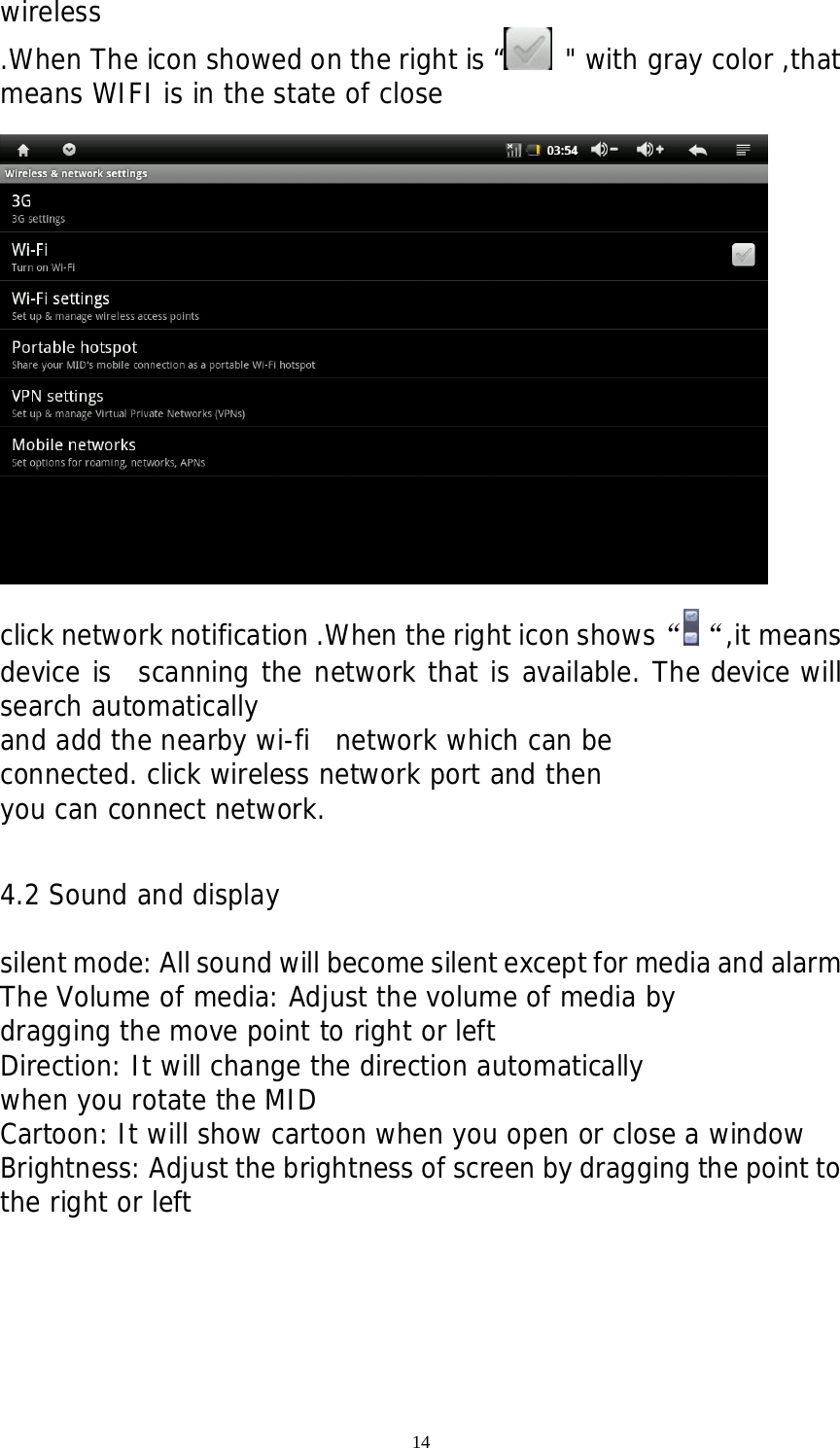
14 such as email settings and so on  3.2 Status Bar Description   The status bar is located on the top screen  On the top screen, it shows the followings from left to right: wireless network signal, wired network signal,residual battery, current time, two volume adjustment keys., return key, function key,  4. Basic settings of e-pad devices 4.1 Wireless Control press the set-up"  " in the menu page to enter set-up interface    WI-FI settings: set up and manage the notice of access point to the
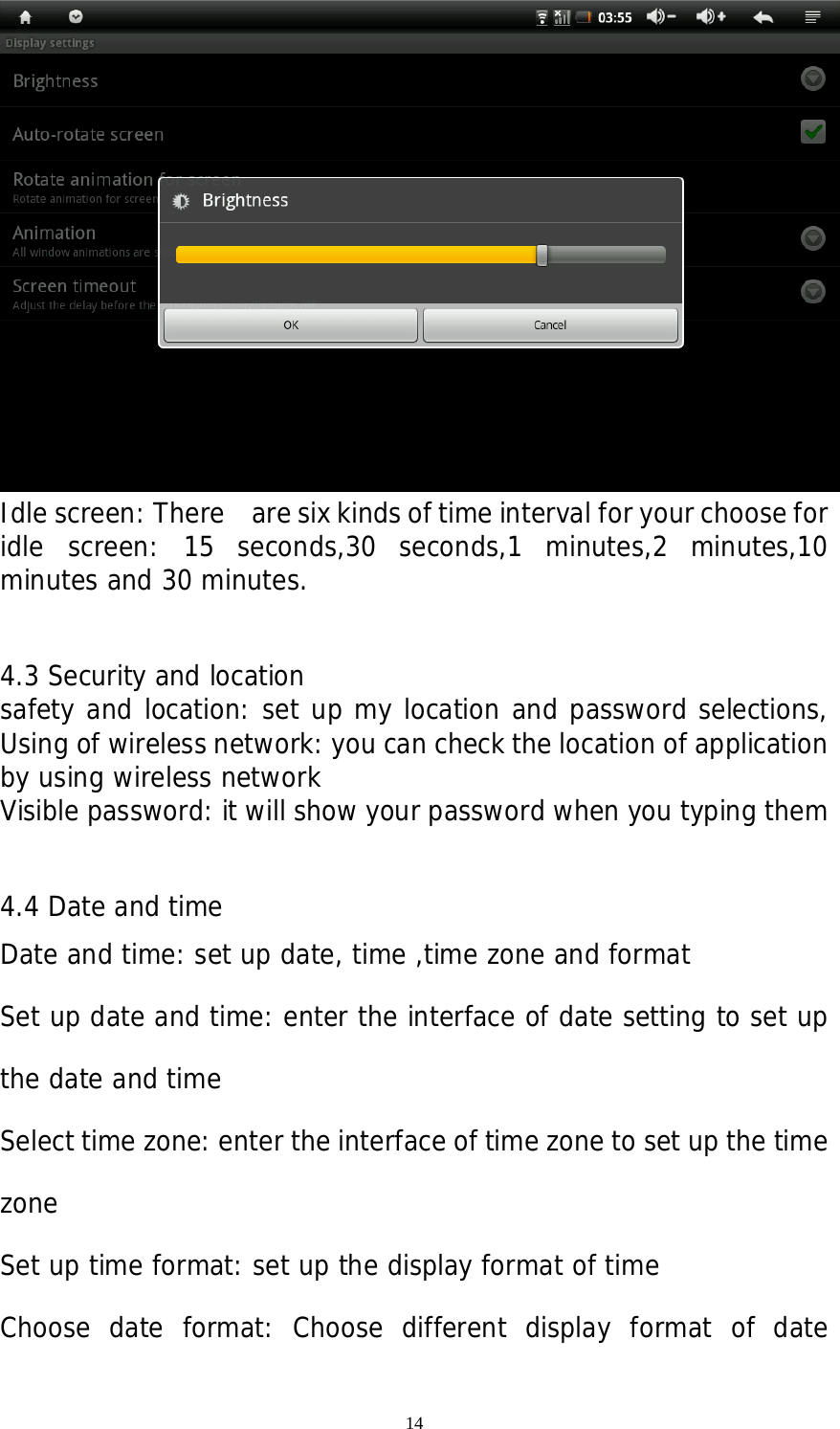
14 wireless .When The icon showed on the right is “  " with gray color ,that means WIFI is in the state of close    click network notification .When the right icon shows“ “,it means device is  scanning the network that is available. The device will search automatically  and add the nearby wi-fi  network which can be  connected. click wireless network port and then  you can connect network.    4.2 Sound and display  silent mode: All sound will become silent except for media and alarm   The Volume of media: Adjust the volume of media by  dragging the move point to right or left Direction: It will change the direction automatically  when you rotate the MID Cartoon: It will show cartoon when you open or close a window Brightness: Adjust the brightness of screen by dragging the point to the right or left
14  Idle screen: There    are six kinds of time interval for your choose for idle screen: 15 seconds,30 seconds,1 minutes,2 minutes,10 minutes and 30 minutes.  4.3 Security and location safety and location: set up my location and password selections, Using of wireless network: you can check the location of application by using wireless network  Visible password: it will show your password when you typing them  4.4 Date and time  Date and time: set up date, time ,time zone and format Set up date and time: enter the interface of date setting to set up the date and time Select time zone: enter the interface of time zone to set up the time zone Set up time format: set up the display format of time Choose date format: Choose different display format of date
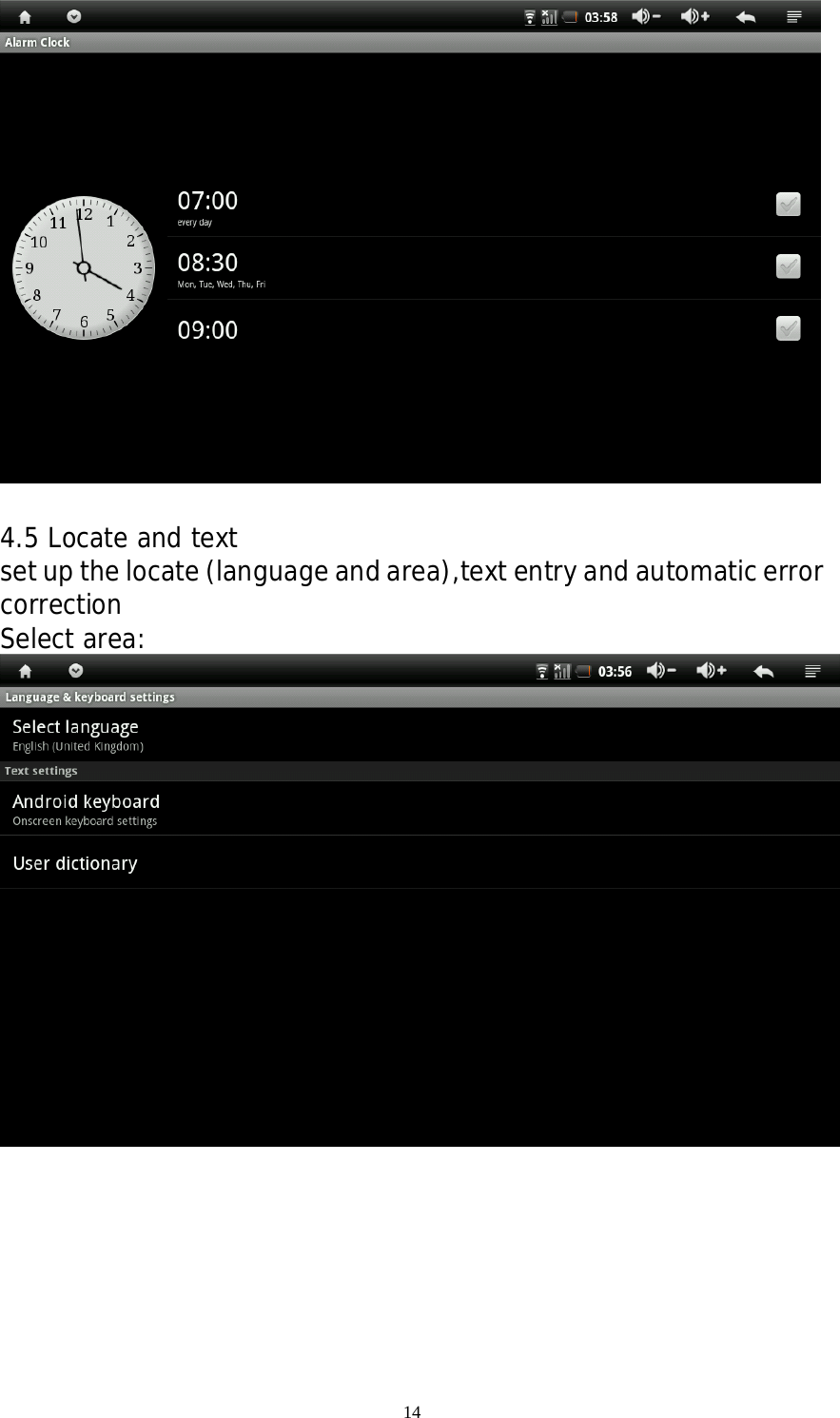
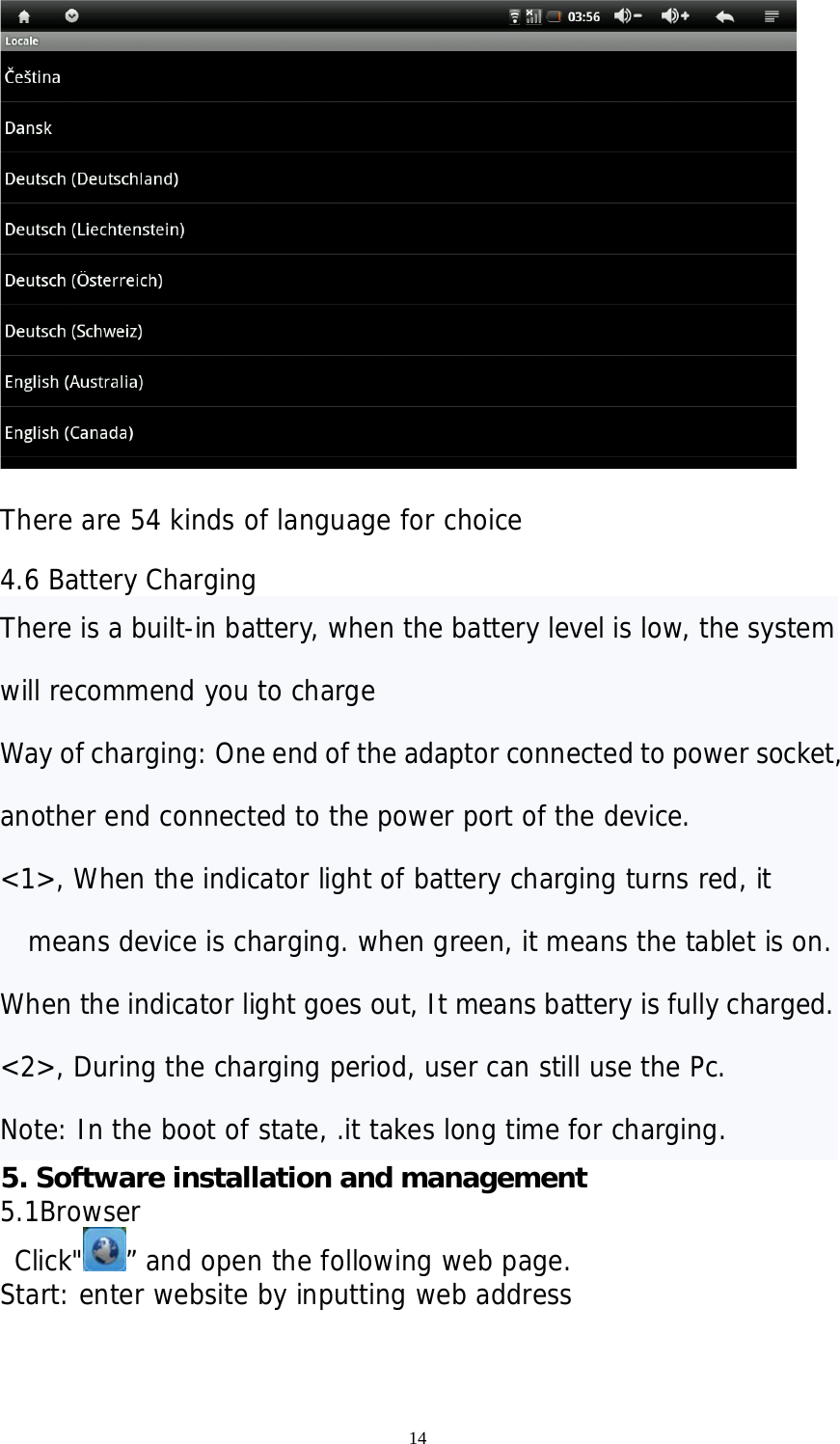
14   4.5 Locate and text set up the locate (language and area),text entry and automatic error correction Select area:
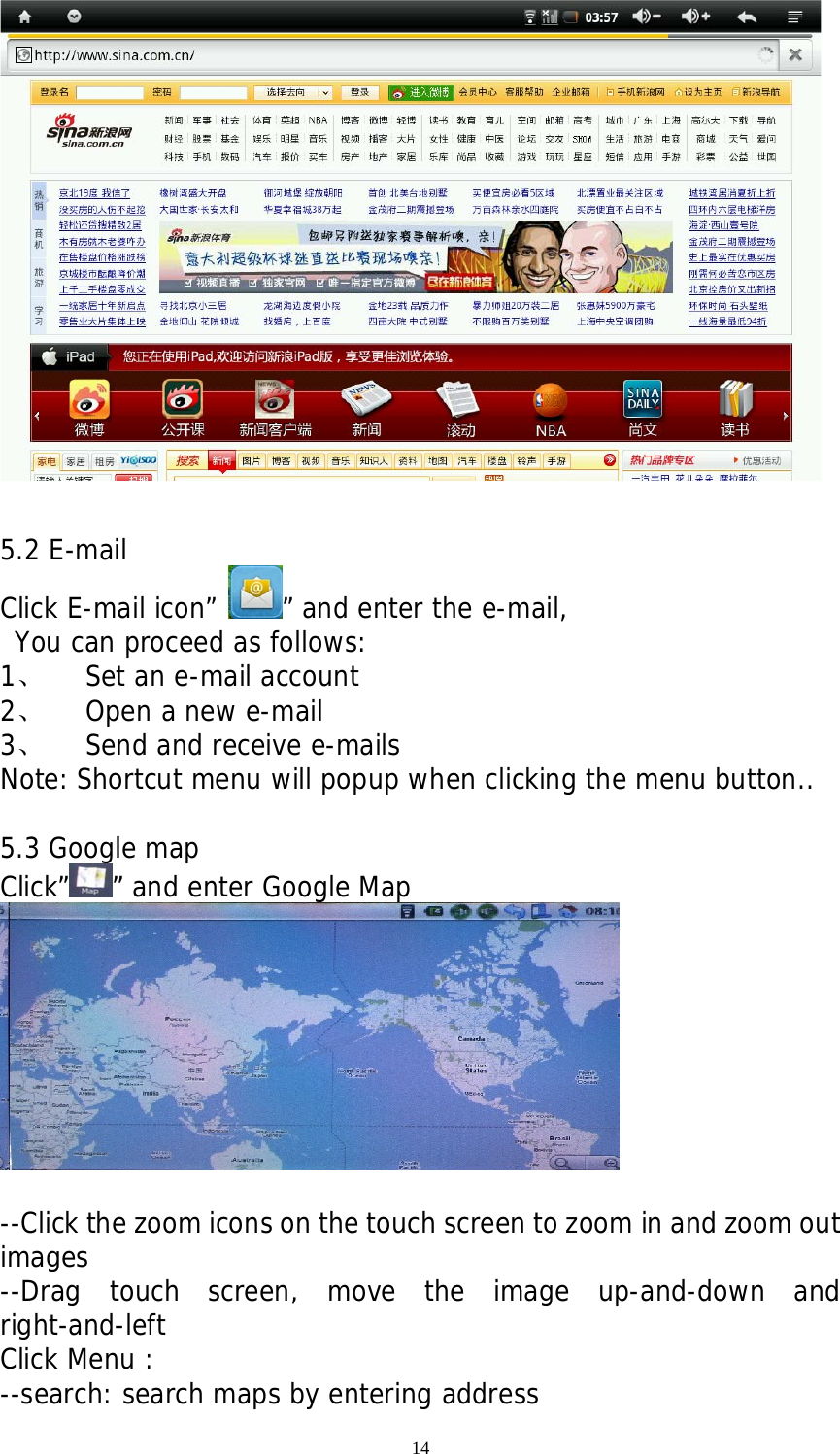
14   There are 54 kinds of language for choice  4.6 Battery Charging There is a built-in battery, when the battery level is low, the system will recommend you to charge  Way of charging: One end of the adaptor connected to power socket, another end connected to the power port of the device. <1>, When the indicator light of battery charging turns red, it means device is charging. when green, it means the tablet is on.  When the indicator light goes out, It means battery is fully charged. <2>, During the charging period, user can still use the Pc.  Note: In the boot of state, .it takes long time for charging. 5. Software installation and management   5.1Browser  Click" ” and open the following web page. Start: enter website by inputting web address
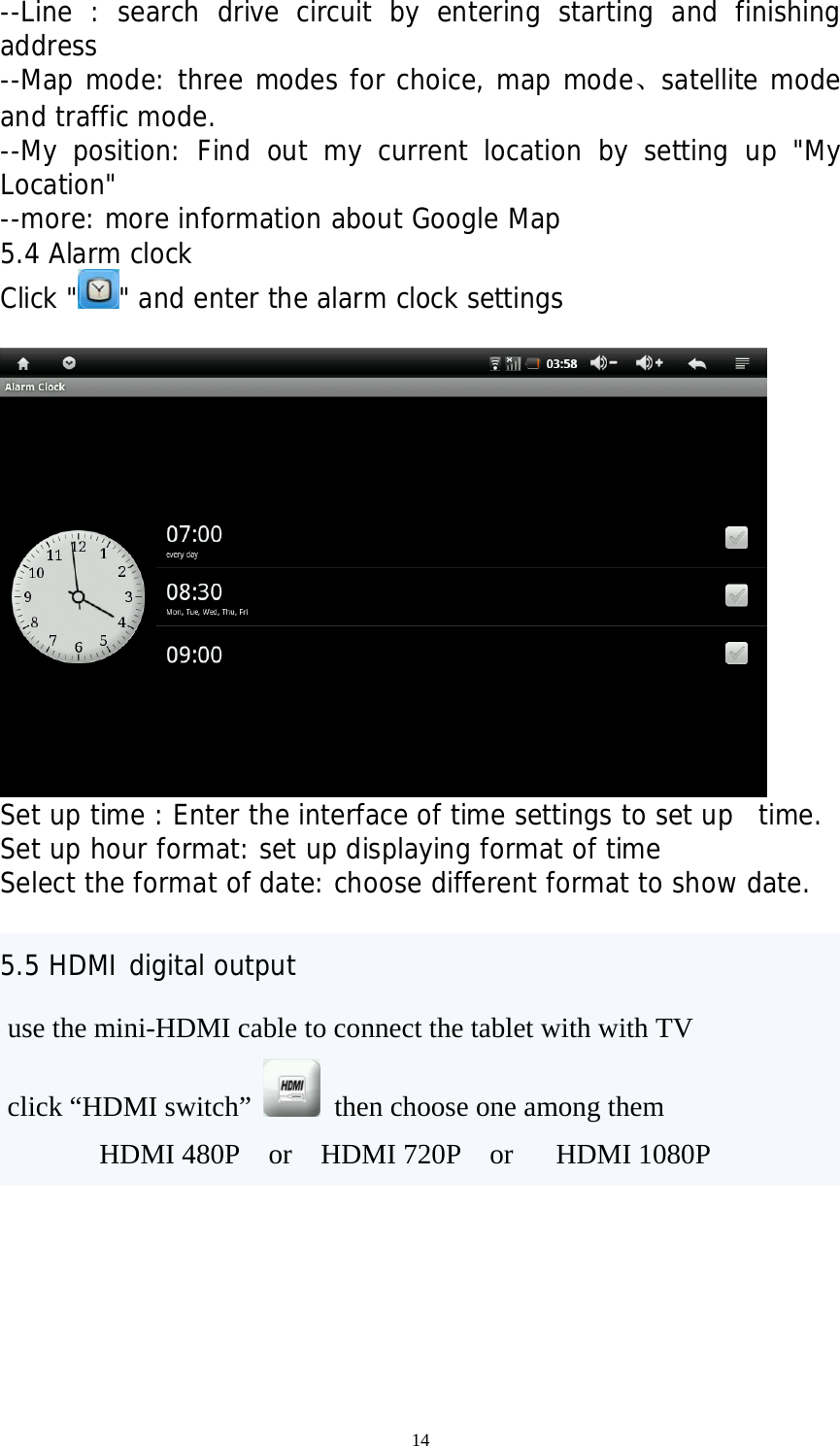
14        5.2 E-mail Click E-mail icon” ” and enter the e-mail,  You can proceed as follows: 1、 Set an e-mail account 2、 Open a new e-mail  3、 Send and receive e-mails Note: Shortcut menu will popup when clicking the menu button..  5.3 Google map Click” ” and enter Google Map   --Click the zoom icons on the touch screen to zoom in and zoom out images --Drag touch screen, move the image up-and-down and right-and-left Click Menu : --search: search maps by entering address
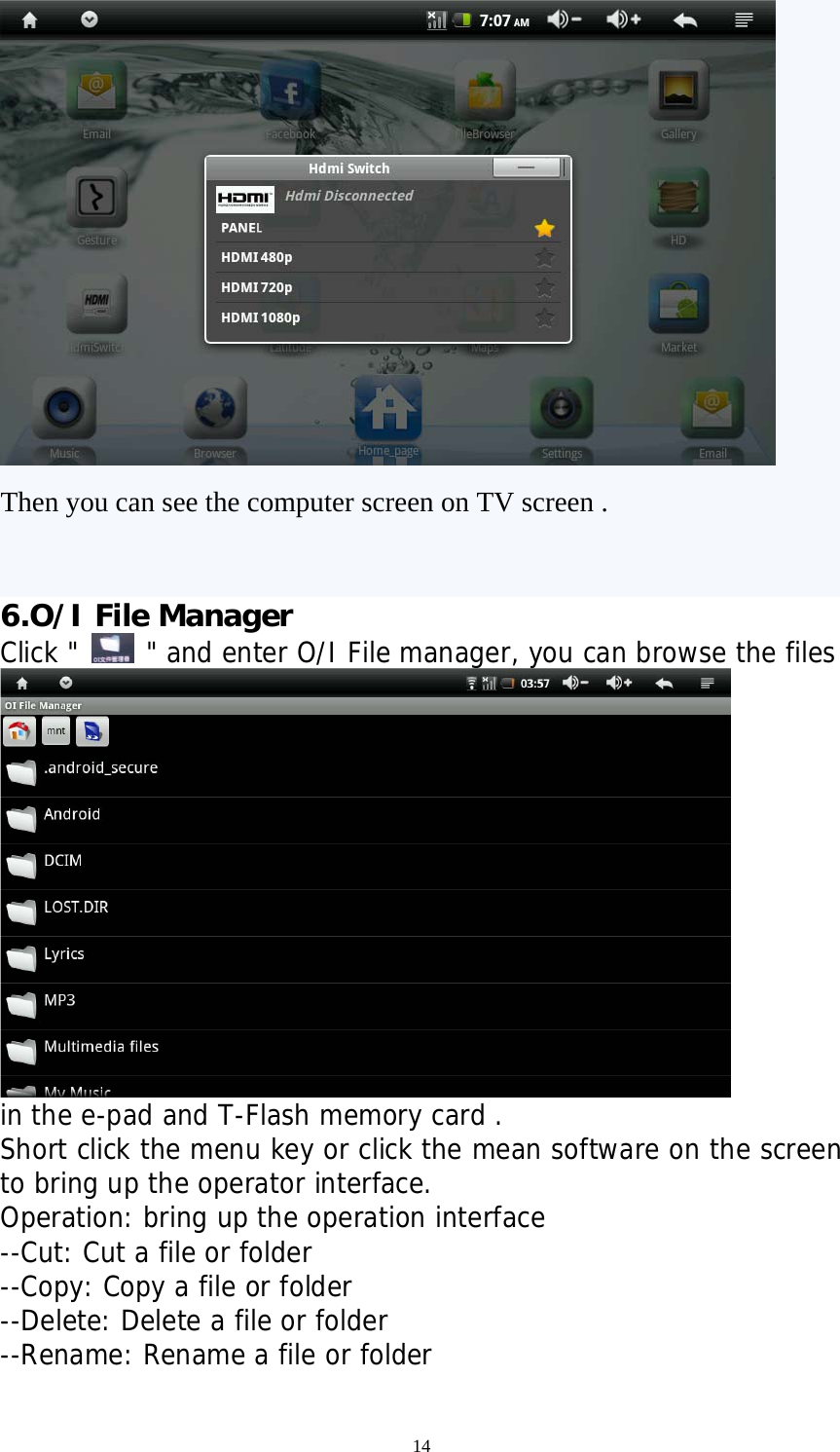
14 --Line : search drive circuit by entering starting and finishing address --Map mode: three modes for choice, map mode、satellite mode and traffic mode. --My position: Find out my current location by setting up "My Location" --more: more information about Google Map 5.4 Alarm clock Click " " and enter the alarm clock settings             Set up time : Enter the interface of time settings to set up  time. Set up hour format: set up displaying format of time Select the format of date: choose different format to show date.  5.5 HDMI digital output  use the mini-HDMI cable to connect the tablet with with TV  click “HDMI switch”   then choose one among them            HDMI 480P  or  HDMI 720P  or   HDMI 1080P
14  Then you can see the computer screen on TV screen .  6.O/I File Manager Click "   " and enter O/I File manager, you can browse the files   in the e-pad and T-Flash memory card . Short click the menu key or click the mean software on the screen to bring up the operator interface. Operation: bring up the operation interface --Cut: Cut a file or folder --Copy: Copy a file or folder --Delete: Delete a file or folder --Rename: Rename a file or folder
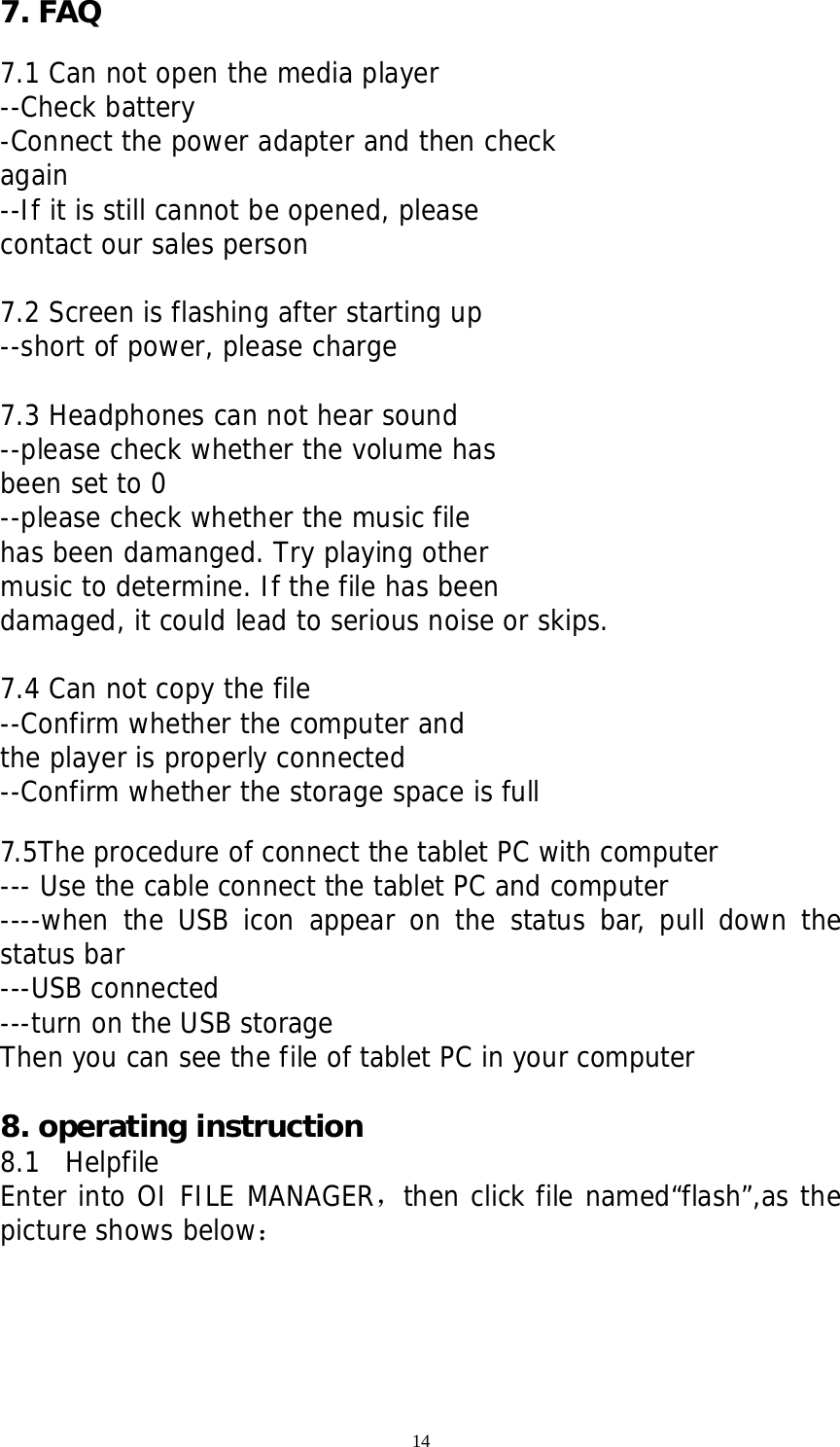
14 7. FAQ  7.1 Can not open the media player --Check battery -Connect the power adapter and then check  again --If it is still cannot be opened, please contact our sales person  7.2 Screen is flashing after starting up --short of power, please charge  7.3 Headphones can not hear sound --please check whether the volume has been set to 0 --please check whether the music file  has been damanged. Try playing other music to determine. If the file has been damaged, it could lead to serious noise or skips.  7.4 Can not copy the file --Confirm whether the computer and  the player is properly connected --Confirm whether the storage space is full  7.5The procedure of connect the tablet PC with computer   --- Use the cable connect the tablet PC and computer ----when the USB icon appear on the status bar, pull down the status bar ---USB connected ---turn on the USB storage  Then you can see the file of tablet PC in your computer   8. operating instruction   8.1  Helpfile Enter into OI FILE MANAGER,then click file named“flash”,as the picture shows below:
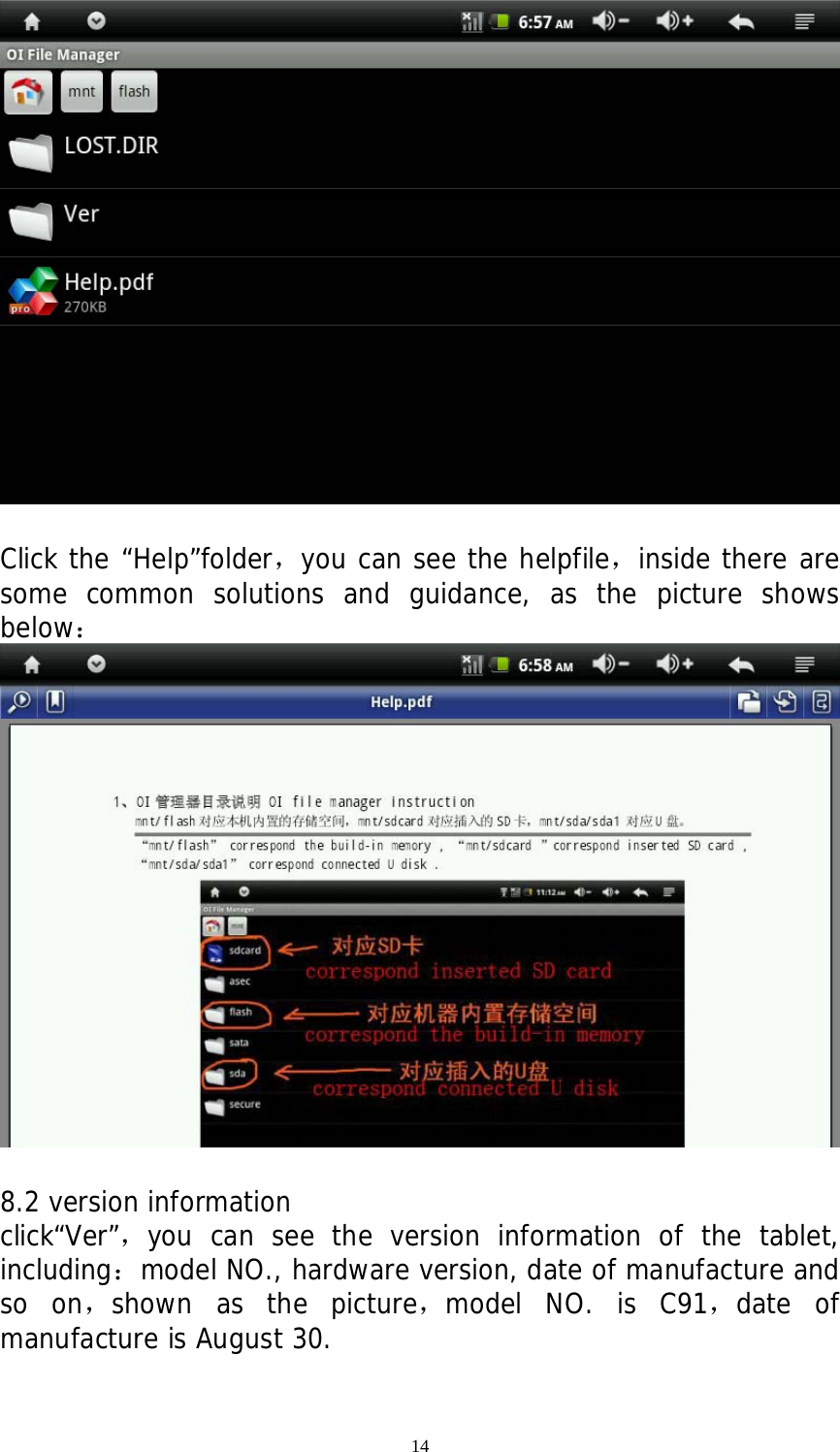
14   Click the “Help”folder,you can see the helpfile,inside there are some common solutions and guidance, as the picture shows below:   8.2 version information click“Ver”,you can see the version information of the tablet, including:model NO., hardware version, date of manufacture and so on,shown as the picture,model NO. is C91,date of manufacture is August 30.
FCC warning: This device complies with Part 15 of the FCC Rules. Operation is subject to the following two conditions: (1) this device may not cause harmful interference, and (2) this device must accept any interference received, including interference that may cause undesired operation. changes or modifications not expressly approved by the party responsible for compliance could void the user's authority to operate the equipment. NOTE: This equipment has been tested and found to comply with the limits for a Class B digital device, pursuant to Part 15 of the FCC Rules. These limits are designed to provide reasonable protection against harmful interference in a residential installation. This equipment generates, uses and can radiate radio frequency energy and, if not installed and used in accordance with the instructions, may cause harmful interference to radio communications. However, there is no guarantee that interference will not occur in a particular installation. If this equipment does cause harmful interference to radio or television reception, which can be determined by turning the equipment off and on, the user is encouraged to try to correct the interference by one or more of the following measures: -- Reorient or relocate the receiving antenna. -- Increase the separation between the equipment and receiver. -- Connect the equipment into an outlet on a circuit different from that to which the receiver is connected. -- Consult the dealer or an experienced radio/TV technician for help. RF warning statement: The device has been evaluated to meet general RF exposure requirement. The device can be used in portable exposure condition without restriction.

Navigation menu