Zhongsijin Q2 android tv box User Manual

Shenzhen Zhongsijin Trading Co.,Ltd. android tv box

User Manual

         
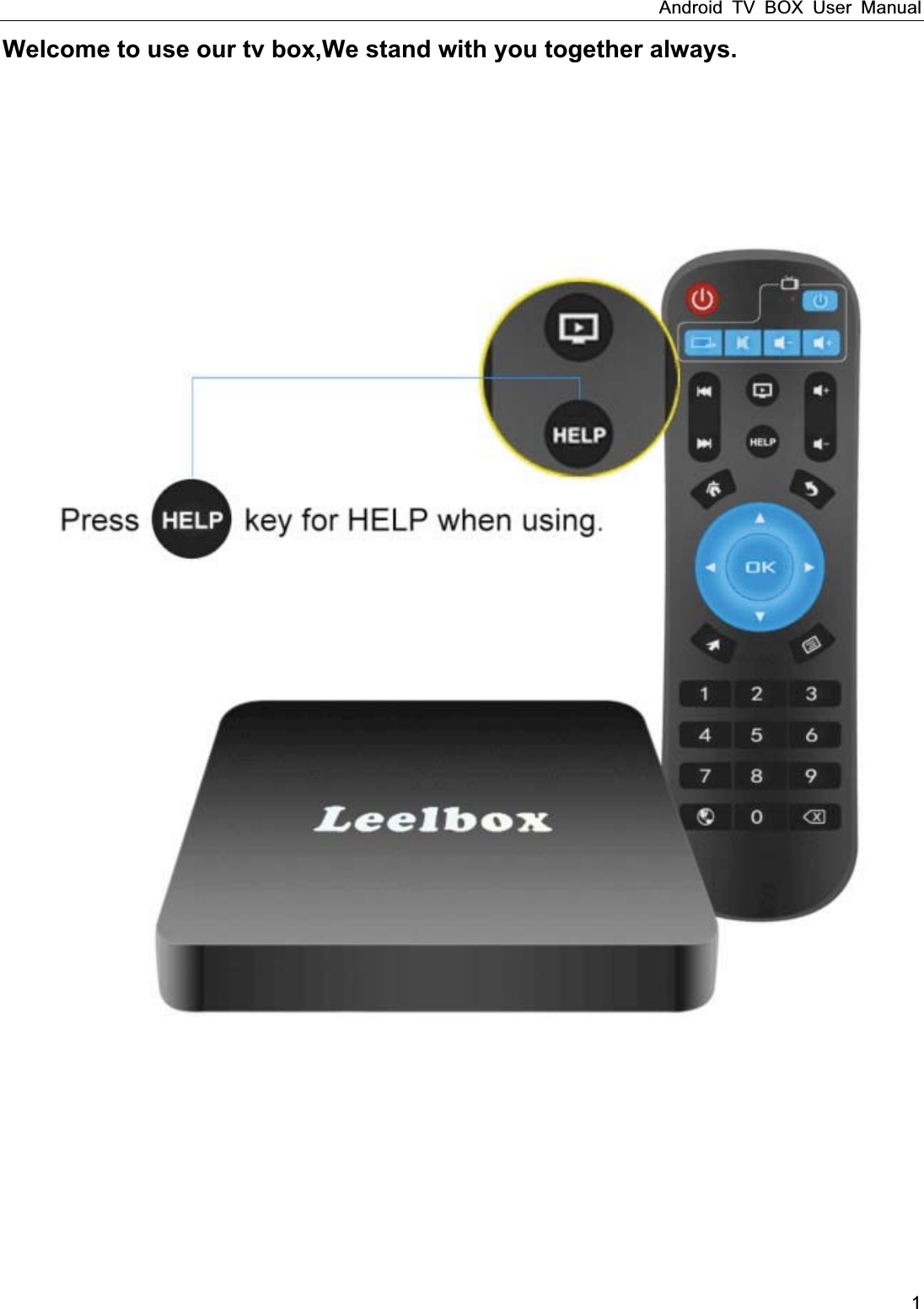
Android TV BOX User Manual 1 Welcome to use our tv box,We stand with you together always.
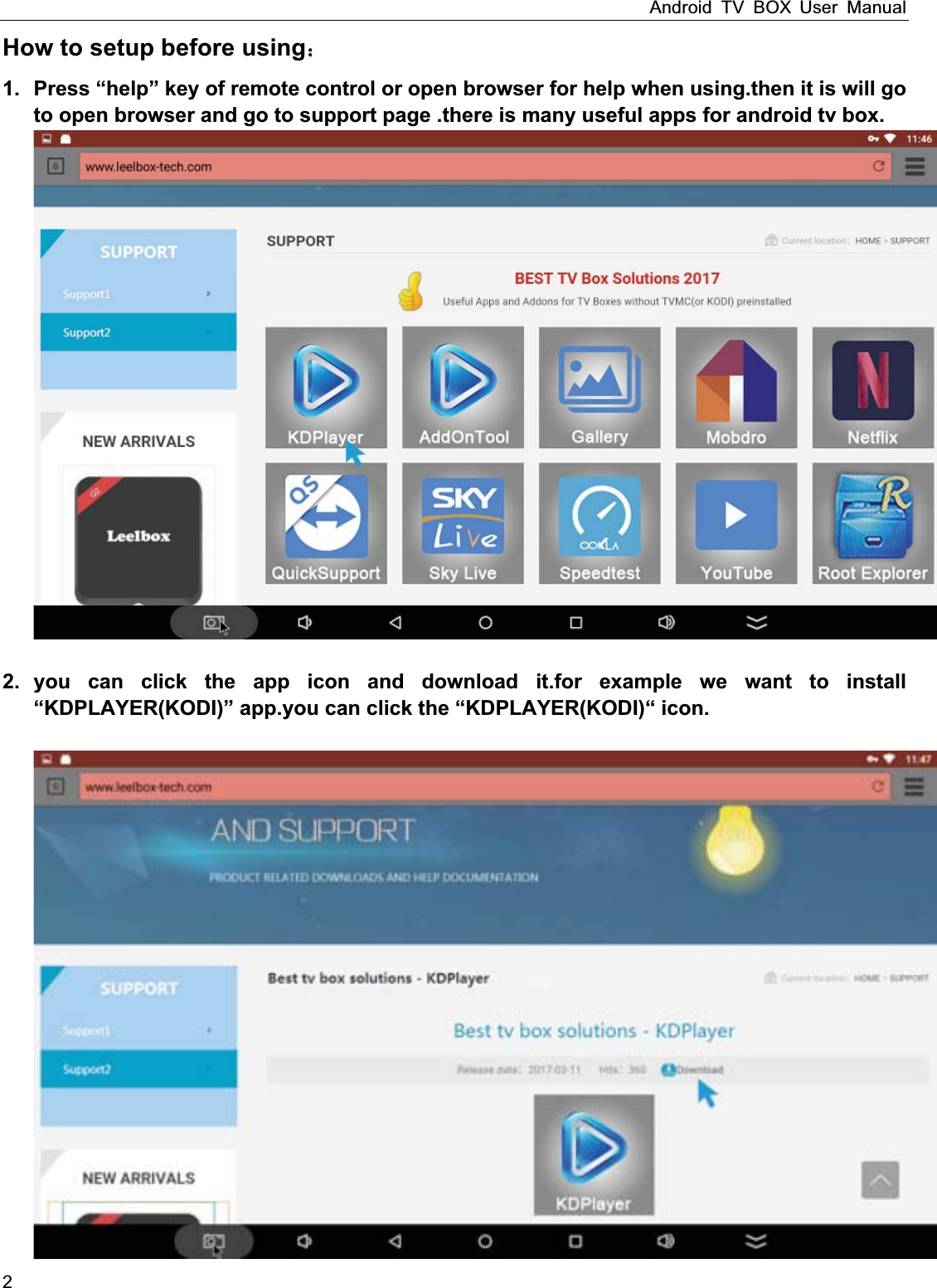
Android TV BOX User Manual 2 How to setup before using 1.  Press “help” key of remote control or open browser for help when using.then it is will go to open browser and go to support page .there is many useful apps for android tv box.  2. you can click the app icon and download it.for example we want to install “KDPLAYER(KODI)” app.you can click the “KDPLAYER(KODI)“ icon.
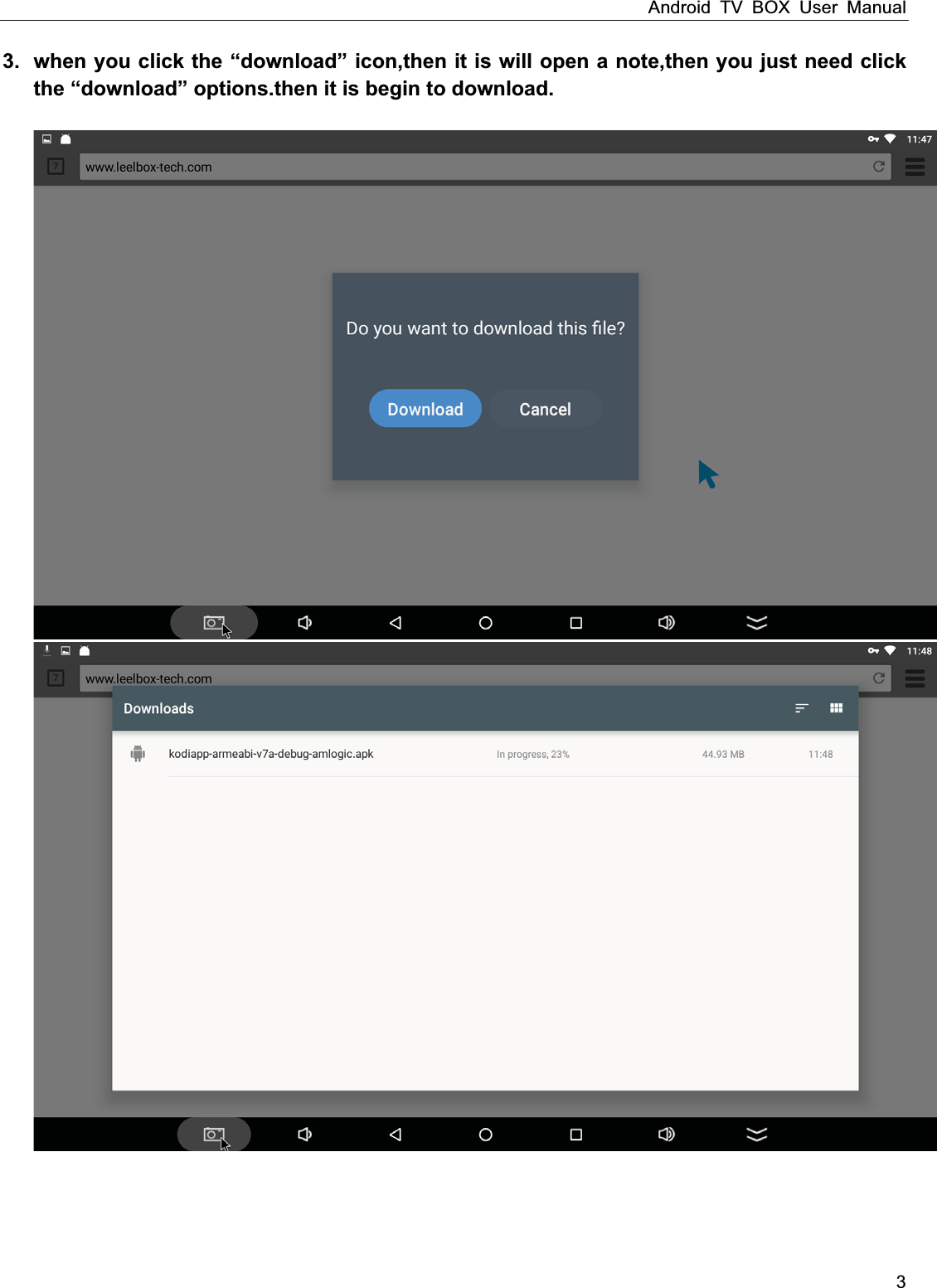
Android TV BOX User Manual 3  3.  when you click the “download” icon,then it is will open a note,then you just need click the “download” options.then it is begin to download.
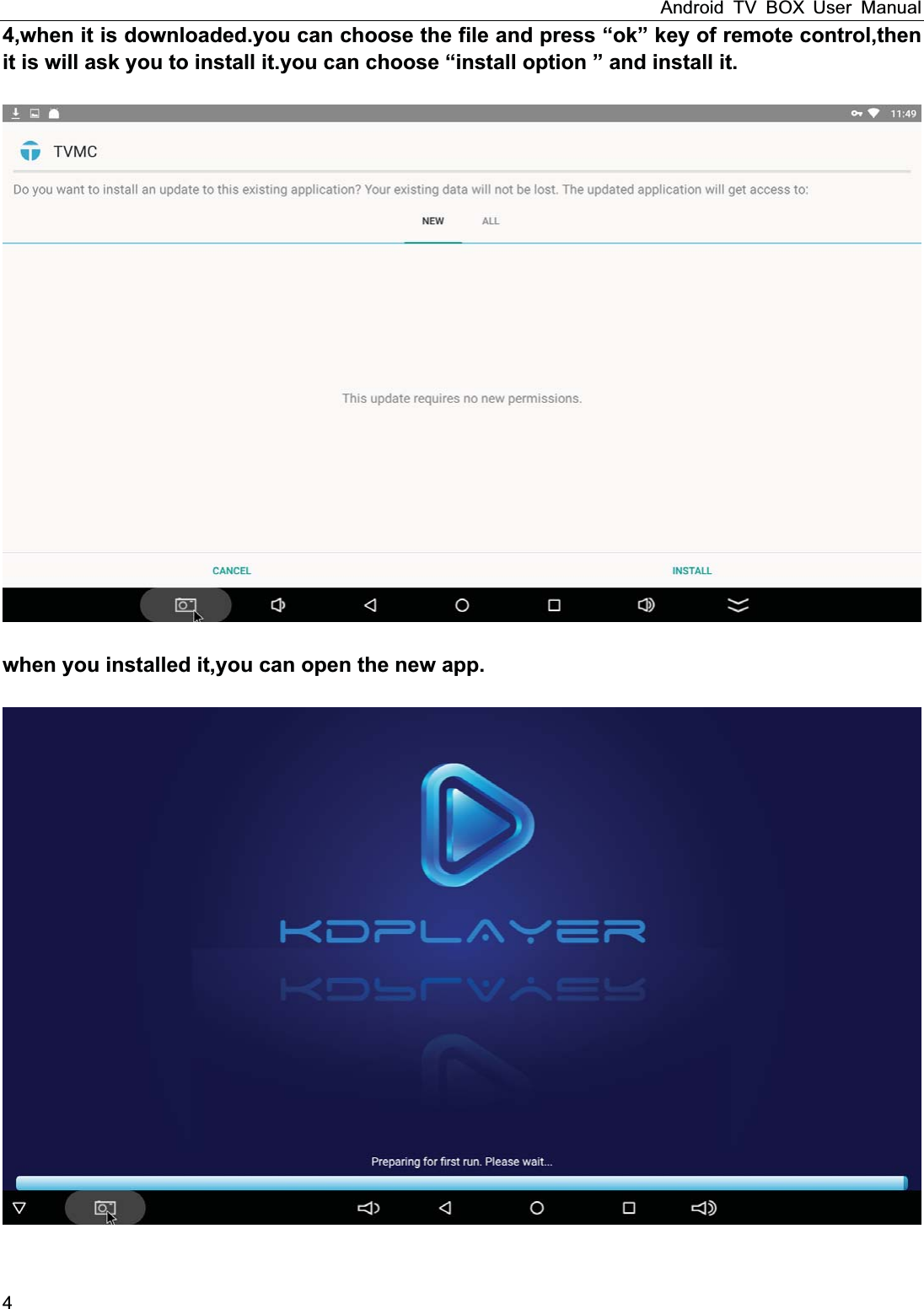
Android TV BOX User Manual 4 4,when it is downloaded.you can choose the file and press “ok” key of remote control,then it is will ask you to install it.you can choose “install option ” and install it.    when you installed it,you can open the new app.
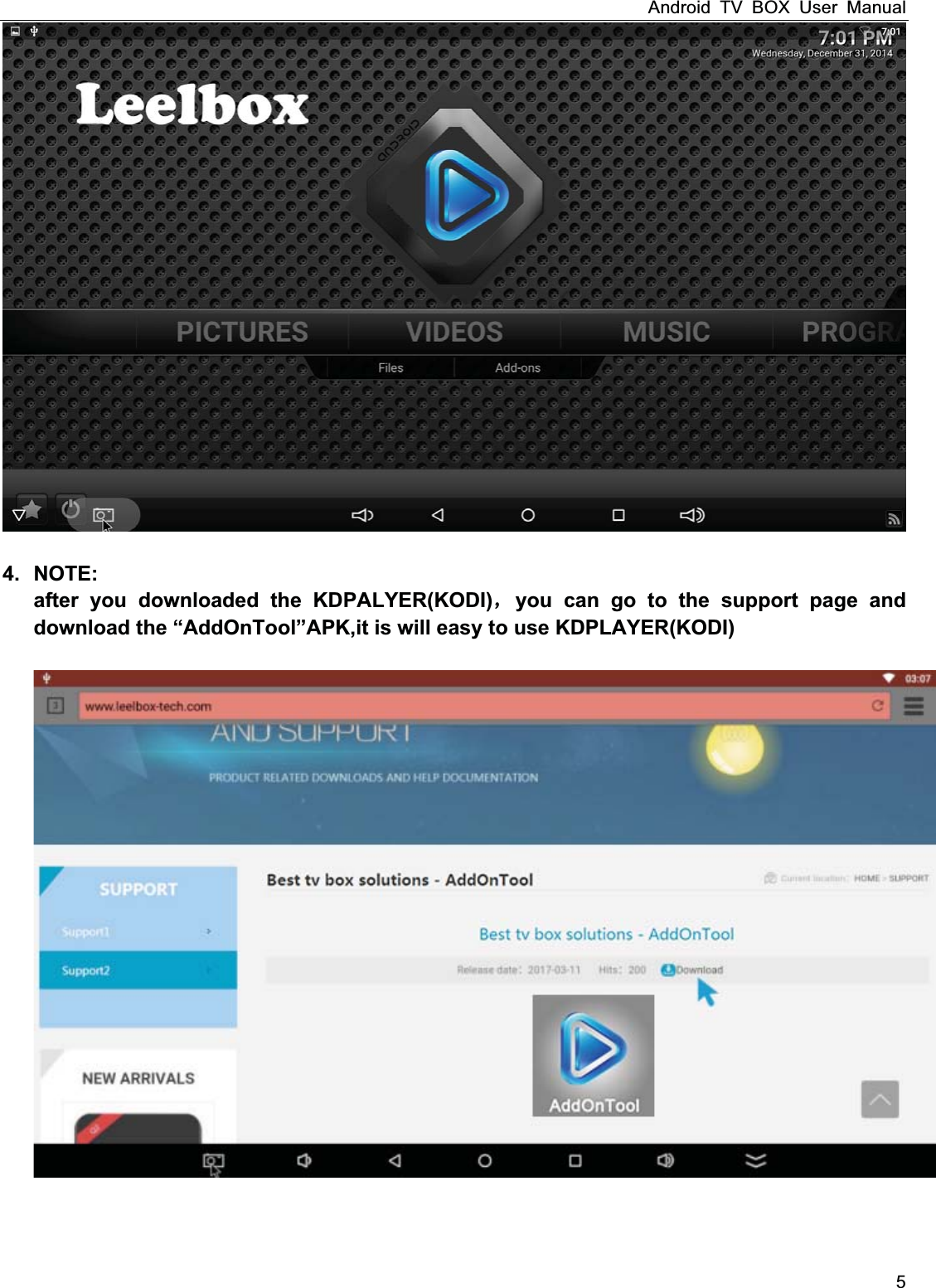
Android TV BOX User Manual 5   4. NOTE: after you downloaded the KDPALYER(KODI)you can go to the support page and download the “AddOnTool”APK,it is will easy to use KDPLAYER(KODI)
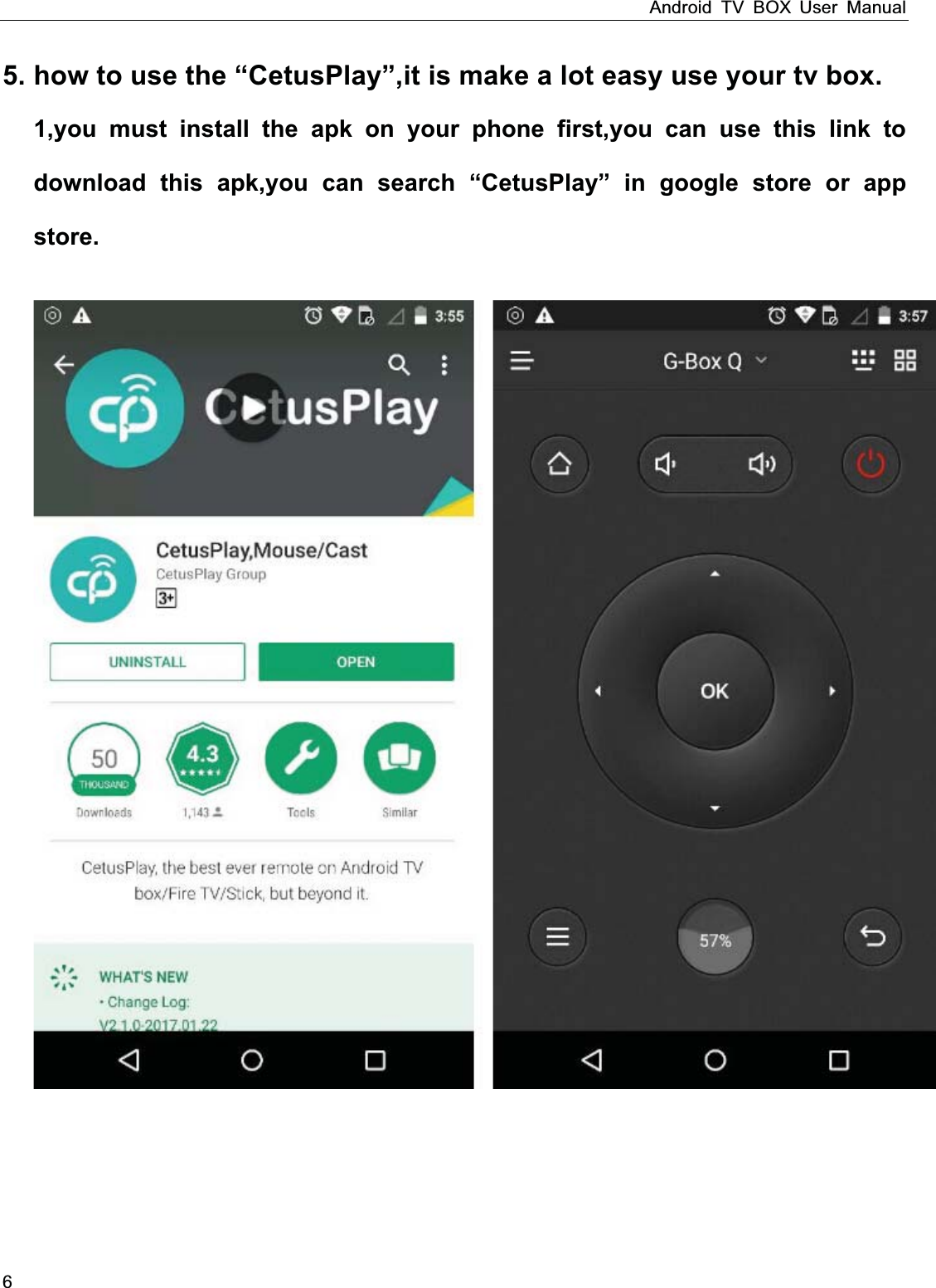
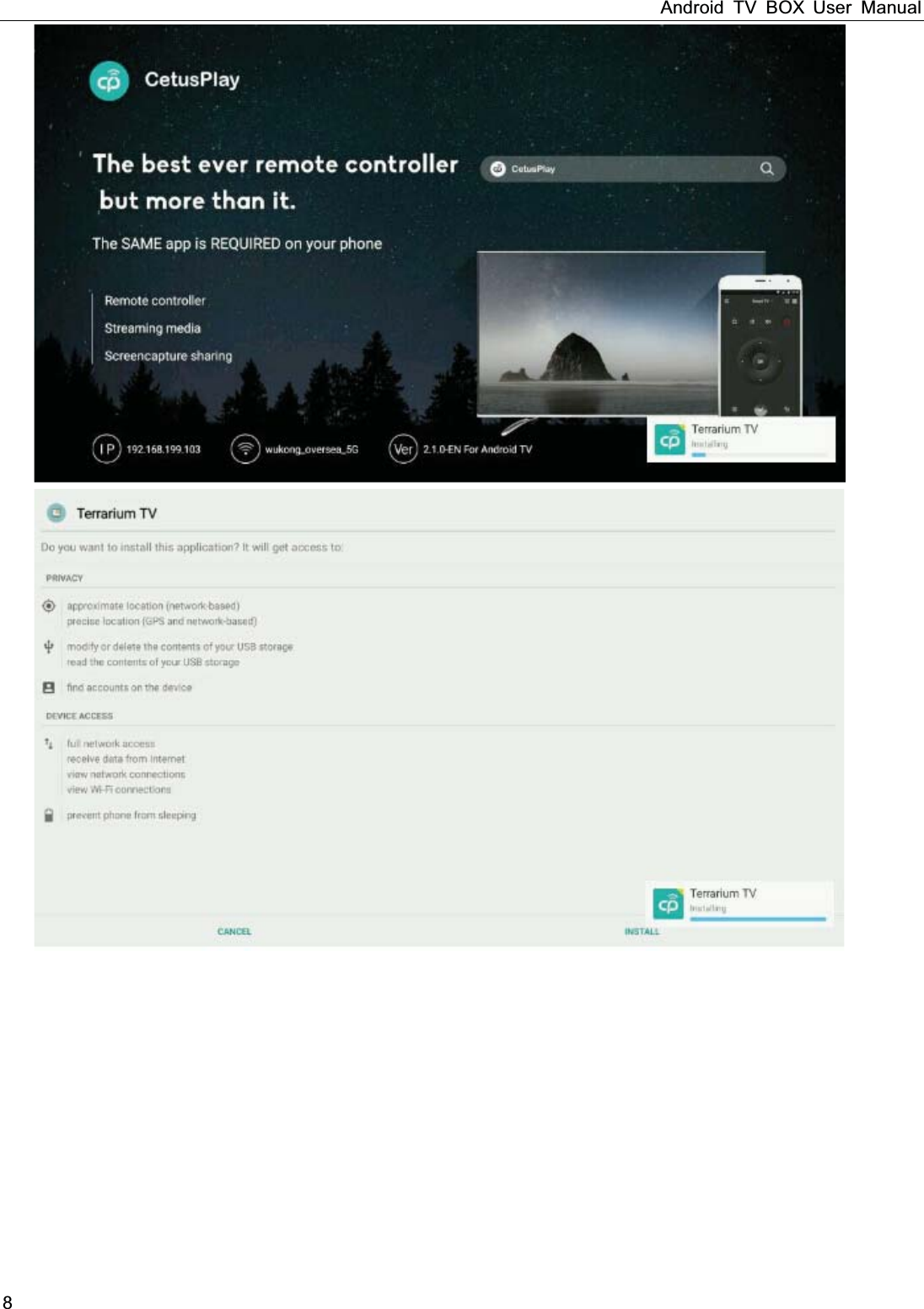
Android TV BOX User Manual 6  5. how to use the “CetusPlay”,it is make a lot easy use your tv box. 1,you must install the apk on your phone first,you can use this link to download this apk,you can search “CetusPlay” in google store or app store.
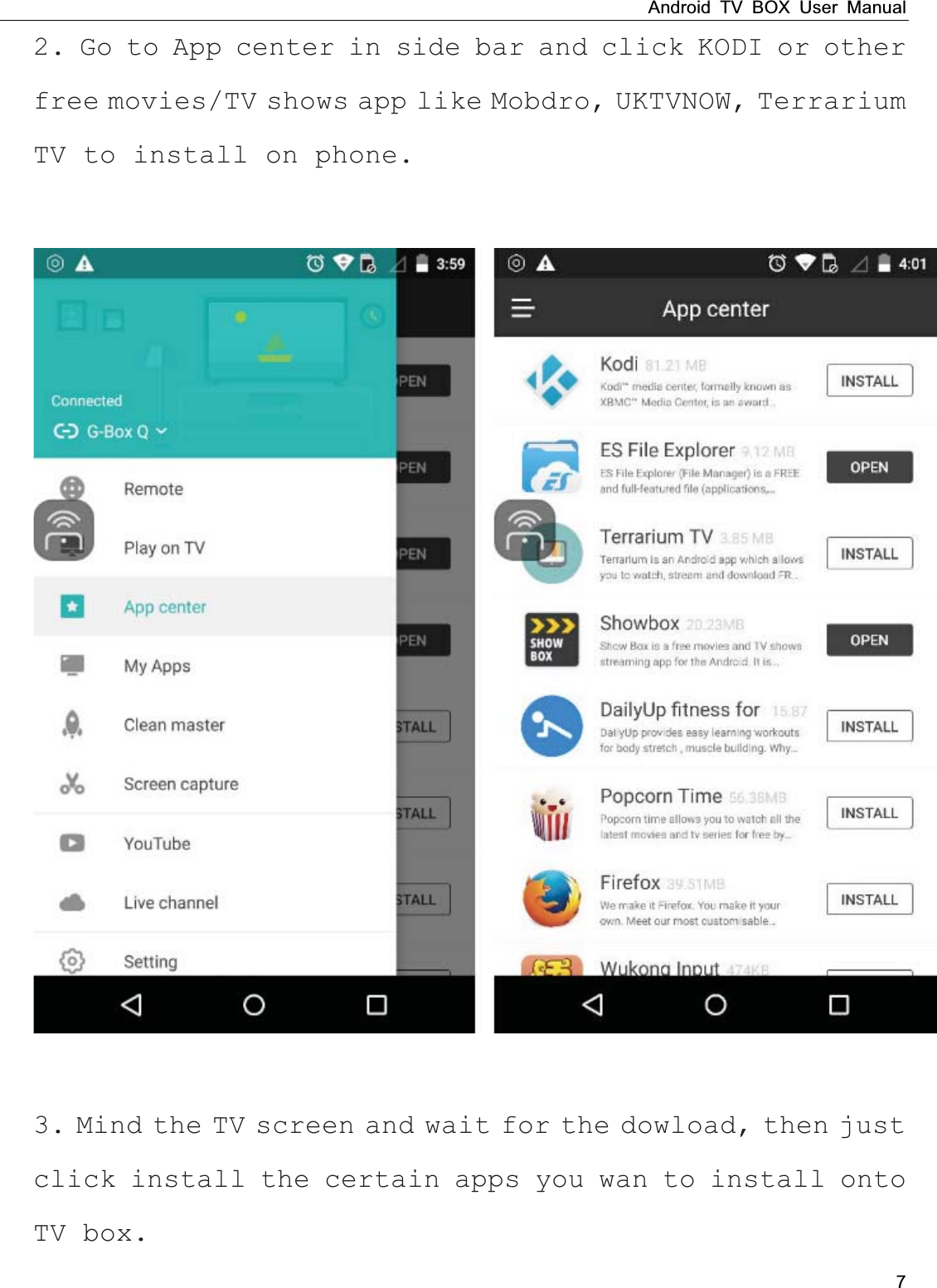
Android TV BOX User Manual 7 2. Go to App center in side bar and click KODI or other free movies/TV shows app like Mobdro, UKTVNOW, Terrarium TV to install on phone.      3. Mind the TV screen and wait for the dowload, then just click install the certain apps you wan to install onto TV box.
Android TV BOX User Manual 8
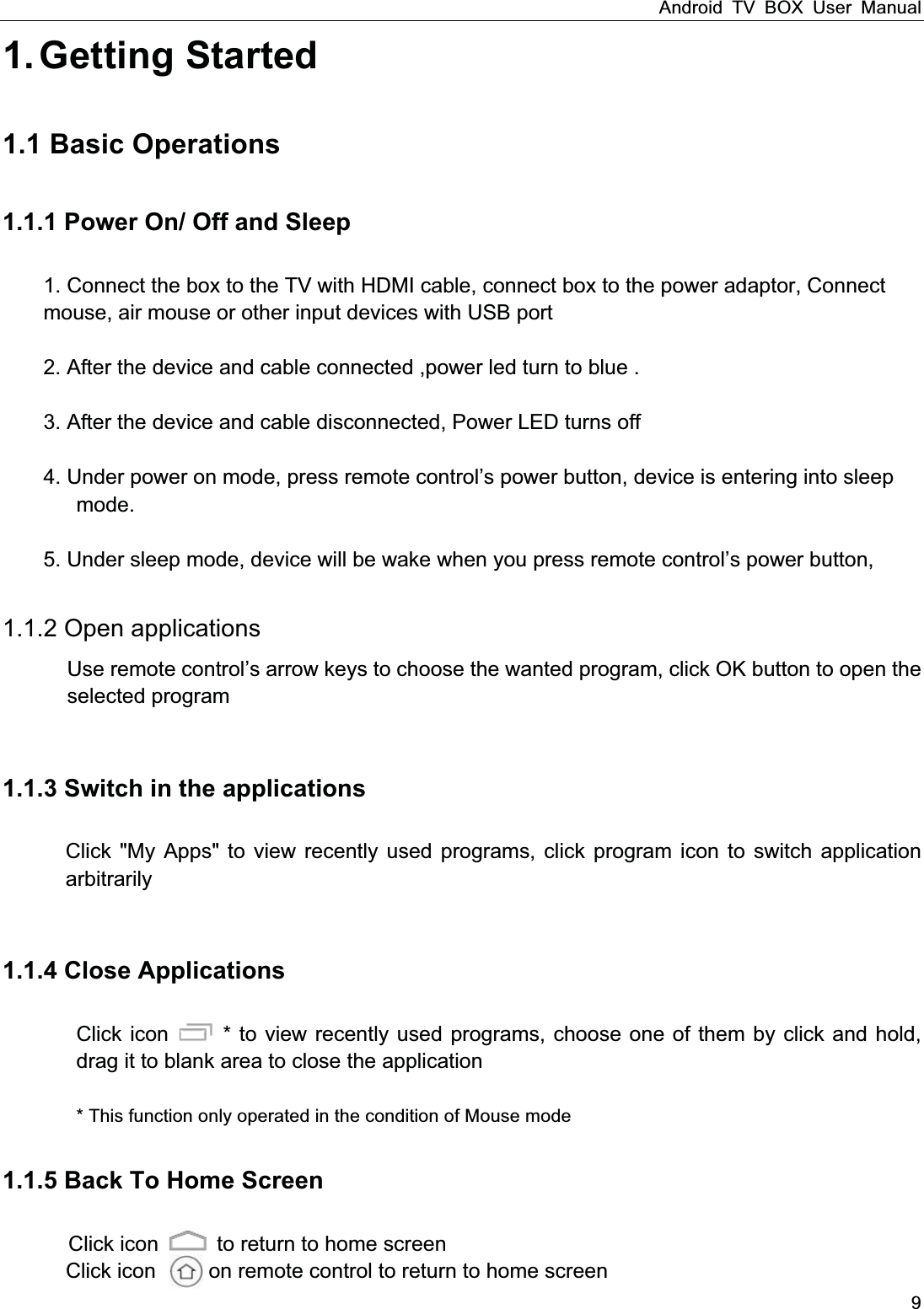
Android TV BOX User Manual 9 1. Getting  Started 1.1 Basic Operations1.1.1 Power On/ Off and Sleep 1. Connect the box to the TV with HDMI cable, connect box to the power adaptor, Connect   mouse, air mouse or other input devices with USB port     2. After the device and cable connected ,power led turn to blue .  3. After the device and cable disconnected, Power LED turns off  4. Under power on mode, press remote control’s power button, device is entering into sleep          mode.   5. Under sleep mode, device will be wake when you press remote control’s power button,           1.1.2 Open applications Use remote control’s arrow keys to choose the wanted program, click OK button to open the selected program  1.1.3 Switch in the applicationsClick "My Apps" to view recently used programs, click program icon to switch application arbitrarily  1.1.4 Close Applications         Click icon    * to view recently used programs, choose one of them by click and hold, drag it to blank area to close the application                  * This function only operated in the condition of Mouse mode 1.1.5 Back To Home Screen  Click icon    to return to home screen Click icon          on remote control to return to home screen
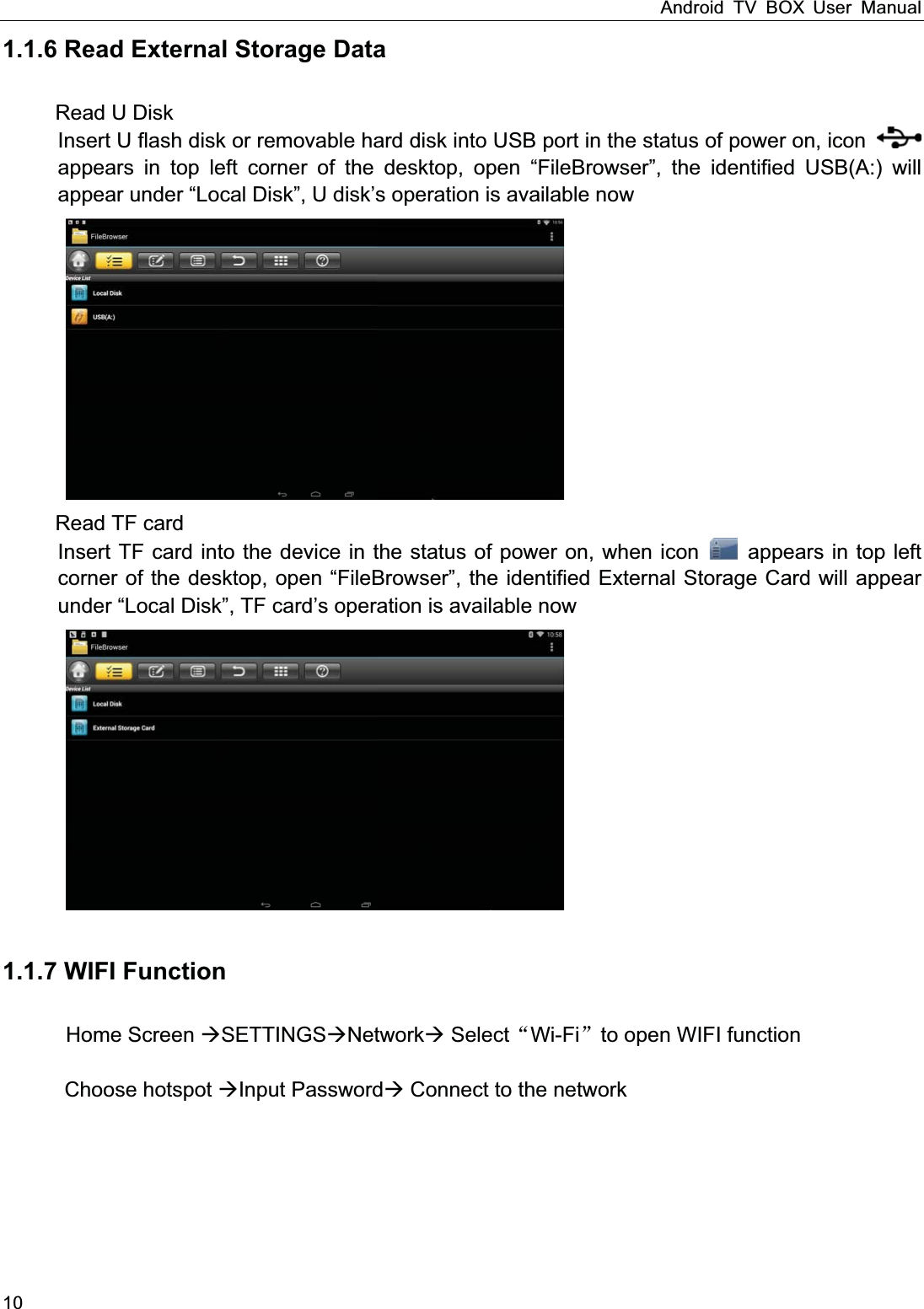
Android TV BOX User Manual 10 1.1.6 Read External Storage Data Read U Disk Insert U flash disk or removable hard disk into USB port in the status of power on, icon   appears in top left corner of the desktop, open “FileBrowser”, the identified USB(A:) will appear under “Local Disk”, U disk’s operation is available now  Read TF card Insert TF card into the device in the status of power on, when icon    appears in top left corner of the desktop, open “FileBrowser”, the identified External Storage Card will appear under “Local Disk”, TF card’s operation is available now  1.1.7 WIFI Function Home Screen SETTINGSNetwork SelectWi-Fito open WIFI function      Choose hotspot Input Password Connect to the network
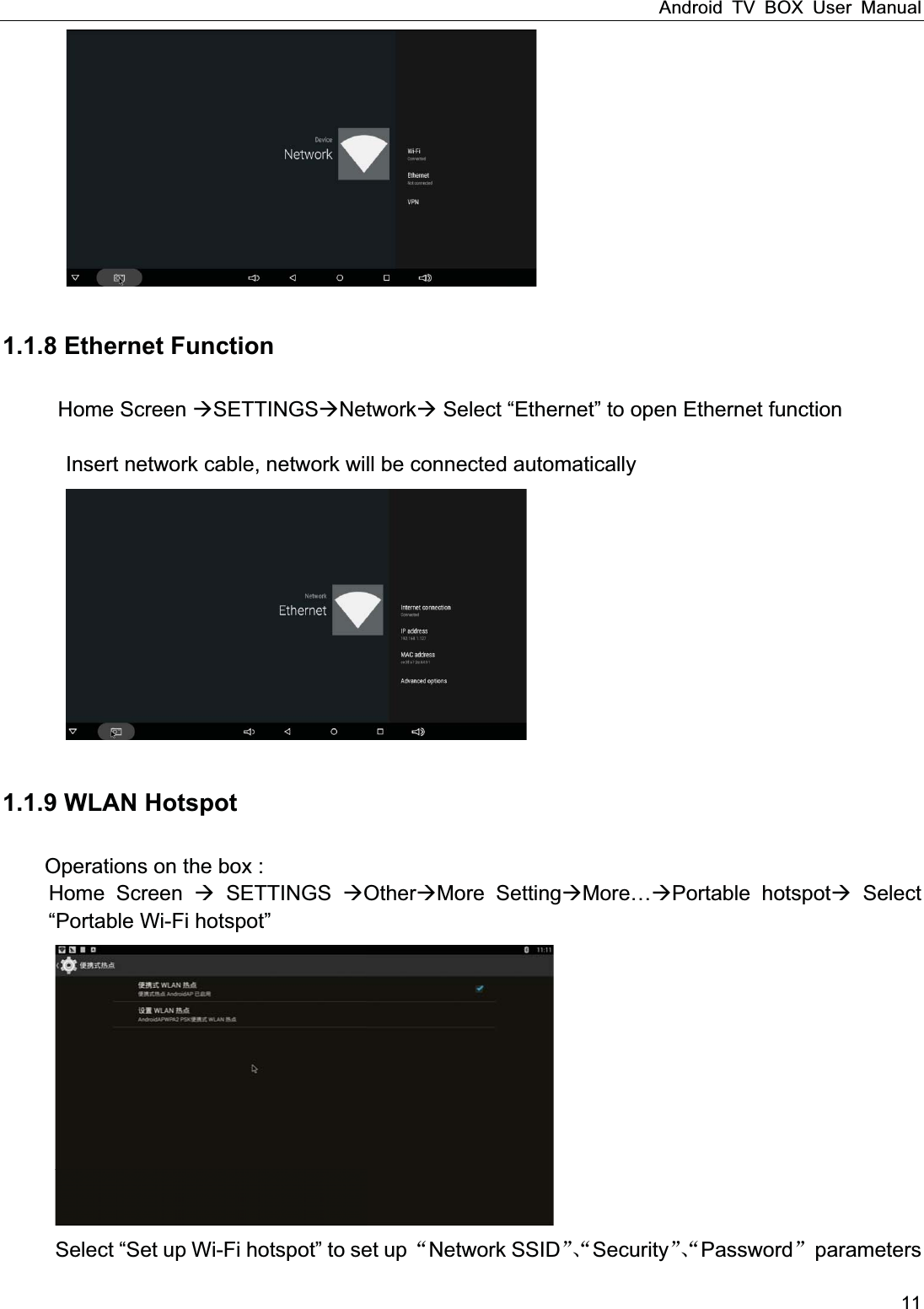
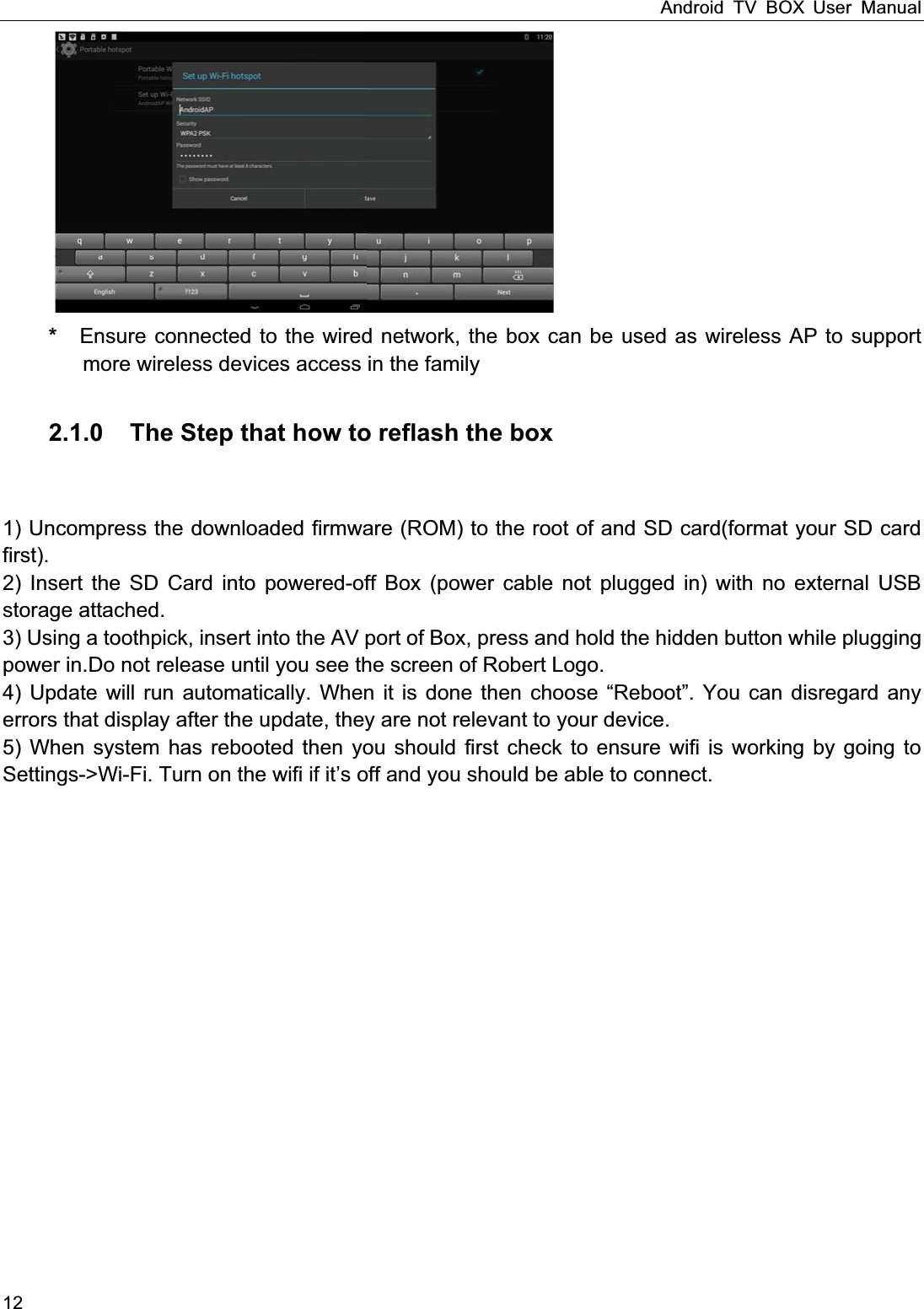
Android TV BOX User Manual 11    1.1.8 Ethernet Function Home Screen SETTINGSNetwork Select “Ethernet” to open Ethernet function          Insert network cable, network will be connected automatically    1.1.9 WLAN Hotspot Operations on the box : Home Screen  SETTINGS OtherMore SettingMorePortable hotspot Select “Portable Wi-Fi hotspot”  Select “Set up Wi-Fi hotspot” to set up Network SSIDSecurityPassword parameters
Android TV BOX User Manual 12 *  Ensure connected to the wired network, the box can be used as wireless AP to support more wireless devices access in the family  2.1.0    The Step that how to reflash the box    1) Uncompress the downloaded firmware (ROM) to the root of and SD card(format your SD card first). 2) Insert the SD Card into powered-off Box (power cable not plugged in) with no external USB storage attached. 3) Using a toothpick, insert into the AV port of Box, press and hold the hidden button while plugging power in.Do not release until you see the screen of Robert Logo. 4) Update will run automatically. When it is done then choose “Reboot”. You can disregard any errors that display after the update, they are not relevant to your device. 5) When system has rebooted then you should first check to ensure wifi is working by going to Settings->Wi-Fi. Turn on the wifi if it’s off and you should be able to connect.
Android TV BOX User Manual 13  QQ&A: How do I set the time? -From the home screen go to Settings>Time. How do I update? -The device automatically updates if your Internet is connected. Can I use this device on more than one TV at a time? -You can only connect the device to one TV at a time. How do I add a Movie or TV Show to favorites? -When a Movie or Show is highlighted, press the MENU button on your remote and select “Add to favorites”. Why do I experience buffering? -Buffering depends on your Internet speed and the speed /load of the server attempting to play from. Often this is resolved by choosing another source/ server. Run a speed test as well. How do I run a speed test? -Select the “Internet Speed Test” option from the Kodi main screen. We recommend at least 15 mbps download and 10 mbps upload. How do I remove the “Swipe down from top to exit full screen” message? -Press the CUESOR button on your remote to turn on the cursor on your screen. Next, use the arrow on your remote to navigate the cursor to the top of your screen and select OK when the cursor is positioned at the blue OK button. Once the popup is gone, press the CURSOR button again on your remote to disable the cursor. Can I use this device outside the U.S.? -Yes, as long as you have high speed internet. All videos are displayed on a corner of my TV. -Press SETUP on your remote>Go to display >Select 720p. How can I watch PPV fights? -PPV Fights will be available under the Sports menu in Kodi. Can I download Movies? -The main purpose of this device is for streaming and we do not recommend downloading. My Wi-Fi signal is strong but nothing will play. -Run a Speed Test. How do I reset my device? -Press SETUP on your remote and go to Backup and Reset >Factory Data Reset>Reset >Erase. My device is frozen in Kodi. -Press the Home button on your remote then select Clear Cache. My device is powered on but I do not see anything on my TV. -Check to make sure that your TV is set to the correct input source to which you have connected the HDMI cable. Also try to connect to a different HDMI port on your TV or use a different HDMI cable. I have no sound output my form my TV. -Press SETUP on your remote and go to Advanced. Turn off autodetect sound output then manually set sound output to HDMI.
FCC Warning 7KLV GHYLFH FRPSOLHV ZLWK3DUW  RI WKH )&& 5XOHV 2SHUDWLRQ LV VXEMHFW WR WKH IROORZLQJ WZRFRQGLWLRQV 7KLV GHYLFH PD\ QRW FDXVH KDUPIXO LQWHUIHUHQFH DQG  WKLV GHYLFH PXVW DFFHSW DQ\LQWHUIHUHQFHUHFHLYHGLQFOXGLQJLQWHUIHUHQFHWKDWPD\FDXVHXQGHVLUHGRSHUDWLRQ127(7KLVHTXLSPHQWKDVEHHQWHVWHGDQGIRXQGWRFRPSO\ZLWKWKHOLPLWVIRUD&ODVV%GLJLWDOGHYLFH SXUVXDQW WR SDUW  RI WKH )&& 5XOHV 7KHVH OLPLWV DUH GHVLJQHG WR SURYLGH UHDVRQDEOHSURWHFWLRQDJDLQVWKDUPIXOLQWHUIHUHQFHLQDUHVLGHQWLDOLQVWDOODWLRQ7KLVHTXLSPHQWJHQHUDWHVXVHVDQG FDQ UDGLDWH UDGLR IUHTXHQF\ HQHUJ\ DQG LI QRW LQVWDOOHG DQG XVHG LQ DFFRUGDQFH ZLWK WKHLQVWUXFWLRQV PD\ FDXVH KDUPIXO LQWHUIHUHQFH WR UDGLR FRPPXQLFDWLRQV +RZHYHU WKHUH LV QRJXDUDQWHHWKDWLQWHUIHUHQFHZLOOQRWRFFXULQDSDUWLFXODULQVWDOODWLRQ,IWKLVHTXLSPHQWGRHVFDXVHKDUPIXO LQWHUIHUHQFH WR UDGLR RU WHOHYLVLRQ UHFHSWLRQ ZKLFK FDQ EH GHWHUPLQHG E\ WXUQLQJ WKHHTXLSPHQWRIIDQGRQWKHXVHULVHQFRXUDJHGWRWU\WRFRUUHFWWKHLQWHUIHUHQFHE\RQHRUPRUHRIWKHIROORZLQJPHDVXUHV5HRULHQWRUUHORFDWHWKHUHFHLYLQJDQWHQQD,QFUHDVHWKHVHSDUDWLRQEHWZHHQWKHHTXLSPHQWDQGUHFHLYHU&RQQHFW WKH HTXLSPHQW LQWR DQ RXWOHW RQ D FLUFXLW GLIIHUHQW IURP WKDW WR ZKLFK WKH UHFHLYHU LVFRQQHFWHG&RQVXOWWKHGHDOHURUDQH[SHULHQFHGUDGLR79WHFKQLFLDQIRUKHOS127(  $Q\ FKDQJHV RU PRGLILFDWLRQV WR WKLV XQLW QRW H[SUHVVO\ DSSURYHG E\ WKH SDUW\UHVSRQVLEOHIRUFRPSOLDQFHFRXOGYRLGWKHXVHUVDXWKRULW\WRRSHUDWHWKHHTXLSPHQW7RPDLQWDLQFRPSOLDQFHZLWK)&&5)H[SRVXUHUHTXLUHPHQWVXVHDFFHVVRULHVWKDWPDLQWDLQDcPVHSDUDWLRQGLVWDQFHEHWZHHQWKHXVHUVERG\

Navigation menu