mStation MURCXX Mophie Connect User Manual Manual

mStation Corporation Mophie Connect Manual

Manual

     mophie connect  1190_RCN-RMT-BLK  User Manual Revision 1.0
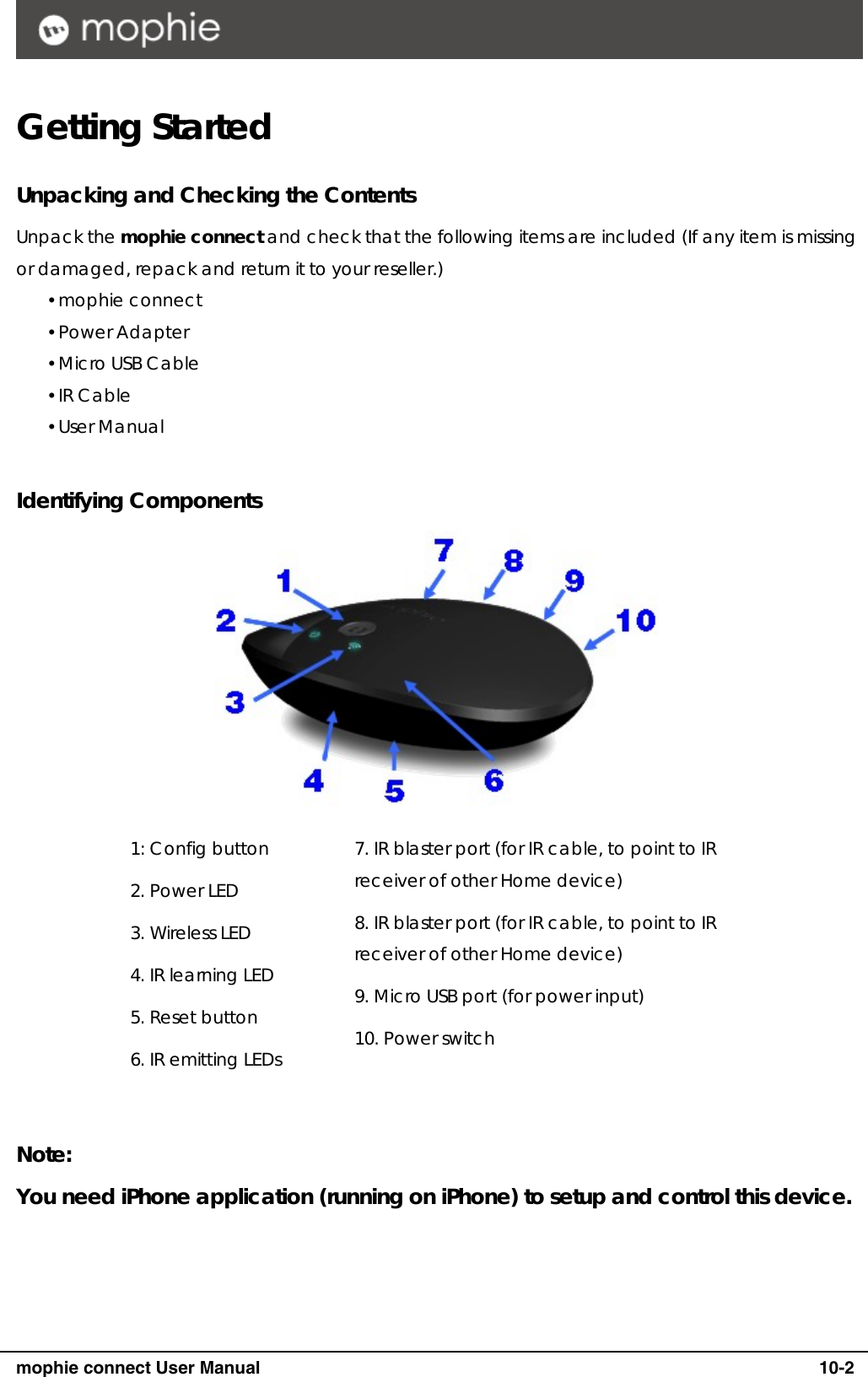
     mophie connect User Manual   10-2 Getting Started  Unpacking and Checking the Contents Unpack the mophie connect and check that the following items are included (If any item is missing or damaged, repack and return it to your reseller.) y mophie connect y Power Adapter y Micro USB Cable y IR Cable y User Manual  Identifying Components  1: Config button 2. Power LED 3. Wireless LED 4. IR learning LED 5. Reset button 6. IR emitting LEDs 7. IR blaster port (for IR cable, to point to IR receiver of other Home device) 8. IR blaster port (for IR cable, to point to IR receiver of other Home device) 9. Micro USB port (for power input) 10. Power switch  Note: You need iPhone application (running on iPhone) to setup and control this device.
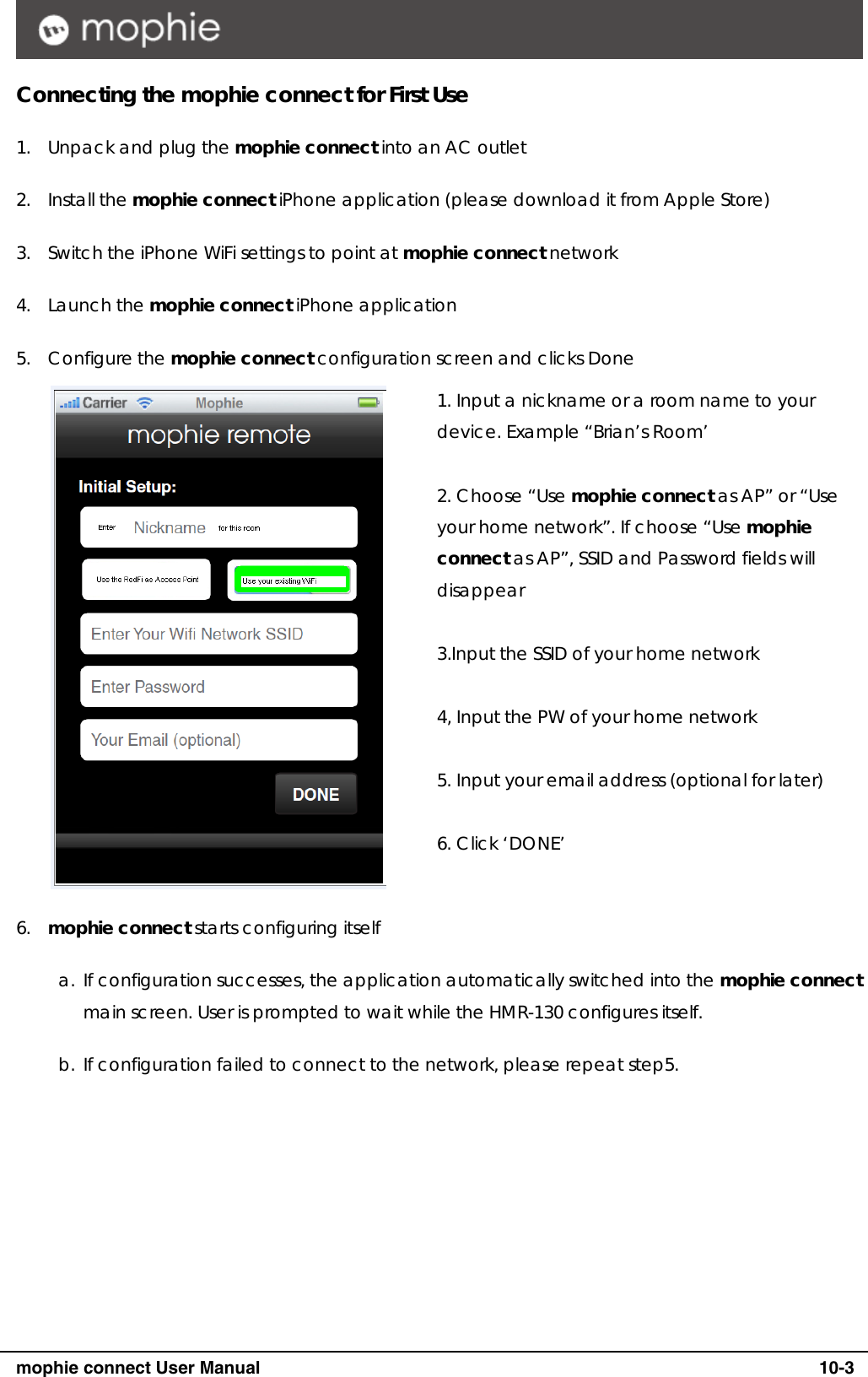
     mophie connect User Manual   10-3 Connecting the mophie connect for First Use 1. Unpack and plug the mophie connect into an AC outlet 2. Install the mophie connect iPhone application (please download it from Apple Store) 3. Switch the iPhone WiFi settings to point at mophie connect network 4. Launch the mophie connect iPhone application 5. Configure the mophie connect configuration screen and clicks Done  1. Input a nickname or a room name to your device. Example “Brian’s Room’  2. Choose “Use mophie connect as AP” or “Use your home network”. If choose “Use mophie connect as AP”, SSID and Password fields will disappear  3.Input the SSID of your home network  4, Input the PW of your home network  5. Input your email address (optional for later)  6. Click ‘DONE’   6. mophie connect starts configuring itself a. If configuration successes, the application automatically switched into the mophie connect main screen. User is prompted to wait while the HMR-130 configures itself. b. If configuration failed to connect to the network, please repeat step5.
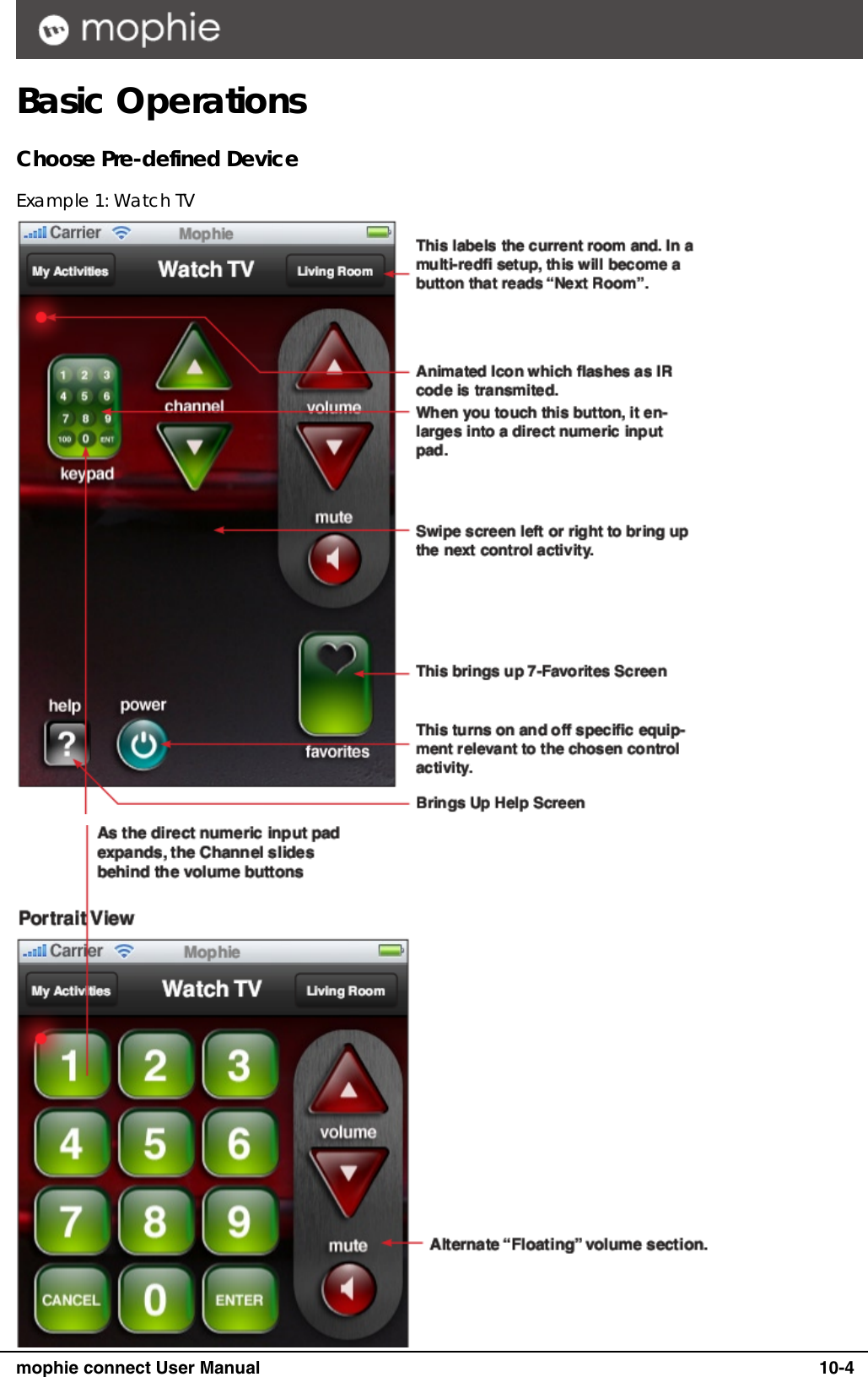
     mophie connect User Manual   10-4 Basic Operations Choose Pre-defined Device Example 1: Watch TV
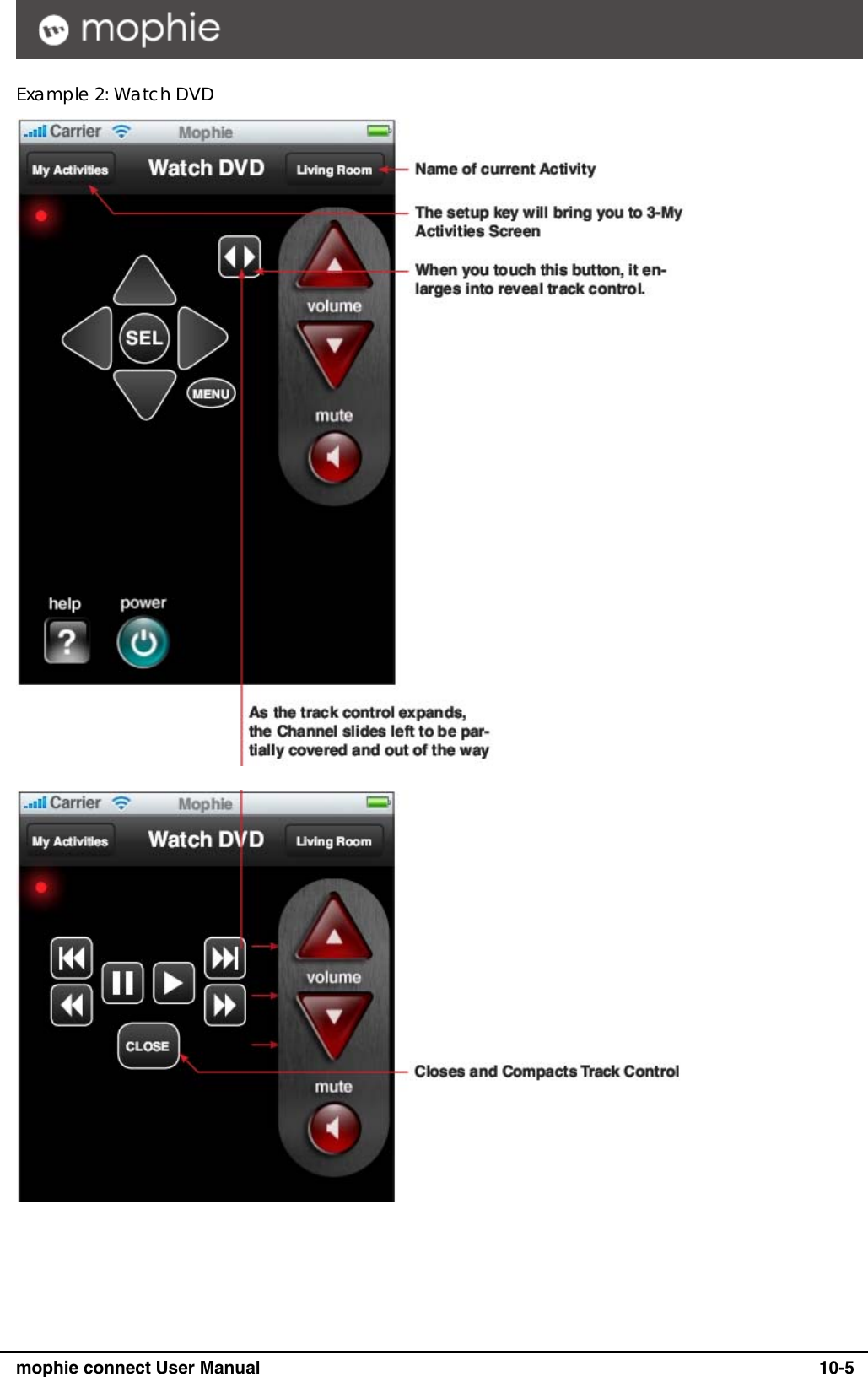
     mophie connect User Manual   10-5 Example 2: Watch DVD
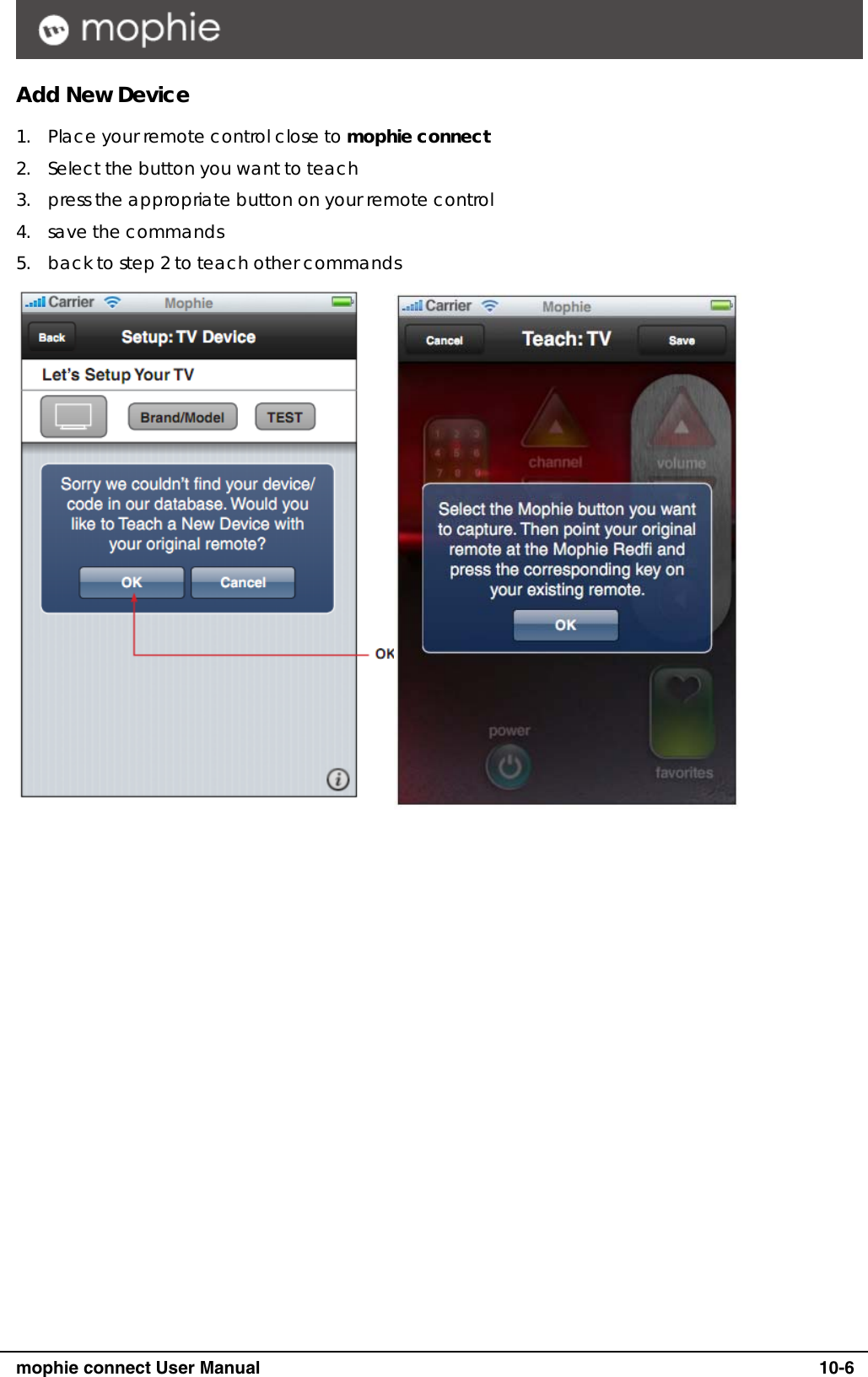
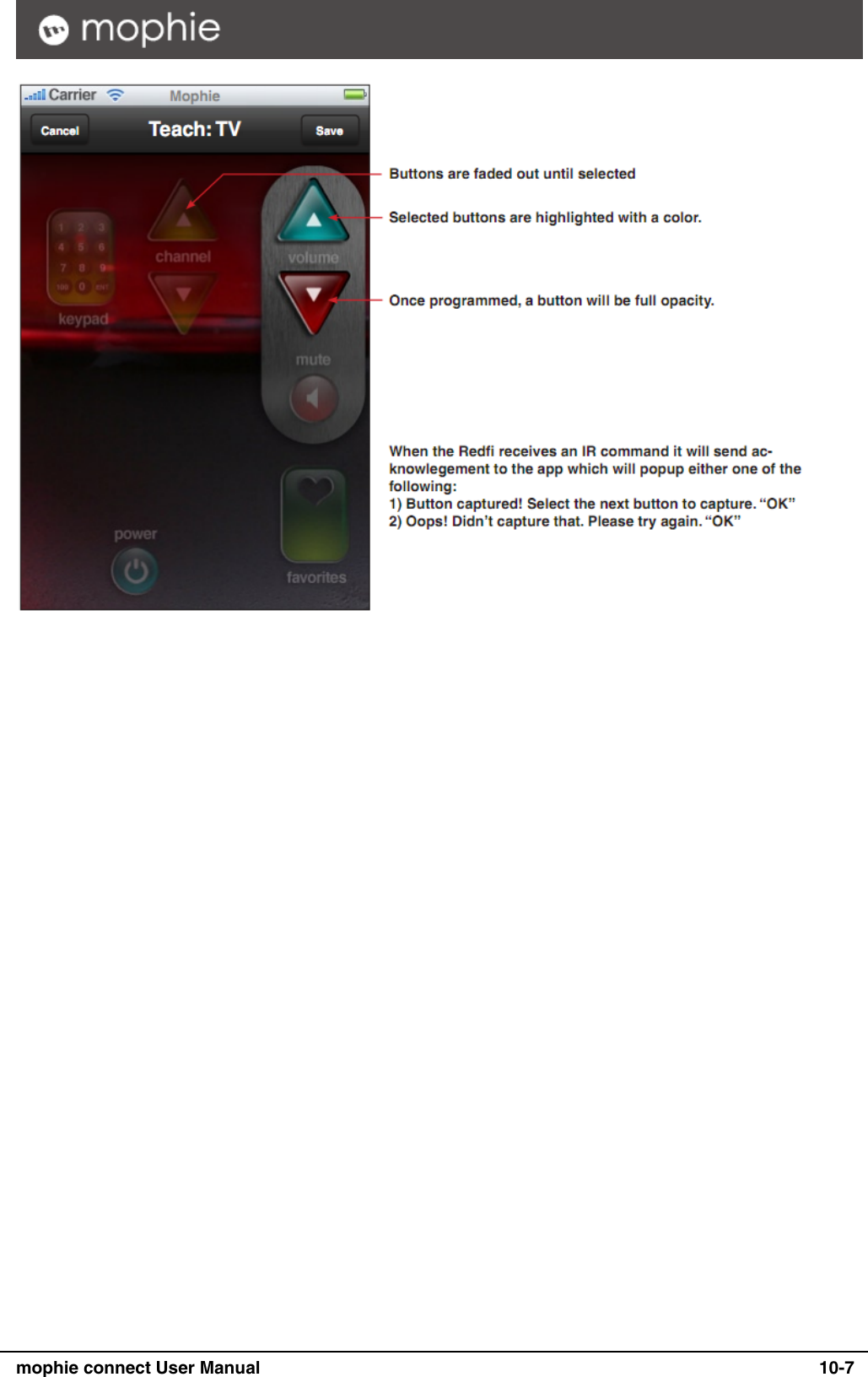
     mophie connect User Manual   10-6 Add New Device 1. Place your remote control close to mophie connect 2. Select the button you want to teach 3. press the appropriate button on your remote control 4. save the commands 5. back to step 2 to teach other commands
     mophie connect User Manual   10-7
     mophie connect User Manual   10-8 Federal Communication Commission Interference Statement This equipment has been tested and found to comply with the limits for a Class B digital device, pursuant to Part 15 of the FCC Rules.  These limits are designed to provide reasonable protection against harmful interference in a residential installation.  This equipment generates, uses and can radiate radio frequency energy and, if not installed and used in accordance with the instructions, may cause harmful interference to radio communications.  However, there is no guarantee that interference will not occur in a particular installation.  If this equipment does cause harmful interference to radio or television reception, which can be determined by turning the equipment off and on, the user is encouraged to try to correct the interference by one of the following measures:  -  Reorient or relocate the receiving antenna. -  Increase the separation between the equipment and receiver. -  Connect the equipment into an outlet on a circuit different from that to which the receiver is connected. -  Consult the dealer or an experienced radio/TV technician for help.  This device complies with Part 15 of the FCC Rules. Operation is subject to the following two conditions: (1) This device may not cause harmful interference, and (2) this device must accept any interference received, including interference that may cause undesired operation.  FCC Caution: Any changes or modifications not expressly approved by the party responsible for compliance could void the user's authority to operate this equipment.  IEEE 802.11b or 802.11g operation of this product in the U.S.A. is firmware-limited to channels 1 through 11.  IMPORTANT NOTE: FCC Radiation Exposure Statement: This equipment complies with FCC radiation exposure limits set forth for an uncontrolled environment. This equipment should be installed and operated with minimum distance 20cm between the radiator & your body. This transmitter must not be co-located or operating in conjunction with any other antenna or transmitter.
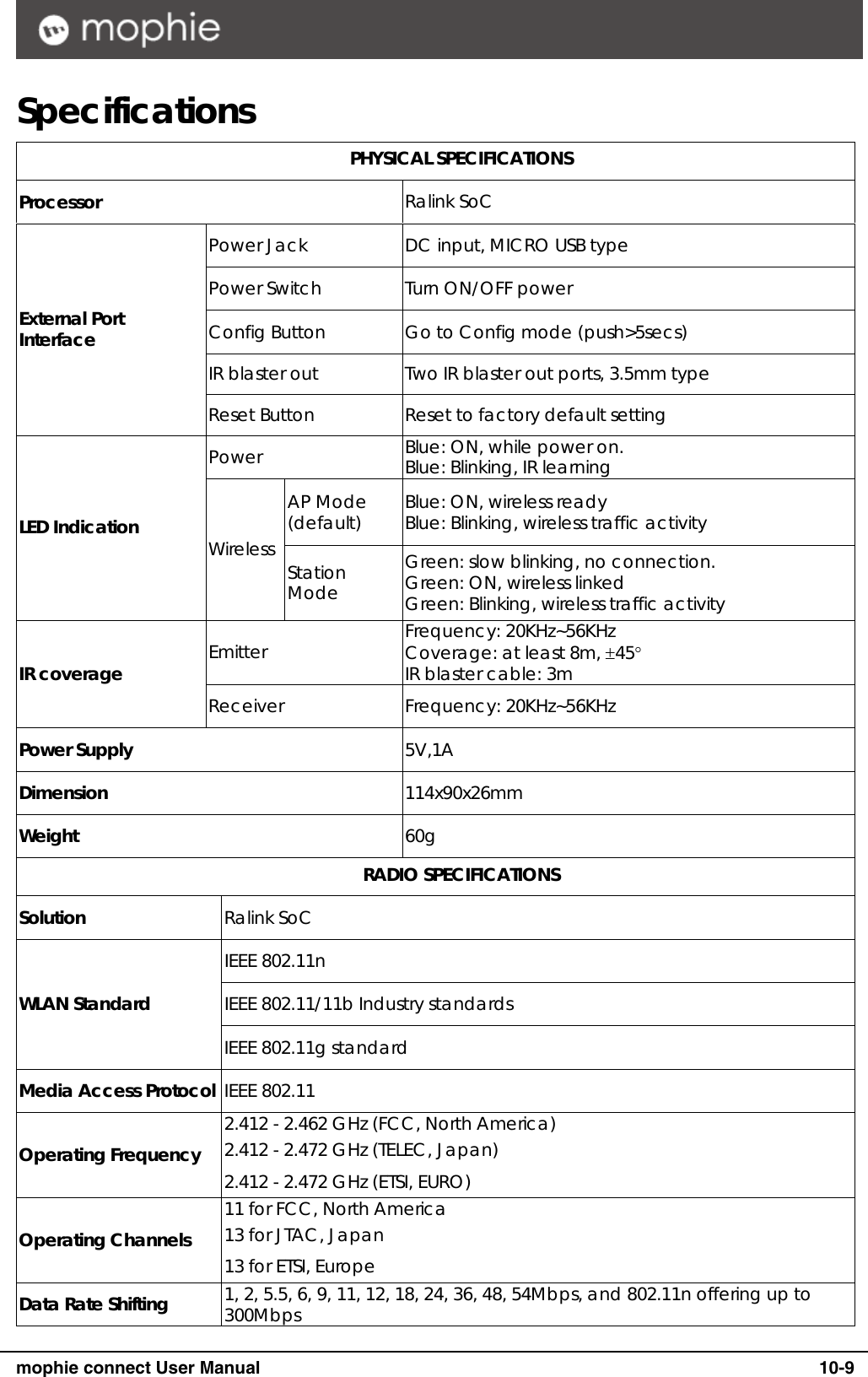
     mophie connect User Manual   10-9 Specifications  PHYSICAL SPECIFICATIONS Processor  Ralink SoC Power Jack  DC input, MICRO USB type Power Switch  Turn ON/OFF power Config Button  Go to Config mode (push>5secs) IR blaster out  Two IR blaster out ports, 3.5mm type External Port Interface Reset Button  Reset to factory default setting Power  Blue: ON, while power on. Blue: Blinking, IR learning AP Mode (default)  Blue: ON, wireless ready Blue: Blinking, wireless traffic activity LED Indication  Wireless  Station Mode Green: slow blinking, no connection. Green: ON, wireless linked Green: Blinking, wireless traffic activity Emitter  Frequency: 20KHz~56KHz Coverage: at least 8m, ±45° IR blaster cable: 3m IR coverage Receiver Frequency: 20KHz~56KHz Power Supply  5V,1A Dimension  114x90x26mm Weight  60g  RADIO SPECIFICATIONS Solution   Ralink SoC IEEE 802.11n IEEE 802.11/11b Industry standards WLAN Standard IEEE 802.11g standard Media Access Protocol  IEEE 802.11 Operating Frequency 2.412 - 2.462 GHz (FCC, North America) 2.412 - 2.472 GHz (TELEC, Japan) 2.412 - 2.472 GHz (ETSI, EURO) Operating Channels 11 for FCC, North America 13 for JTAC, Japan 13 for ETSI, Europe Data Rate Shifting  1, 2, 5.5, 6, 9, 11, 12, 18, 24, 36, 48, 54Mbps, and 802.11n offering up to 300Mbps
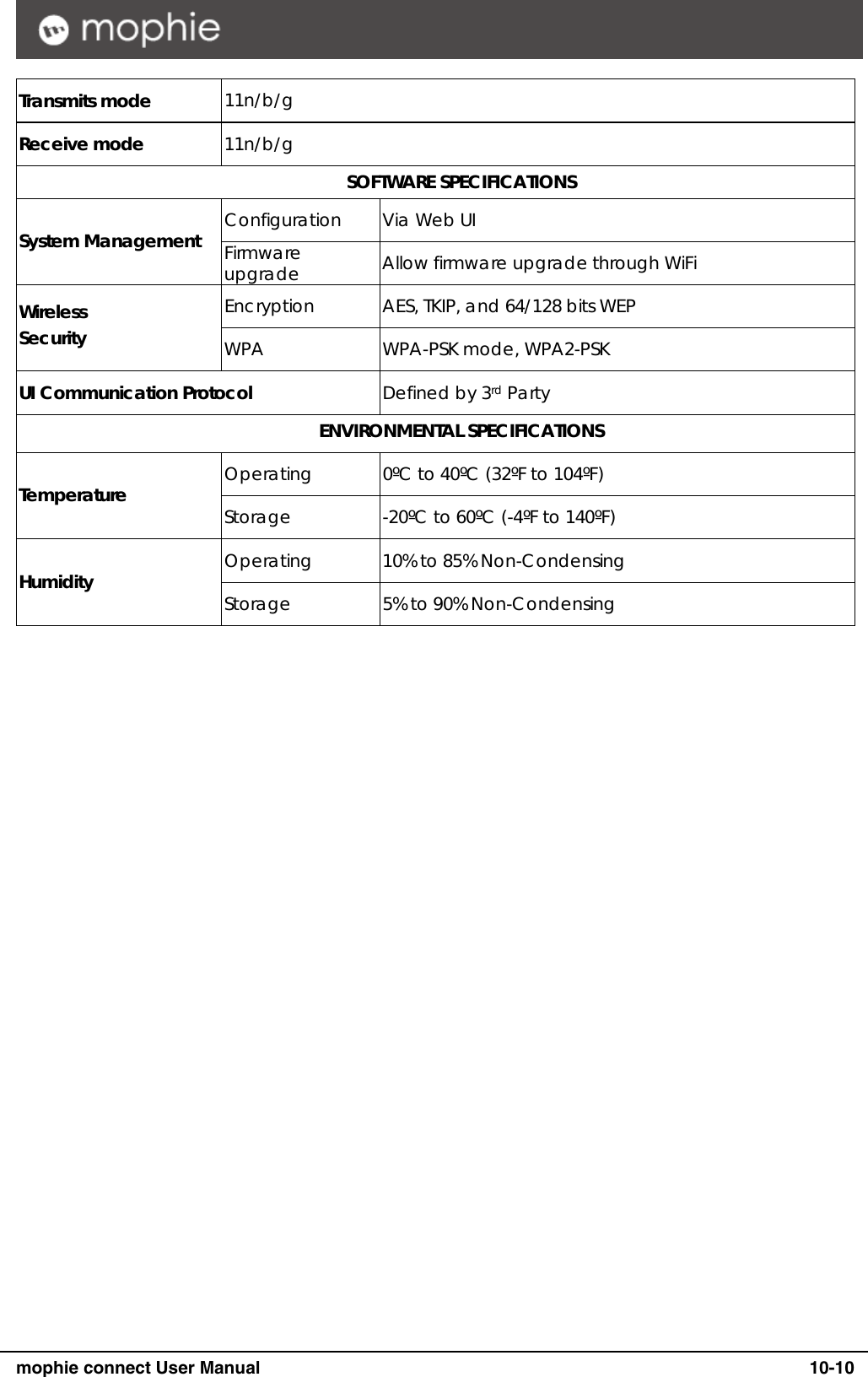
     mophie connect User Manual   10-10 Transmits mode  11n/b/g Receive mode  11n/b/g  SOFTWARE SPECIFICATIONS Configuration   Via Web UI System Management    Firmware upgrade  Allow firmware upgrade through WiFi Encryption  AES, TKIP, and 64/128 bits WEP Wireless Security  WPA WPA-PSK mode, WPA2-PSK UI Communication Protocol  Defined by 3rd Party  ENVIRONMENTAL SPECIFICATIONS Operating  0ºC to 40ºC (32ºF to 104ºF) Temperature  Storage  -20ºC to 60ºC (-4ºF to 140ºF) Operating  10% to 85% Non-Condensing Humidity  Storage  5% to 90% Non-Condensing

Navigation menu